
Domain name registration
Most things on the internet start with a domain name. If you don't already have one, the first step is to get it registered – provided it's available.
A domain name has two costs: registration and an annual fee. For .dk domain names, the annual fee is paid directly to punktum.dk (the .dk registry, formerly DK Hostmaster) – for international domains, we send you an invoice and take care of it for you.
Search for available domain names
Type the name you want – e.g. myshop.dk – and see whether it's available.
Our focus is the e-commerce platform
So that we can focus on developing and supporting the core of your online business – the platform – we're happy to leave a relatively simple service such as domain name registration to others.
Once you've registered your domain name, you can either:
- Point the website (your online shop) to the IP address we give you after installation
-
Set the name servers to ours:
ns.gpserver.dkns2.gpserver.com
We recommend choosing option 2 wherever possible and setting up all your DNS here. How to set up DNS with Golden Planet.
How to register with simply.com
simply.com is one of the providers offering low-cost domain names – presumably in the hope that you'll also buy web hosting or other services later ;)
The process is similar with other providers, but this guide shows you how to do it at simply.com. It uses their Danish site, so the button labels are in Danish, with English translations alongside them:
- Start by searching for your domain name on their site here (opens in a new tab).
-
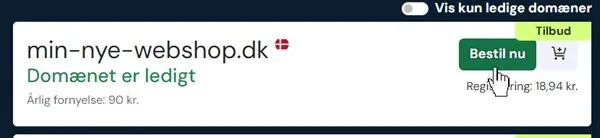
Click “Bestil nu” (Order now) next to the available name you've chosen.
-
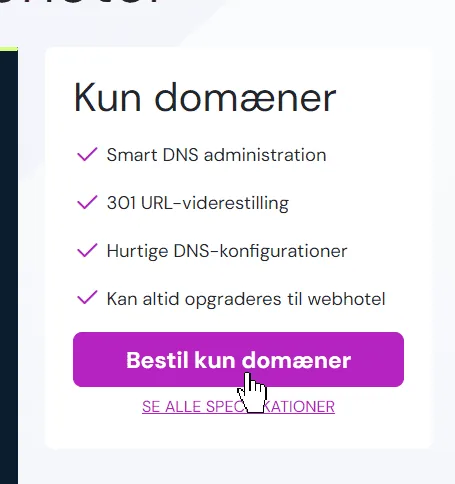
Choose “Bestil kun domæner” (Order domains only).
-
Enter your contact details and any other information required, then complete the order.
Changing DNS at simply.com
Once the domain name is registered, you'll get access to the customer control panel at simply.com.
You're welcome to send your login to our support team, and we'll make all the changes needed to set up DNS for your online shop here.
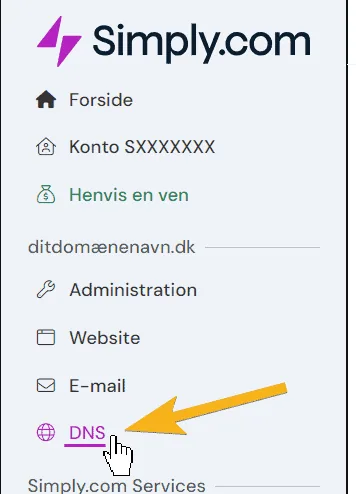
If you'd rather do it yourself, start by opening DNS management for the domain name in question in the control panel:
If you choose to use simply.com's name servers
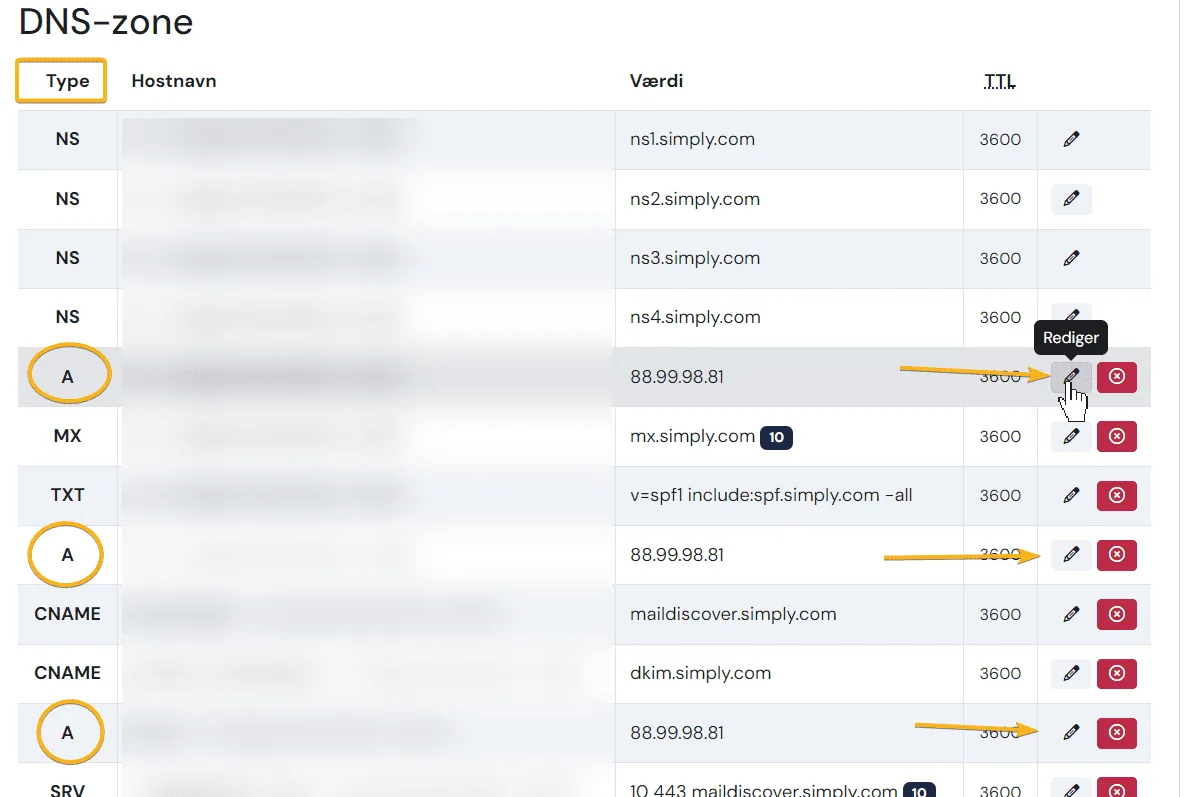
If you want to manage DNS from simply.com, you can point your website (online shop) to the IP address we send you when your shop is set up. If you're not sure what it is, just contact our support team.
You need to change the IP address in the 3 places where the type is A:
Edit the record of type TXT so that it also contains include:spf.goldenplanet.com – it could look like this:
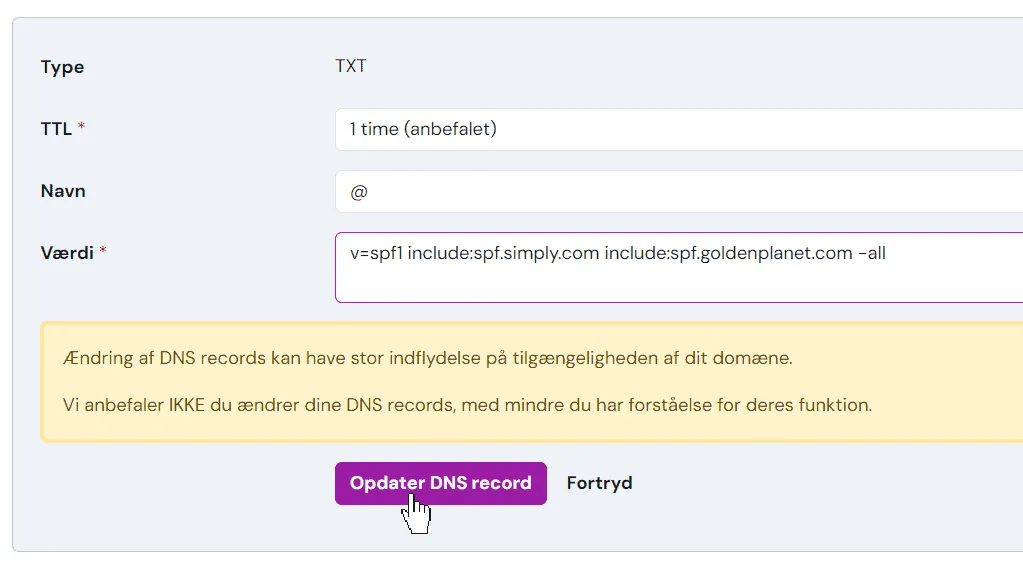
If you choose to change name servers
You can also switch to our name servers here at Golden Planet. The advantage is that we can always help you adjust and set up DNS.
Before you do this, any existing DNS settings for your email service etc. must be copied to your DNS at Golden Planet. As mentioned earlier: if you send your simply.com login to our support team, we'll gladly do it for you.
At simply.com, choose “Sæt navneservere” (Set name servers) in DNS management, below the list of records shown above:
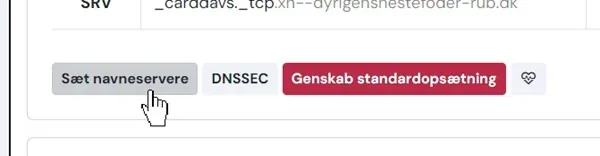
Enter ns.gpserver.dk and ns2.gpserver.com as shown here:
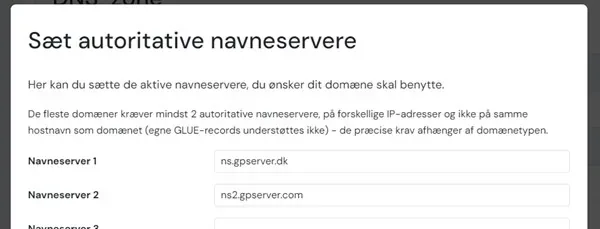
Click the “Sæt navneservere” (Set name servers) button.
Need help? We're always happy to help with DNS. Email us at support@goldenplanet.com, call +45 70 20 95 94 or use the chat at the bottom right when you're logged in to your online shop's admin (this also works with a demo installation).

Free demo – the first step to success with your online shop
No strings attached. Nothing to install on your computer. Ready in 5 minutes.