
Set the best price by monitoring your competitors’ prices every day.
On Google Shopping, for example, you get clicks at a lower price if you are among those with the best price.
Install the app
You find Price monitoring under Settings > Apps
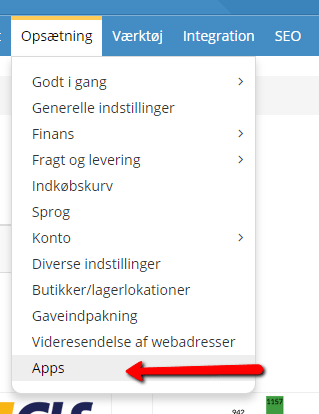
Then choose which module to install. Here you choose the one called “Price monitoring”.
Once it is installed, it is listed under Activated apps.
Choose your products
First you need to set up the products to be monitored.
You do this by going to Product catalogue > Categories and products, where you tick the products you would like to monitor prices for and choose to send them to App.
Please note that products with variants cannot be added, and that a maximum of 100 products can be added in total.
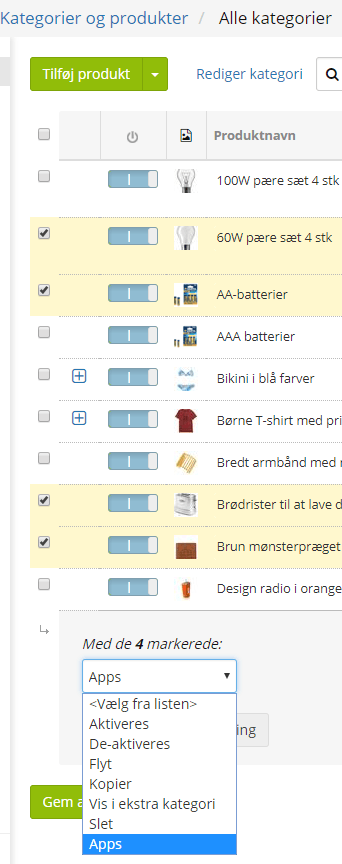
When you have chosen them, click the Send to Price monitoring button.
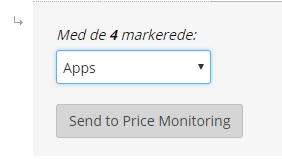
They are then sent over to the Price monitoring app.
See prices and add competitors
Go to Settings > Apps > Price monitoring
Click Price monitoring in the list of installed apps:
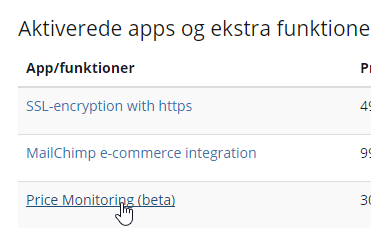
Here you can see a list of the products to be monitored. And here you can add your competitors by clicking the Add competitor button.

Here you enter a URL. It must be the path that links directly to the product page at your competitor. Please note that if you find your competitor’s products via Google, there may be “extra” information attached to the URL. It’s a good idea to remove this and use the direct link instead.
Then click Add, and you will see it in the list.

Please note that competitors that have more than 1 price are not valid, e.g. other price comparison sites.
Price position
Your price position is split into 6 levels:
– Cheapest
– Cheaper – less than -3% below the average
– Average – within +-3 of the average
– More expensive – more than +3% above the average
– Most expensive
– All equal – everyone is the same
Undefined – No competitors to compare with yet
Overview
Here is an overview of the options in Price monitoring.
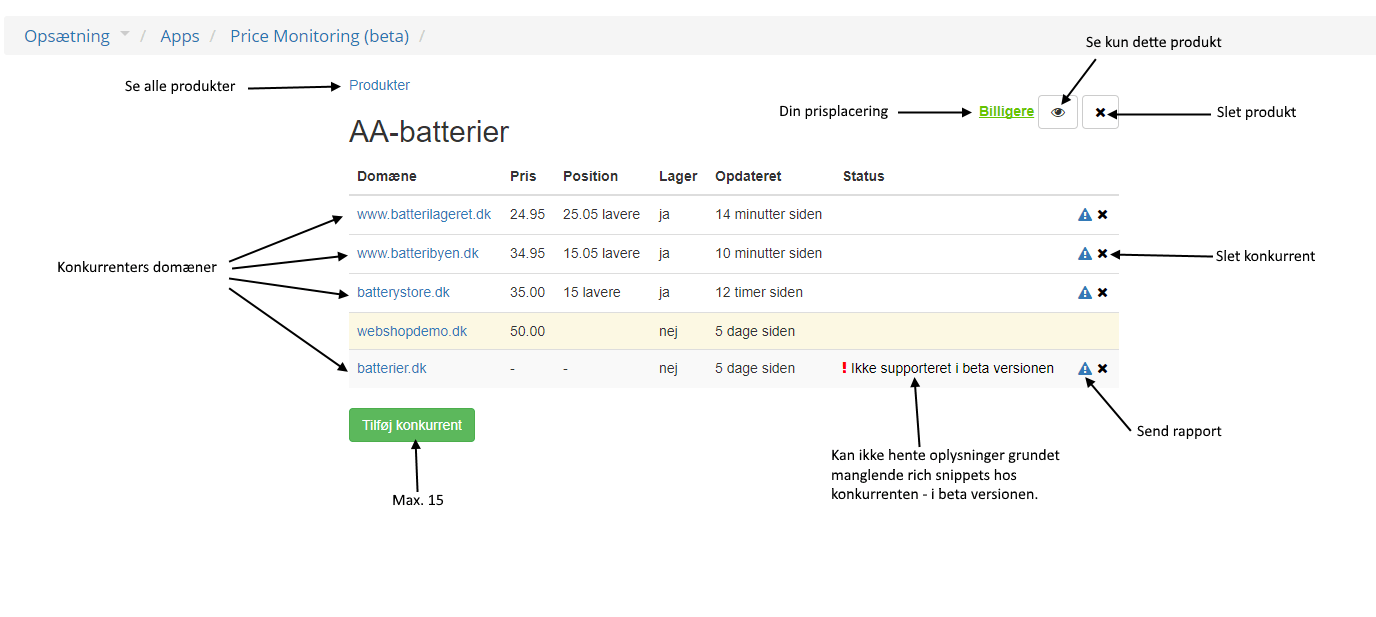
Read more at NetRadar.io
We have made a website for our service for monitoring competitors’ prices here at netradar.io (opens in a new tab)
There are no articles in this category yet.