
Here you can create pages with information you want to tell your customers about. This is also where, for example, your terms and conditions of sale are edited.
Creating new pages
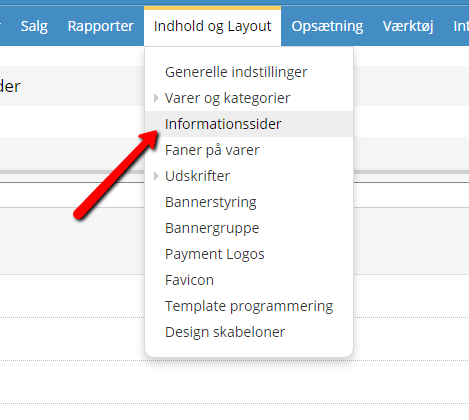
You find the information pages under Content and layout > Information pages – and in there you choose Add new page.
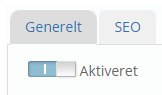
When you open a new page, you have two tabs at the top: General and SEO. This page covers the General tab. If you want to know more about SEO, you can find help in our SEO school.
At the bottom of this guide, though, there is a short description of one item on the SEO tab.
Activate page
For the information page to be published, it must be activated. It can be a good idea to keep it inactive while you write and build the page, and only activate it when you have finished and are happy with it.
Title
This is the heading of your information page. It is what should make the customer want to read what the page is about. Make sure it is understandable, clear and interesting.
Sort order
If you have several different information pages, in which order should they be shown? You can set the sort order here. The one with the highest number is sorted first.
Web address/link
Say you have a blog on another site that you would like to link to. Then the customer is taken to that site when they click the title you have entered. Remember that you must enter the full path, i.e. starting with http:// or https://
Description
Here you write the text that should appear on your information page. If you want to know more about how to format your text and insert images, you can read about the editor here.
Save your page
When you have finished writing, you can save by clicking Save. Remember that the page is only shown if it is activated.
Placing information pages
It’s not enough to write good content pages; they also need to be shown to your customers. With the layout tool you can place your content pages where you think they make the most sense for your customers.
First of all, open the layout tool, either by clicking Design at the very top and then choosing Layout tool, or by choosing Content and layout and then Layout tool.
When you are in the layout tool, you have lots of different options on the left. Under Elements you find the box called Information page links. You can move it onto your pages with drag and drop.
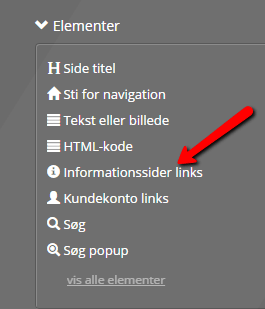
In most standard layouts, information page links are already at the bottom left of the footer. Then you only need to edit them and don’t have to move them.
Otherwise, links to information pages are normally either around the navigation at the top (the header) or at the bottom (the footer). But of course you can also choose to put them somewhere else.
The top and the bottom are mostly the same on most pages. If you want to add information page links there, choose Home page in the top left-hand corner and then drag the text Information page links to the place you want.
Once you have placed them, they need to be edited so they show exactly the pages you want. You edit them by clicking the little cog icon.
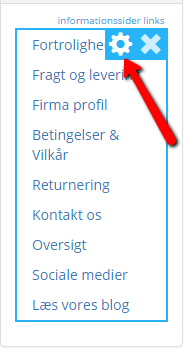
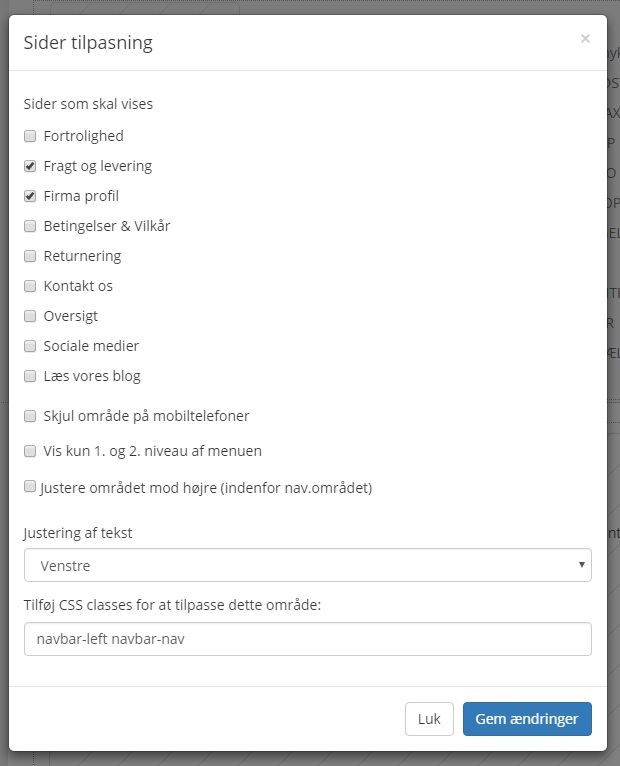
When you have clicked the cog icon, you can choose which pages you want to show. If you want particular ones shown, tick them. If none are ticked, all active information pages are shown.
You can also hide the area on mobile phones. If you have many links, they can disturb the experience on a small screen, and then you can choose not to show them.
If you have chosen to put your information pages in the top menu, you can choose to show only the 1st and 2nd level of the menu.
Here you can also adjust the text: should it be right-aligned, left-aligned or centred? Left-aligned is usually the most user-friendly.
If you know CSS, you can add code in the bottom field if you need to. But if you have no idea what that is, leave the field as it is.
Then click Save changes, and the window closes. BUT for the changes to take effect on the site itself, remember to click Save at the very top.
Category pages as information pages
You may want to show an information page in your menu, side by side with your product categories. You cannot place an ordinary information page in the menu, but there is a way to do it anyway.
You can do it by creating a category, filling in the title and description, and sorting it into the menu where you want it to be. As long as the category does not contain any products, it works just like an ordinary text page.
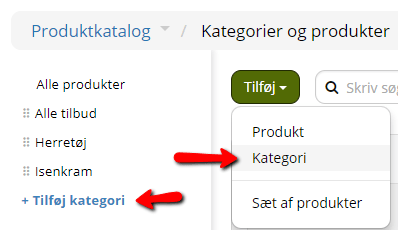
Go to Product catalogue > Categories and products. Here you either choose Add at the top and then Category, or click + Add category in the tree structure on the left.
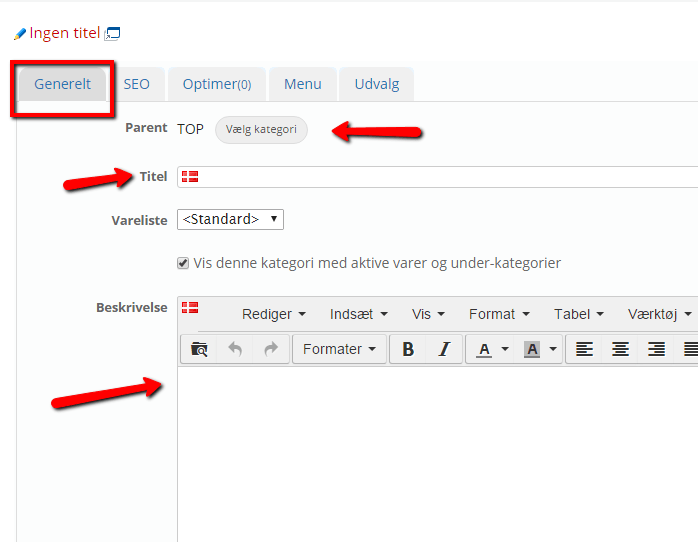
On the General tab, choose which category you want it placed under. Then give it a descriptive title. Product list has no function as long as there are no products in the category.
Show this category with active products and subcategories must be ticked for it to be shown in the menu.
In the description, you then write the text you want your customers to see. How to insert images, links and other things is shown on the page about the editor.
It is very important that you do NOT add any products to this category, as it will otherwise stop working as an information page.
Choose the web address yourself
When you have made an information page with a long title, it is not easy to remember – neither for you nor for your customers.
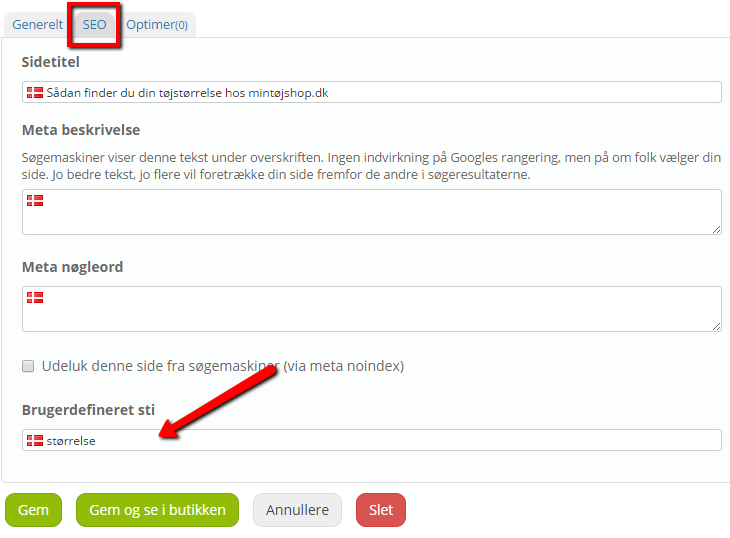
If you have a page title such as “How to find your clothes size at myclothesshop.com”, the URL will look like this:

But you can decide yourself what it should be called, so it becomes both shorter and a lot easier to remember – e.g.:

You do this on the SEO tab, by entering the title in Custom path.
There are no articles in this category yet.