In this category Discounts and discount types
Quantity discount
On this page
One way to attract customers to your shop can be with quantity discounts, and a quantity discount can also be used to keep your price competitive compared with your competitors.
Would you like to give customers 20% off if they buy 2 of a particular product, or give them €15 off if they spend €90? Then you can do it with a quantity discount.
You can exclude products that already have another type of discount, so the customer does not get a double discount.
A quantity discount can be created on a single product or across different products.
Creating a quantity discount across products
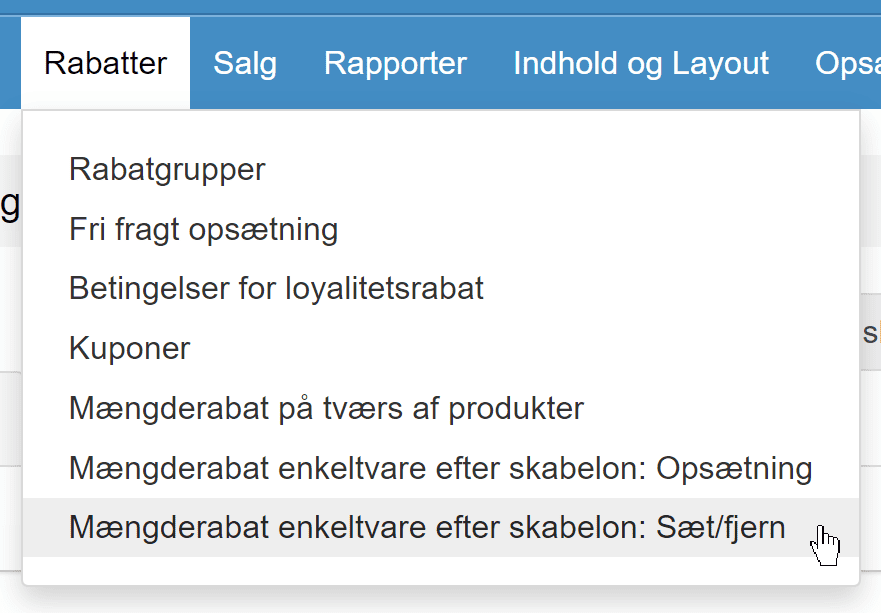
To create a quantity discount covering several different products, go to Discounts > Quantity discount in the admin.
In here, click Add new quantity discount.
Discounts
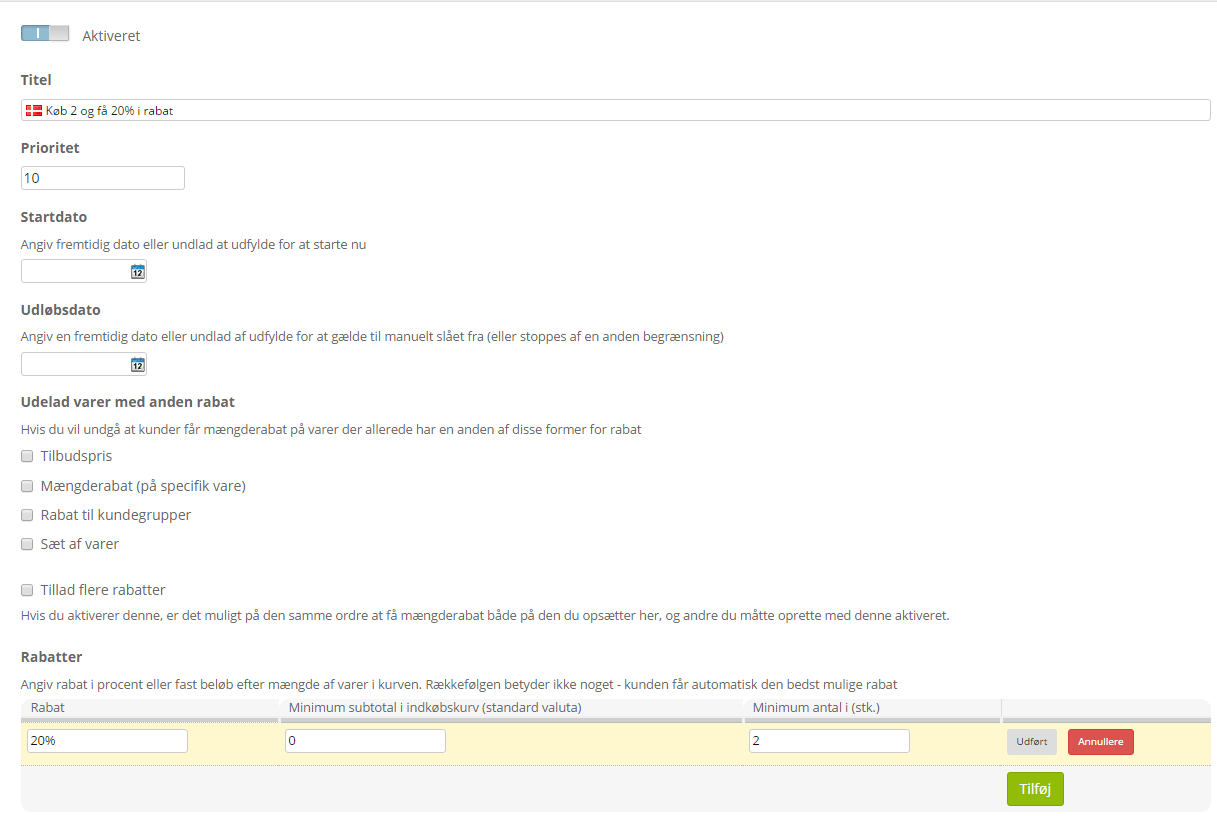
Which discount should the customer get? It can be either a percentage or a fixed amount.
Click Add and enter the discount (e.g. 20% or 15), and whether it should apply when buying for a certain amount (e.g. 70) or for a number of items (e.g. 2).
Click Done when you are happy with it. If you want to add more discounts – e.g. 30% when buying 5 of a product – you can click Add again and create another one.
If a customer can qualify for several discounts
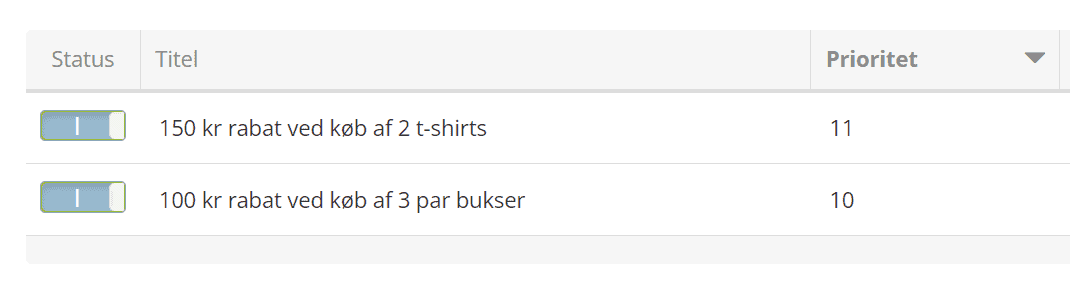
If you give €15 off when buying 3 pairs of trousers and €20 off when buying 2 T-shirts, you need to decide whether the customer should get both quantity discounts or one of them.
If it should be one of them, give the preferred one the highest value in the sort order:
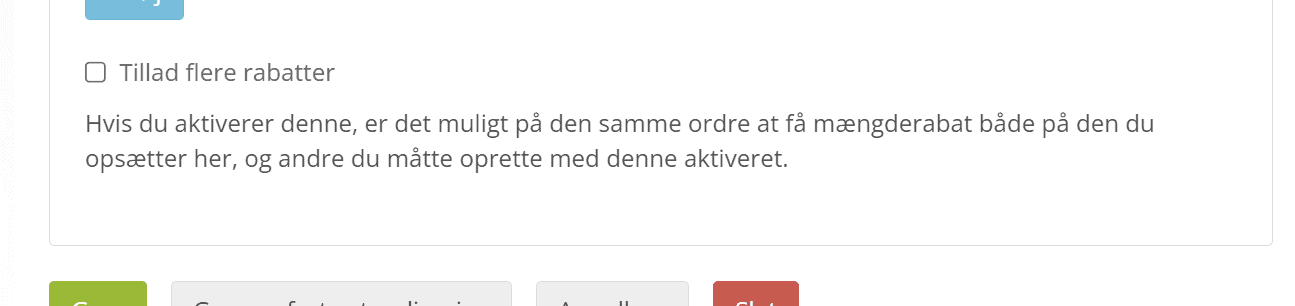
If the customer should have the pleasure of both discounts, go to the Other settings tab on all the quantity discounts concerned and turn on this option:
Creating a quantity discount on a product
To create a quantity discount on a single product, go to Product catalogue > Categories and products in the admin and edit the product.
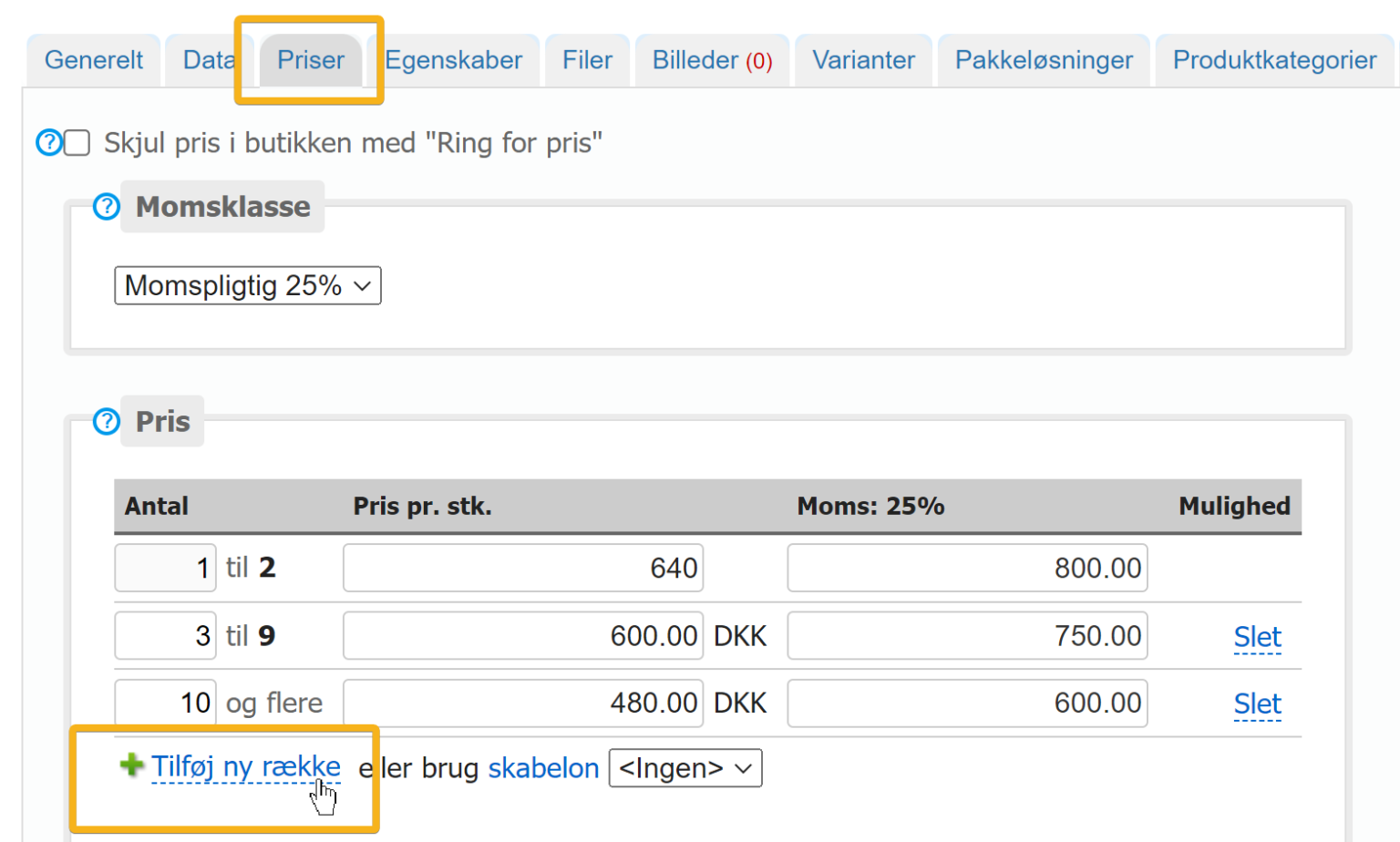
In here, click the Prices tab.
You can now enter the quantity and the discounted price, split into levels. For each new level, click Add new row.
Templates for the same quantity discount
Here we take the automation of prices a step further.
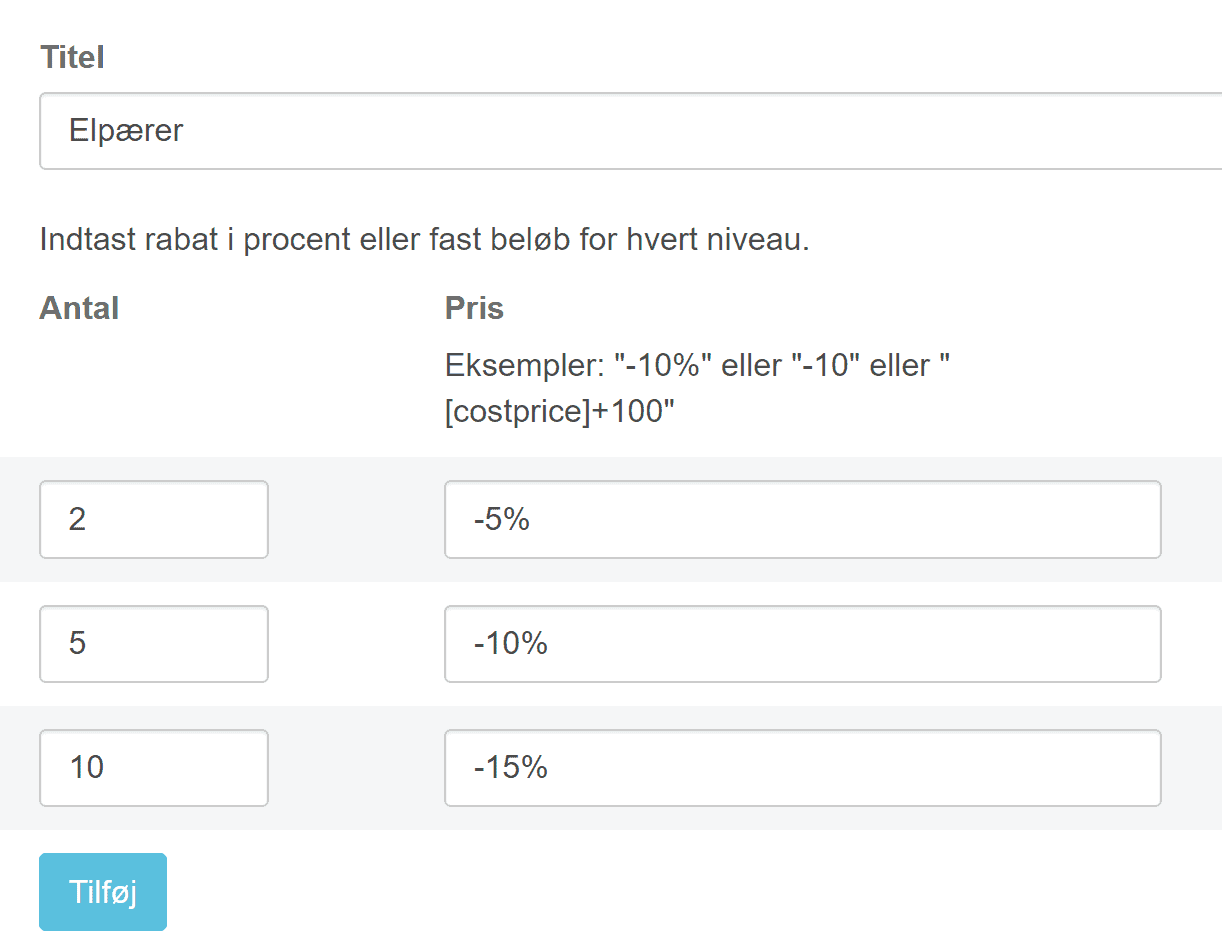
When you have many products where, for example, you get 10% off when buying 5 and 15% when buying 10 or more – you no longer need to edit every single product and the quantity discount field like this:
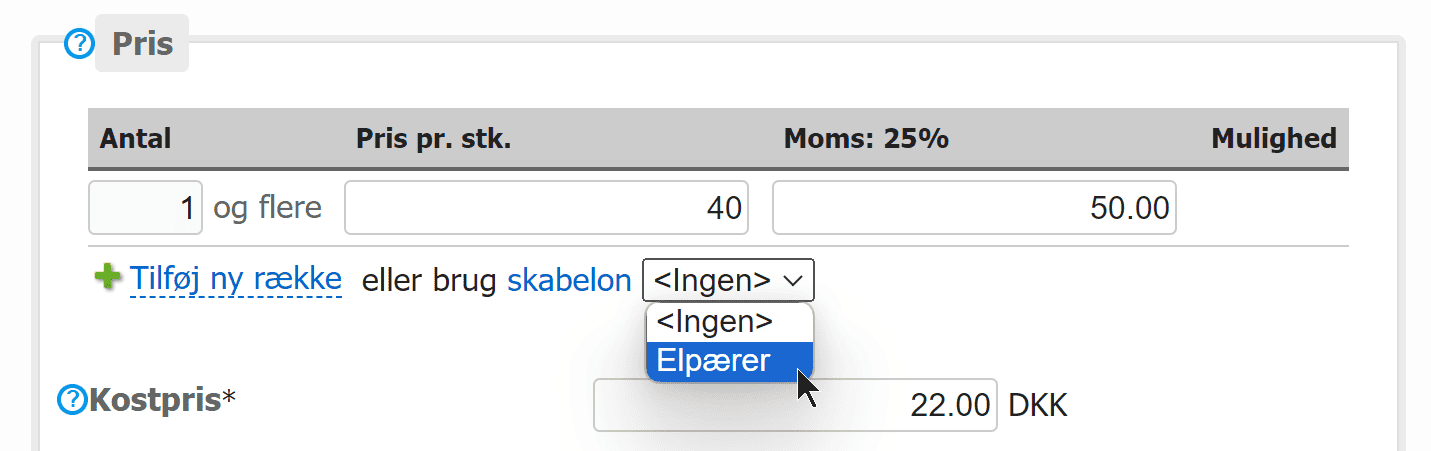
Instead, you can now create a template. It could be “Multi-buy prices light bulbs” – and then all products in the category can get those quantity discounts. If you then decide that customers should buy 4 instead of 5 to get the 10% off, you can change it in one place in about 10 seconds.
You can choose the template on the individual products, as here on the Prices tab
The template can give a discount as a fixed amount or, as here, as a percentage – so the prices for several items are updated automatically when you change the price for one:
We have also made a feature for applying a template to many products, which you find via the menu in your shop admin