
In this category Newsletters
Integration with Campaign Monitor
On this page
Introduction to Campaign Monitor
Campaign Monitor is a web service that lets you send attractive newsletters with images and design, and its statistics give you a good overview of the effect of your newsletter. It isn’t free, but it offers some inexpensive options if you don’t have that many recipients (yet).
With the integration between your Golden Planet online shop and Campaign Monitor, you can export newsletter subscribers who have signed up in your online shop to Campaign Monitor.
To integrate with Campaign Monitor, you need to create an account at http://www.campaignmonitor.com/ (opens in a new tab) and have a plan that includes the integration.
The online shop needs two keys, an API key and an API Subscriber List ID; this guide describes how to find them in Campaign Monitor and where to enter them in your online shop.
1: Create an account with Campaign Monitor
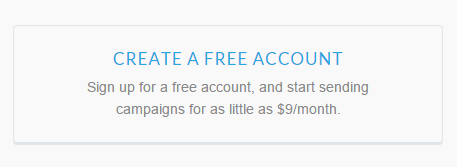
You need to have created an account with Campaign Monitor, which is easy, as you are guided through the whole process. Go to campaignmonitor.com (opens in a new tab) and click either Sign up or Create a free account.

2: Create a list
Once you have created your account, you need to make a list for your newsletter recipients.
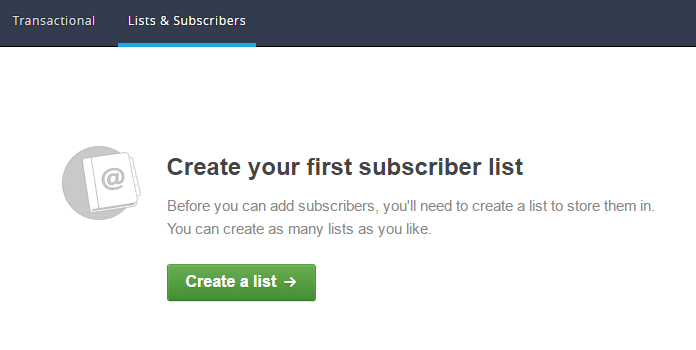
You do this by choosing Create a list under Lists & Subscribers in the top menu.
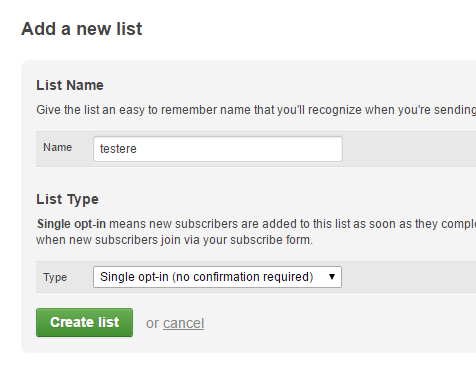
Then you name the list, choose what type of list it should be – and click Create list.
Your list is now ready, and you can start finding newsletter recipients for it.
3: Integrate your online shop with Campaign Monitor
To integrate the newsletter recipients from your online shop with Campaign Monitor, you need two pieces of information: the list ID and the API key.
You’ll find both in Campaign Monitor.
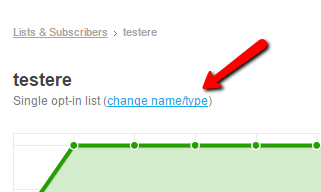
You find the list ID by going to Lists & Subscribers and then choosing the name of the list you want your recipients to end up in.
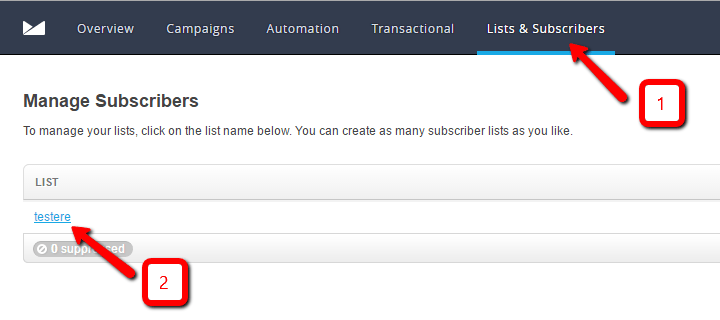
Then choose change name/type, just below the list’s name.
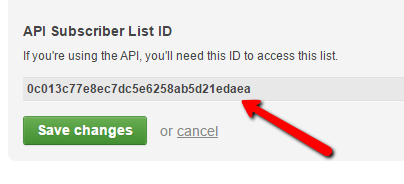
You can then see your list ID, which you need to copy into your online shop.
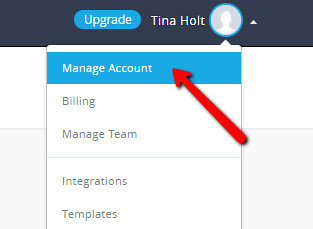
You find the API key by clicking your username in the top right corner and choosing Manage Account.
Then click API Keys in the list that appears.
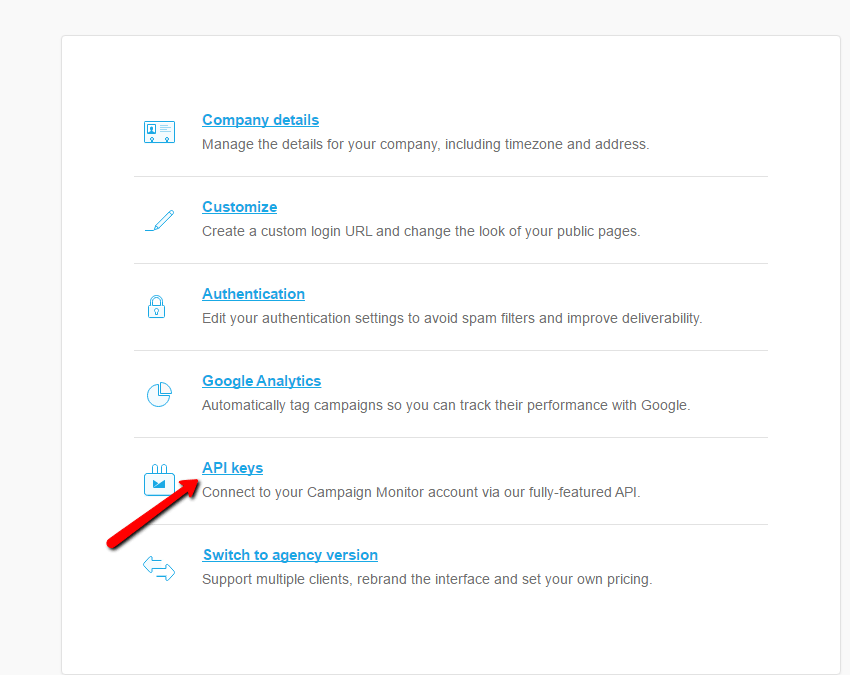
If you have verified your account, you will then be able to choose Show API Key. It’s the long code that appears that you need to copy into your online shop.
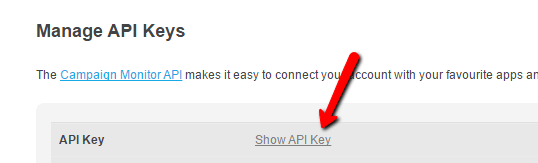
Now you need to enter your list ID and your API key in your online shop.
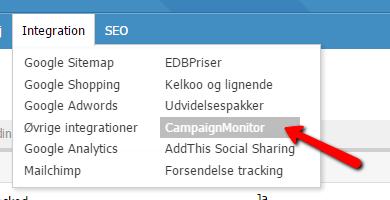
In the admin, choose Integration > Campaign Monitor.
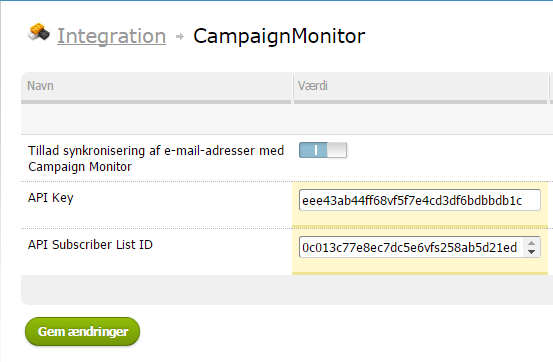
Here you enter your list ID and your API key in the fields for them. Activate the integration and click Save changes. You’re then ready to transfer your newsletter recipients to Campaign Monitor.
4: Transfer newsletter recipients from the online shop to Campaign Monitor
It takes no time at all to transfer your recipients to Campaign Monitor, and to update it with new sign-ups later.
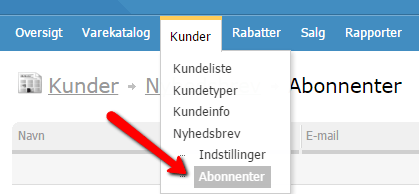
In the admin, go to Customers > Subscribers. Here you click the Send to Campaign Monitor button. And hey presto – they have been transferred.
You then need to remember to do this every time you’re going to send a newsletter to your recipients.

More help with Campaign Monitor
You can go to Campaign Monitor’s support section here (opens in a new tab), where you can get more help with setup, pricing and integration.