
In this category Newsletters
Klaviyo
On this page
With Klaviyo you can target emails at your (potential) customers based both on what they have shown an interest in and on what they have already bought.
Many people will weigh it up against Mailchimp. See a comparison here:
 Play video: Klaviyo vs Mailchimp | Best email marketing platform for ecommerce 2022 (opens YouTube)
Setting up the Klaviyo integration
To use the Klaviyo integration, you need the Enterprise plan. Contact support to upgrade.
There are 3 parts to the integration with Klaviyo
- Product feed
- Front-end tracking of visitors’ actions
- Server-side tracking of orders
1: Product feed
You create the product feed via the Tools menu item
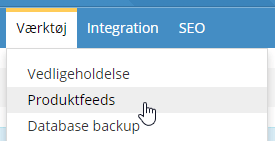
Add it as an XML product feed. See also our general guide to product feeds here.
As the template, we suggest using this one:
<?xml version="1.0"?>
    <Products>
        {% for product in products %}
            <Product>
                <id>{{ product.article_id }}</id>
                <title>{{ product.title }}</title>
                <description>{{ product.description }}</description>
                <link>{{ product.link }}</link>
                <image_link>{{ product.image_link }}</image_link>
                <inventory_quantity>{{ product.quantity }}</inventory_quantity>
                <categories>{{ product.category }}</categories>
                <price>{{ product.price }}</price>
                <sale_price>{{ product.sale_price }}</sale_price>
            </Product>
        {% endfor %}
    </Products>
2: Front-end tracking of visitors’ actions
You set up front-end tracking via Other integrations:
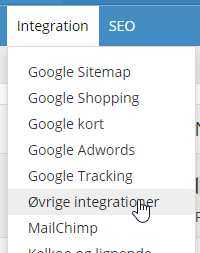
Click the Add new Other integrations button at the bottom of the page.
We have made a standard tracking script for Klaviyo that you can use as a starting point or as it is – just click the button
Fill in your Your Public API Key / Site ID and click OK
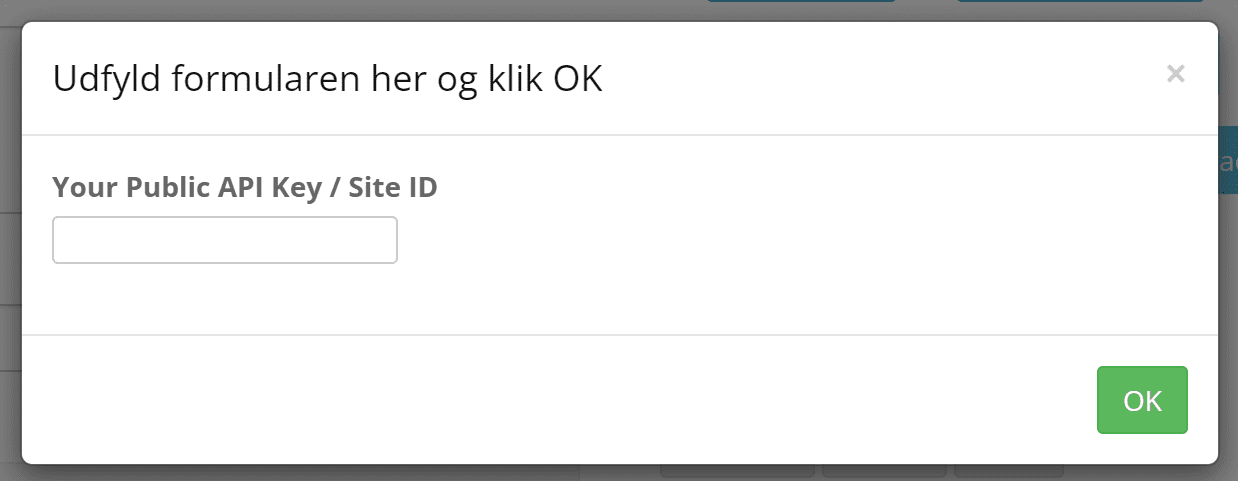
Click Save at the bottom, and your front-end tracking script is ready.
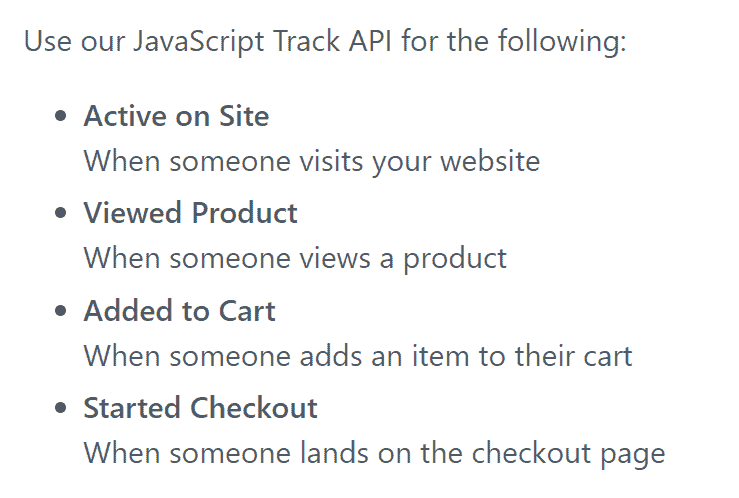
Here is what front-end tracking consists of, according to Klaviyo:
3: Server-side tracking of orders
Server-side tracking sends order information to Klaviyo via the API. This part requires an Enterprise or Server licence for your Golden Planet online shop.
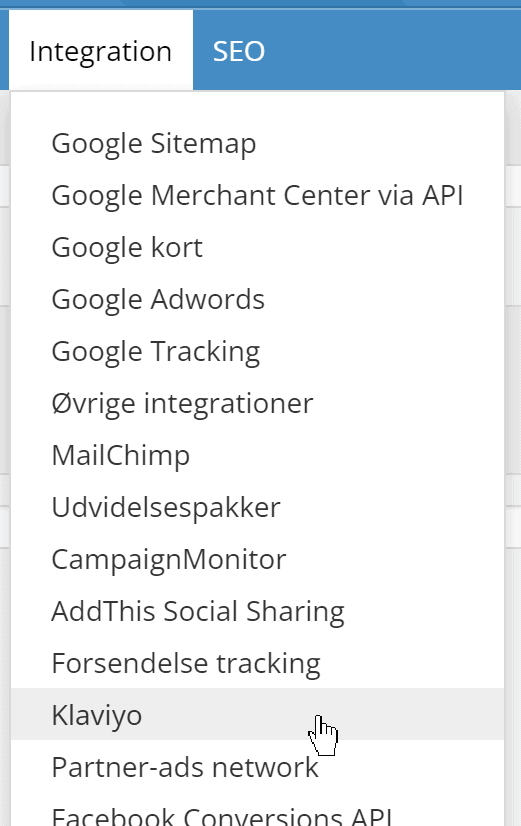
You’ll find it under the Integration menu item
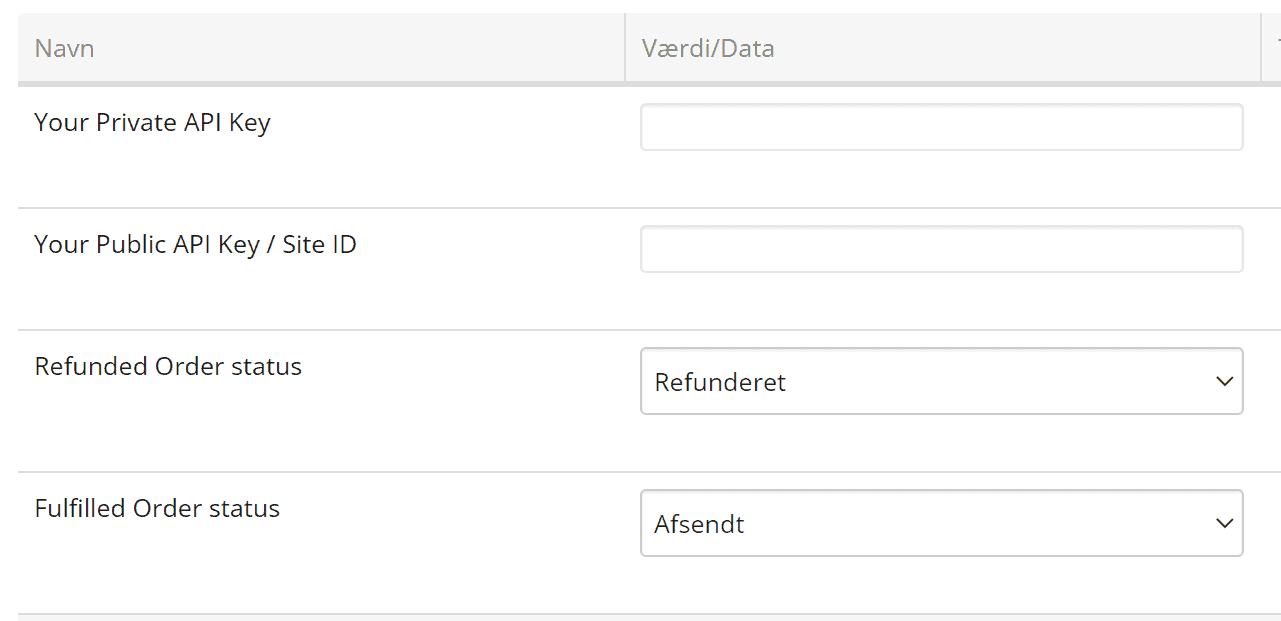
Here you enter your Klaviyo API key and Site ID. You also need to state which order status you use for cancelled orders and for completed (dispatched) orders – see also more about order status setup here.
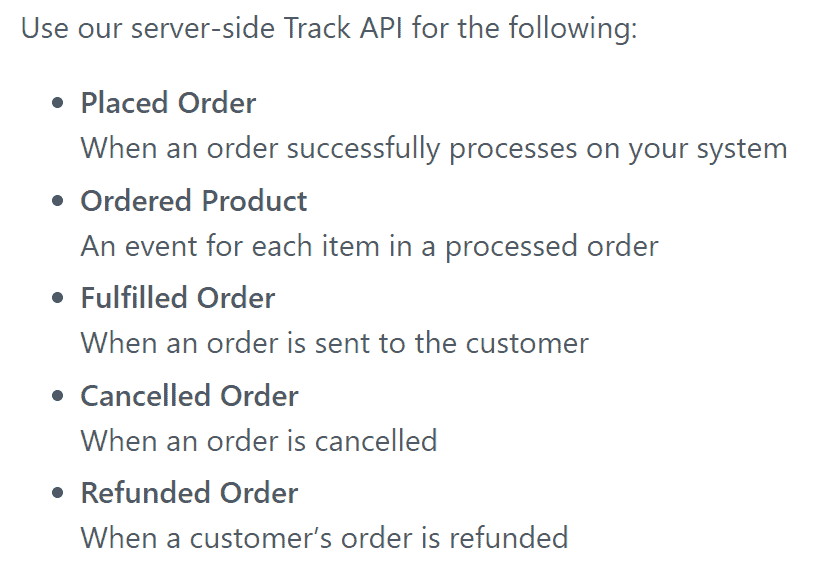
Here is what their server-side tracking consists of, according to Klaviyo:
4: Synchronising subscribers
Customers who sign up for the newsletter in your online shop (e.g. via My account or when they complete an order) can be transferred to a list in Klaviyo.
Sign-ups to the same list are also transferred from Klaviyo to the online shop.
Unsubscribes in the online shop are likewise removed from that specific list in Klaviyo, but not from any other lists in Klaviyo. So, as a rule, you should have an unsubscribe link in Klaviyo on everything you send from there.
Klaviyo has no standard way of removing unsubscribed contacts via a webhook. So unsubscribes are not carried over to the online shop. That doesn’t matter as long as you only send from a list in Klaviyo, but it is important if you want to send from other systems or decide to switch to something else (in that case, lists must be based on an export from Klaviyo and not from the online shop – or the online shop must be updated from the lists in Klaviyo).
Insert the list ID
Go to Lists & Segments in your Klaviyo and click List settings for your list of newsletter recipients
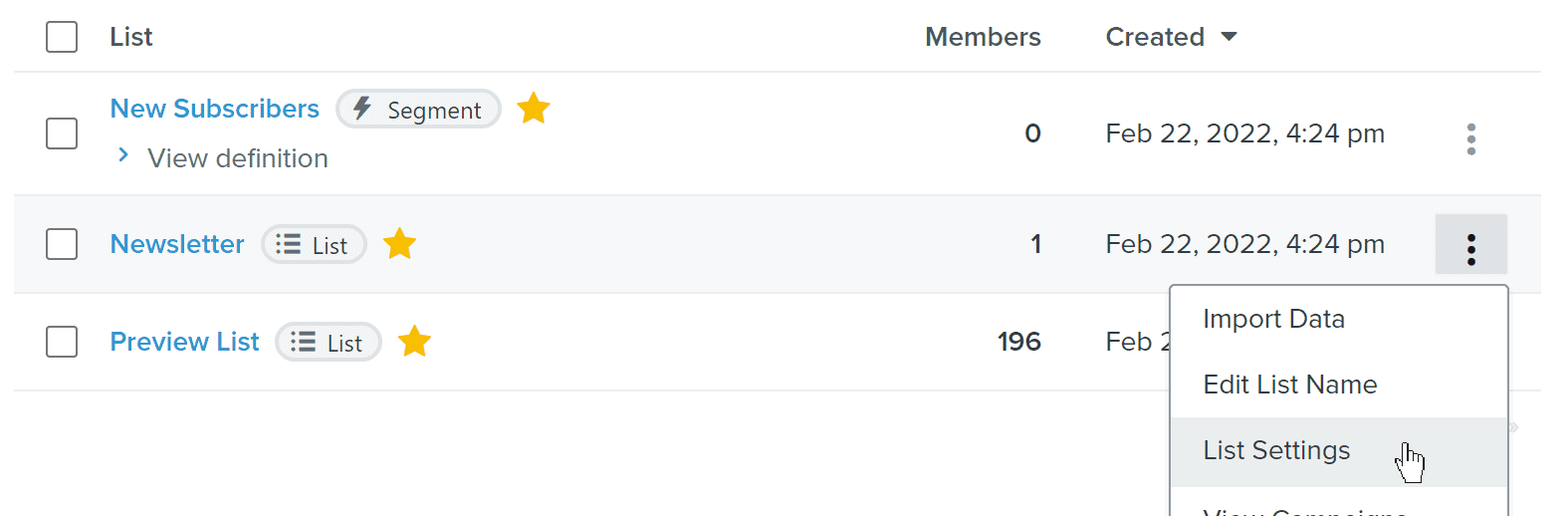
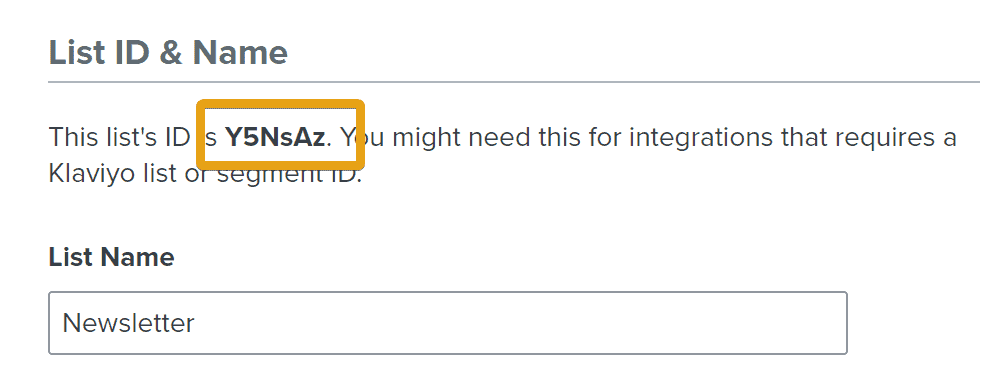
Copy the list ID at the top – you’ll find it here
Paste it into the Klaviyo settings for your Golden Planet online shop
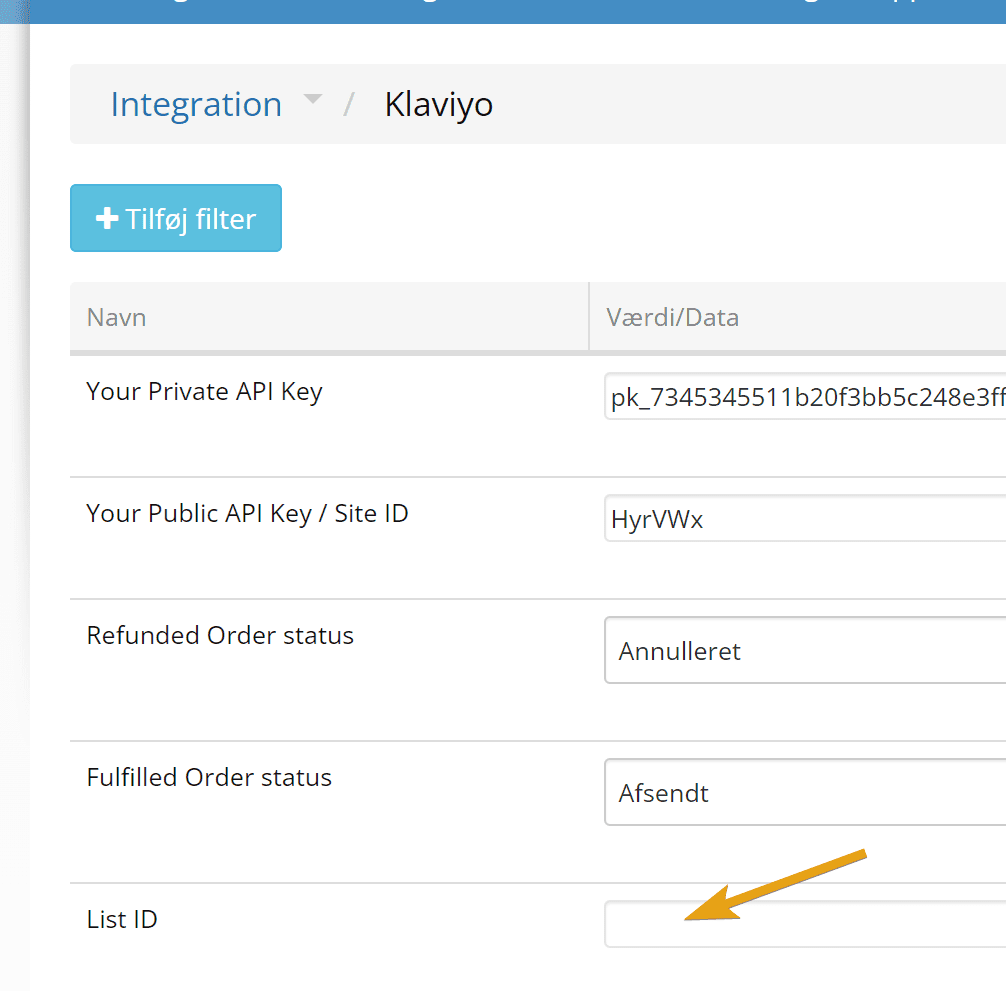
Remember to save the changes.
Create a flow in Klaviyo
Go to Flows in your Klaviyo and click Create Flow
Then click Create From Scratch
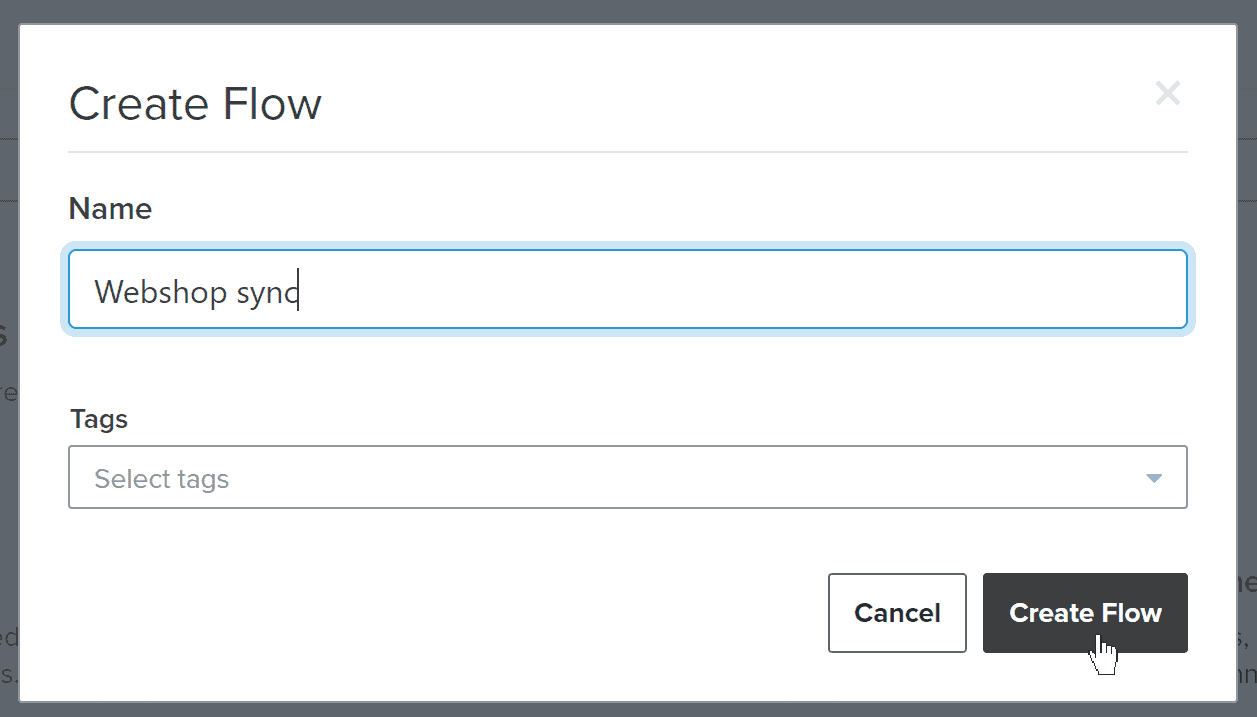
Give your flow a name and click Create Flow
Click the List trigger setup
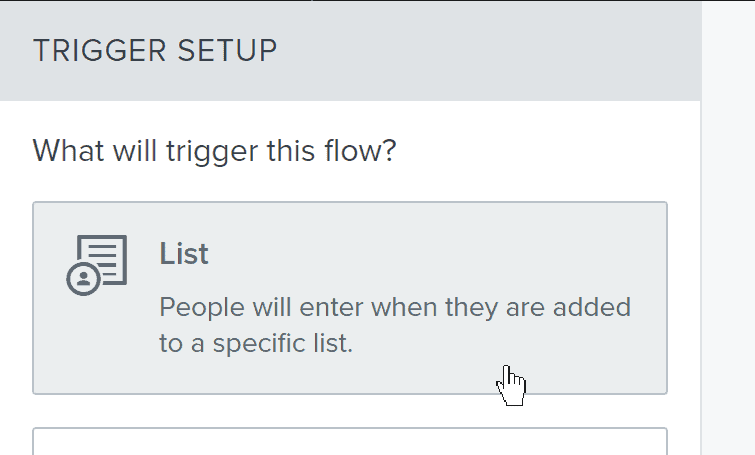
Choose the list with your newsletter recipients (the list you copied the list ID from earlier)
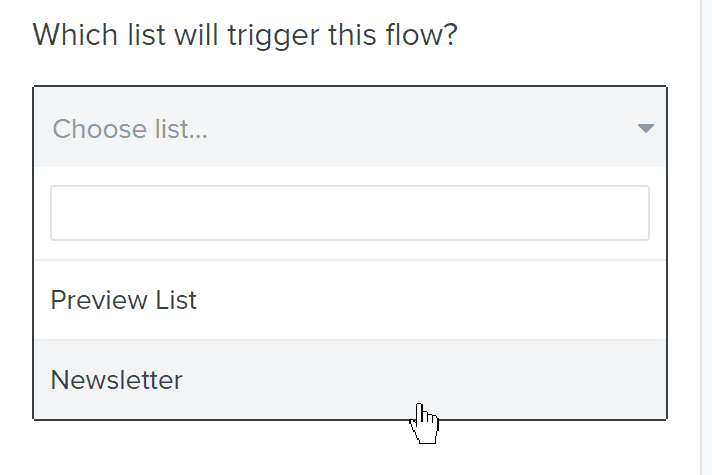
Click Done
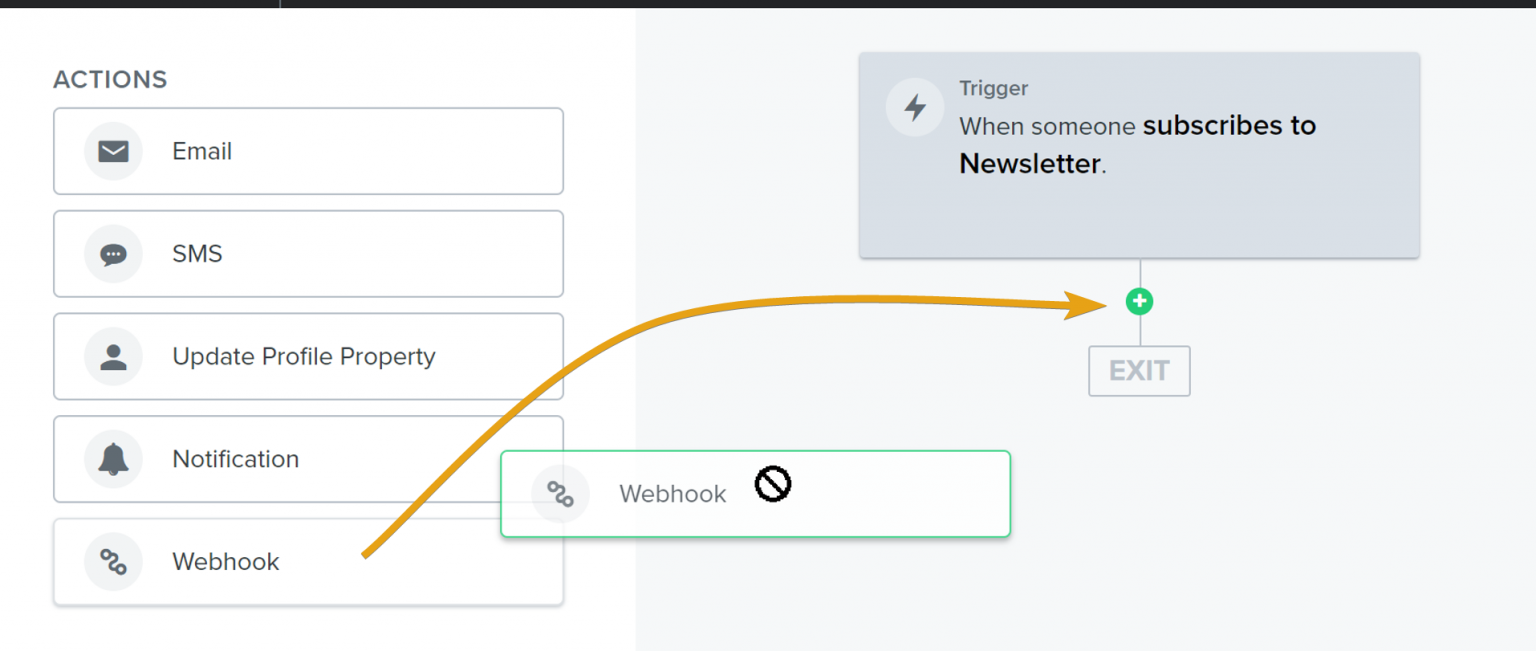
Now add a Webhook to the trigger by dragging it with your mouse and dropping it on the plus sign
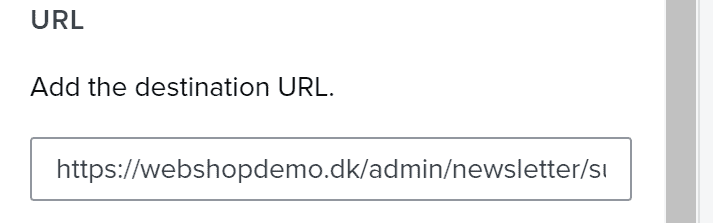
Enter the destination URL as the web address of your shop + /admin/newsletter/subscribers/pingback-subscribe/klaviyo
If your online shop is at https://webshopdemo.dk, the full URL is https://webshopdemo.dk/admin/newsletter/subscribers/pingback-subscribe/klaviyo
Under Headers, first fill in the Key field with “Authorization”
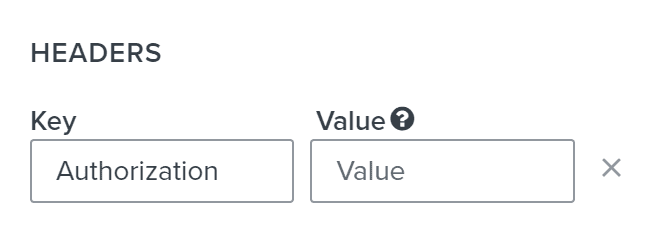
What goes in Value you’ll find in your online shop, where you go to the list of subscribers
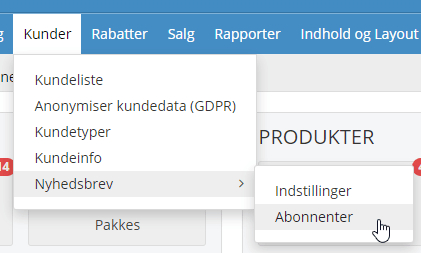
At the bottom of the page, copy the authorisation code shown in highlighted text

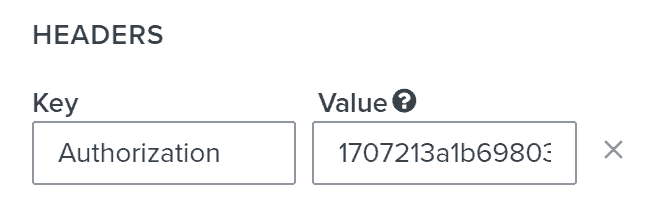
Paste it in as Value
Under JSON BODY, remove what is there and insert this piece of code:
{
"email": "{{ person.email }}",
"first": "{{ person.first_name|default:'' }}",
"last": "{{ person.last_name|default:'' }}"
}
When filled in, it will look like this
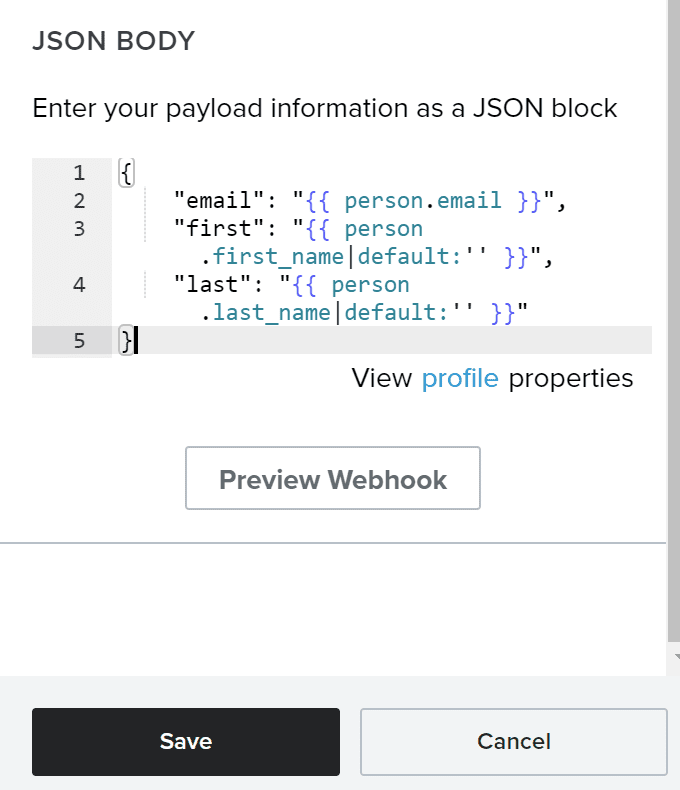
Save the setup by clicking Save
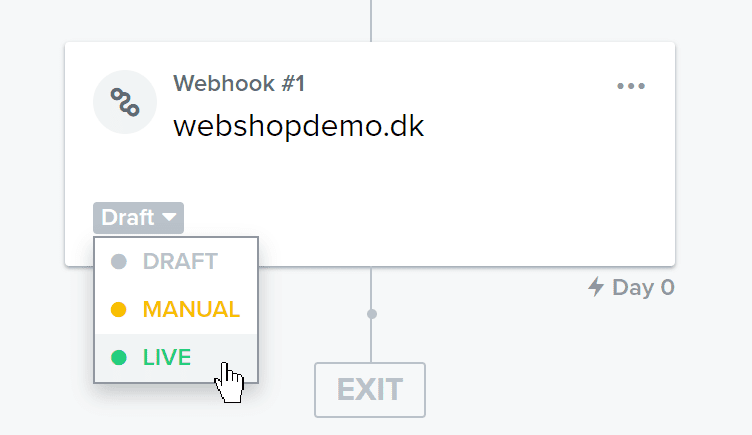
Your flow is now ready, and you can start it by changing its status to Live
If the online shop shouldn’t send newsletter confirmation and/or welcome emails
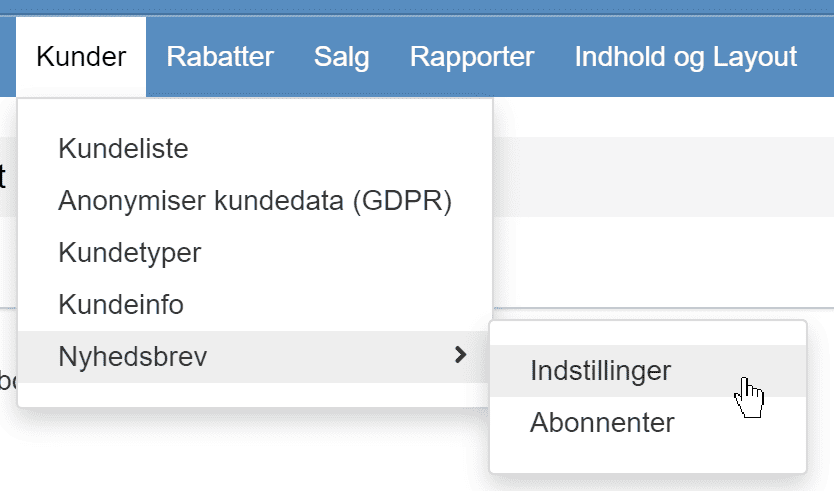
In the newsletter settings in your online shop
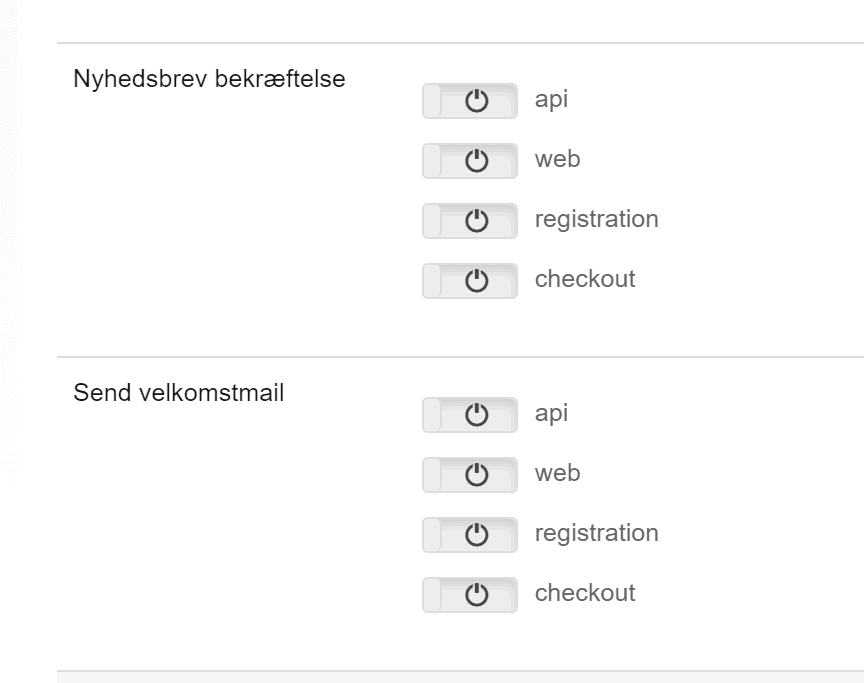
you can switch off the online shop’s sign-up confirmation email and/or welcome email, if you want to run that part from Klaviyo too
Transfer existing subscribers from the online shop to Klaviyo
If you have active newsletter recipients in your online shop before Klaviyo is connected, you can transfer them by exporting/importing a CSV file.
Export subscribers from the online shop
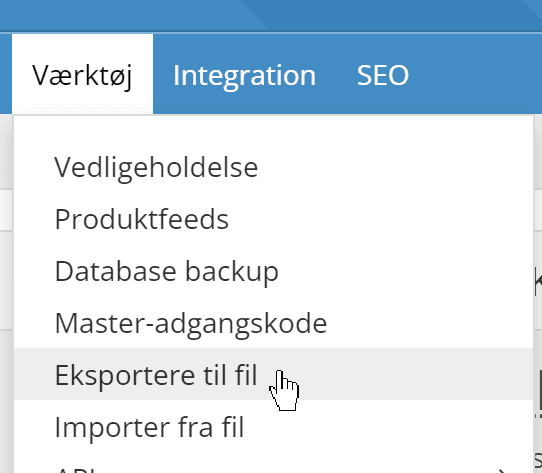
Go to Export to file
Choose Subscribers and then Active subscribers
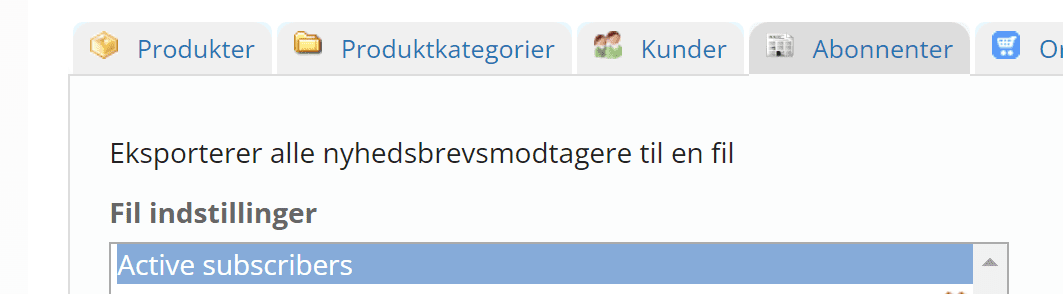
Click the Export to file button
When the export is finished, click the file name to download it. See also more here about exporting files.
Please note that the online shop exports the full name. If you want to import the first name on its own, split that column and take out the first name before you import.
Import subscribers into Klaviyo
Go to Lists & Segments
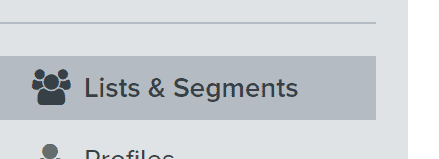
and click the name of your list.
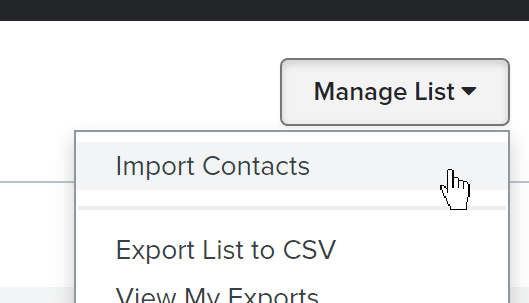
Then click Manage list and, under it, Import contacts
Carry out the import by matching the email and name columns, plus any other columns you want. You’ll find Klaviyo’s guide to importing here. (opens in a new tab)
Abandoned basket integration
With Klaviyo you can send an email to people who have visited your online shop and put something in the basket – but not completed an order.
A reminder that they may have forgotten to complete the order can be sent automatically some time after they were last seen in the shop. This reminder is sent to those who have signed up for the newsletter and for emails from your online shop and who, of course, were recognised by Klaviyo during the visit.
For this to work, the ID of the basket in your online shop has to be sent. You do this by adding a parameter for it, like this:
Go to Integration > Other integrations
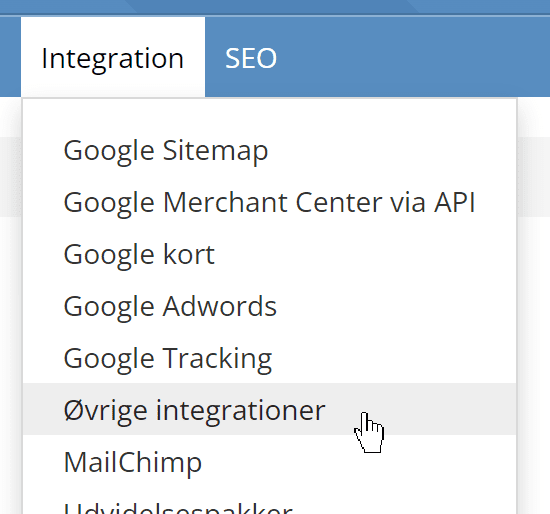
Find your Klaviyo tracking in the list and click Edit next to it.
Find this place in the tracking code (by default it’s at the end):
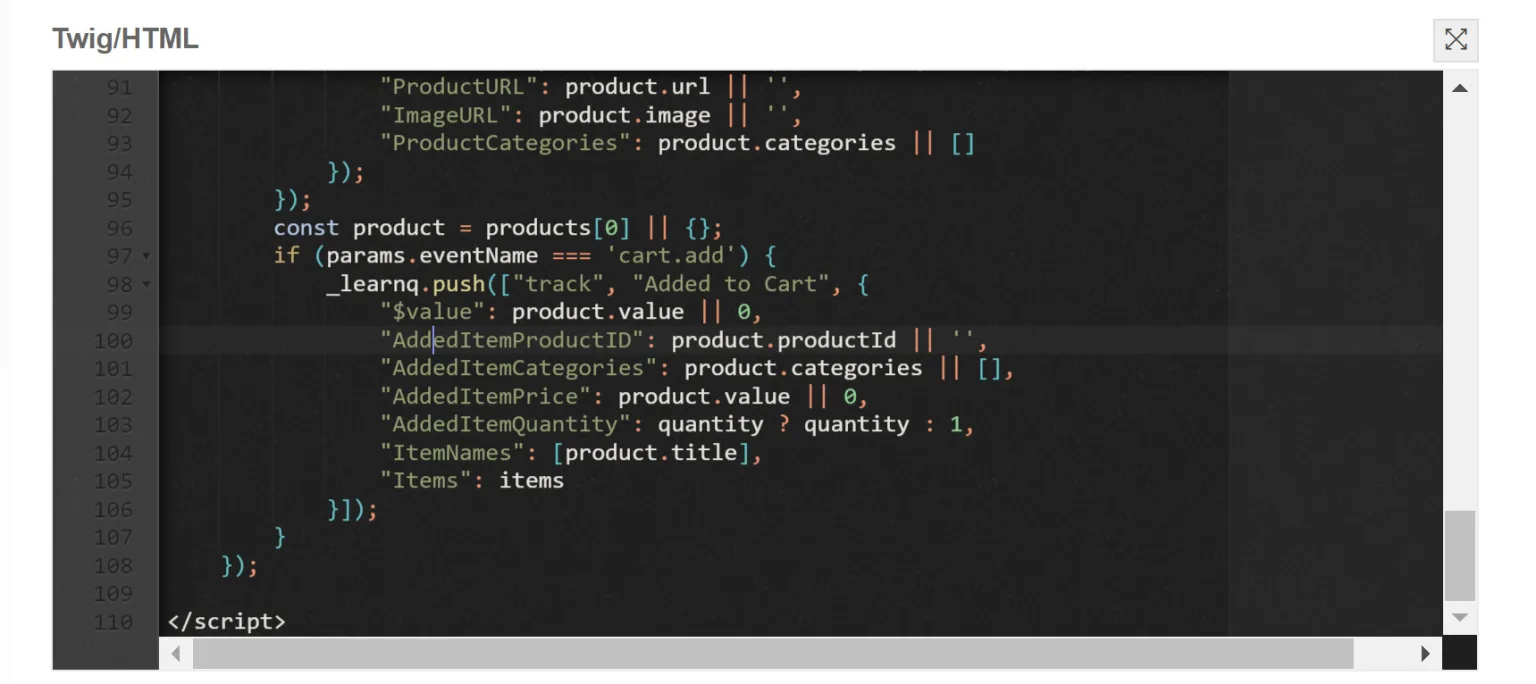
Now insert this line
"BasketId": params.eventTrackingData.linkToCart,
so that it becomes this instead
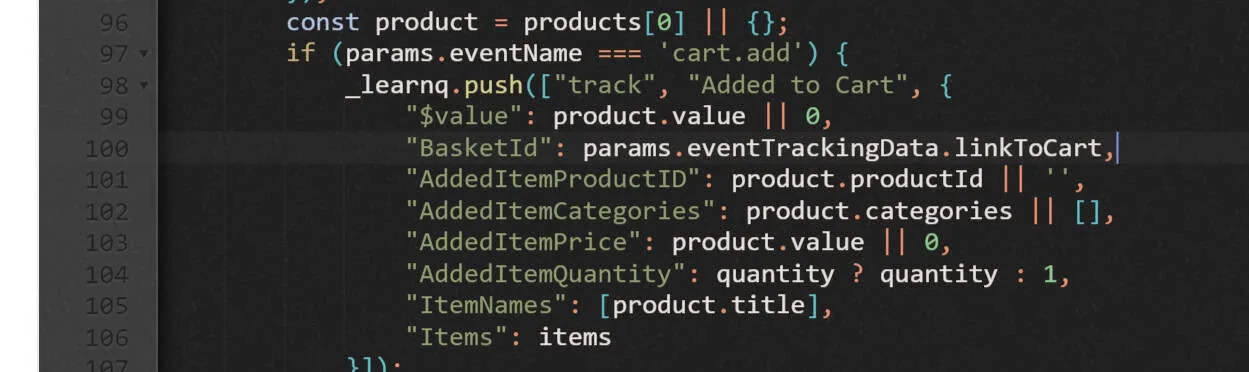
Click Save at the bottom.
That was the online shop part – you set up the rest in Klaviyo.
Read more about how to do the setup in Klaviyo here (opens in a new tab)