
In this category Newsletters
Newsletters with Mailchimp
On this page
Introduction to Mailchimp
Mailchimp is among the world’s leading (and largest) providers of email newsletters.
Some of its advantages:
- Relatively easy to use
- Lots of features
- Lots of good design templates
- Optimised for many email programs
1: Create an account with Mailchimp
Creating an account with Mailchimp is very easy. Just go to mailchimp.com (opens in a new tab) and click Sign Up.
2: Create an audience/list or use an existing one
When your account is ready, a mailing list (which Mailchimp calls an audience) has been created by default, and this is where your newsletter recipients will go.
You can also create a new audience – see how in Mailchimp’s guide (opens in a new tab)
If you use an existing list:
- If it already has subscribers, they should be imported into the online shop before the integration is set up.
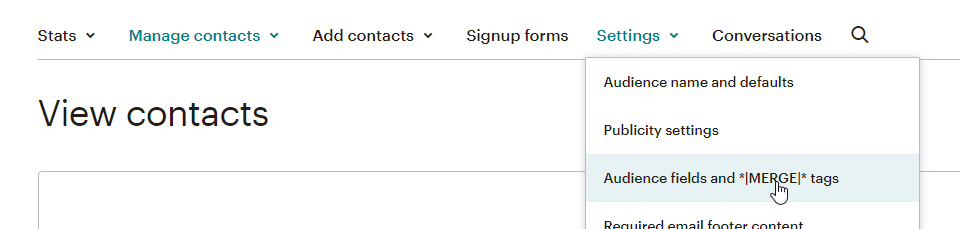
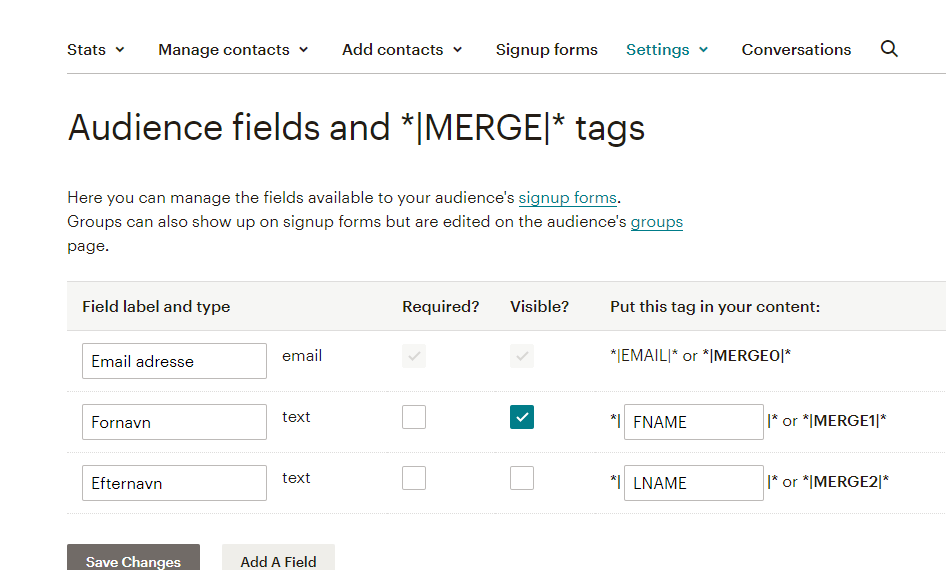
- It’s important that you have the standard fields first name and last name, and that no fields other than the email address are set to Required.
You can check the latter here, in your audience under Settings:
A standard setup that will work with the integration of first name and last name looks like this:
3: Integrate your online shop with Mailchimp
To integrate Mailchimp, you need two pieces of information from Mailchimp: the audience/list ID and an API key.
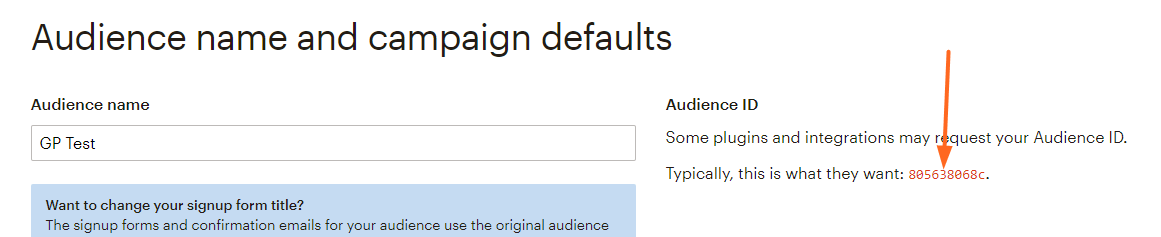
You find the audience/list ID in Mailchimp by going to Audience and choosing the audience your recipients should end up in. If you only have one list, there’s nothing to choose.
Then choose Settings first and, under it, Audience name and defaults

You’ll then find the audience ID on the right.
Next you need to create an API key – see how in Mailchimp’s guide here (opens in a new tab)
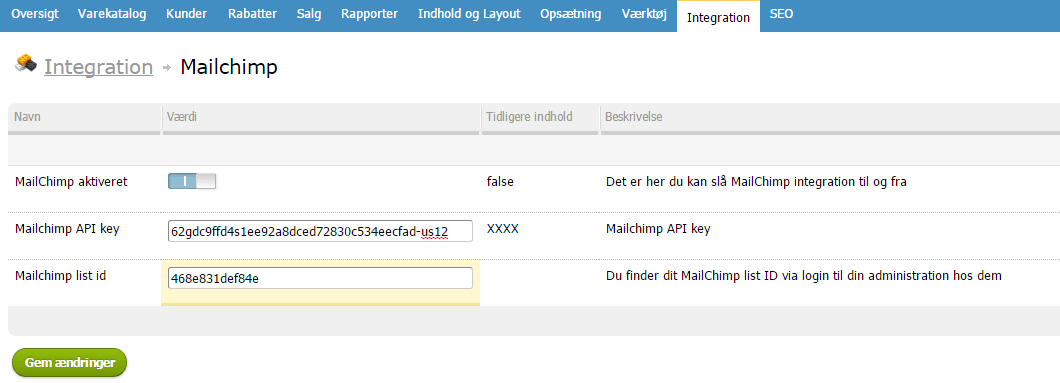
Now the codes need to go into your Golden Planet online shop.
In the admin, choose Integration > Mailchimp.
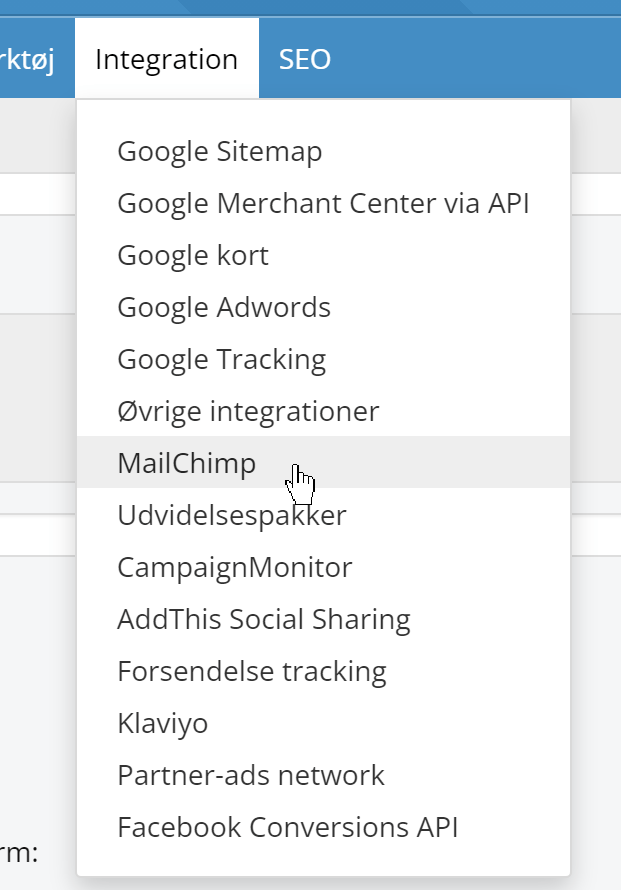
Here you enter the two codes, your list ID and your API key, in the fields for them. Activate the integration and click Save changes. Your newsletter subscribers are then transferred to Mailchimp automatically.
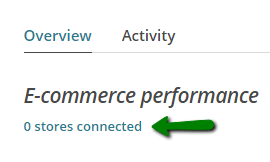
“0 stores connected” is correct
If your Mailchimp home page says “0 stores connected”, just ignore it.
Your shop is integrated via the API and will therefore be set up correctly if you have followed the guide above.
4. Transfer existing subscribers to Mailchimp
If your online shop had newsletter sign-ups before the integration was set up, you can have them transferred.
First go to the list of subscribers:
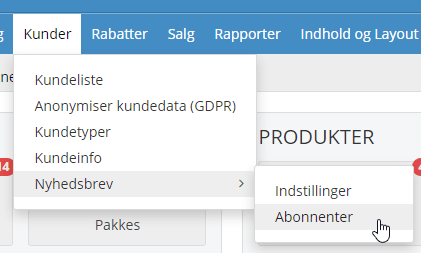
There, click the Send to Mailchimp button
5. Data processing agreement with Mailchimp
To comply with the General Data Protection Regulation (GDPR), you need a data processing agreement with Mailchimp. Mailchimp’s data processing agreement is automatically part of its terms, so you don’t need to fill in a separate form – you can read it here:
https://mailchimp.com/legal/data-processing-addendum/ (opens in a new tab)
Also read about Mailchimp’s transfers of data from the EU here: https://mailchimp.com/help/mailchimp-european-data-transfers/ (opens in a new tab)
Things to be aware of
Here are a couple of things we have heard you should be aware of with Mailchimp as your newsletter system:
- Mailchimp requires you to have a link for unsubscribing from the newsletter directly with them (it’s at the bottom by default when you use their design templates)
- Naturally, only send to people who have signed up for your newsletter. If many people complain about your newsletter, your account may be closed.
If you notice anything else people should be aware of, we’d love to hear about it at feedback@goldenplanet.com.
Mailchimp E-commerce
If you’re interested in sending targeted newsletters via Mailchimp, you can read more about it here:
Create targeted newsletters for your customers.
More help with Mailchimp
Mailchimp offers quite a lot of help. In many places, when you’re logged in, you can click help and “video tutorial”.
They also have a wide range of free e-books here (opens in a new tab) and a good support section here (opens in a new tab).
You can also hire help via, for example, fiverr.com, where there are many freelancers (opens in a new tab), or agencies listed here at Mailchimp (opens in a new tab).