
In this category Newsletters
Targeted newsletters with Mailchimp
On this page
Sending a targeted email is an effective way to draw attention to special products, offers or the like, aimed at a particular group of customers.
Targeted newsletters can increase sales in your online shop. Matching the email message to customers and their orders improves the response and engagement of your subscribers.
You can choose a particular segment, or a particular group of customers, for each newsletter you send.
If you want to tell the customers who bought a particular product that there is now an update to it, or that it’s available in a new colour they might be interested in, you can target a newsletter at exactly that group with Mailchimp E-commerce.
You can choose all the customers who have spent a certain amount – per order or in total – and/or those who bought at a particular time – on a particular day or within a particular period. Choose those who have spent €70 and tell them they are highly valued customers, and that you’d like to offer them these products at a good discount.
There are endless ways to combine segments, so they match exactly the customers you want to send a targeted email to.
You can sign up for Mailchimp E-commerce via Settings > Apps in your shop’s admin.
1: Create an account with Mailchimp
Before you can start segmenting your newsletters, you first need to have created an account with Mailchimp and integrated it with your online shop.
Read more here about how to set up Mailchimp.
Once the shop is signed up for Mailchimp E-commerce, you will be able to see E-commerce performance on your dashboard and segment on e-commerce conditions.
2: Subscribers in Mailchimp
All customers end up in the list that is integrated with the shop.
Customers in the shop are all transferred to Mailchimp automatically, straight away.
Customers who said yes to receiving emails when they made their purchase will have an email marketing status of Subscribed – others will show the domain name of the shop where they bought.
If a customer hasn’t agreed to receive emails, only “transactional emails” may be sent to that person. This means you’re allowed to email the person if, for example, a problem has arisen with the product they bought. If it turns out that a particular type of coffee machine has a manufacturing fault that can make it catch fire, you can email the affected customers via Mailchimp and tell them what to do about the problem.
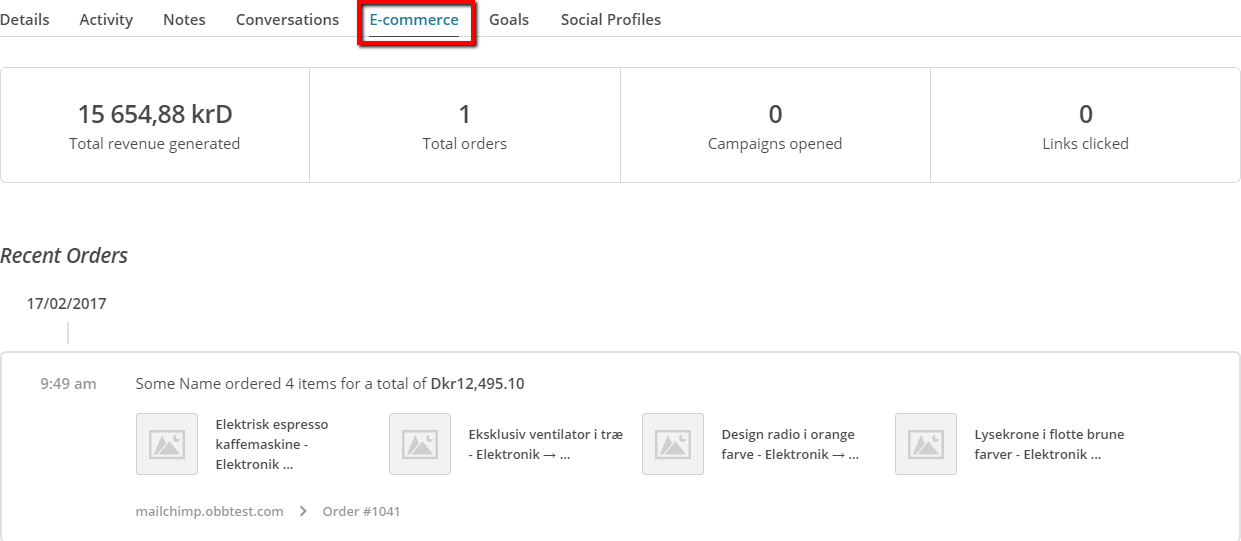
By clicking a customer and choosing the E-Commerce tab, you can see which purchases that person has made in the shop.
3: Create a segment in Mailchimp
You can divide a list of subscribers into segments.
To segment is to filter and divide similar contacts – to set conditions that must be met – and so create a “segment”.
This is how you choose the customers who are to receive the email or emails you want to send.
- Go to Audience and, under it, Segments (what used to be called a list is now called an “audience” at Mailchimp)
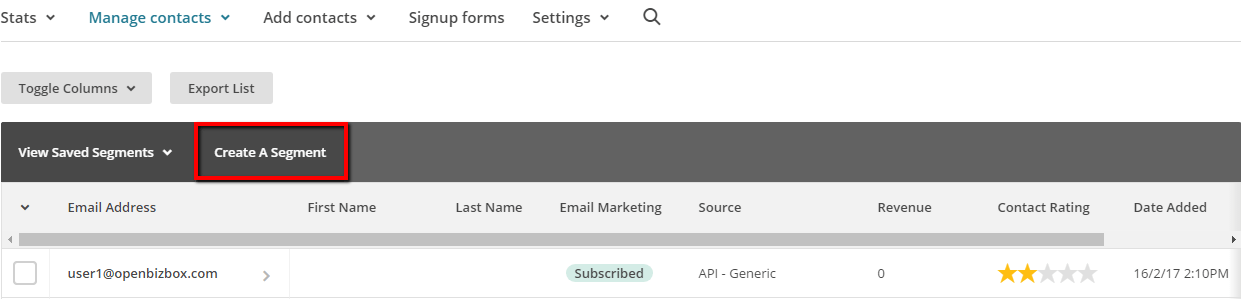
- Click Create segment
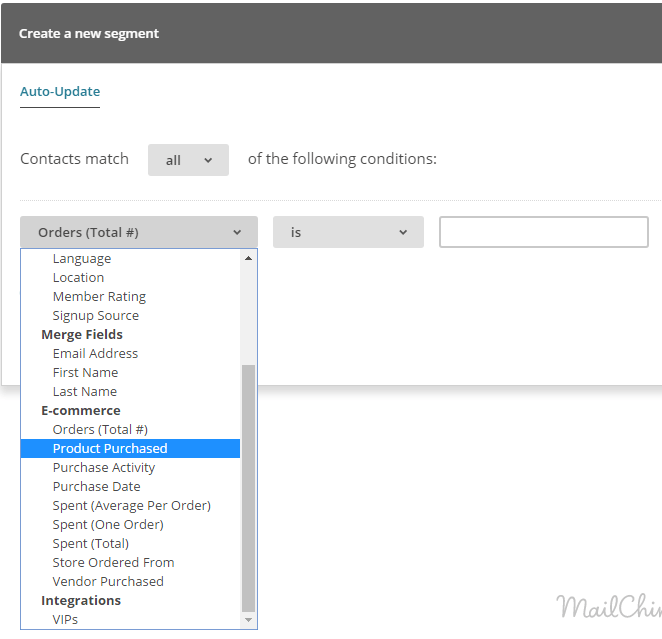
- Choose the conditions to segment on – e.g. purchases in the shop (e-commerce activity). Add more conditions with Add "and".
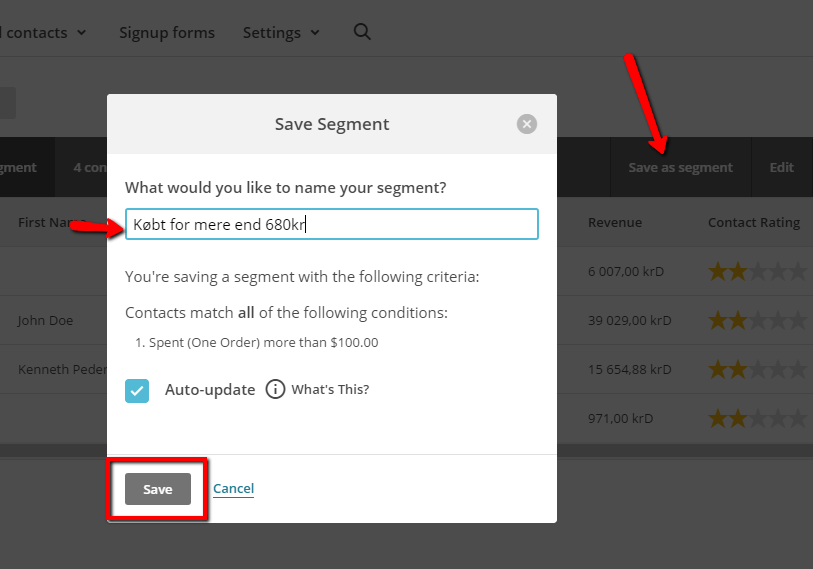
- When you’re happy, click Use segment, give the segment a name and click Save & exit. The segment is updated continuously, so future customers who meet the conditions are included too.
You can now choose that segment whenever you want to send to that group of customers.
You can also create a segment when you set up a campaign:
- Create Campaign
- Choose Group or new segment
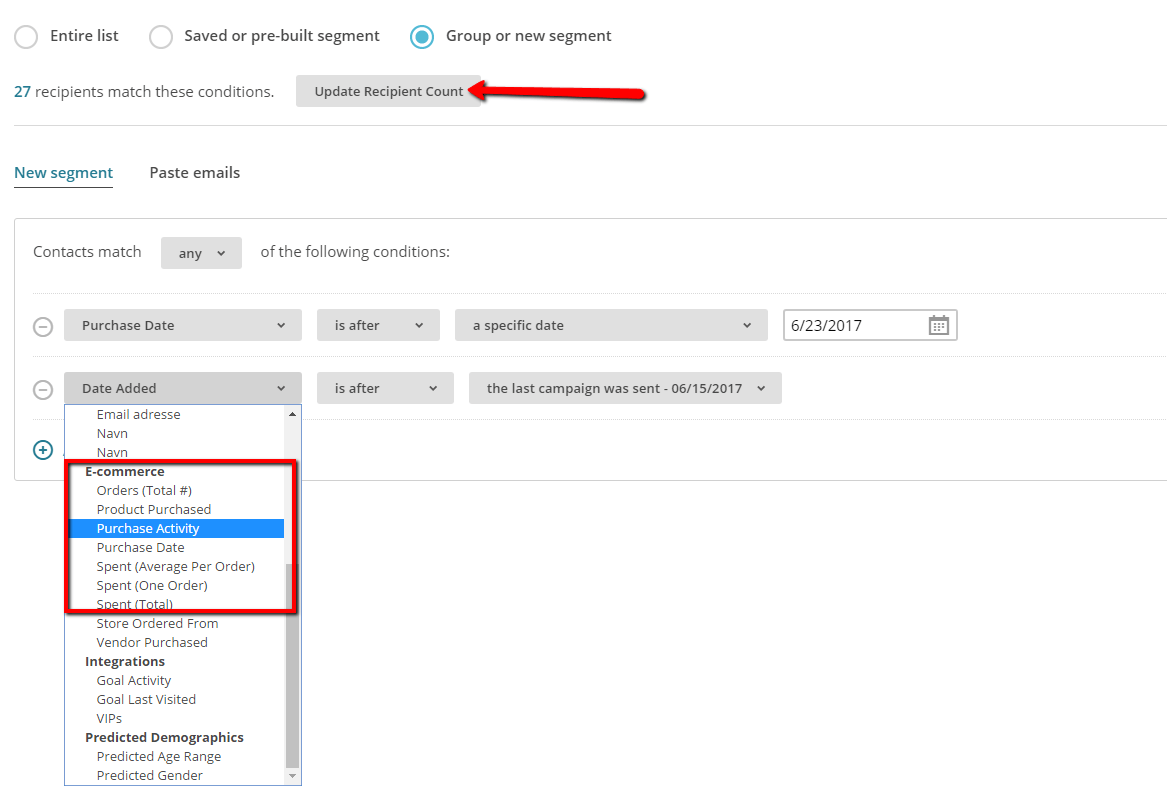
Remember to click update recipient count every time you add a new condition, to see how many people will be sent the email.
Then just carry on as you normally do when you create a Mailchimp campaign.
4: Setting up e-commerce in Mailchimp
- Create a campaign (Create Campaign)
- Enter a name and type
- Choose a list – Choose a list (the list that was linked to the shop with the list ID – it has a subheading that says “Store connected”)
- Choose Saved or Pre-built segment or Group or new segment
- Choose the segment(s) to use
- Create your campaign as normal, but under Tracking make sure that E-commerce link tracking is ticked.

5. Data processing agreement with Mailchimp
To comply with the General Data Protection Regulation (GDPR), you need a data processing agreement with Mailchimp. Mailchimp’s data processing agreement is automatically part of its terms, so you don’t need to fill in a separate form – you can read it here:
https://mailchimp.com/legal/data-processing-addendum/ (opens in a new tab)
Also read about Mailchimp’s transfers of data from the EU here: https://mailchimp.com/help/mailchimp-european-data-transfers/ (opens in a new tab)
Mailchimp product recommendations
Once you have set up Mailchimp E-commerce, it can be a good idea to look at using product recommendations in your campaigns.
Read more here about Mailchimp product recommendations.
Things to be aware of
Here are a couple of things we have heard you should be aware of with Mailchimp as your newsletter system:
-
Mailchimp requires you to have a link for unsubscribing from the newsletter directly with them (it’s at the bottom by default when you use their design templates)
-
Naturally, only send to people who have signed up for your newsletter. If many people complain about your newsletter, your account may be closed.
If you notice anything else people should be aware of, we’d love to hear about it at feedback@goldenplanet.com.
More help with Mailchimp
Mailchimp offers quite a lot of help. In many places, when you’re logged in, you can click help and “video tutorial”.
They also have a wide range of free e-books here (opens in a new tab) and a good support section here (opens in a new tab).