
In this category Domain names and DNS
Transferring a .dk domain name
On this page
You transfer a .dk domain name through self-service at punktum.dk (formerly DK Hostmaster, the registry for .dk domains) or at the registrar that looks after your domain name – in other words, wherever you pay the annual fee for the domain name.
Change the name servers to these:
- ns.gpserver.dk
- ns2.gpserver.com
See punktum.dk’s guide to transferring a domain name (changing name servers) (opens in a new tab)
Changing name servers: simply.com
If your domain name is registered through simply.com, you can change the name servers like this:
-
Log in to the control panel at https://www.simply.com/en/controlpanel/ (opens in a new tab)
-
Choose the domain name from the list of your products
-
Go to DNS
-
Click Set name servers
-
Enter the name servers ns.gpserver.dk and ns2.gpserver.com
-
Click the Set name servers button
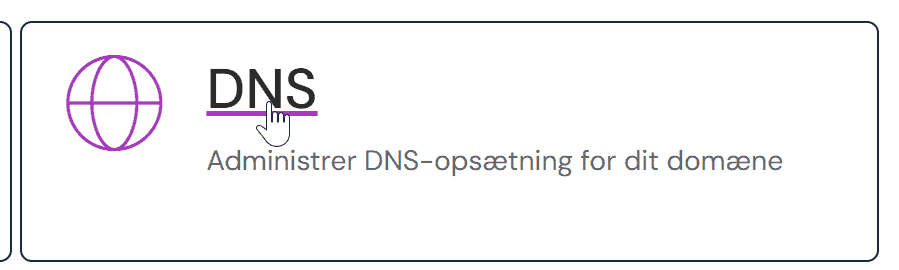
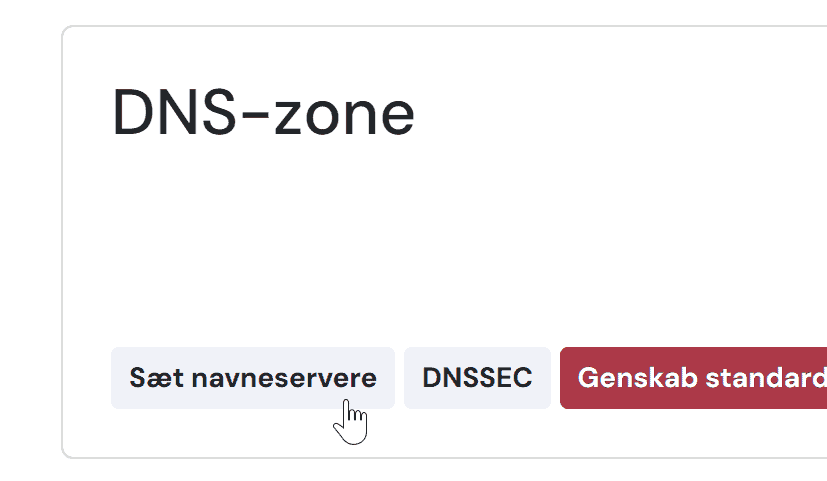

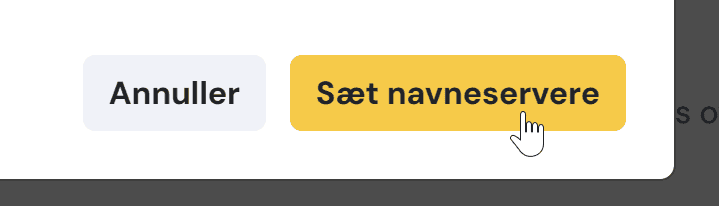
The change is now done. It typically works within about 1 hour, but it can take up to 24 hours.
If you would rather we made the change for you, you can share access to your simply account with support@goldenplanet.com in the simply.com control panel: choose Account in the menu on the left and then Account administration. Under the heading Users you can see who has access to the account. There you will also find the Add user access button, where you add support@goldenplanet.com – we are notified automatically when you have given us access.
Transfer your DNS setup
If you already use your domain name for email or anything else, the setup has to be copied across: log in to the DNS administration at your current provider and set up the same records through your customer login here:
- Go to the customer login page (opens in a new tab)
- Log in with your username and password (use “forgotten password” if you need to)
- Choose the domain name from the list
- Click the DNS function
- Log in to your current name service provider in the same way and copy the setup across
You are also welcome to send us your login for your current provider, and we can copy the setup across for you.