
In this category Orders
Order info
On this page
It’s often a good idea to let your customers know the status of their order. With the order info templates, you can create an email that can be sent to customers when the order changes status.
You can also use this order info to give the customer shipment tracking details, so they can look up where the parcel with their order is.
Order info templates
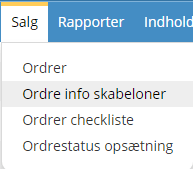
You’ll find the list under Sales > Order info templates.
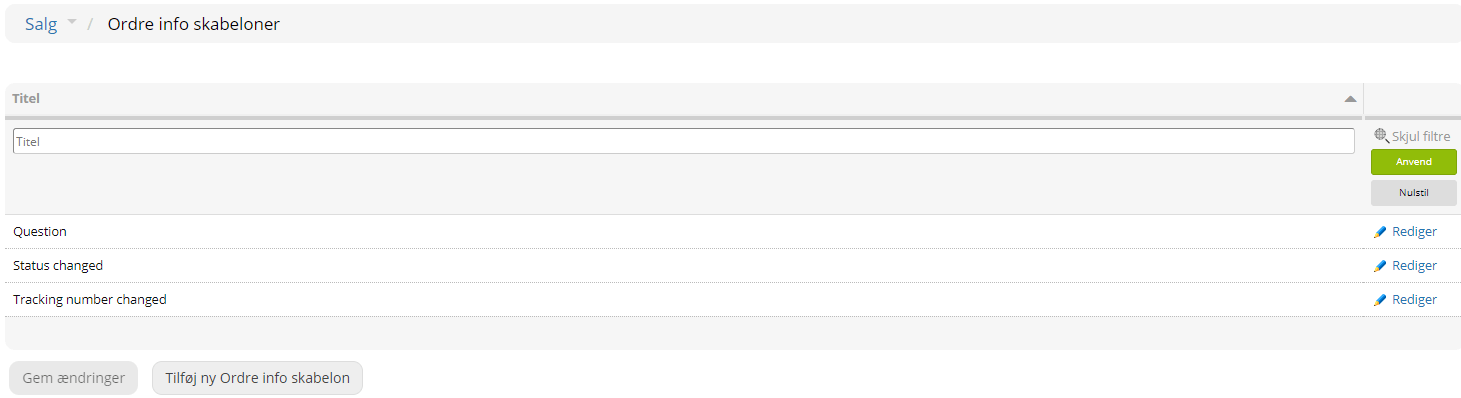
There are 3 different order info email templates by default. They should be fine to start with, but as you get going with your shop, you may find you need more. They are named in English, and it can help to change their titles so you know what they contain.
“Question” – can be used if you have a question for the customer
“Status changed” – general information to the customer that the order has now changed status
“Tracking number changed” – sends the tracking number to the customer.
Create/edit order info
Click Edit on the right to change the text of the email sent to the customer.
You create a new email template by clicking Add new order info template at the bottom.
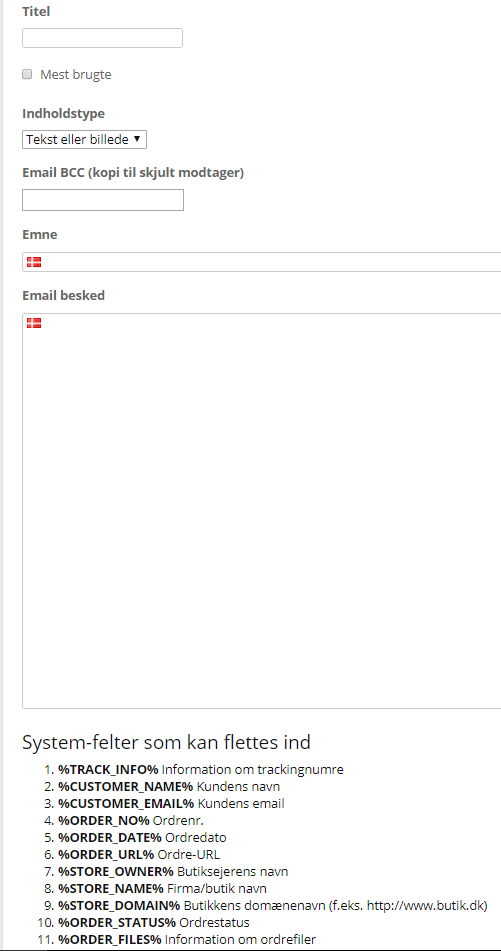
When you create a new template, you first give it a name. Give it a title that describes what it’s for. For example “Ready for collection”.
The Most used tickbox makes most sense on the email template you send to customers most often. Only 1 of all the order info templates should be ticked.
If a copy should go to a hidden recipient, you can enter an email address in the field Email BCC (blind copy). The customer won’t be able to see that a copy has been sent to someone else.
Then write a text in the subject field – this is the field the customer sees as the heading in their inbox. It could be “Your order is ready for collection”, for example.
Email message is the actual text the customer sees in the email.
At the bottom there are some system fields you can insert in the text. Next to each system field, it says what it contains.
For example, you could write:
Dear %CUSTOMER_NAME%
Thank you for your order. Your order %ORDER_NO% has been packed and is ready for you to collect.
Kind regards, %STORE_NAME%
Remember to click Save when you’re happy with it. The email template is then saved and ready to use.
Send order info to the customer
Once you have created some email templates, you of course also need to send them to the customer.
Under Settings > General settings, you can enable Send order notification. That way an email (the one set as default) is sent to the customer every time the order’s status is updated.
You can also do it in the order itself, at the bottom. When you change the order status, you can tick Notify customer – and choose which template to use. You can also change the text of the email to be sent here, for example if there is something to add to that one email.