
In this category Orders
Order processing
On this page
When a customer has placed an order in your shop, you’ll see a number at the top, where it says Orders.

It shows how many new orders have come in that haven’t been processed yet.
You can see which ones they are by clicking the icon, or see the whole order list by going to Sales > Orders.
Change the order status
To give you a quick overview, it’s a good idea to change the status of the order. When the order arrives in your shop, it has the status Received by default.
You change the order status in the order itself, for example via the shortcuts on the left.
At the bottom of an order, you can change the order status and notify the customer at the same time.
If the order is to be sent with GLS or PostNord, for example, an email with the tracking number can be sent to the customer automatically here when the order changes status to Dispatched.
You create and change order statuses via Sales > Order status setup.
Review/edit the order
In the order list, you can edit an order by clicking the order number on the left – or by choosing Edit on the right.
Then go through the order. Check these things, for example:
Are the customer and delivery addresses correct?
- Does the customer have both a first name and a surname?
- Do the addresses have street names, house numbers, postcodes and town names?
- Is the country correct?
- Does a Danish phone number have 8 digits, possibly with +45?
Edit the customer and delivery addresses by clicking Edit.
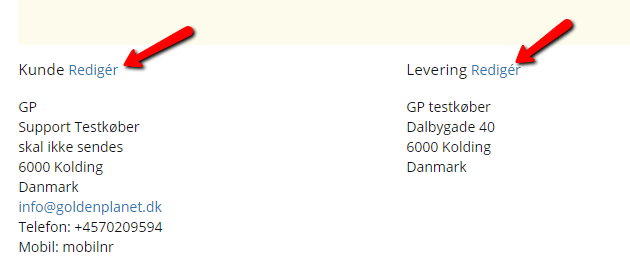
Is the email address correct?
- Does it have an @ in the middle and end in .dk or .com (or something similar)?
- Has the customer typed xxx@gmail.DK instead of xxx@gmail.COM by mistake?
Edit the email address by clicking Edit:
Has the payment gone through?
-
For a bank transfer – check the bank: is the money in the account?
-
For an online card payment – is the payment shown as approved?
-
For PayPal – have you been notified by PayPal that the payment has been approved?

Are the prices right?
- Has any discount/gift card been deducted?
- Is the delivery price right?
- Should the customer get an extra discount?
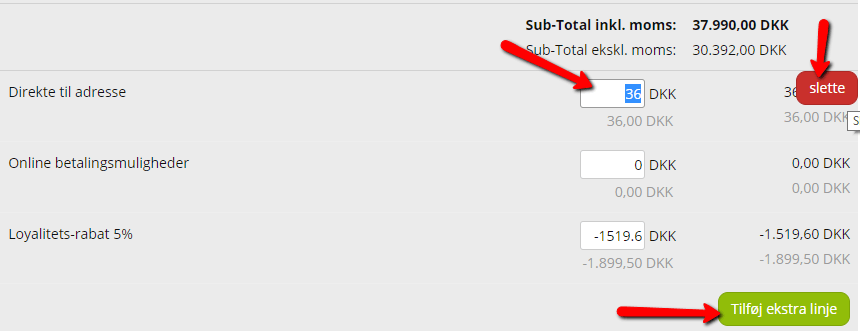
Edit the prices by typing directly in the fields. Note that prices must be entered EXCLUDING VAT.
Delete a line by clicking Delete on the right, next to the line you want to delete. The button only appears when you hold the mouse over the line.
You can add an extra line by clicking Add extra line – you can use it to give the customer an extra discount, for example.
Click Save changes at the bottom when you’ve made all your changes.
Are the products in stock?
- Has anything gone on backorder since the customer placed the order?
- Should the whole order be cancelled/refunded, or should part of the order be credited/refunded?
Is there anything suspicious about the order?
Pay particular attention to these points:
- If you have expensive products that are easy to resell
- If you get many orders from the same customer within a relatively short time
- Use of a c/o address, hotels or a PO box
- Use of free/anonymous email addresses, because they can’t be traced
- Orders from abroad – especially from one of the so-called “high-risk countries” (mainly Indonesia and countries in Eastern Europe and Africa)
- Very large orders
- Customers who give a new card number when the first one is declined
What you can do:
- Compare the customer’s phone number with the billing address
- Look up the name and email address in a search engine and check whether anything suspicious turns up
- Check whether the card was issued in the same country as the billing address
- Always: contact the customer if you’re in doubt about the order
But in general, use your common sense.
If anything needs correcting, you can do it now. For example, if the customer has typed their email address wrongly, has phoned about a new delivery address or has a product they no longer need.
Pack the order
Before a payment may be captured, the shipment must have been dispatched, under the Danish Marketing Practices Act and the Danish Consumer Ombudsman (opens in a new tab) (in Danish).
Now it’s time to pack the order and get it ready for delivery. You can set the order status to Packing here, for example.
You can create a packing slip to print on the left in the order itself, or from the drop-down menu on the right in the order list.
Capture the payment
When you have reviewed, possibly edited, and packed the order, the money must be captured if the order was paid with an online payment card.
You do this by clicking the Capture payment button.
When you click this button, the money is taken from the customer’s account. Until then, the money has only been reserved.
Read more about processing orders with card payments here.
Invoice the order
When the parcel has been dispatched and the money taken from the customer’s account, the order must be invoiced. Under the Danish Bookkeeping Act (opens in a new tab) (bogføringsloven, in Danish), every transaction must be documented by a voucher, and the VAT rules require an invoice for sales to businesses. It’s therefore a good idea to invoice all your sales, as this also lets you keep track of which products have been sold and when.
You can invoice through an external system such as e-conomic, or directly in the shop.
To see the invoice the shop generates, click Invoice on the left when the order is open, use the shortcuts in the top left-hand corner of the order, or click Invoice on the right in the order list.
Note: The order can’t be changed once it has been invoiced!