In this category Orders
Order checklist
When you need to pack your orders, it’s nice to have an overview of which products the different orders contain.
The list can be printed or used directly on a screen, for example a tablet that the person packing can carry around.
Checklist
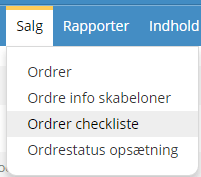
You’ll find the list under Sales > Order checklist.
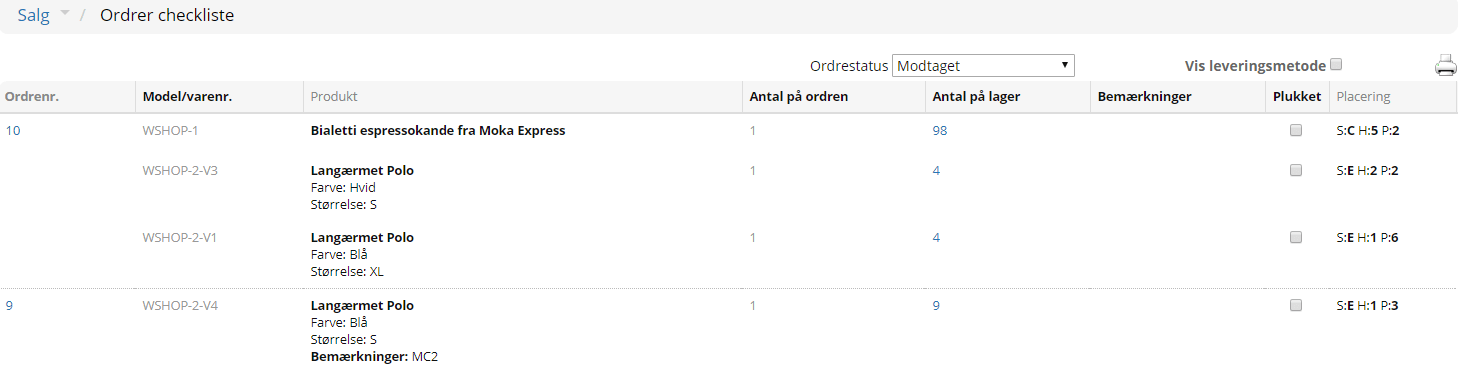
Here you see a list of the orders currently in the system. You can choose which order status you want to see, but if you’re packing orders, for example, Received is a good place to start.
On the far left you can see which order the products belong to; you can click the order number to go straight to the order.
You can also see which products are on the orders with the selected order status, how many are in stock and where they are located.
If you place the mouse in the field next to Notes, you can write a text for internal use – for example “No more of this colour in stock” or “Needs reordering”.
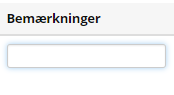
Changes to this note can be seen at the bottom of the order itself in the admin, under History and notes.
The customer can’t see these notes.
On the far right you can see the product’s location. Read more about stock management here, and how to make the locations as efficient as possible.
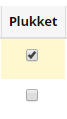
Once the product has been “picked”, that is, set aside to be packed and sent, you can tick it in the small Picked box.
This is an easy way to keep track of how far you’ve got with packing the different orders.