
In this category Orders
Order status
On this page
The order status helps you see what needs to be done, or has been done, for a particular order. Does the order need packing, dispatching or refunding?
Below we explain the different statuses an order can have, how to create them and how to change an order’s status.
Order status setup
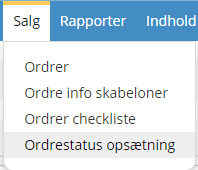
You’ll find the list under Sales > Order status setup.
There are 9 different order statuses by default. They should be fine to start with, but as you get going with your shop, you may find you need more.
Awaiting payment (“Prepayment”) – used for card payments, while waiting for confirmation from QuickPay that the transaction has gone through. Must NOT be used for bank transfers, for example, because it cancels the order automatically after a while without a response from QuickPay. For bank transfers, for example, use a different status.
Cancelled (“Cancelled”) – when an order has been cancelled.
Refunded (“Cancelled”) – when an order has been refunded.
Received (“Default”) – the status an order gets when a customer has placed it.
Pending – can be used while you wait for a bank transfer or a reply from the customer.
Awaiting reply before packing – can be used while you wait for the customer to answer a question of some kind.
Backorder – if the products aren’t in stock yet but will be processed here later.
Packing – the products on the order are being picked/packed.
Dispatched – when the order has been dispatched.
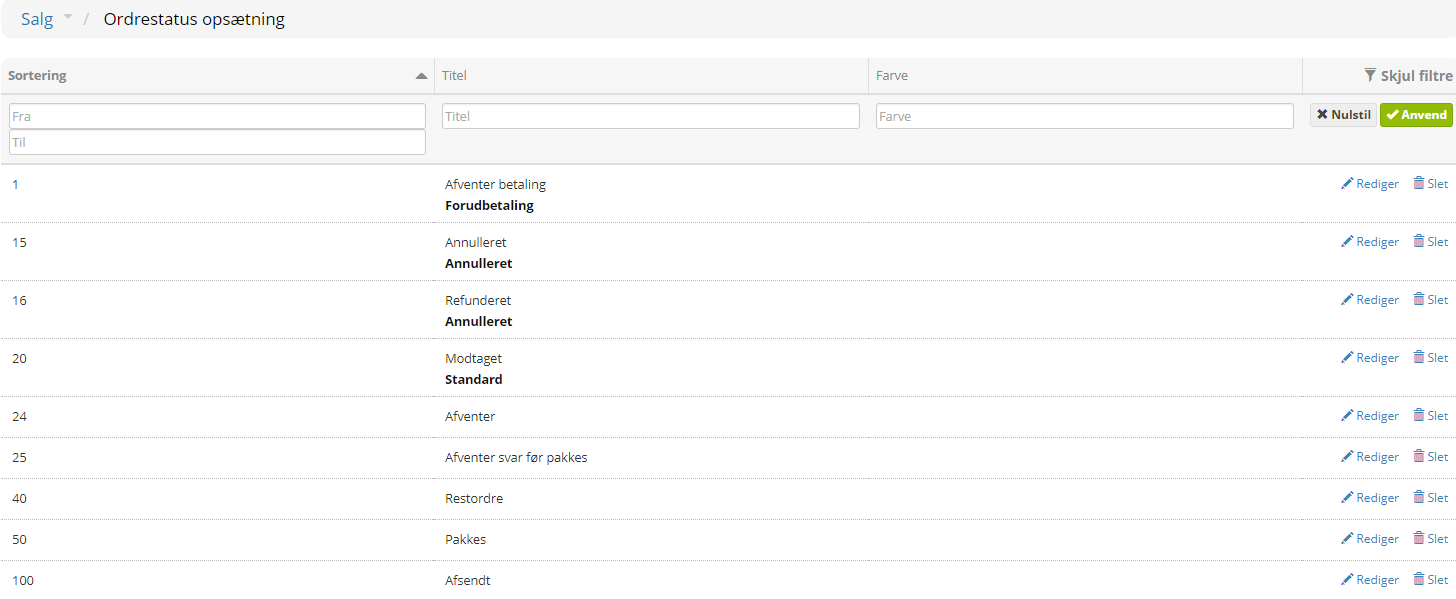
Click Delete on the right to delete an order status. Click Edit to edit an order status.
Create an order status
To create an order status, click Add new order status at the bottom.
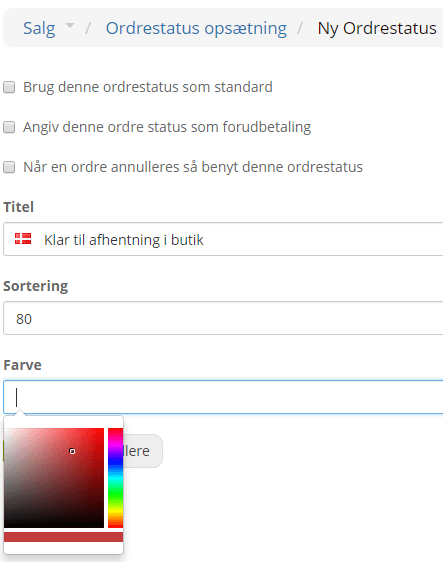
When you create a new status, you can tick some default settings. Each of these must be used by at least 1 status in your shop. You most likely don’t need to tick any of them when you create a new order status.
Use this order status as default – should only be ticked for the status a newly created order should get. For example Received.
Set this order status as prepayment – used only for an online payment status that waits for a response from the payment solution.
When an order is cancelled, use this order status – used for the Cancelled and Refunded statuses.
It also needs a title and then a sort number. The sort order simply sets where in the list it appears, and can be changed later.
You can give it a colour: place the mouse in the Colour field, and a colour picker appears. Choose the colour you want by clicking it with the mouse. Once you’ve chosen the colour, click anywhere on the page and the colour code appears.
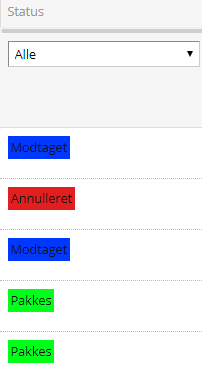
By colour-coding your order statuses, you get a quick overview when you look at the order list with All orders selected.
Remember to click Save when you’re ready.
Change the status of an order
There are several ways to change the status of orders.
If you have many orders that need a new status, it’s handy to do it from the order list itself.
Select the orders that need a new status, then choose Change status (received, dispatched etc.), set the status the selected orders should have, and click Save.
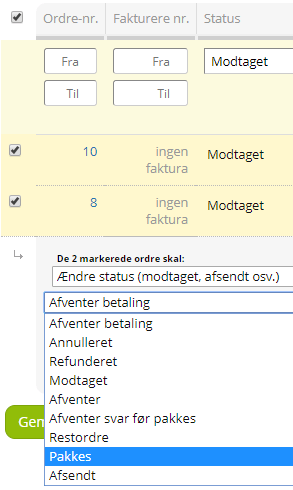
When you’re in an order, you can also change its status there.
You do this by scrolling down to the bottom of the order and changing the status there. Remember to click Update afterwards.
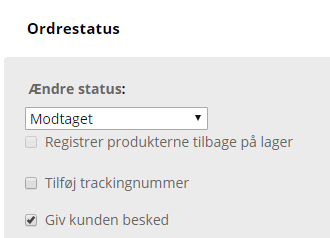
Delete an order status that has been used before
If, for example, your order flow has changed and you’d like to remove some status titles that are no longer used, here’s how:
First move all orders to another status. You can move them to an existing status or create a status for the purpose – calling it “Archive”, for example.
You move all orders from a status by clicking the status you want to move from in the panel on the left
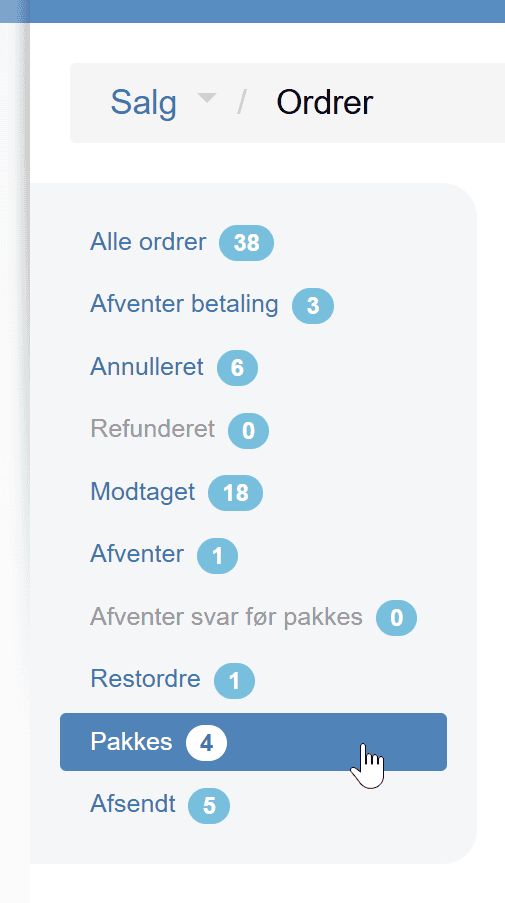
Without selecting any specific orders in the list, now click
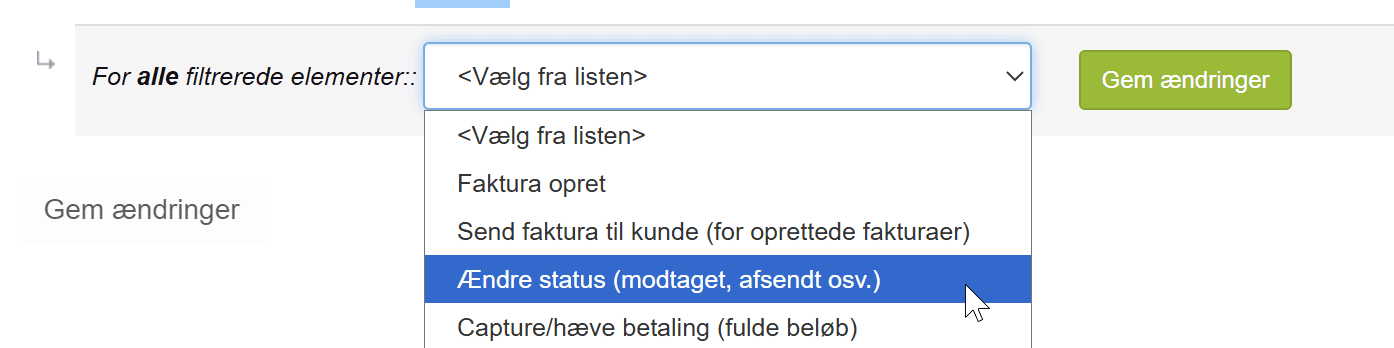
Choose the status you want to move to – for example like this

The status is then changed on all orders with that status – also on page 2, 3 etc. of the order list. If there are many orders, it can take a while – perhaps 5–10 minutes – before they have all been moved. Wait until they have all been moved before you delete the order status.
When no orders use the old status any more, go to
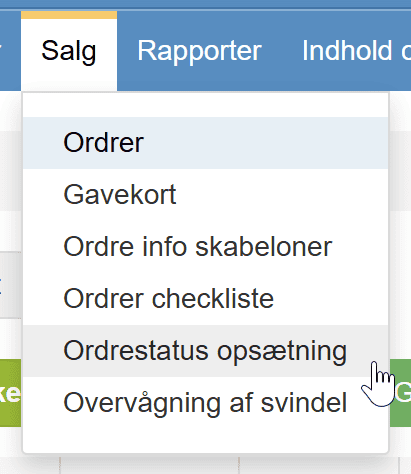
and click the delete icon next to the status in question
