
In this category Optimising for search engines and AI chatbots
Optimising for search engines and AI chatbots
Redirecting pages/links (301 redirect)
On this page
If you want to redirect products, you can do it by editing the product as described on this page.
If you want to redirect active pages in your shop, you can “override” them with a redirect through the customer login (see the last section of this page).
All other pages can be redirected from one web address to another like this:
Go to Settings > URL redirects
Click + New
Enter the source and choose the destination.
If your shop’s home page is http://minshop.dk and you need to redirect FROM http://minshop.dk/lys/lygter.html TO the category “Lamper og belysning” (Lamps and lighting), enter it like this:

When you click in the field where you enter the destination, a box pops up where you can choose where to redirect to. Here you can choose, for example, whether it should go to a product/category or to an information page – remember to click Save changes.
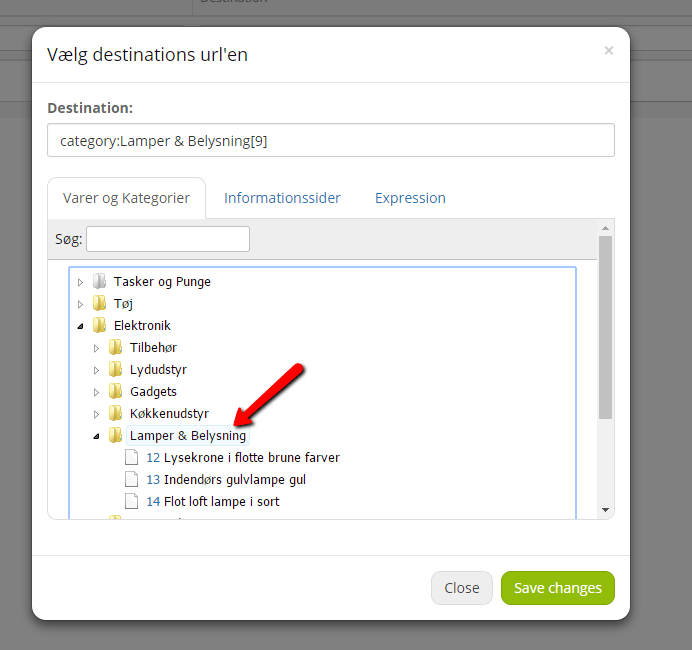
Remember to save before you move on.
The redirect is active within 10 minutes of adding it. You may want to test your redirect once the 10 minutes have passed.
Create redirects with a CSV import
Entering several hundred redirects by hand, one at a time, can be a lot of work.
You can also do it with our export/import function.
We recommend that you create 1–2 working redirects first and then make an export. That way you can see how the import file has to be structured.
The type field in the .csv file can either be blank = create new, or contain delete, which means that this redirect is to be deleted.
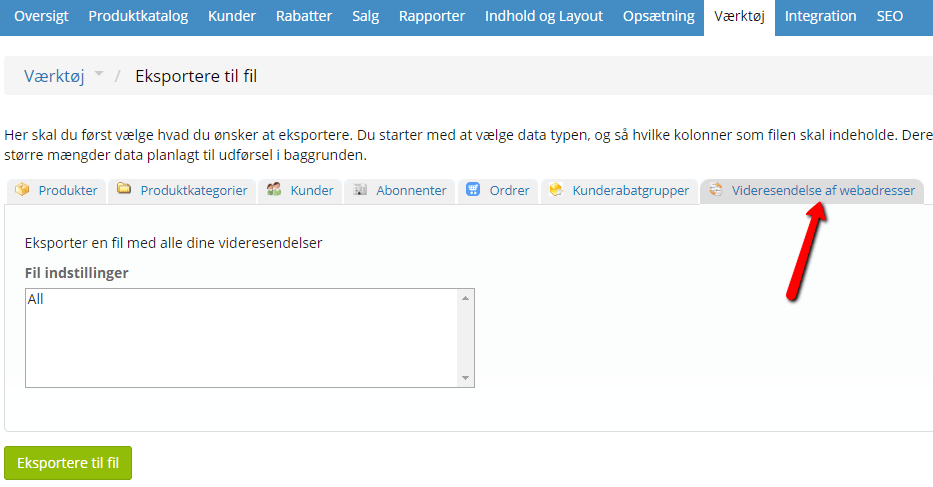
Redirecting pages that have not been deleted in your shop
You can “override” and redirect any page – including pages that are active or have not been deleted – through your customer control panel. We call it PlanetController – yes, named after Golden Planet!
See how to log in to the customer control panel here
When you have logged in, click the domain name of the shop you want to set up a redirect for.
Then click the function

You can add 6 redirects at a time
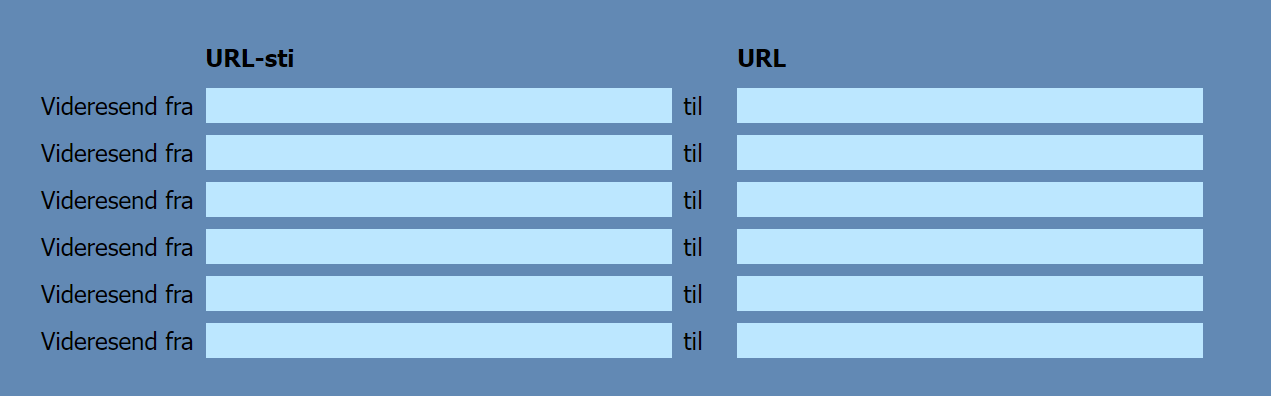
Click Update when you have entered the redirects – if you have used all 6, you automatically get new empty fields to add more.
The web address you redirect FROM must be entered WITHOUT THE DOMAIN NAME – and the address you redirect TO must be the FULL WEB ADDRESS.
If your domain name were webshopdemo.dk and you wanted to redirect from https://webshopdemo.dk/lydudstyr/ to https://webshopdemo.dk/elektronik-3/, for example, it would look like this:
