
In this category Integrations
Product feeds for Google Shopping, Facebook, PriceRunner etc.
On this page
You can use a product feed to deliver your product data to other services.
It is often used for marketing products on, e.g., Facebook, PriceRunner, affiliate systems etc.
You can also use it for Google Shopping. However, we also have an integration just for this, which is better suited in particular to faster updates and lots of products. More about it here
On the other hand, the general product feed feature – described on this page – can create feeds for languages other than your shop's default language.
Create a product feed
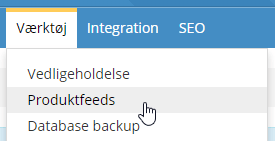
Start by opening the feature: point the mouse at the Tools menu item and then click Product feeds
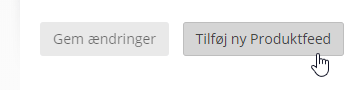
Then click the Add new Product feed button
Setting up the product feed
Start by giving your feed a name. It can be anything and is only for internal use. Ideally, give it a name that tells you what it contains – e.g. like this:
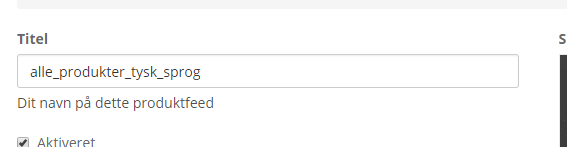
Note that the title may only contain lower-case letters and the so-called underscore (no spaces).
For Facebook, we have a standard setup in which variants (products in, e.g., different sizes) are not included. This is so that the tracking matches the product page and not the individual variant.
For Google Shopping and almost everything other than Facebook, you can typically use that format. It has become almost a “standard” for product feeds.
You get these set up automatically by clicking the relevant button below the black box with the template:
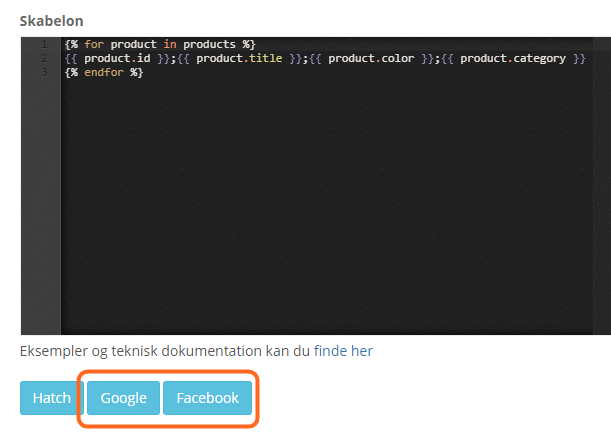
When you have clicked the button, the template is inserted
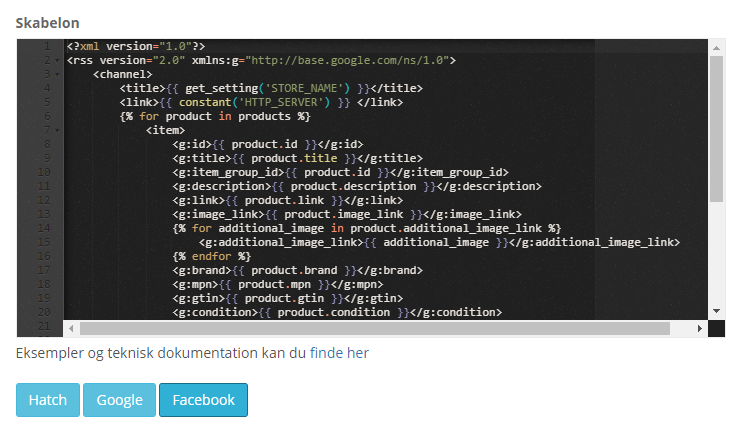
and the result format is set to xml

With that, all the basics are in place, and you only need to decide on the language and the other fields below. If relevant, you can then adjust the template manually.
Save and fetch the product feed
When you have set the criteria for your product feed, click the Save button at the bottom.
About a minute after you click save, the system starts creating your feed. In most cases, it is finished and ready within 10 minutes. After that, it is updated automatically every night between about 00:00 and 02:00.
You can now see your feed in the overview. Click link to see your product feed, or simply right-click and copy the web address to wherever you need to use it.
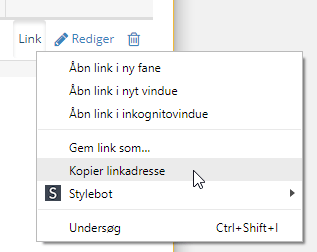
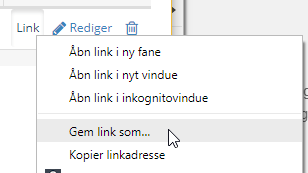
If you have a lot of products, your browser and/or computer may not be able to display it. Instead, you can right-click link and choose to save it, to download it without displaying it first:
For security reasons, the last part of the web address of your product feeds is generated automatically, so that nobody can guess it – not even your competitors.
Set all products in the feed to be in stock
If you use stock management that allows sales without stock – or don't use stock management in your shop at all – you can set all products in your product feed to be in stock by replacing this line:
<g:availability>{{ product.availability }}</g:availability>
with in stock
in the setup/editing of your feed, so that the whole line looks like this:
<g:availability>in stock</g:availability>
Quantity in stock
You can also pull out the specific quantity of a product that is in stock. If you generally stock more than a few of each item, it can be worth giving Google that data too. To give Google the actual quantity in stock, use this line:
<g:quantity>{{ product.quantity }}</g:quantity>
If you can generally get all products quickly from your supplier, a remote warehouse or elsewhere, you can also be creative and give Google a random number between 25 and 100 with this line:
<g:quantity>{{ random(25, 100) }}</g:quantity>
Delivery time for in stock and out of stock
For use in, for example, a PriceRunner feed, you can show minimum and maximum delivery times depending on whether the product is in stock.
In the following example, it is 1–2 days when in stock and 8–21 days when not in stock:
{% if product.availability == 'in stock' %}
 <g:min_handling_time>1</g:min_handling_time>
 <g:max_handling_time>2</g:max_handling_time>
{% endif %}
{% if product.availability == 'out of stock' %}
 <g:min_handling_time>8</g:min_handling_time>
 <g:max_handling_time>21</g:max_handling_time>
{% endif %}
Barcodes (EAN/GTIN)
Barcodes are essential for matching in Google Shopping, among others, and for how your products are shown alongside others in searches.
If you have products that don't have barcodes, you can say so in your feed for all products without a barcode, with this line in the template:
<g:identifier_exists>{{ product.gtin >0 ? 'TRUE' : 'FALSE' }}</g:identifier_exists>
See also https://support.google.com/merchants/answer/6324478 (opens in a new tab)
See variant titles in the feed
It can be useful to see exactly which variant each product is in your product feed. It can also be used to filter and post-process your feed in a feed tool (e.g. datafeedwatch (opens in a new tab)).
You get it into your feed with this field value
{{ product.attributes_text }}
The whole line in the template could then look like this:
<g:attributes_text>{{ product.attributes_text }}</g:attributes_text>
Your own product number in the feed
If you need your own product number in your feed – i.e. the one entered here on products, for example
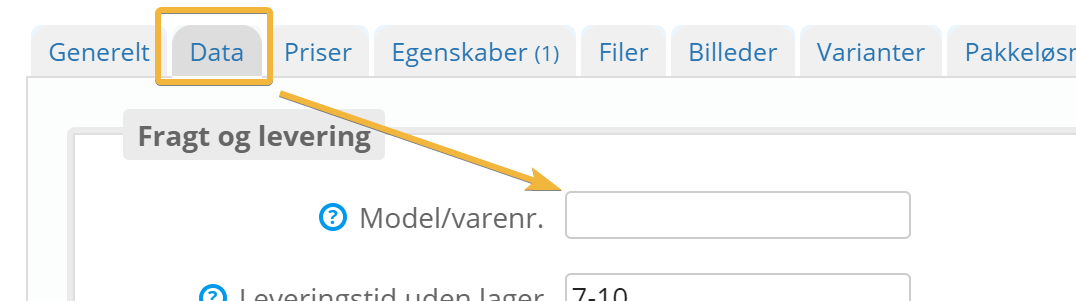
and here on variants
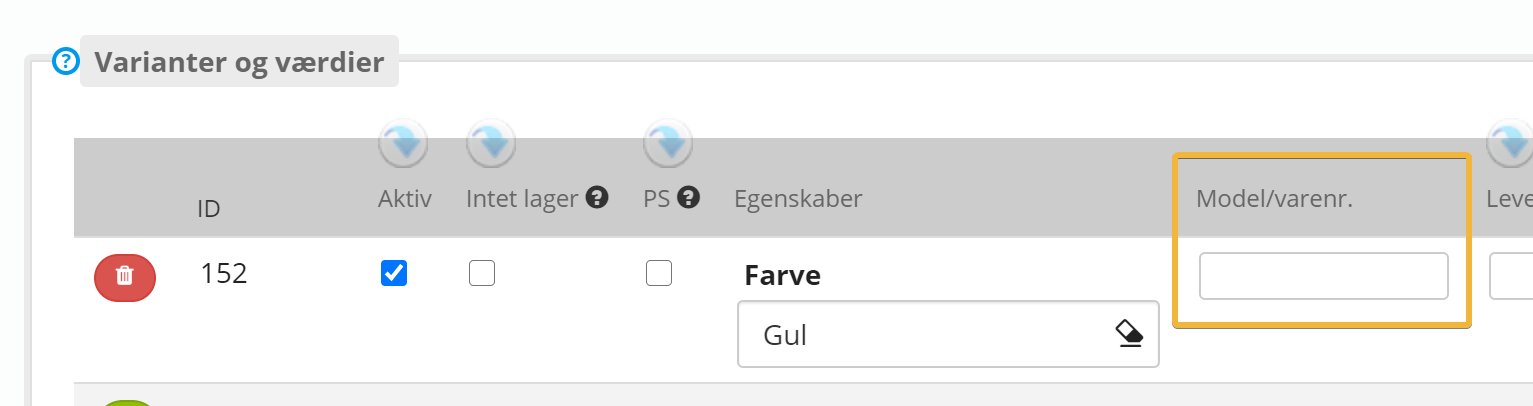
you can include it by adding a line like this to the template of your feed
<model_number>{{ product.model }}</model_number>
Categories in the feed
You can also include the products' category in your feed. It is typically used for the g:product_type field in Google Shopping, and it is also useful if you want to filter, split or bid differently per category – both in your campaigns and in a feed tool.
There are three fields to choose from. The first gives the name of the category the product is in – for example “Subcategory”:
<g:product_type>{{ product.category }}</g:product_type>
The next one gives the category's ID number – for example “133”. Use it if you want to filter or match on category in a feed tool without it mattering if the category is renamed later:
<g:category_id>{{ product.categories|keys|first }}</g:category_id>
And the last one gives the whole category path from main category to subcategory – for example “Standard > Subcategory”. It is the most precise of the three, and the format is also what Google expects in g:product_type:
<g:product_type>{{ product.category_path }}</g:product_type>
If the product is in several categories, it is the first/primary category that is included.
You should only use one line with g:product_type. If you want several of the values in your feed, give each of them its own field name – for example like this:
<g:product_type>{{ product.category_path }}</g:product_type>
<g:category_name>{{ product.category }}</g:category_name>
<g:category_id>{{ product.categories|keys|first }}</g:category_id>
Current price
You can have a line with the current price – i.e. the sale price if there is one, and otherwise the regular price. You do it with a line like this in the template:
<current_price>{{ product.sale_price >0 ? product.sale_price | formatCurrency : product.price | formatCurrency }}</current_price>
Cost prices
If you need the cost price, you can insert it like this, as it is entered on the product (typically excl. VAT – hence the name of the field):
<cost_price_no_tax>{{ product.cost_price_no_tax | formatCurrency }}</cost_price_no_tax>
and like this if VAT is to be added:
<cost_price_vat>{{ product.cost_price | formatCurrency }}</cost_price_vat>
Gross margin
You can insert the gross margin in your feed, for example to optimise campaigns in Google Shopping.
In the formula below, we calculate the gross margin as the selling price minus the cost price, which gives the contribution margin – and then as a percentage of the price.
Of course, the products need a cost price for the calculation to make sense. If there is no cost price, the result is a gross margin of 100%.
We have two sets of lines for the feed. The first one uses a comma as the separator and is typically used for a feed in Danish kroner (DKK):
{% if product.sale_price_no_tax %}
    <g:gross_margin>{{ ((product.sale_price_no_tax - product.cost_price_no_tax) / product.sale_price_no_tax * 100) | number_format(2, ',', '') }}%</g:gross_margin>
{% else %}
    <g:gross_margin>{{ ((product.price_no_tax - product.cost_price_no_tax) / product.price_no_tax * 100) | number_format(2, ',', '') }}%</g:gross_margin>
{% endif %}
Indent the lines with tabs so they line up with the other lines in the feed, like this:
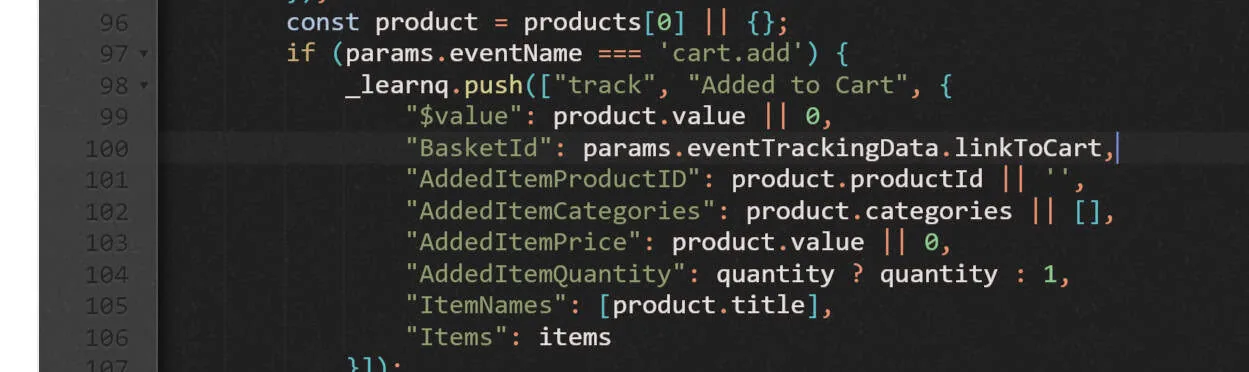
Use these lines to get the gross margin with a full stop as the separator – for example “35.16%”:
{% if product.sale_price_no_tax %}
      <g:gross_margin>{{ ((product.sale_price_no_tax - product.cost_price_no_tax) / product.sale_price_no_tax * 100) | number_format(2, '.', '') }}%</g:gross_margin>
{% else %}
       <g:gross_margin>{{ ((product.price_no_tax - product.cost_price_no_tax) / product.price_no_tax * 100) | number_format(2, '.', '') }}%</g:gross_margin>
{% endif %}
Max/RRP price
The max/RRP price is the one you see here when editing a product:
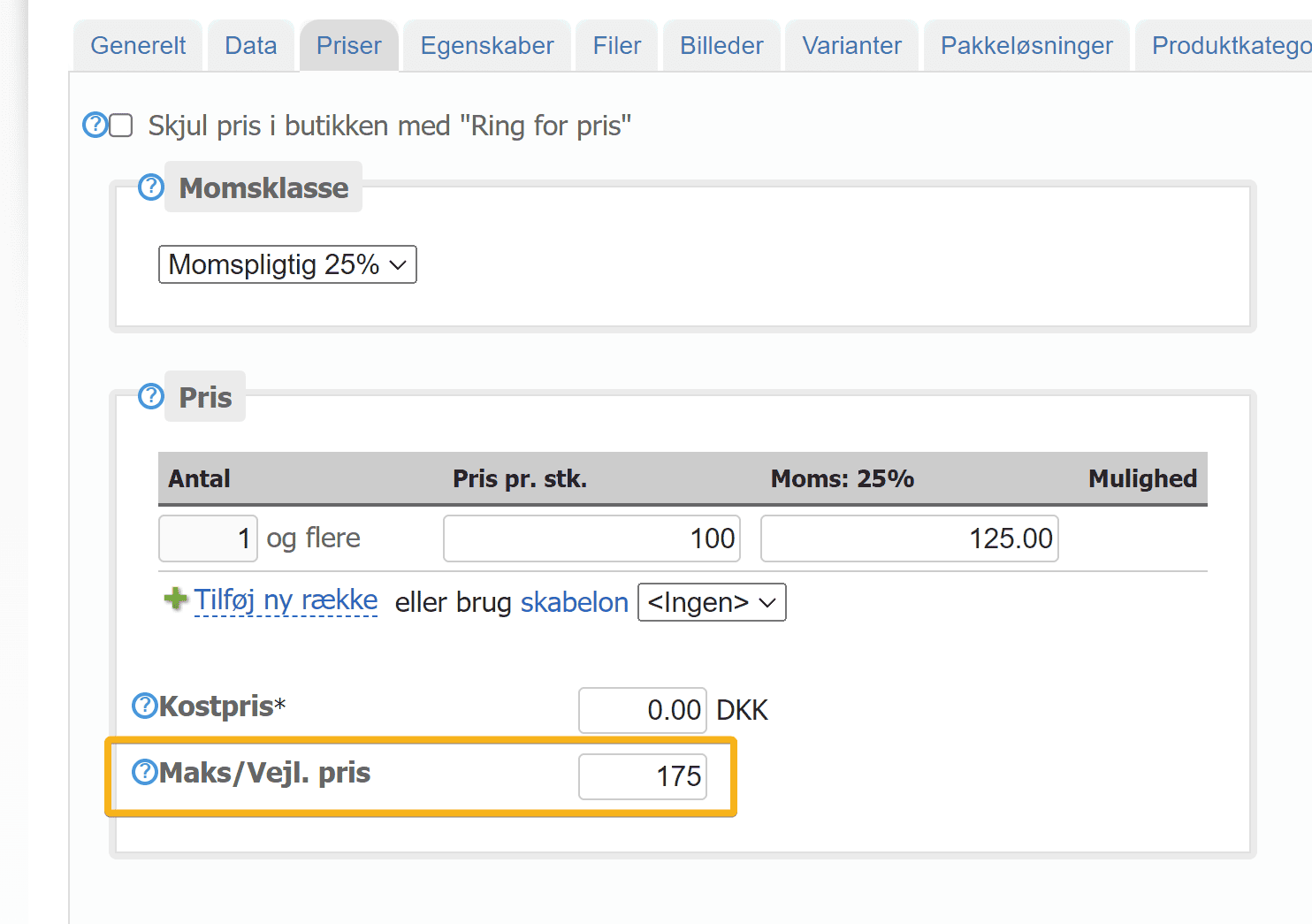
You can add it to the feed like this:
<g:msrp>{{ product.max_price_no_tax | formatCurrency }}</g:msrp>
With the line above, the price is written as you entered it. If you want VAT added to the amount, you can do this:
<g:msrp_plus_vat>{{ product.max_price | formatCurrency }}</g:msrp_plus_vat>
Long product description
The standard templates use the short product description in the description field when there is one, and otherwise the long one.
<g:description>{{ product.description }}</g:description>
If you always want the long product description, you can use the product.long_description field
You can also pull out the long product description separately like this:
<g:description_long>{{ product.long_description }}</g:description_long>
Meta data for specific fields
If you have data that needs to go into your feed but there is no standard field for it, you can use meta data.
If, for example, you sell products for which you would like to include material data, you can do it as here, where the data group is “materiale” (material) and the key the same:
<g:material>{{ product.meta.materiale.materiale }}</g:material>
This is what the example looks like when editing the product
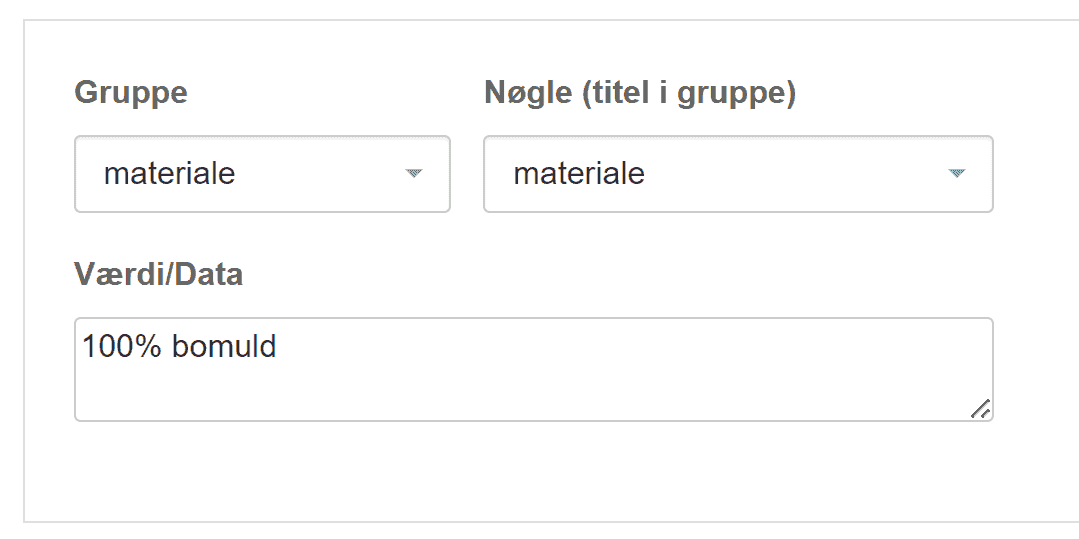
The group and key can have different names, but to get them all into one line in the feed, they need to be combined under a shared key – which is why “materiale” is used for both here, for simplicity.
Set up feeds for several countries/languages
If your online shop is in several languages, you can create a feed for each of them (choose the relevant language when you set up the feed).
You can then follow this guide to setting up Merchant Center for selling in several countries (opens in a new tab).
Product prices in another currency
If you want to give the prices of your products in, e.g., euros, you can add an item to the product feed along these lines:
<g:price>{{ (product.price * 0.13446)| number_format(2, '.', '') }} EUR</g:price>
{% if product.sale_price %}
    <g:sale_price>{{ (product.sale_price * 0.13446)| number_format(2, '.', '') }} EUR</g:sale_price>
    <g:sale_price_effective_date>{{ product.sale_price_effective_date }}</g:sale_price_effective_date>
{% endif %}
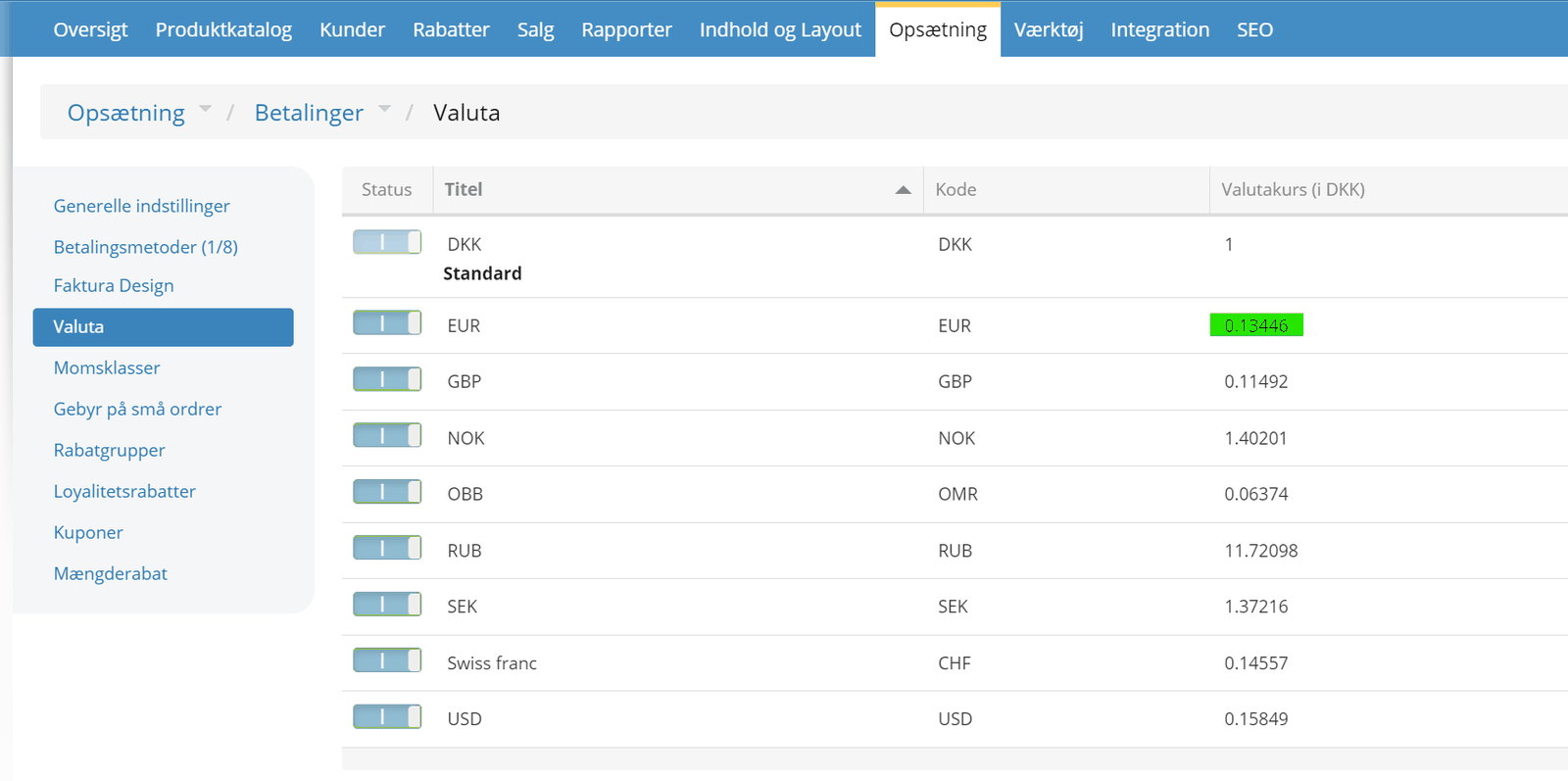
The rate you use must match what is set in your shop under Settings > Payments > Currency
In that case, you also need to switch off the automatic updates of the rate, so that the conversion stays the same in the feed and in the shop in general.

Prices with specific formatting (e.g. without a thousands separator)
Much like the template adjustment above, you can use this to show prices in a fixed format – here without a thousands separator (full stop) and with a decimal comma, as Danish prices are written:
<g:price>{{ (product.price * 1) | number_format(2, ',', '') }} DKK</g:price>
<g:sale_price>{{ (product.sale_price * 1) | number_format(2, ',', '') }} DKK</g:sale_price>
Images: primary or per variant
If you have added product images per variant (e.g. an image of the red T-shirt when the red colour is chosen, an image of the black one when black is chosen, etc.), the product feed will by default also have the specific image for each variant.
If you always want to show the primary product image – and not one per variant – you can change the image line to this:
<g:image_link>{{ product.primary_image_link }}</g:image_link>
Date the product was created
You can include the date a product was created with this line in the template of your feed:
<g:created>{{ product.created_at | date("d/m/Y") }}</g:created>
Prices for customer discount groups
If you need a feed with prices for a specific customer or discount group, for example for B2B sales, you can either create a separate feed with their prices or add them to an existing one. You do it with lines like these in the feed:
<g:price_group_1>{{ product.price_group_no_tax[1] | default(product.price_no_tax) | formatCurrency }}</g:price_group_1>
You specify the discount group by changing the number, which is 1 in the example above, given in [1]

It is the ID of the group, which you find most easily by going to edit the group via the menu item
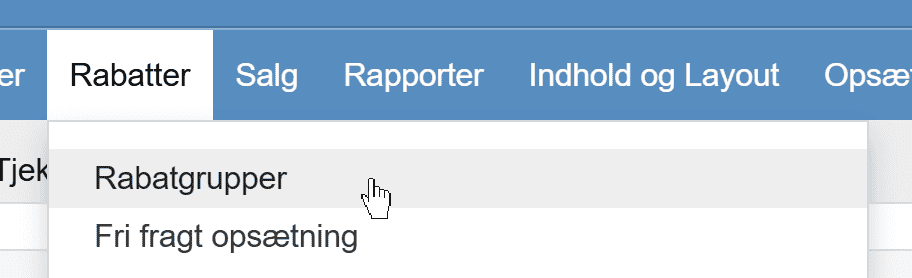
Click Edit next to the relevant discount group. The number at the end of the web address is the one you need for the group – here also 1:

Separate new products from the others
As well as the date a product was created, you can also have products marked directly as new, based on how many days ago the product was created.
You can use this to mark products as new in systems where you use data from your feed. Or perhaps create a separate campaign by filtering to focus on the new products.
In this example, there is a line like this when the product was created within the last 20 days:
<g:newproduct>true</g:newproduct>
and this one for other products
<g:newproduct>false</g:newproduct>
Here is an example of a complete template with this line and a few other standard fields (you can of course have all the other fields/data lines you want)
<?xml version="1.0"?>
<rss version="2.0" xmlns:g="http://base.google.com/ns/1.0">
    <channel>
        <title>{{ get_setting('STORE_NAME') }}</title>
        <link>{{ constant('HTTP_SERVER') }} </link>
        {% for product in products %}
        {% set difference = date('now').diff(date(product.created_at)) %}
                {% set isNew = difference.days < 20 %}
            <item>
                <g:id>{{ product.article_id }}</g:id>
                <g:title>{{ product.title }}</g:title>
                <g:newproduct>{{ isNew ? 'true' : 'false' }}</g:newproduct>
                <g:created>{{ product.created_at | date("d/m/Y")  }}</g:created>
                <g:item_group_id>{{ product.id }}</g:item_group_id>
                <g:price>{{ product.price | formatCurrency }}</g:price>
                <g:sale_price>{{ product.sale_price | formatCurrency }}</g:sale_price>
                <g:sale_price_effective_date>{{ product.sale_price_effective_date }}</g:sale_price_effective_date>
            </item>
        {% endfor %}
    </channel>
</rss>
What has been added are the following 2 things:
First, these two lines are inserted before the line with <item>:
{% set difference = date('now').diff(date(product.created_at)) %}
{% set isNew = difference.days < 20 %}
And this one as a line further down, together with the other fields
<g:newproduct>{{ isNew ? 'true' : 'false' }}</g:newproduct>
If you need it for a Facebook ad set – or somewhere else where it is easiest to filter on fields with standard names – it is a good idea to use “custom label” field names – more about them in general here at Google (opens in a new tab).
The formula for the field will then look like this for custom label 0:
<g:custom_label_0>{{ isNew ? 'true' : 'false' }}</g:custom_label_0>
Google Shopping setup: preparation and general
You can set up Google Merchant Center to fetch your feed automatically every day.
Your feed should be set to be fetched at some time between 02:00 and 04:00 at night.
You add a feed like this:
First, you need the web address of your feed: go to your shop's admin and go to Tools > Product feeds. Right-click link next to your feed in the list and choose to copy the link address.
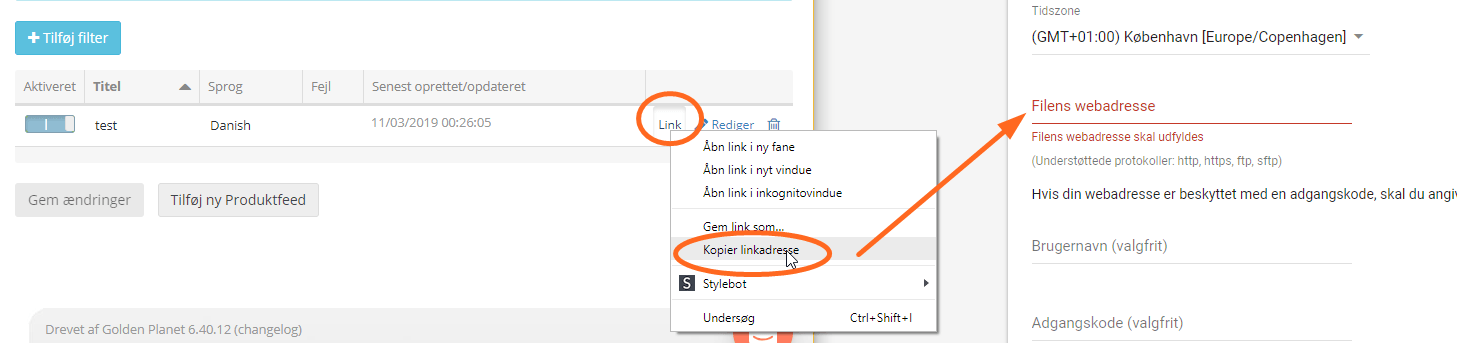
Then go to Google Merchant Center:
- Click Settings (the cog icon) and choose Data sources
- Choose Add product source on the Product sources tab
- Choose Add products from a file and paste the web address of your feed as the file location
- Choose Edit schedule and choose daily fetching at some time between 02:00 and 04:00 at night
- Click Save
Your feed has now been added and will be fetched every night.
For more, see Google's guides – e.g. this one (opens in a new tab).