In this category Product catalogue
Stock management with locations
Save lots of time and make packing the orders from your online shop much more efficient with stock management with locations.
On this page
Organising your stockroom well can save you a lot of time.
It usually takes quite an investment of time to get it in place. But it is an investment that can save you both a lot of time and frustration for a long time to come.
A well-organised stockroom will also make it much easier to hand over packing to others, for example.
If you make use of stock locations, neither you nor your employees or colleagues need to remember where each product is.
How to get started
Here is a suggestion of what to do to get off to a good start with stock management and locations:
- Make a plan for the layout of your stockroom
- Put locations on your racks, shelves etc.
- Enter the locations in your online shop
Make a plan for the layout of your stockroom
Get out a pen and paper if you don't have a drawing app on your tablet or computer.
Make a drawing of how your stockroom should be divided up. If you have already put up the racks, draw them as they are now. It doesn't have to be exact, but enough for you to use for the final organisation of your stockroom.
What you need to decide is how each row of racks, each shelf and each position should be named.
A sketch could look like this:
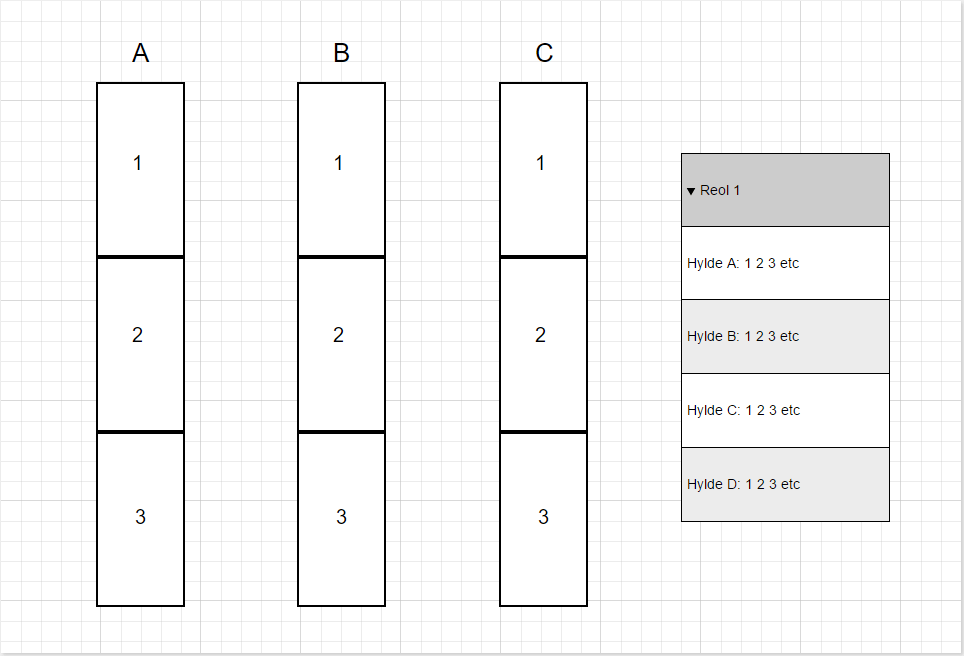
In the example above, the rows of racks are named A, B, C etc.
Then sections 1, 2, 3 etc.
Then shelves A, B, C etc. And then positions 1, 2, 3 etc.
So a specific position for a product could look like this:
Row A, Section 1, Shelf B, Position 4
Note that each shelf has a position number for each product. If you have 4 products on a shelf, they have positions no. 1, 2, 3 and 4, in other words.
Put locations on your racks, shelves etc.
When the plan is ready, the legwork begins, and the first thing is to put up clear location labels.
An ordinary printer can be used to make, for example, a large A etc. to put at the end of each row of racks.
If you have lots of shelf positions to label, you could consider a label maker, such as a Brother P-touch label maker that can be connected to a computer.
Enter the locations in your online shop
You enter the locations on your products by editing each product in your shop's admin.
On the Data tab you will find Stock location, where you enter each row, section, shelf etc.:
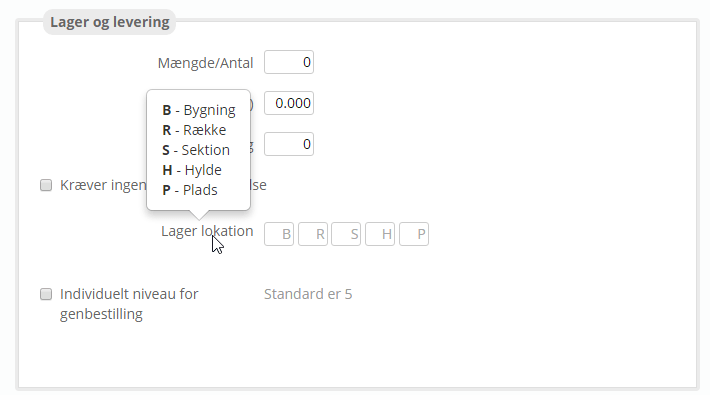
In the first field, marked B, you enter the building; in the field marked R, the row, and so on.
You don't have to fill in every field. If, for example, you only have one building, you can easily skip it on all products.
The building field can also be used if you have several stockrooms. In other words, you can use building 1, 2 etc. to mean stockroom 1, 2 etc.
If you have a laptop, you could take it with you round the stockroom from product to product.
Use it in practice
Once stock locations have been entered on the products, you will see them on the order checklist (which you find under Orders).
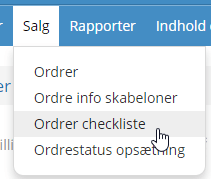
Here you will find the stock locations in the last column:

You can also see the locations on packing slips:

You find packing slips via the order list:
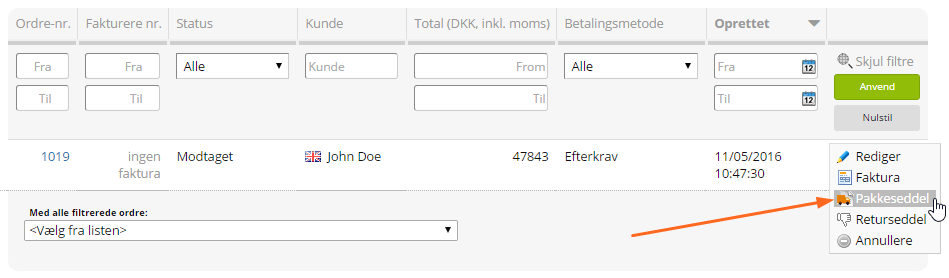
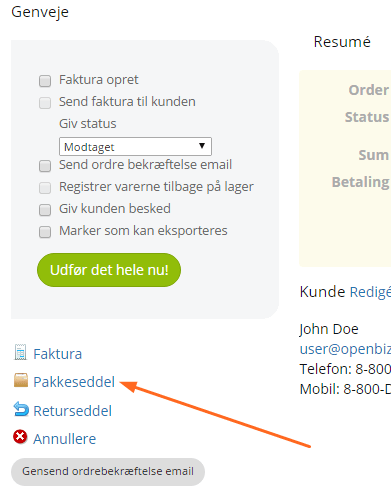
And on the far right of the page where you edit an order: