
In this category Payments
PaymentsCard payments
Day-to-day card payments
On this page
Handling orders
To handle the payment for an order received with card payment, open the order in your shop’s online admin via Sales > Orders. Then find the order you want to process.
Next to the order, click Edit on the far right, or click the order number itself.

You will then see the order. At the top of the page you have the options and the status of the card payment for the order:
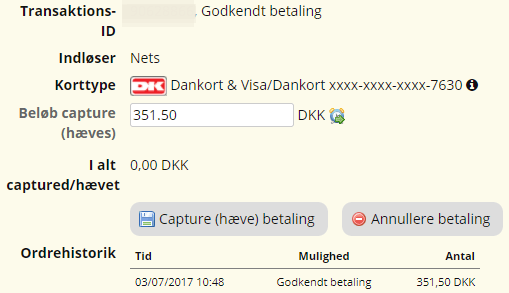
Capture
To capture the money, click

If needed, you can change the amount to a smaller one before you click – e.g. if there are products on the order that have been discontinued, are out of stock etc.
Cancellation
You can click
to delete a transaction. You should do this before, for example, cancelling an order.
Debit cards in particular (reserved amounts and cancellation)
When you shop online with a debit card in Denmark, the amount is usually reserved on the customer’s account straight away. This means the money is no longer available for other purchases, even though it has not been taken yet. The reservation happens because of rules at the cardholder’s bank, which require the funds to be available before the purchase can go through. When the shop confirms the order and sends the goods, the reserved amount is taken from the account. If the purchase is not completed, the reservation typically ends automatically after 30 days, depending on the bank’s practice and the card type.
You can release the reserved amount on orders where the amount has not yet been captured – you do this by clicking the Cancel payment button on the order page

If part of the amount on the order has been captured, you or the customer can try contacting the customer’s bank to ask whether they will release the reservation of the remaining amount.
Changing the amount
You can change the amount before you capture the transaction. Please note, though, that you can only make the amount smaller.
Risk of fraud
This is an indicator that automatically calculates the risk of fraud, based on things such as the country where the card was issued, the cardholder’s location at the time of purchase and the number of attempts to complete a payment. If the risk is medium or high, a text describes the problem.
The indicator is also shown in the order list, as a red triangle with an exclamation mark. It can also be shown next to a padlock.
The padlock means that the payment was made with 3D Secure, i.e. a message with a code was sent to the customer’s mobile, which the customer then entered during the purchase and so verified themselves.

The indicator comes from QuickPay and can also be seen on the transactions in their manager. It is their fraud filter that assesses payments on various parameters. This could be, for example, if the total amount on the card within 24 hours, or the payment itself, exceeds a certain limit – see the current rules in QuickPay’s guide to the fraud filter (opens in a new tab). A payment marked with Risk of fraud should not, however, be taken as a sign that fraud has definitely taken place.
Use your common sense, and if needed try contacting the cardholder to verify the details.
Is the order unusually large – is it too good to be true?
Search online: does the person exist at the address; do the phone number, name and address match?
Search social media; Facebook etc. (you can search by email address).
Is it a customer who has bought from the shop before?
If the order comes from abroad, is there a good reason why the customer has chosen to buy from your shop in particular?
Refunding a payment
When a customer returns a product and should get money back, you can do this by opening the order and entering the amount to be refunded next to the card payment section:
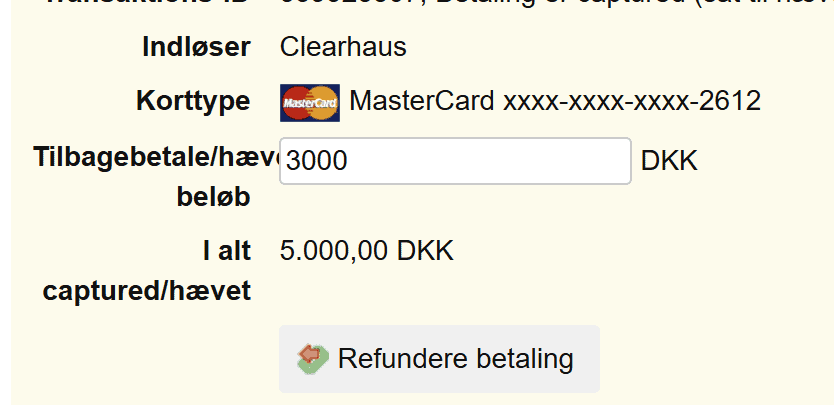
Then click the Refund payment button.
You cannot refund more than the captured amount.
If you need to refund an order in several instalments, you can try whether this is still possible on the order in the QuickPay manager (opens in a new tab). See the guide here (opens in a new tab). If that isn’t possible either (for example because the period for it has expired), you will need to make a bank transfer to the customer.
Customers can get a link to approve a card payment
You can quickly and easily send the customer an email asking them to approve a payment via QuickPay.
This can be useful, for example, when
- The customer did not complete the payment (e.g. if the Nets systems did not respond, or the customer couldn’t find their Dankort)
- The order has been changed and has a higher total
- The customer chose another payment option but has to pay by card after all
That way neither you nor the customer has to create the order all over again.
To be able to use these payment links:
- Your Online payment options must be set up correctly with the integration to the QuickPay payment gateway.
- An order placed with online payment cannot be sent a link (because of a conflict with order numbers). In that case, first make a copy of the order with the button on the far right – then you can adjust the order if needed and send a payment link to the customer (the original order is cancelled).
On the order itself, under shortcuts, there is an option to Send payment link
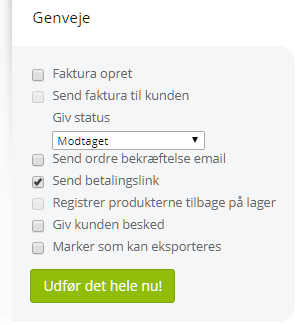
After the payment link has been sent, the order status automatically changes to awaiting payment. Unlike normal, the order status is not automatically cancelled after about 1 hour, but waits for the customer to pay the amount online, after which the status changes to received.
It is important that you change the order under order details, e.g. add or remove the products the customer should have, and click Save changes. It is the Total incl. VAT amount that is sent to QuickPay and that the customer has to pay.
The customer gets an email with the payment link. When the customer opens the link, they get a payment window just like the one we know from the shop, so the customer enters their card number, expiry date and CVV – or, if you have MobilePay in your shop, the customer can also choose to pay with MobilePay.