
In this category Optimising for search engines and AI chatbots
Optimising for search engines and AI chatbots
Structured data for Google and AI search
What your online shop tells Google by itself about the shop, products, prices, stock, shipping and returns, and what you need to set up so the information is right.
On this page
Structured data is information about your pages that sits in the page's code in a fixed format (schema.org), so a machine can read it without guessing. Your customers don't see it, but Google does. It is what lets Google show the price, stock status, review stars and shipping directly in the search results and in Google Shopping. AI search such as ChatGPT and Google's AI answers reads the same information.
Your online shop creates most of it by itself. The information is generated on the server from the same data the page shows, so the price and stock in the structured data are always the same as on the page. You don't have to write any code.
But some parts are switched off from the start, and some information only you can provide, such as your VAT number, your return policy and your products' barcodes.
What the shop sends by itself
Once it is switched on (see step 1), every page has one combined block of structured data:
| Page | What it includes |
|---|---|
| Front page | The shop's details: name, logo, address, phone, email, VAT number, links to social media and the return policy. Also information about the website and its languages. |
| Category pages | The page as a collection, the breadcrumb trail and the list of products shown. |
| Information pages | The page and the breadcrumb trail. |
| Product pages | The product with name, description, all images, brand, SKU, barcode (EAN), the manufacturer's part number and an offer with price, currency, stock status, condition (new), shipping and return policy. Also the breadcrumb trail. |
| Products with variants | The product as a group in which each variant is a product of its own with its own URL, SKU, barcode, image, price, stock status and, for example, colour or size. |
The SKU is the product's fixed ID in the shop. It is the same ID used in your product feeds, for example for Google Shopping, and it is always unique. That is why it is not the Model/Item no. field.
Prices:
- The price includes VAT, as shown on the page.
- If the product is on special offer, the offer price is the price, and the before price is included as the strikethrough price, just like on the page.
- If the offer has a start and end date, they are included too.
- A unit price (for example price per litre, kg, metre or piece) is included with the international unit codes Google uses.
- A product with Call for price gets no price and no offer, because there is no price to show.
Stock status:
| The page shows | Google gets |
|---|---|
| In stock or only a few left | In stock (InStock) |
| Out of stock, and the product cannot be bought | Out of stock (OutOfStock) |
| Can be backordered | Backorder (BackOrder) |
Reviews your customers have written in your shop are included as an overall rating and as the individual reviews. A review belongs to a language: a review written in English is only shown, and only sent, on the English version of the product page.
1. Switch structured data on
Go to SEO > General Settings and choose the Structured data tab.
Tick the three boxes:
- Output Organization and WebSite on the front page: the shop's details and the website on the front page.
- Output WebPage and BreadcrumbList on all pages: the page and the breadcrumb trail on all pages.
- Output CollectionPage and ItemList on category pages: the collection and the list of products on the category pages.
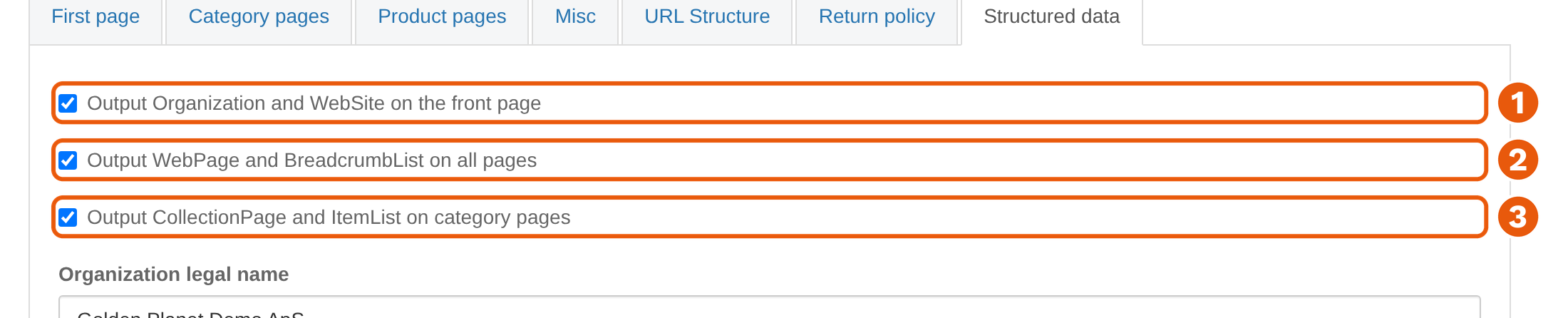
All three are switched off in a new shop. Without them, only the information about the product itself is included on the product pages.
Click Save at the bottom of the page once you have filled in the tabs in steps 2 to 5. They are the same settings, so you can save everything at once.
2. Fill in the shop's details
Further down the Structured data tab you fill in the shop's details. Google uses them to know who is behind the shop.
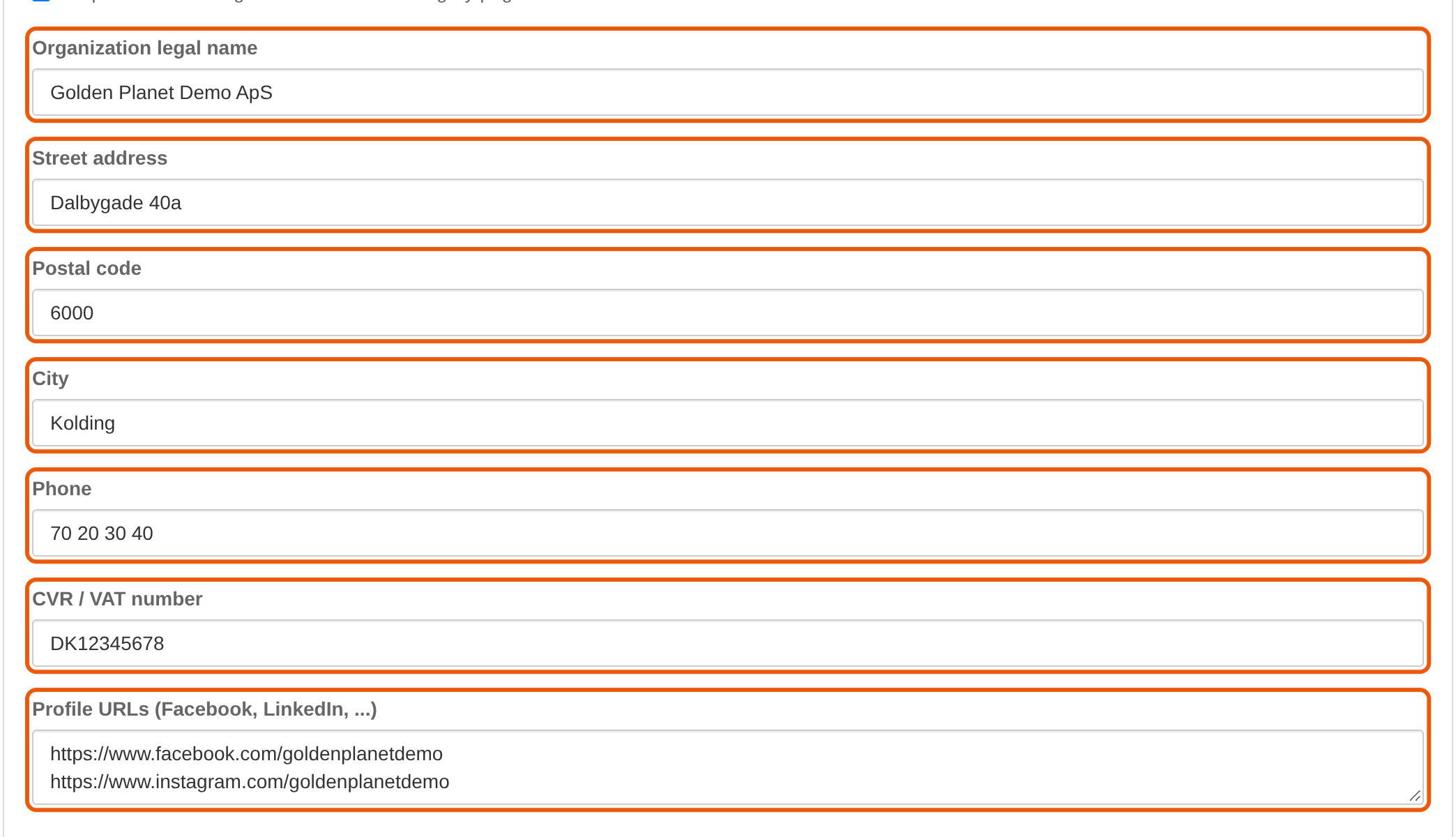
- Organization legal name: the company's name as registered, for example "Hansens Vinhandel ApS".
- Street address, Postal code and City: the company's address.
- Phone: write the number without the country code. The shop adds the country code itself (+45 for a Danish shop).
- CVR / VAT number: write the number with the country code in front, for example DK12345678. The shop sends it exactly as you write it.
- Profile URLs (Facebook, LinkedIn, ...): the address of each of your social media profiles, one per line.
The shop takes two of the details from elsewhere:
- Email is the one you have written in Sender email under Configuration > Basic settings via Guide > Store details.
- Logo is the image you have uploaded under Content & layout > Store logo. If you use the shop's name with styling instead of an image, no logo is included. Google shows the logo on a white background and wants it to be at least 112 × 112 pixels, so it must be visible on white.
3. Shipping on the products
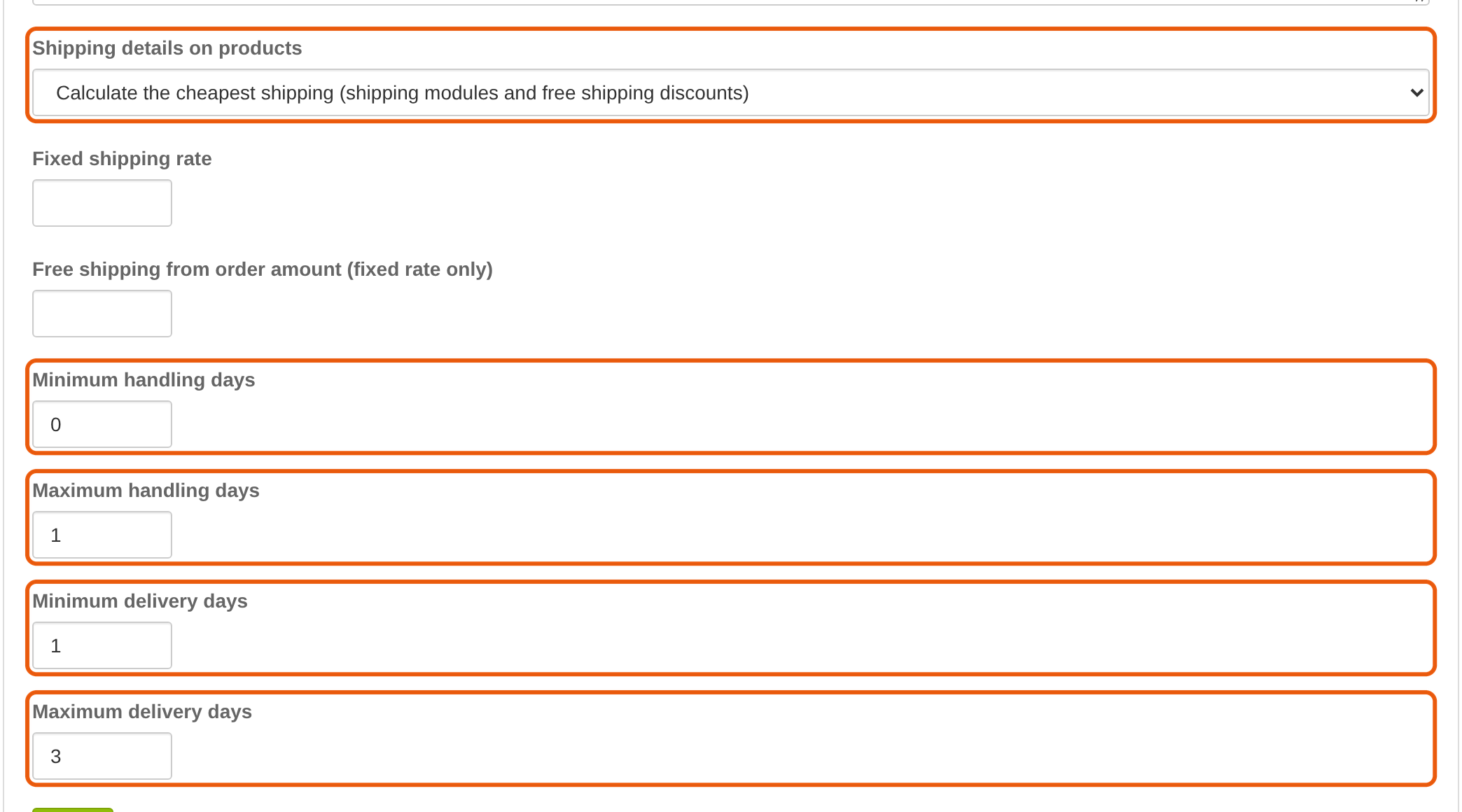
Google likes to show the shipping cost next to the price, and in Google Shopping it matters. On the Structured data tab you choose in Shipping details on products how the shipping cost is found:
- Do not output: no shipping is included. This is selected from the start.
- Calculate the cheapest shipping (shipping modules and free shipping discounts): the shop works out the shipping for each product from your shipping methods and your free shipping rules. This is what we recommend.
- Use the fixed rate below: all products get the same shipping cost, the one you write in Fixed shipping rate. If you write an amount in Free shipping from order amount (fixed rate only), products from that amount upwards get free shipping.
Also fill in the four fields with days. Minimum handling days and Maximum handling days are how many days pass from the order comes in until the parcel is sent. Minimum delivery days and Maximum delivery days are how long the parcel is on its way.
How the shop works out the shipping
The shipping is the price for customers in the shop's own country. The shop uses the cheapest of the shipping methods that have a tick in Use it in shopping cart estimation. It is the same setting that decides which shipping the customer sees as a suggestion in the shopping cart. You find it on the shipping method under Configuration > Shipping > Shipping Modules.

Pickup in your store does not count, not even when it is free. It is not shipping, and most customers need the product sent, so they don't expect pickup to be the shipping cost shown next to the product. If, on the other hand, you have a shipping method that delivers for free and has a tick in Use it in shopping cart estimation, all your products get free shipping at Google.
If you have set up free shipping under Discounts > Free shipping rules, the shop includes it for each product.
An example from our demo shop: the cheapest shipping method costs DKK 36 plus VAT, that is DKK 45, and there is free shipping from DKK 500. A fan at DKK 995 therefore gets shipping of DKK 0, and a bikini at DKK 448.75 gets shipping of DKK 45. The shipping always includes VAT.
4. Return policy
Google can also show your return policy with the product, and it is used in Google Shopping. You set it up on the Return policy tab under SEO > General Settings. From the start it is set to No policy, and then no return policy is included.
- Choose the kind of return policy you have in Return policy, typically There's a set number of days to return a product.
- Write the number of days in The number of days from the delivery date that a product can be returned.
- Tick the ways the customer can return the product in Return policy methods: at a kiosk (parcel shop), by mail or by handing it in at the store.
- Choose in The type of return method offered who pays for the return: that it is free for the customer, that customers send and pay for it themselves, or that you charge a fee. If you charge a fee, write the amount in The cost of shipping for returning a product.
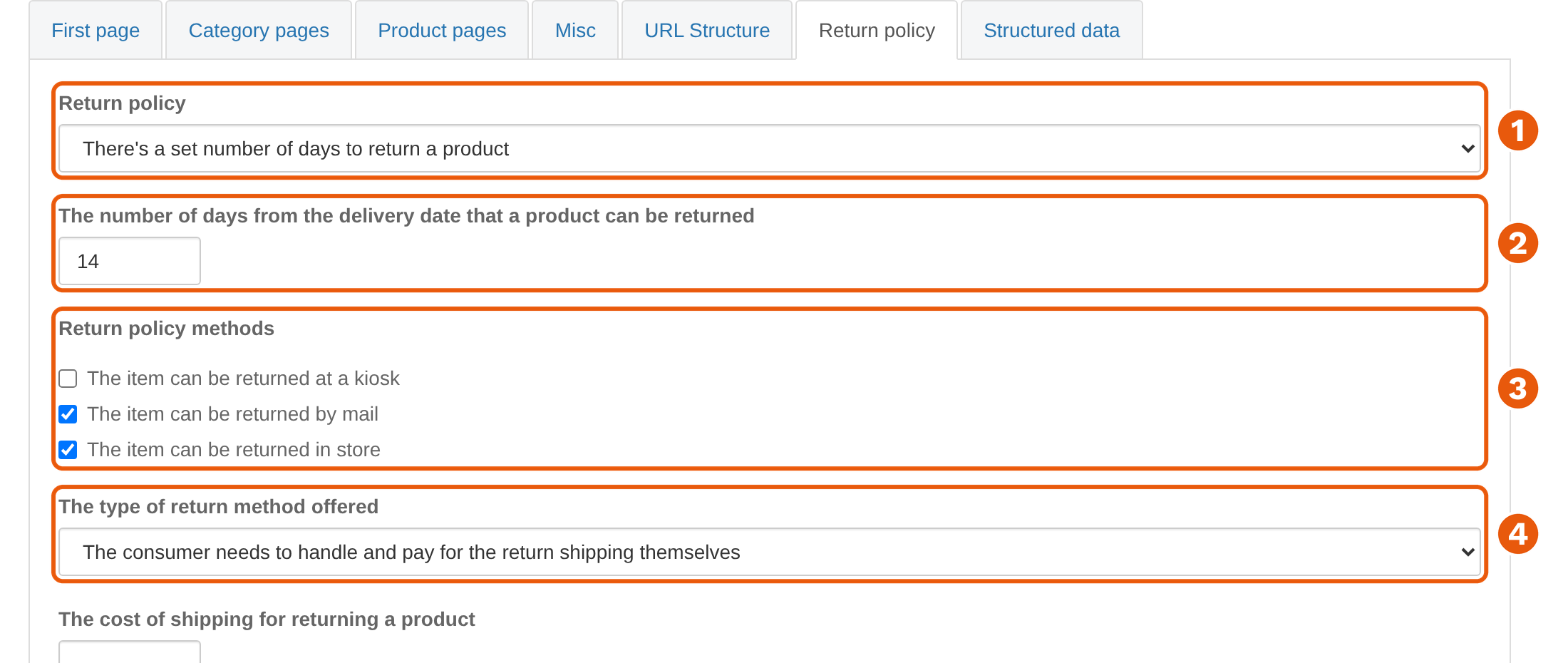
What you choose here must match what your terms and conditions say. If the page says "14-day right of return, the customer pays for return shipping", the settings must say the same.
5. Price, stock and reviews in the search results
On the Product pages tab under SEO > General Settings you decide how much of the product's offer is included.
- Choose Display stock and price in rich snippets. Then price, stock status, shipping and return policy are included.
- Tick Display review info in rich snippets. Then ratings and reviews are included.
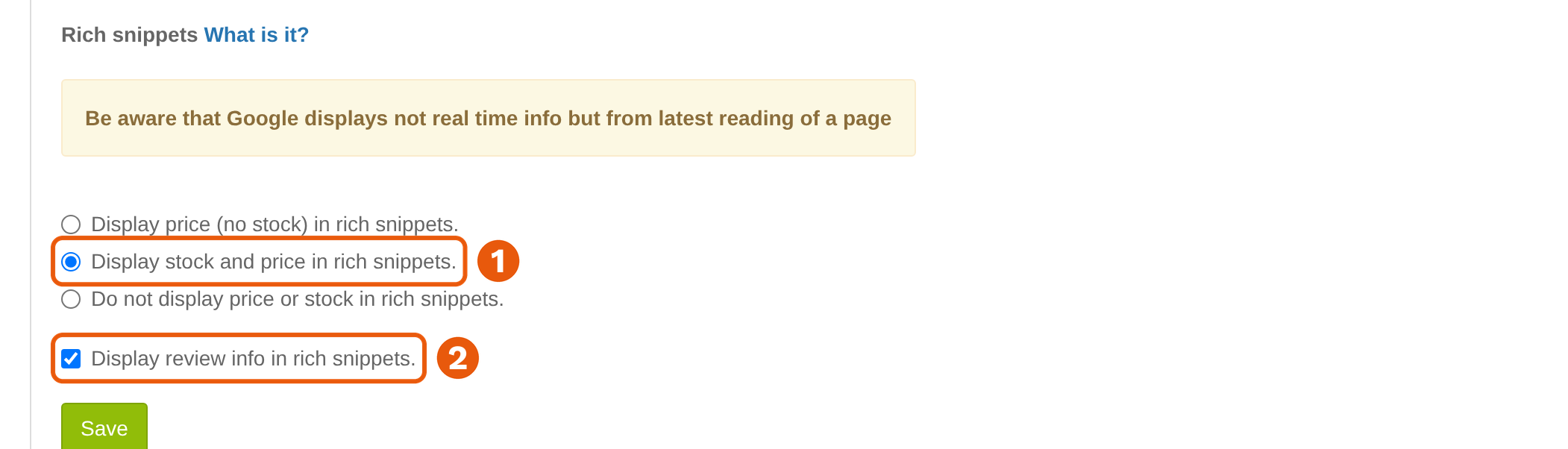
If you choose Display price (no stock) in rich snippets., the stock status is missing. If you choose Do not display price or stock in rich snippets., no offer is included, and therefore no shipping or return policy either. Without an offer, Google cannot show the product with a price.
6. Fill in the product data on your products
The shop can only send what is on the product. It takes time to fill in for many products, but it is the information Google uses to recognise the product and show it in the right places.
Open the product under Catalog > Categories & Products and go to the Data tab:
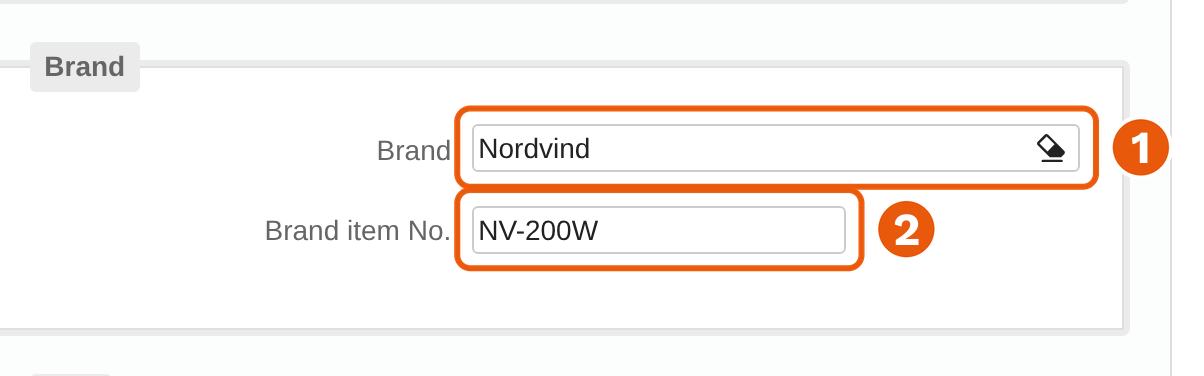
- Brand: choose the product's brand. You create brands under Catalog > Brands.
- Brand item No.: the manufacturer's part number (MPN), if the product has one. It applies to all the product's variants.
- Barcode: the product's EAN number (GTIN).
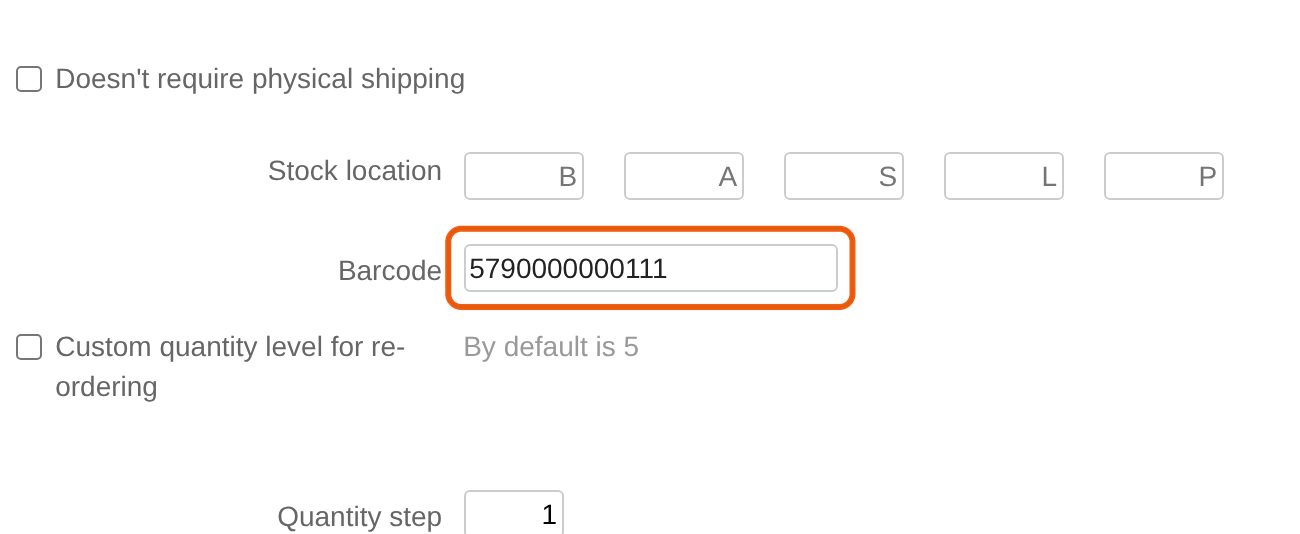
If the product has variants, each variant must have its own barcode. You write it in the Barcode column in the list of the product's variants. Never use the same number on several variants. Google uses the barcode to recognise the individual product, and two products with the same number get mixed up.
This matters for the structured data too:
- Images: all the product's images are included, so give the product several good images and not just one small one. If you have chosen to give the variants their own images, each variant gets its own image, so the red variant shows the red product.
- Description: the shop uses the Short product description on the General tab. If it is empty, the long description is used.
- Stock: what the page shows is exactly what Google gets. Keep the stock quantity up to date, and only tick Available when out of stock if the product can be backordered.
- Special offers: use the fields on the Prices tab for the offer price, and fill in Special starts date and Special expires date if the offer is time-limited. Never write a before price in the product text instead, because Google cannot read it as a price.
- Unit price: if you sell, for example, a case of six 0.75-litre bottles of wine, write 4.5 in Unit measure, choose l in Metric for item and l in Unit base measure. Then Google gets the price per litre.
7. Say what the variants are
Google needs to know whether a variant is a colour, a size or something else. You decide this once per variant group, not on each product.
Go to Catalog > Manage Attributes, open the variant group and choose the Misc settings tab. In Google Type you choose the type the group matches: Size, Color, Pattern or Material.

If the group does not match one of them, for example battery, weight or model, leave it on Other. The variants still work as they should in the shop. Only the groups that have one of the four types are what Google is told the variants differ by. Read more about variants.
Don't add your own markup
Don't add your own structured data for what the shop already sends, whether in the design, through Google Tag Manager or with a plugin. That applies to the shop's details, the website, products, offers, the breadcrumb trail and ratings from reviews. Two different versions of the same thing confuse Google and can cause errors.
Be especially careful with review widgets from other companies. Some of them, for example Trustpilot's "Product Reviews SEO" widgets, add their own product to the page with JavaScript. Then there are two products on the same page. Choose a version of the widget that adds no markup, or ask your provider.
You are welcome to add markup yourself for what the shop does not send, for example a video, an article or guide, or an event. FAQ markup is allowed, but Google no longer shows questions and answers in the search results based on it.
Check that it works
- Google's Rich Results Test (opens in a new tab): enter the address of a product page. There should be one product (Product or ProductGroup) and no errors.
- Schema Markup Validator (opens in a new tab): shows all the structured data on a page.
- Google Search Console: the Product snippets and Merchant listings reports show errors across your whole shop.
If you have set up shipping and returns in Google Merchant Center or Search Console, those settings apply in Google Shopping, not the ones from your shop. Make sure they say the same as your shop.
It can take days or weeks before Google shows a change in the search results.