In this category Shipping & delivery
Free delivery or a shipping discount (on selected products)
How to set up free delivery in your Golden Planet online shop. You decide which delivery methods and other conditions apply to free delivery in your shop.
On this page
Offering “free delivery” on orders over a certain amount is a great way to try to raise your average order value. If a customer has €60 in their basket and delivery is free over €70, there’s a good chance they’ll buy that little bit more to get the order total over the free delivery threshold.
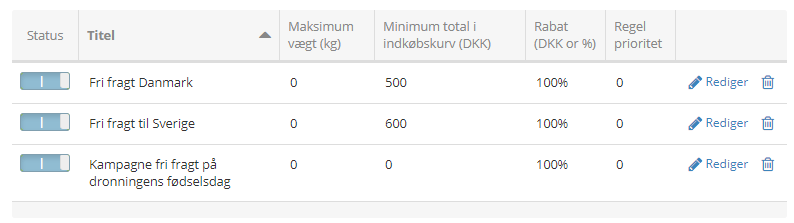
With your Golden Planet online shop, you can set up free delivery for things like:
- Selected or all delivery methods
- Different free delivery methods depending on the order total
- Different free delivery rules per country
- Different customer types (private or business)
- Selected products and/or categories only
- A coupon (enter a coupon code to get a particular free delivery option)
- A maximum weight for free delivery
- A free delivery campaign for a set period (from/to date)
Create a new rule for a shipping discount
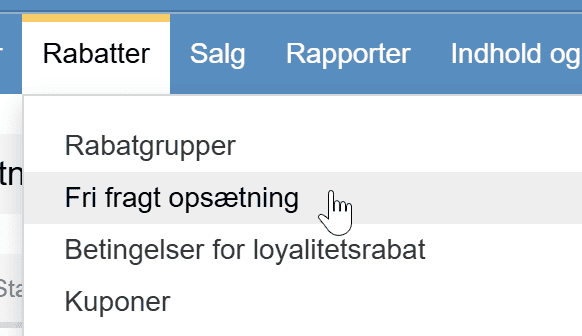
You’ll find the setup for giving a discount on shipping here:
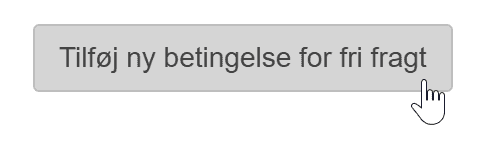
Click the button to add a new rule, or adjust an existing one:
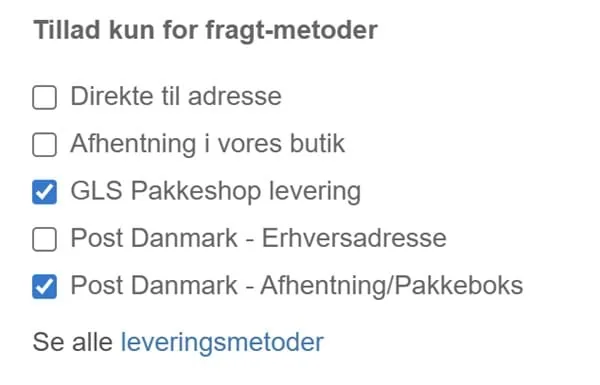
Limit the delivery methods
To choose which delivery methods are included, first untick this option

and then select the delivery methods you want
Watch out for this if you limit the discount to certain products or categories
You can limit the shipping discount to certain categories, or right down to individual products. When you limit it to certain categories, it’s important that you have enabled “Allow all products” for it to apply to all products in those categories – also when you exclude categories.
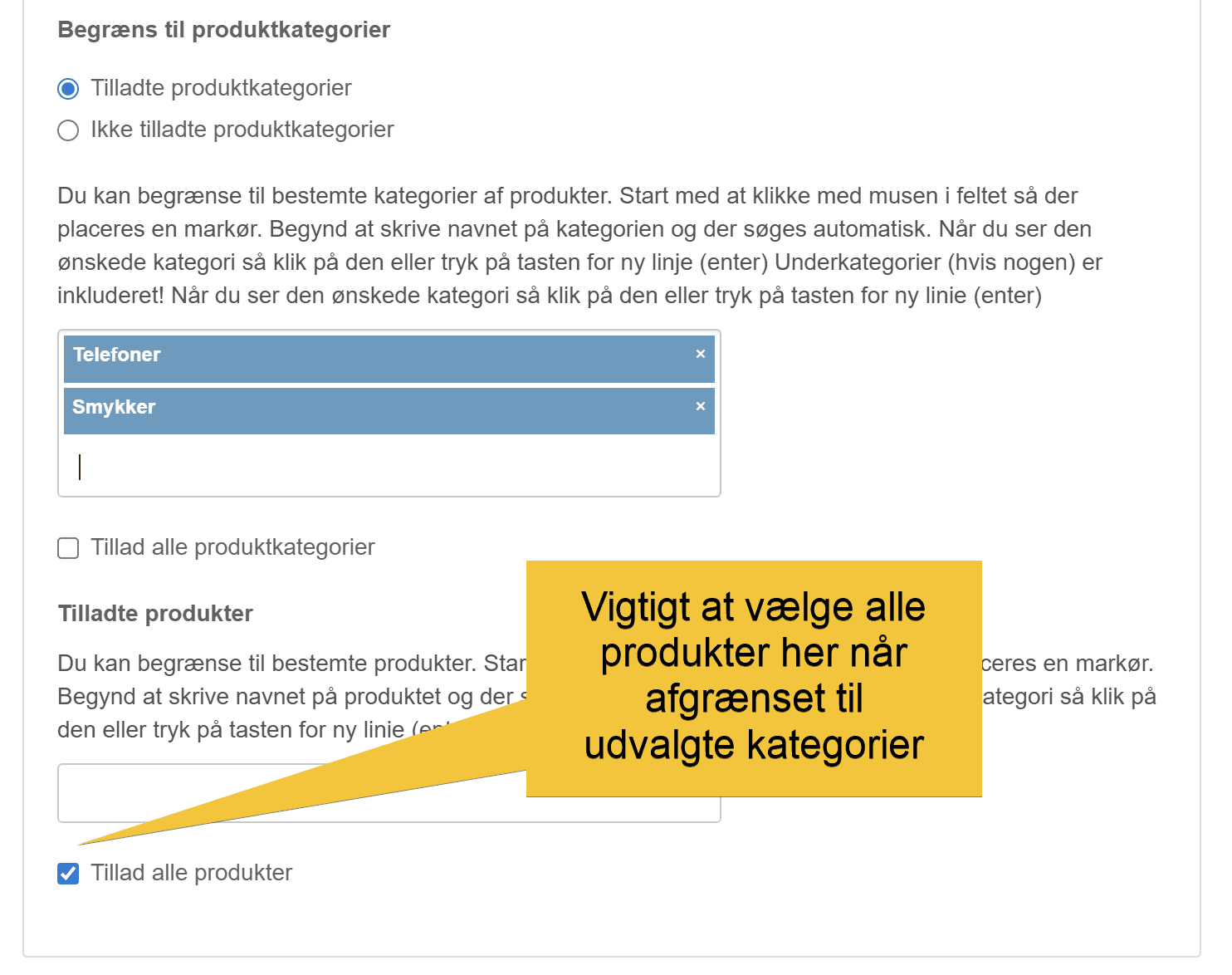
If the customer should keep the free delivery even when other products are added to the basket – so they only need to buy some products (for example from the categories phones and jewellery, as in the example above) and still keep the shipping discount – you can enable this option on the Other settings tab:

Set the discount
Free delivery is usually set as a 100% discount, like this:
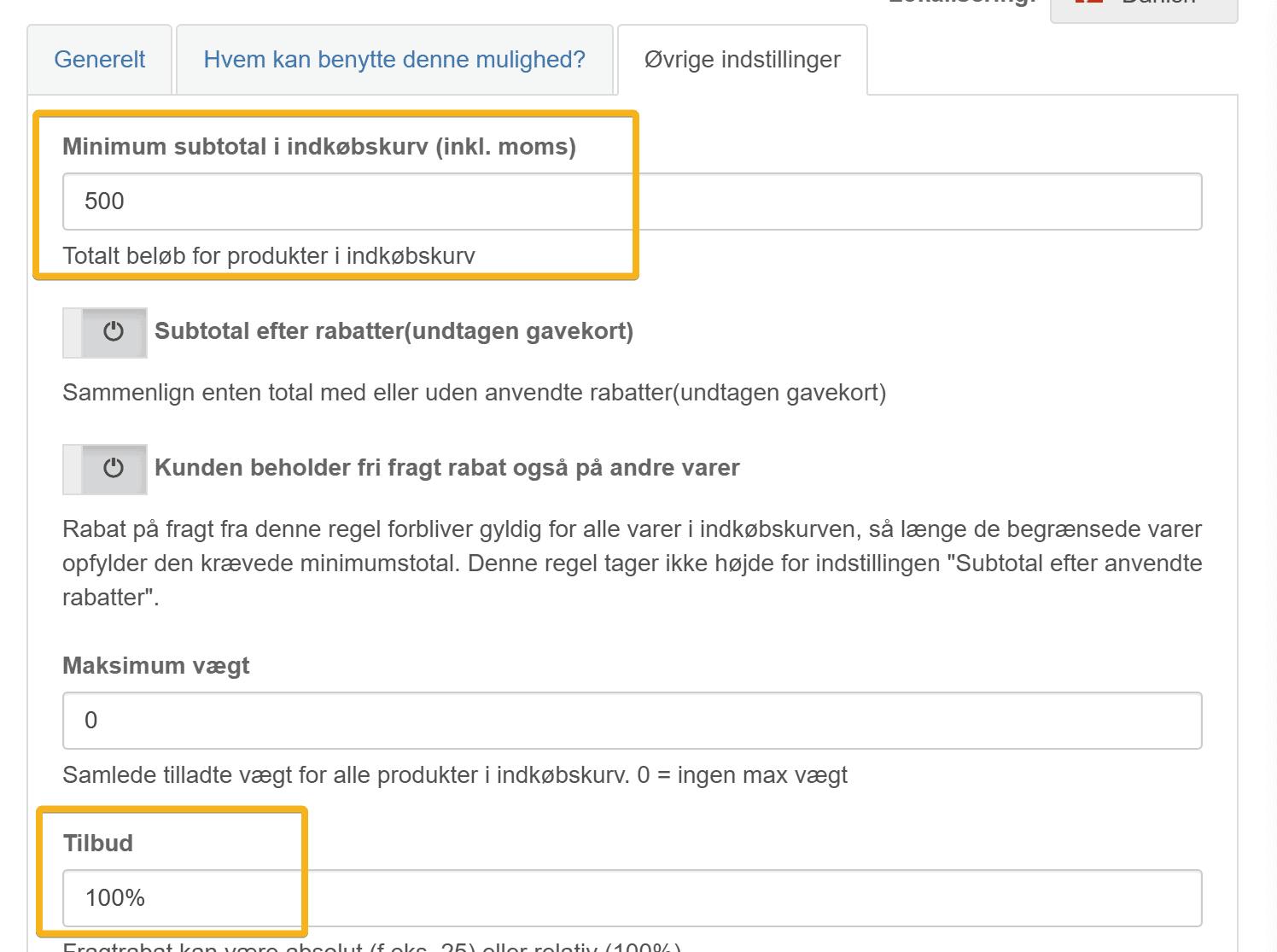
In the example above, the customer has to spend €70 to get free delivery.
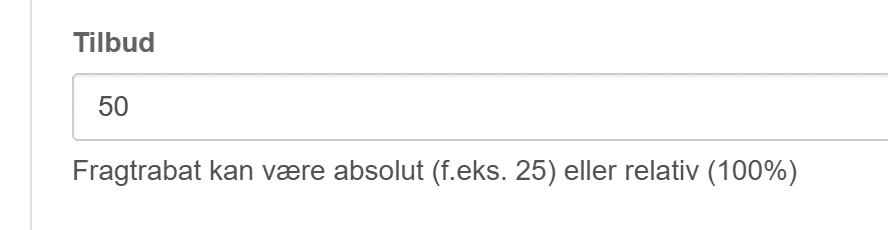
It’s actually possible to give the customer free delivery to a parcel shop, for example, and a discount on delivery to their own address. That way the customer only pays the extra for the more “luxurious” delivery. You can do this by creating several free delivery rules – one for the delivery methods that get a 100% discount and another for the ones that get a discount without being free. You can also set the discount as an amount – so that a flat-rate delivery method becomes free and others become cheaper. In that case, enter the amount excluding VAT in the discount field.
Discount coupon only
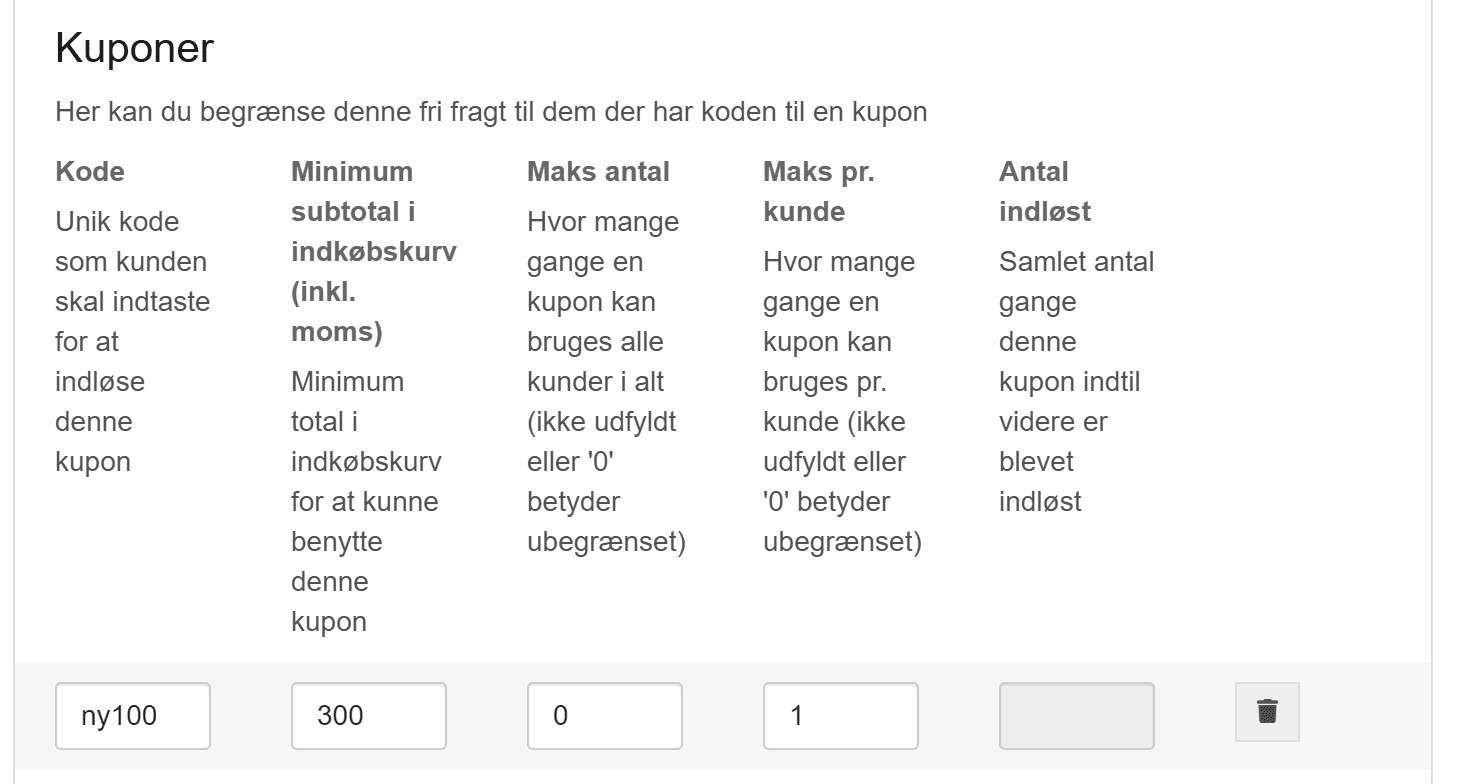
You can run a campaign – for example for your newsletter subscribers – where only people with a coupon code get the free delivery discount. You set this on the Other settings tab, like this:
The customer automatically gets the best (cheapest) option
This applies when you have several free delivery rules. So if you run a campaign for a period, you simply create an extra rule. It could look like this: