
In this category Product catalogue
Product catalogueProducts
Products: variants
On this page
Setting up variants on products, such as sizes and colours.
You can easily create variants of your products – and they can of course have several values. This means that, e.g., a dress can be both red and in size L.
Create a variant type
Before you can put variants on your products, you need to create the variant types you want to use – that is, which colours, sizes etc. you need.
You do this by going to Product catalogue > Variants and attributes. In here you click Add new variant/attribute.
Then create a new variant type with one or more values. See the guide here.
Add variants to products
Once you have created your variant types, they need to be set on your products.
Go to Product catalogue > Categories and products and Edit the product you want to add the variants to.
On the product, choose the Variants tab.
First choose the variant type – you do this by placing the mouse in the field, and a list of the variants you have created appears. Then choose the variants to include.
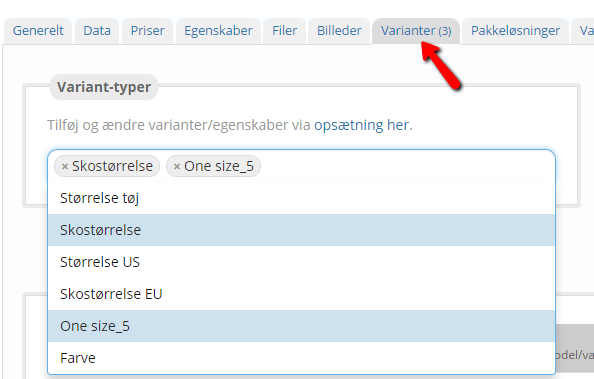
Now that you have chosen your variant types, you need to set them up to fit – some may be cheaper or more expensive than the main product.
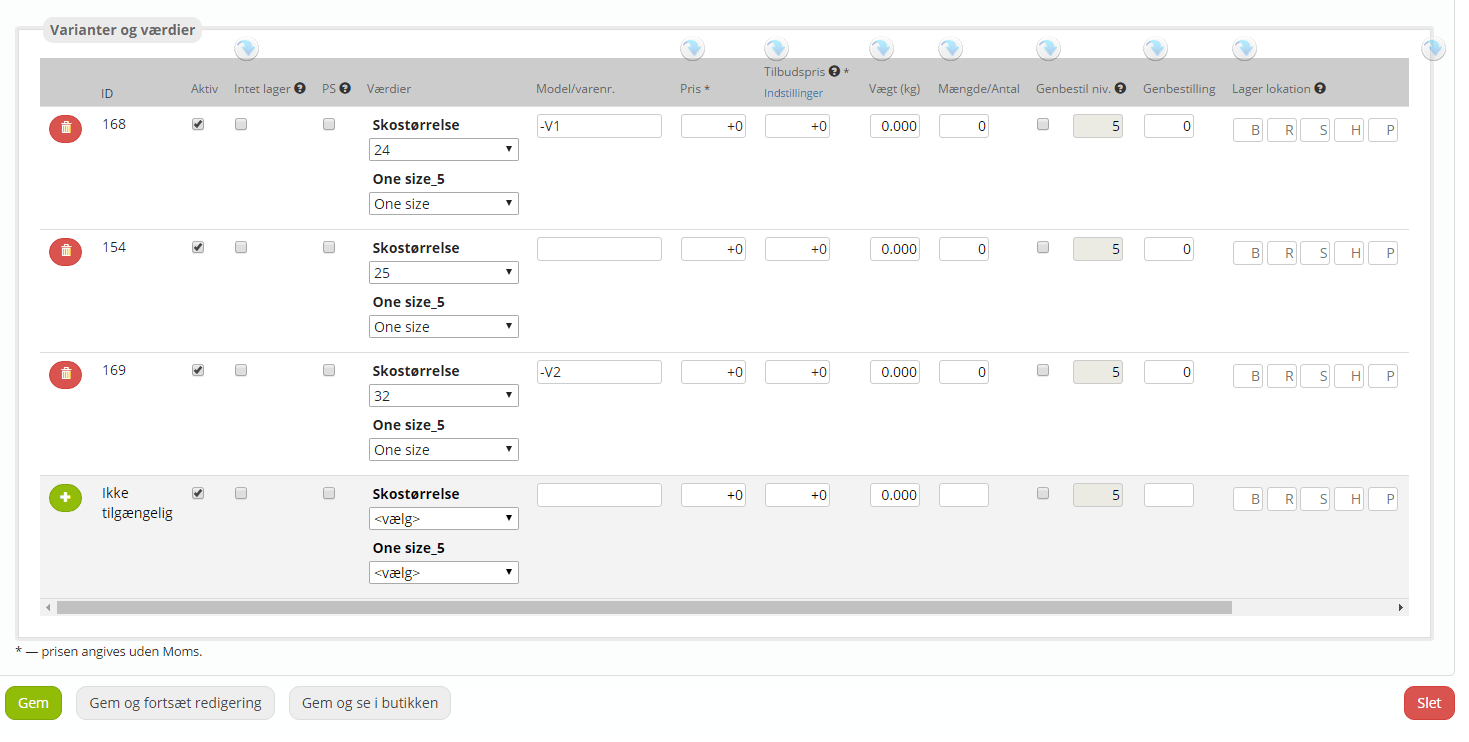
For each new variant, click the green plus on the far left. If you want to delete a variant completely, click the red bin.
ID
This is the variant's ID number; it is assigned automatically.
Active
Here you can deactivate a variant if, for example, you can no longer sell it, or don't want to sell it for a while.
No stock
If the product should be sold even when the stock level is 0 or negative, tick this.
PS
Requires no physical shipment – if, for example, the customer is buying a file, tick this.
Values
Here you choose, from the drop-down, the variant values that fit the product. E.g. size L and the colour red. The next variant would then be size M and the colour red.
Model/product no.
This is a unique number that identifies the product variant
Price
Enter the price of the variant here. If it should have the same price as the main product, enter +0. Otherwise you can enter the price as -10 or +10, depending on whether the variant is cheaper or more expensive than the main product. Note that the price is entered excluding VAT!
Sale price
If the product variant is on sale, you can enter the sale price here. Note that the price is entered excluding VAT! The offer must be active on the Prices tab for the sale price to be used.
Weight (kg)
Enter the weight of the product here
Quantity
Enter the stock quantity here.
Reorder lvl.
If this is ticked, you can enter a reorder quantity for this specific product; otherwise the predefined reorder level is used.
Reorder
How many should be reordered?
Stock location
Here you can enter the stock location. Read more about it here.
Barcode
Enter the barcode number (the EAN code) of the product variant here.
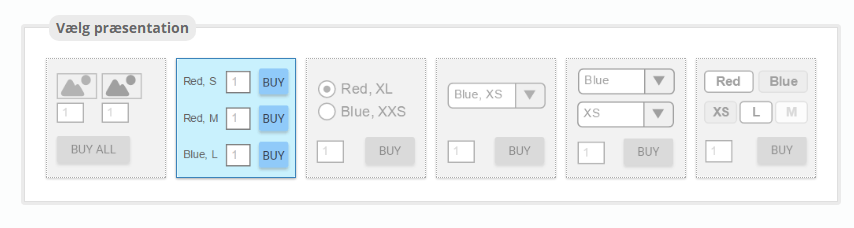
Now that your variants have been created, you need to choose how they are presented to the customer. You choose by selecting the option you think suits your online shop best. You can always change it again easily.
You have 6 options here:
Option 1: With this, the customer can enter quantities for several variants and then add them all to the basket by clicking an Add all to basket button.
Option 2: In a list, one below the other, where quantities can be entered – and where Buy must be clicked for each product individually.
Option 3: With a radio button, where only 1 variant can be chosen.
Option 4: Where the variant is chosen from a drop-down list.
Option 5: Where each variant value is chosen from its own drop-down list
Option 6: Here the customer chooses with buttons.
Remember to save!