
In this category Email service
Setting up email on Android
Here you can see how to set up your Android phone (Samsung, HTC, Huawei, LG and others) to read emails. In this guide we set up the phone to show emails via IMAP only. In other words, emails aren’t downloaded to the phone but stay on the mail server, so you can still read them via, for example, webmail, or download them wherever you mainly keep your mail.
Tap the Email icon to set up your email.
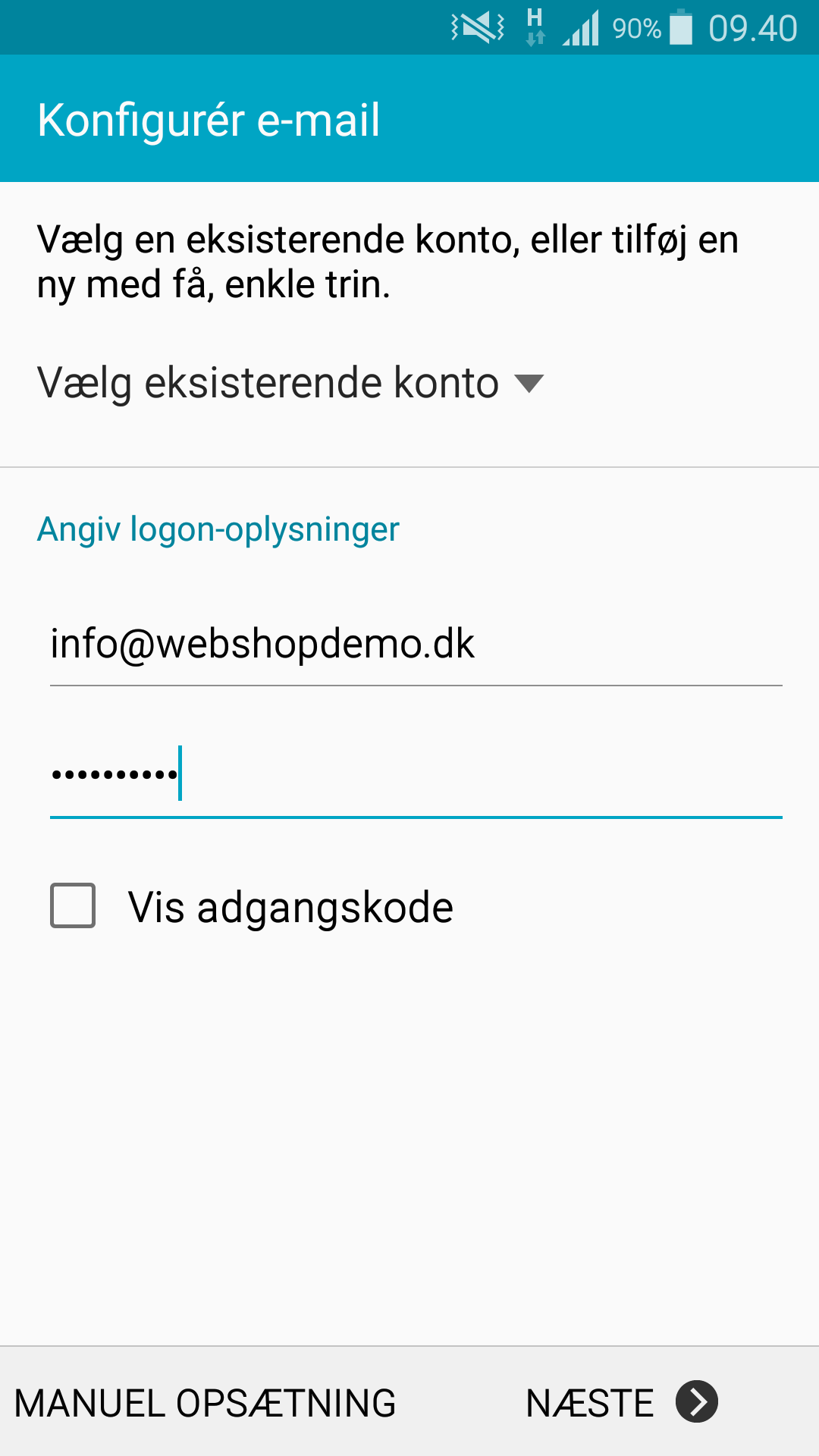
Enter your email address and the password you chose yourself when you created the email address, then tap Manual setup:
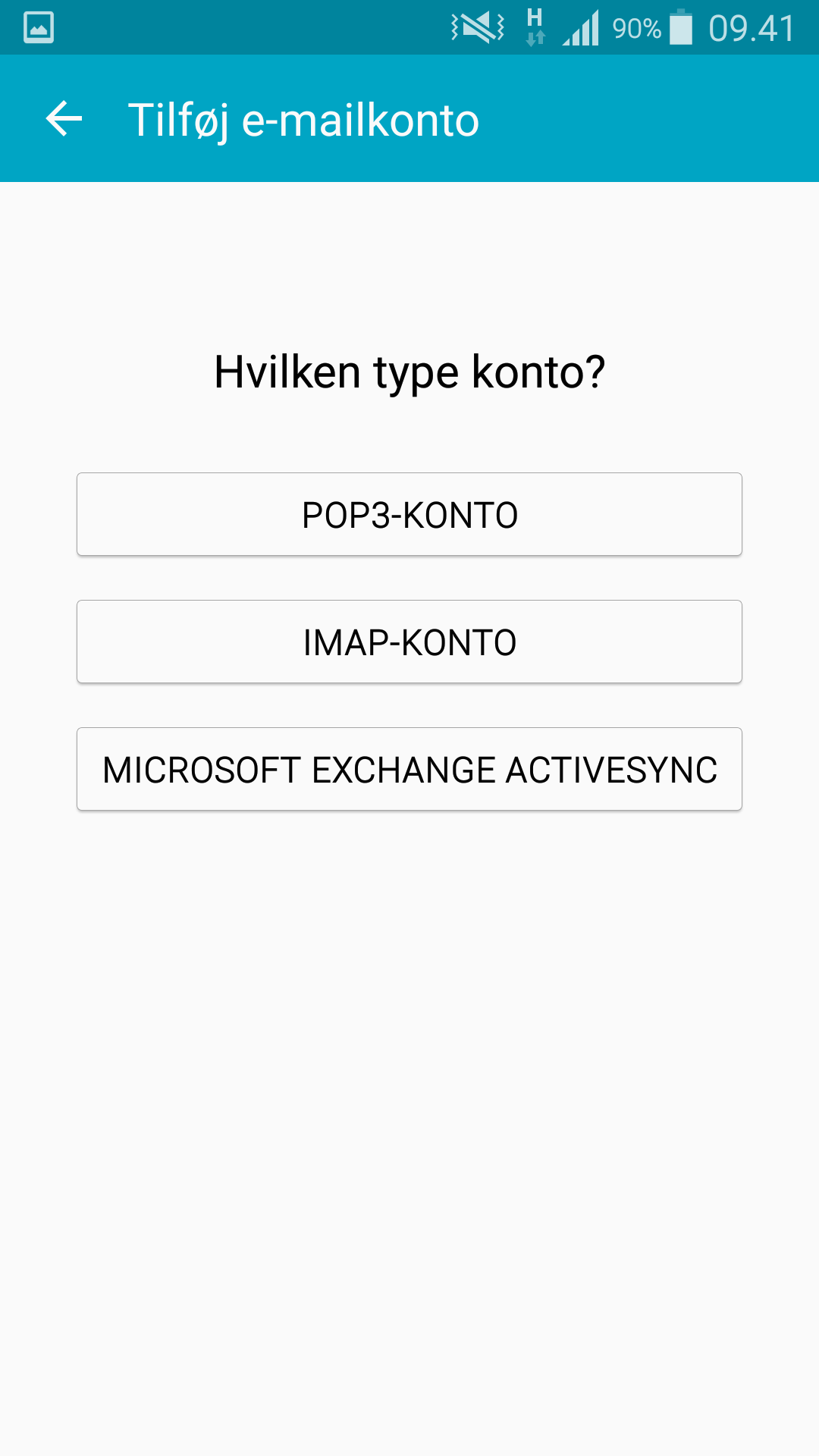
Choose IMAP account.
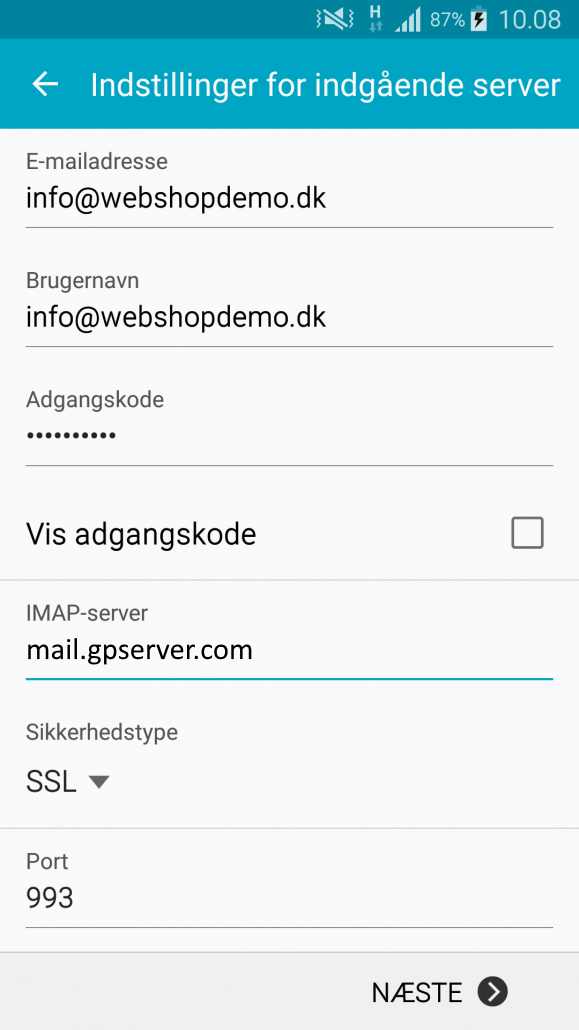
Incoming server settings:
For the email address and username, enter your email address (xx@yourdomain.com) and enter your password.
Under IMAP server, enter: mail.gpserver.com, choose SSL as the security type and port 993.
Finally, tap Next:
Outgoing server settings:
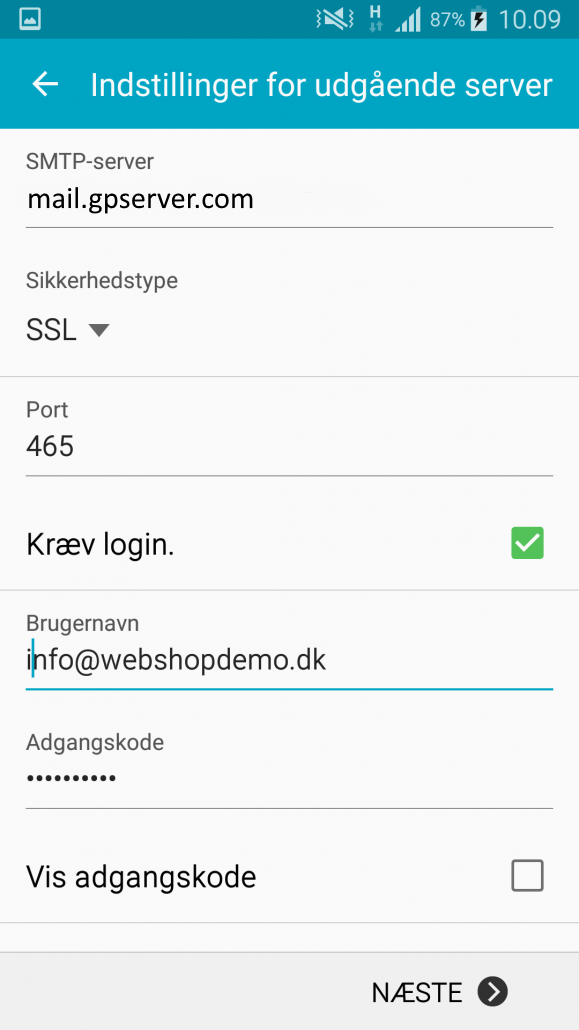
As the SMTP server, enter mail.gpserver.com; choose SSL as the security type and port 465.
Remember to tick Require sign-in, then fill in Username + Password again and continue by tapping Next.
You should now have finished setting up your email account; finally, give your account a name of your choice, choose the name you want to use as the sender, and tap Done.
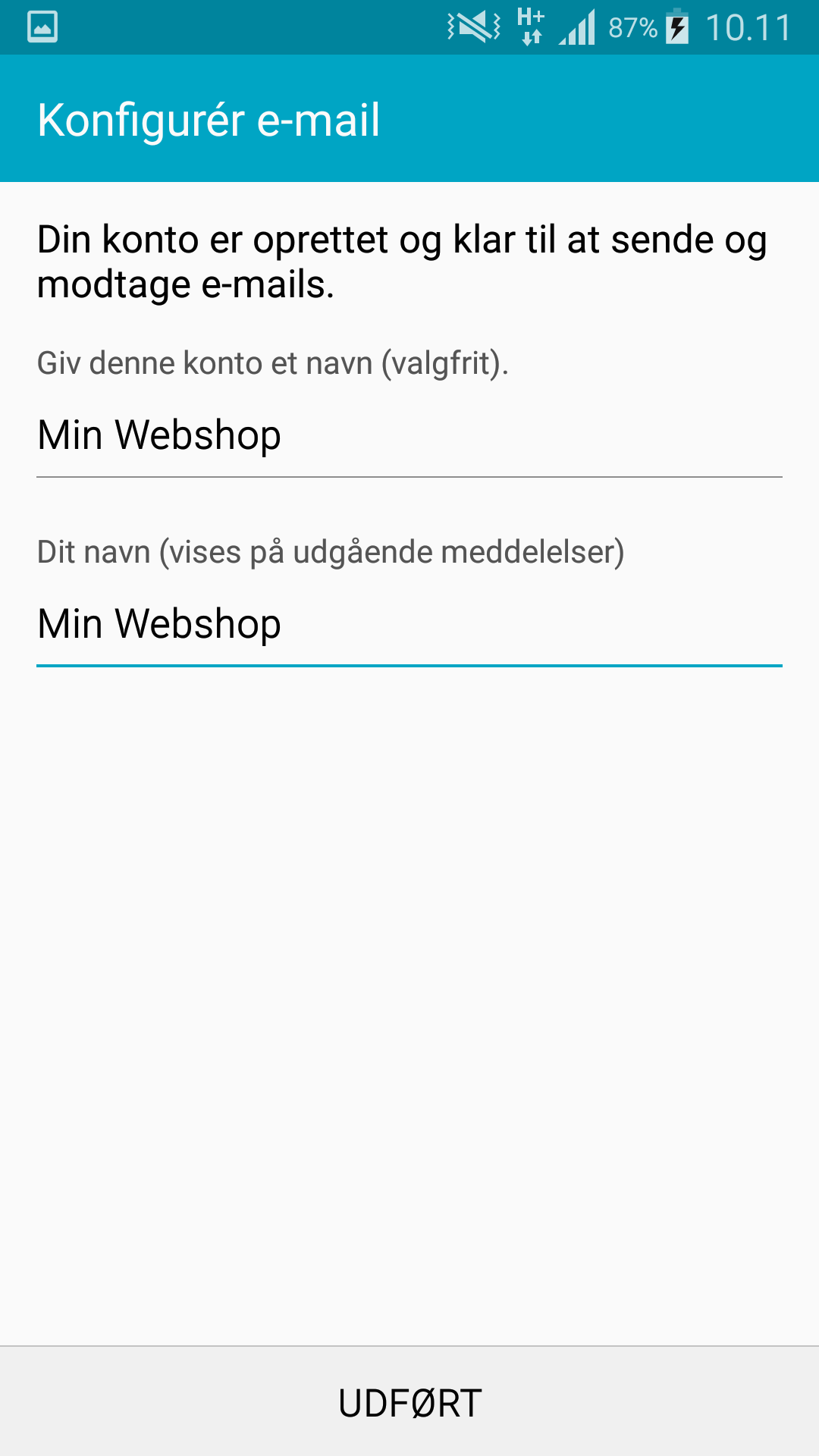
Your device is now set up for email.