In this category Email service
Mail disk usage
How to see your usage, and tips on clearing out your mailboxes.
On this page
It can be a good idea to check now and then how much disk space you use, and whether you need to bring your usage down. You may also receive an email from us saying that you’re getting close to your usage limit.
Customer login/PlanetController
The customer login/PlanetController is where you manage your services. You get to it by going to the customer login here
You can also always find a link to the customer login at the very bottom of every page of our website.
Once you’re logged in there, find your online shop installation at the top right and click the admin icon.
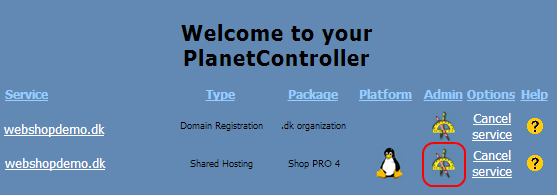
Then find the icon called Usage. This is where you can see both your web disk space usage and your mail disk space usage.

Check your usage
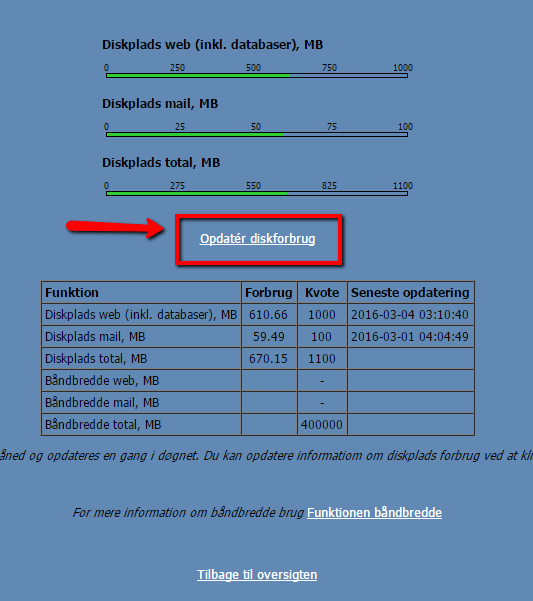
When you open your usage, you can see how much disk space you use.
To see the usage RIGHT NOW, it’s important to click the Update disk usage button, as we only update the statistics shown once a day.
If, for example, you have deleted some mail, you won’t see the actual disk usage until you click the button.
How to reduce your usage
Sent mail, spam (unwanted mail) and the trash are often the big culprits, hiding a large amount of mail you don’t immediately see. It’s a good idea to empty these folders regularly.
Which mail accounts?
If you have several mail accounts, the high disk usage may be because you have one or more mail accounts you haven’t emptied for a long time – or because your mail is forwarded but not deleted from the server when it’s forwarded, so it just sits there taking up space.
When you log in via PlanetController and find Mail Manager – this is where you created your mail accounts back in the mists of time – you can get an overview of all your mail accounts: which email addresses have been created, how much space they take up and where they forward to, if anywhere.
Delete mail
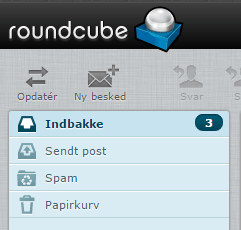
Mail is often hiding in Spam, Sent and Trash. As that mail has been read, it isn’t marked with a number, so it can be hard to see that there is actually mail in there. It can also be a good idea to go through your inbox and delete old mail that is no longer relevant.
You delete mail by selecting it and clicking

after which, if it is in an ordinary folder, it moves to the Trash. It’s then important to remember to empty the Trash.
Empty the Trash automatically
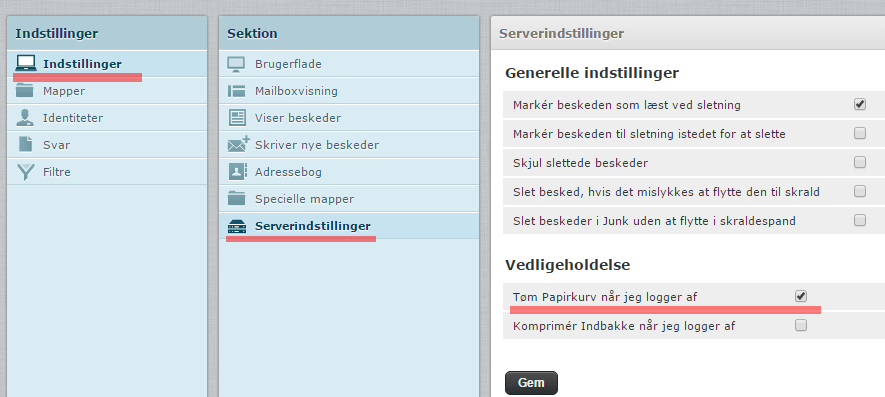
If you don’t want to have to remember to empty the Trash, you can have webmail do it automatically when you log out.
You do this by going to Settings – at the top right – and then choosing Server Settings, and under Maintenance ticking that the Trash should be emptied on logout (Clear Trash on logout). Remember to click Save.