
In this category Email service
Thunderbird as your email program
We generally recommend using webmail to read and write emails. That way you always have access to your email from any computer, tablet or mobile phone.
If you want to use an email program on your Windows, Mac or Linux computer, Thunderbird is a free program with lots of good features.
You can read more about the program here: https://www.thunderbird.net/en-GB/features/ (opens in a new tab)
And download it free to install on your computer with the download button here: https://www.thunderbird.net/en-GB/ (opens in a new tab)
Setting up Thunderbird
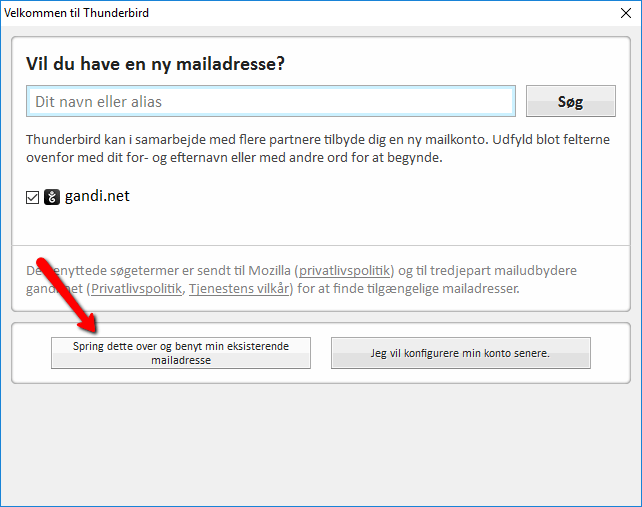
If it’s the first time you start Thunderbird, you’ll go straight to the window below.
If you have used Thunderbird before, click Mail on the start page to continue.
To configure your mail to work in Thunderbird, choose Skip this and use my existing email.
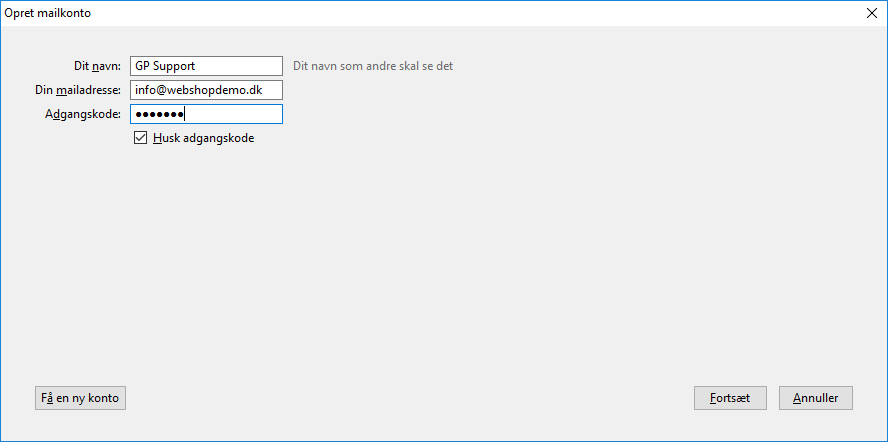
The Mail Account Setup box then opens. Here you enter your name, your email address (xx@yourdomain.com) and your password – and click Continue.
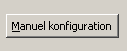
Thunderbird will then think for a moment and show you the settings it has found. When it starts thinking, a Manual config button appears at the bottom. Click it. This stops the automatic configuration and lets you configure it manually instead.
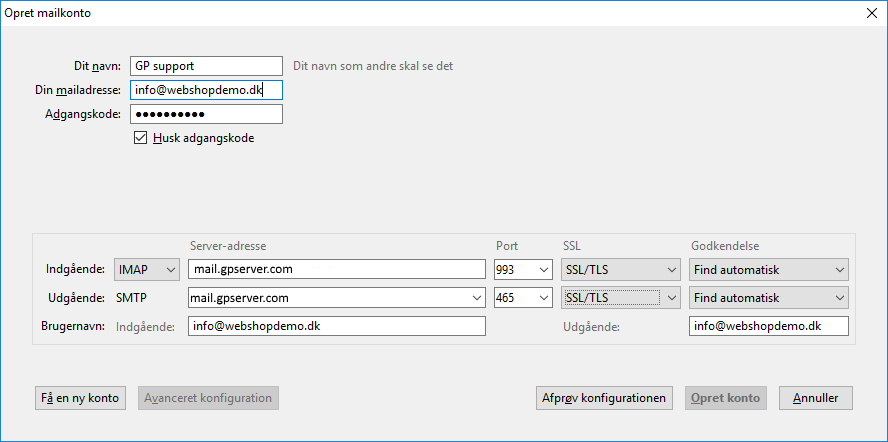
In the manual configuration, enter the following:
Incoming
Server type: IMAP
Server address: mail.gpserver.com
Port: 993
SSL: SSL/TLS
Authentication: Autodetect
Outgoing
Server address: mail.gpserver.com
Port: 465
SSL: SSL/TLS
Authentication: Autodetect
Username – incoming/outgoing: your email address (xx@yourdomain.com)
Then click the Re-test button to see whether it works, and then you can click Create Account.
You’re now ready to receive and send mail from your email address via Thunderbird.