
In this category Email service
Setting up email on iPhone
Here you can read how to set up your iPhone to read emails. In this guide we set up the phone to show emails via IMAP only. In other words, emails aren’t downloaded to the phone but stay on the mail server, so you can still read them via, for example, webmail, or download them wherever you mainly keep your mail.
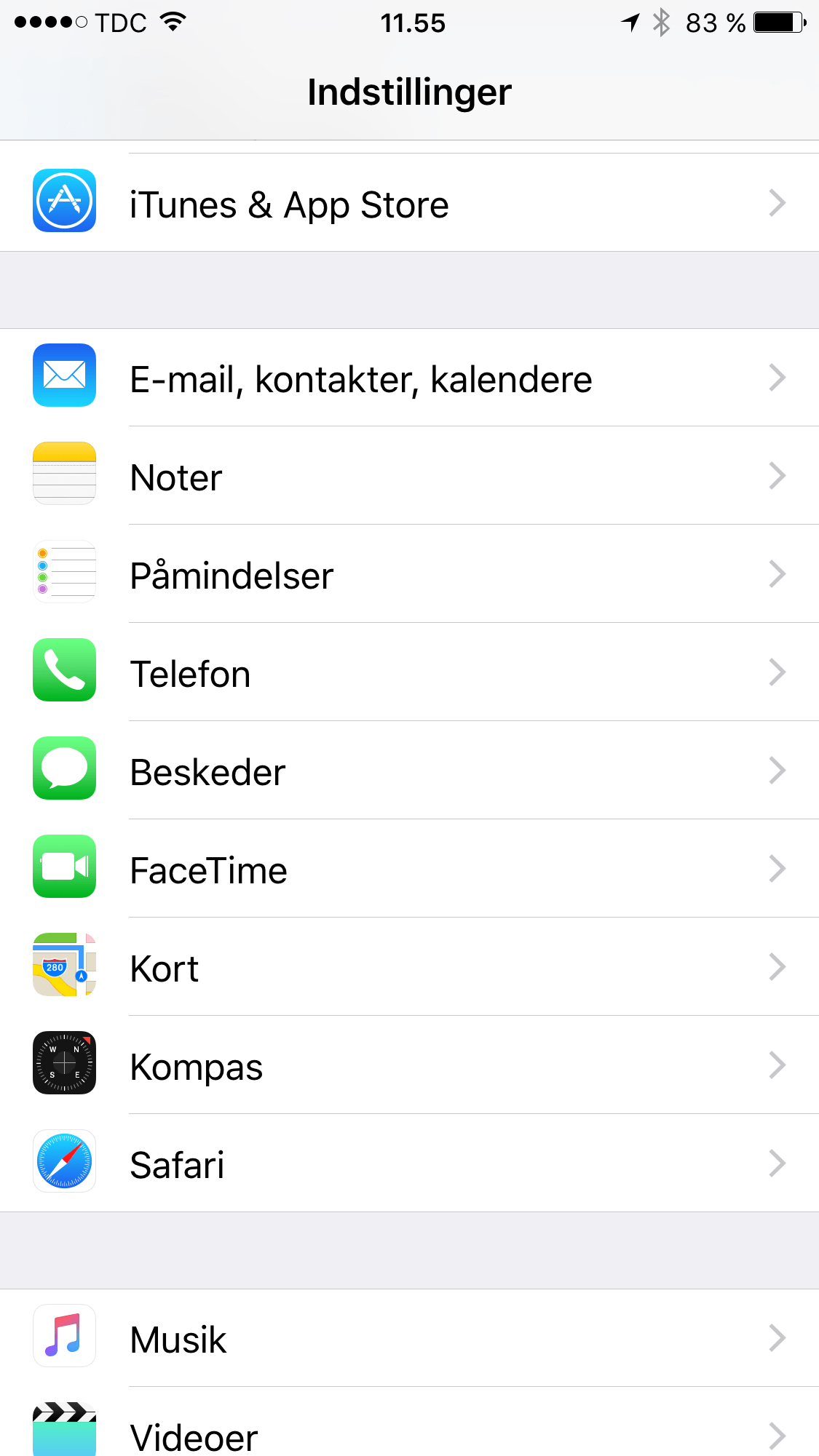
The first step is to open Settings on your phone.
In Settings, go to the settings for the Mail app and then to your accounts. The menus depend on your iOS version – on the latest versions you’ll find Mail under Apps.
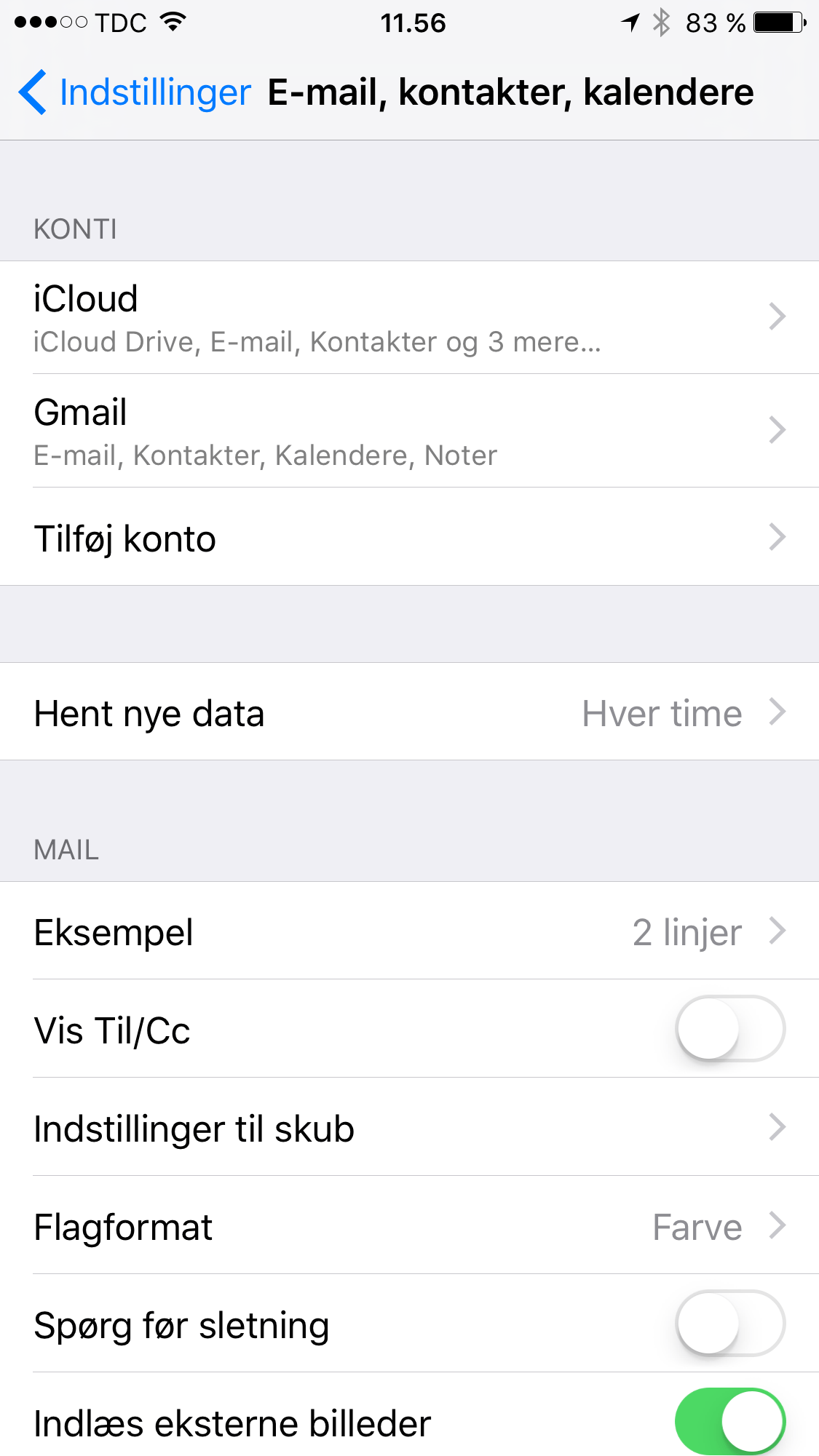
Then tap Add Account
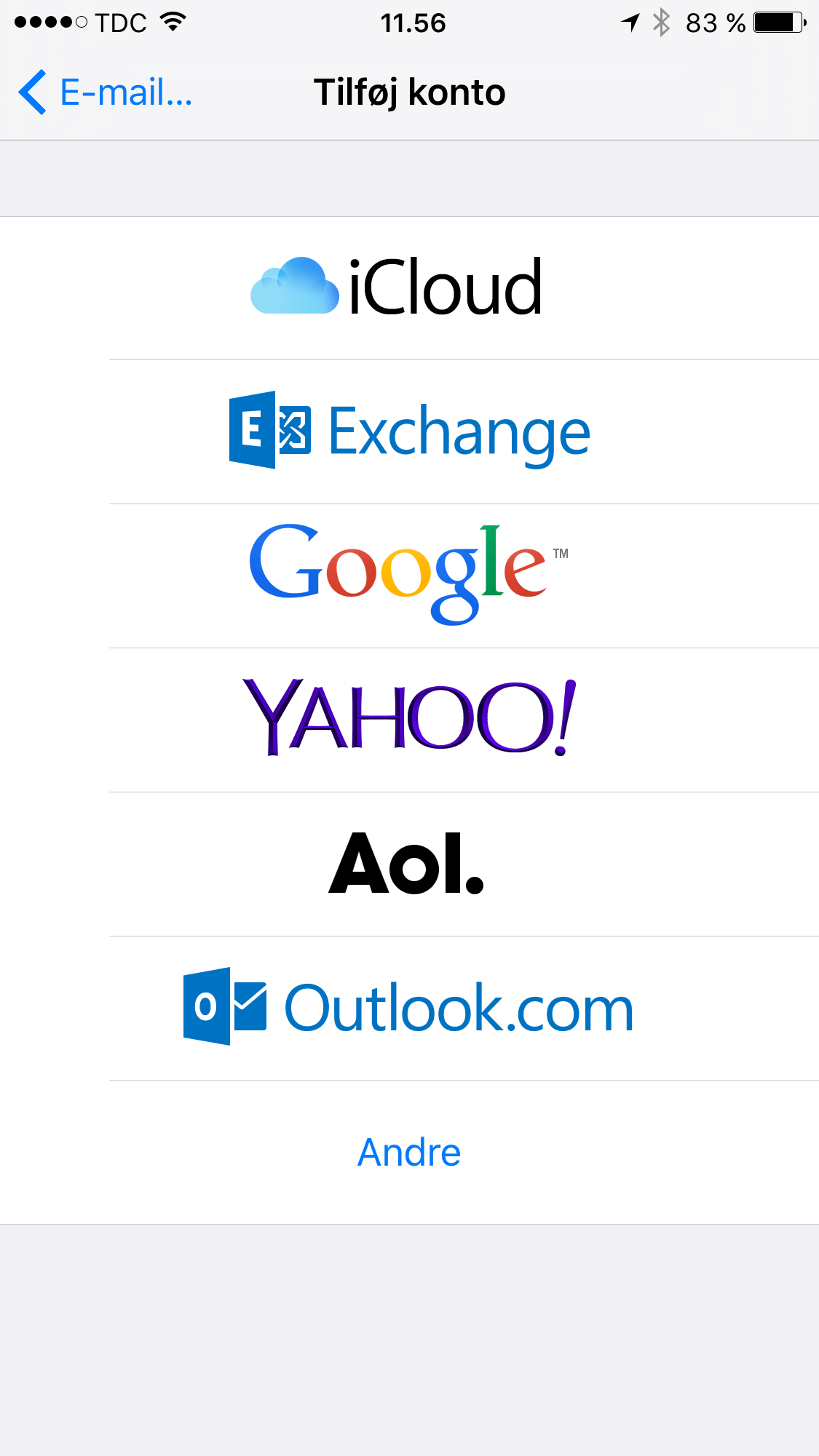
Choose Other – at the bottom.
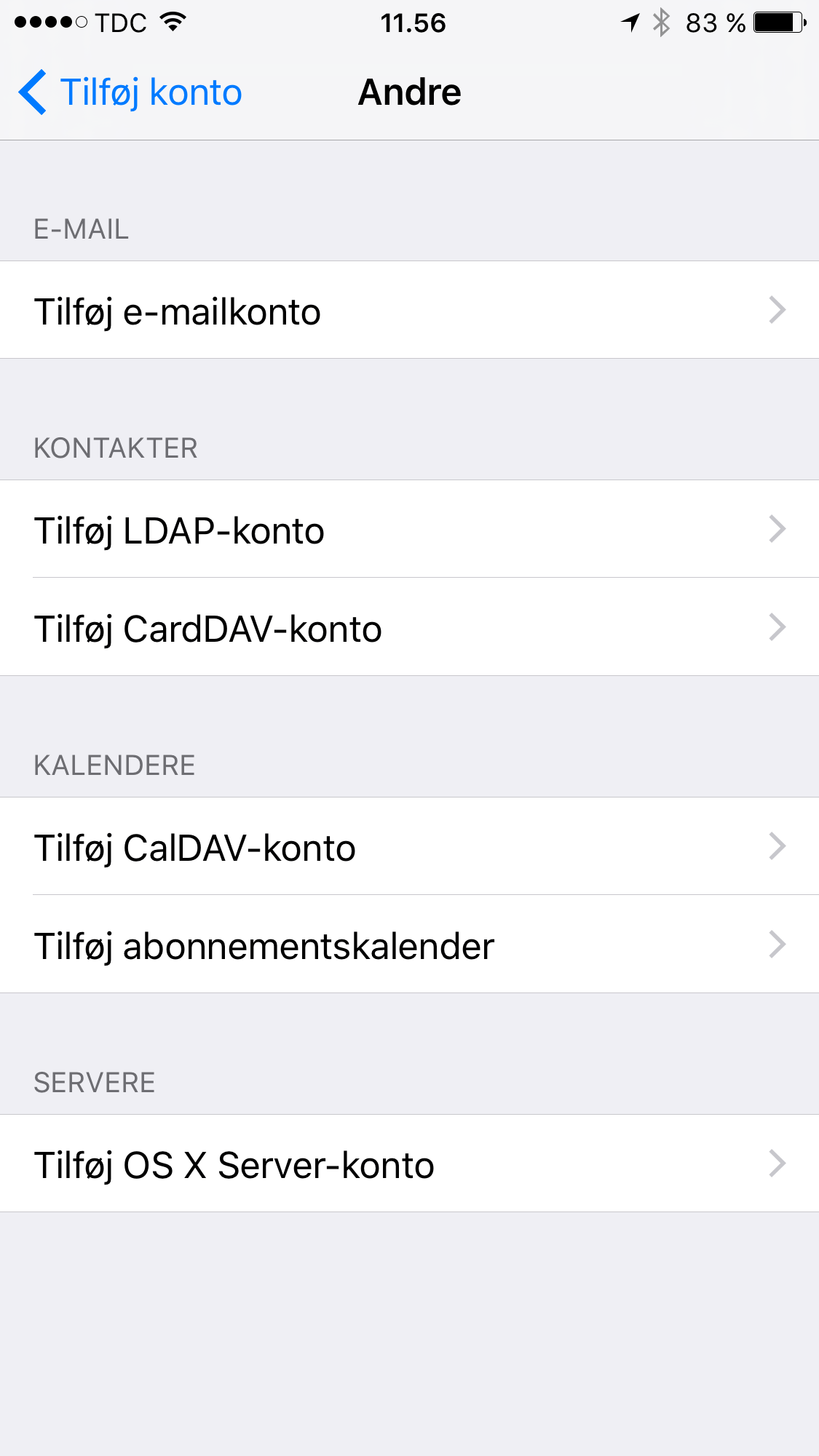
Then tap Add Mail Account
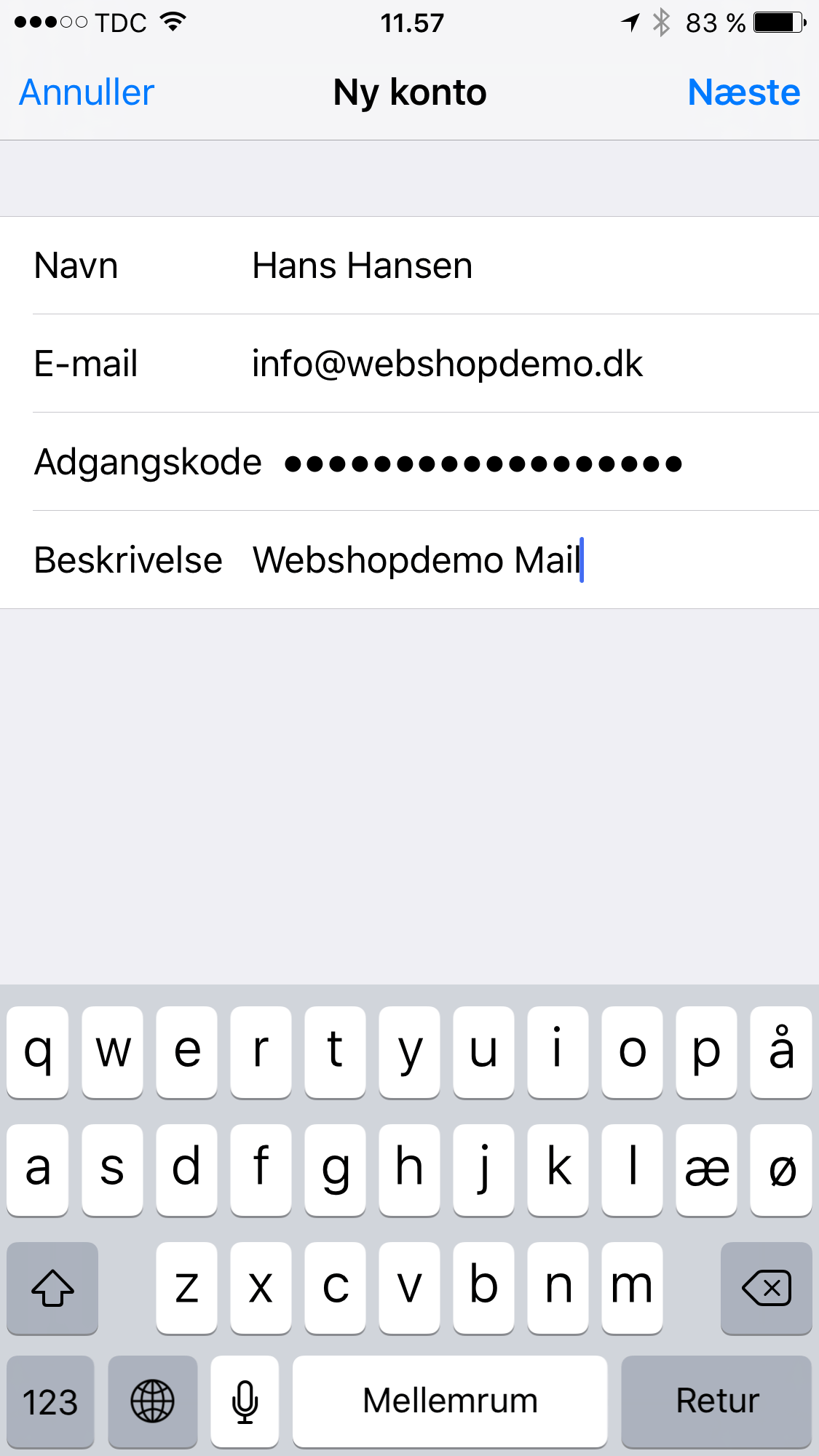
Fill in the fields.
Name: Enter the name you want shown as the sender.
Email: Enter your email address.
Password: Enter the password you chose when you created your email account.
Description: Enter, for example, “MyShop Mail”.
Tap Next in the top corner.
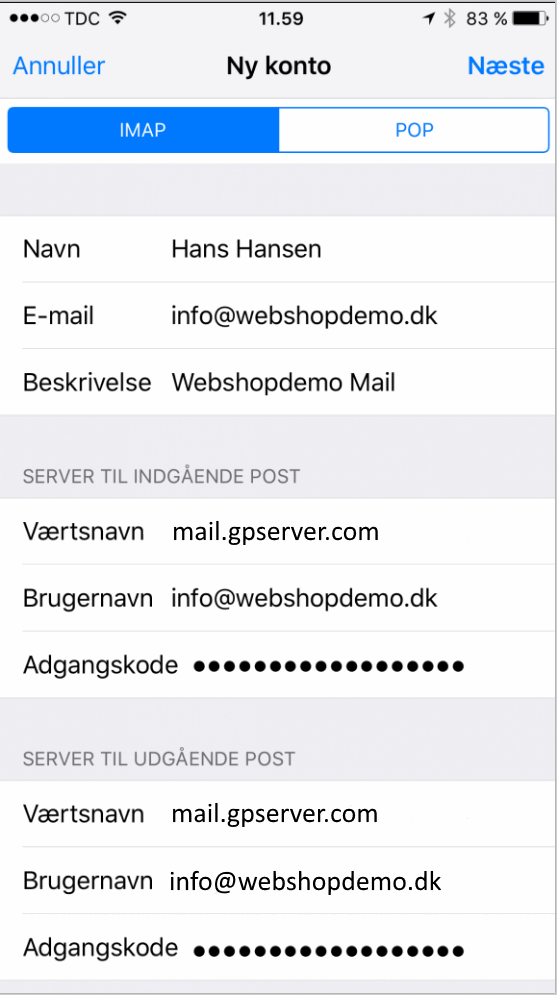
At the top of the next screen, choose IMAP, so it’s highlighted in blue.
Fill in the fields under Incoming Mail Server:
Host Name: Enter mail.gpserver.com
User Name: Enter your email address.
Password: Enter the password for your email.
Fill in the fields under Outgoing Mail Server:
Host Name: Enter mail.gpserver.com
User Name: Enter your email address.
Password: Enter the password for your email.
Tap Next in the top right corner.
You may find that a message saying “Cannot Connect Using SSL” pops up on the screen. If so, tap Yes. If it happens again, tap Yes again.
Your phone is now set up to fetch mail!
Problems receiving/sending mail
Check that the incoming and outgoing server is mail.gpserver.com.
Go to: Settings > Mail > Accounts > choose your mail account > Account > SMTP > Primary Server – check that the host name (mail.gpserver.com) and user name (and password – the ones you normally use for your mail) are filled in > Authentication – this must be Password