
In this category Email service
Enabling and setting up DKIM (plus DMARC and SPF)
On this page
DKIM stands for “DomainKeys Identified Mail” and is a technology that helps make sure an email that is sent really comes from the organisation or person it claims to come from. It works a bit like a digital handshake or stamp on an email, confirming that the email hasn’t been changed on its way across the internet. This helps fight spam and phishing attempts, where fraudsters try to imitate legitimate email senders.
More and more email services require email to be DKIM-signed. Google/Gmail in particular has tightened this requirement. So it’s important to have DKIM enabled on your email service – both in general and for emails sent from your online shop.
There are two parts to setting up DKIM:
- Enable DKIM on the mail service
- Update DNS/the name service
After that, you should set up your online shop to send emails via your email provider so they are DKIM-signed too – see how to set it up in this guide.
Set up DKIM with your email provider
DKIM has to be enabled with your email provider (if it isn’t already). Then you need to make sure it’s added to your DNS.
Below is how to do it if you have email and DNS here at Golden Planet. If you have these services with another provider, you can use it as inspiration.
Enable DKIM on the mail service at Golden Planet
The following is how to enable DKIM if you have the email service here at Golden Planet. If you have email somewhere else, you need to do it there.
First go to the customer login in PlanetController.
Choose the domain name you have the email service on from the list.
Go to Mail Manager (E-mail opsætning if your PlanetController is set to Danish)
Click the Create DKIM record button at the bottom
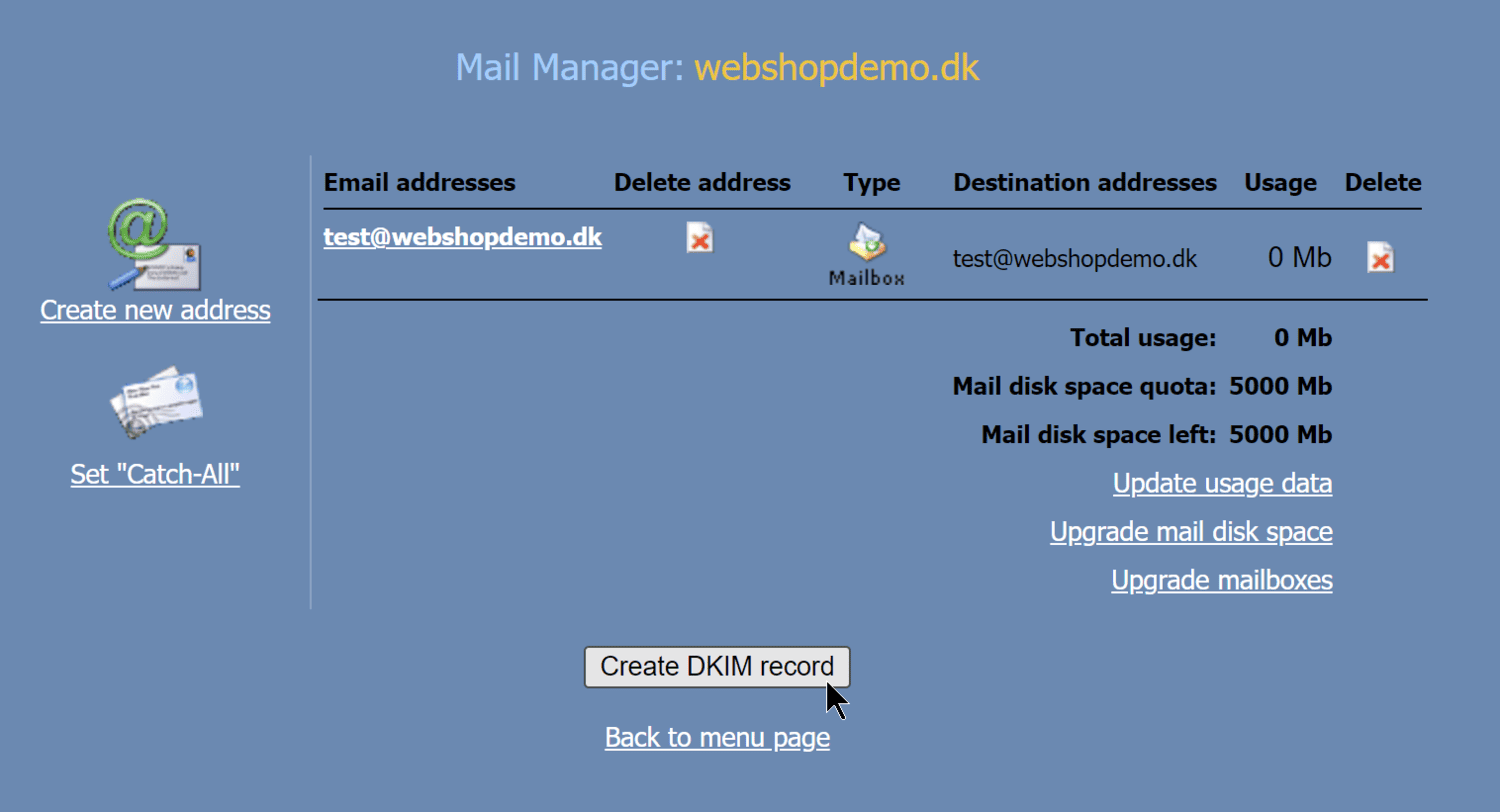
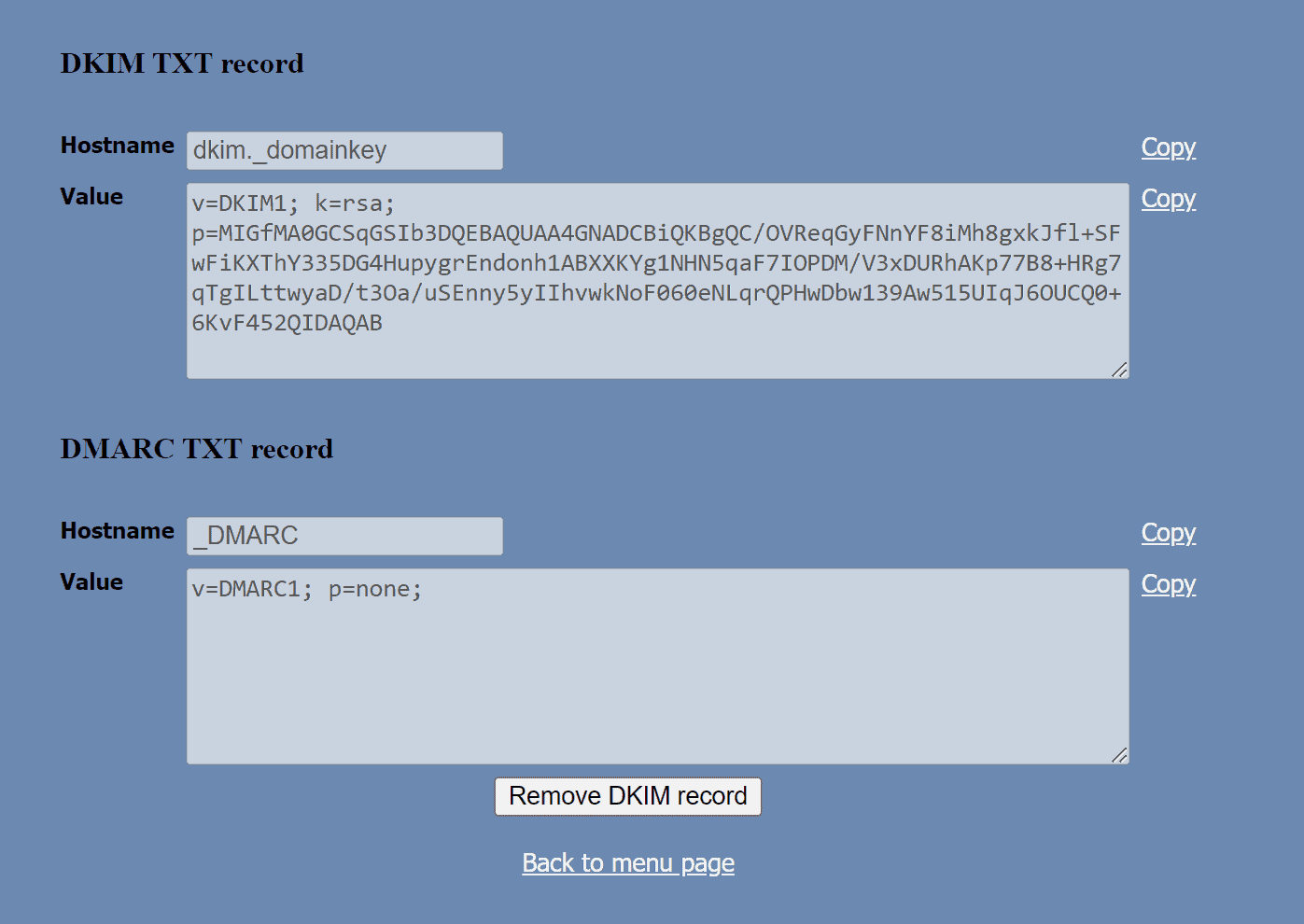
DKIM is now enabled, and you get an overview like this of what needs to go into DNS/the name service
Update DNS/the name service (DMARC and SPF)
The second part of DKIM is adding it to DNS/the name service. Here is how to do it with DNS here at Golden Planet (on the name servers ns.gpserver.dk and ns2.gpserver.com). If you’re not sure where your DNS is – check this short guide.
It’s a good idea to open PlanetController in a new tab in your browser, so you have what needs to be copied from Mail Manager in one tab and DNS in another.
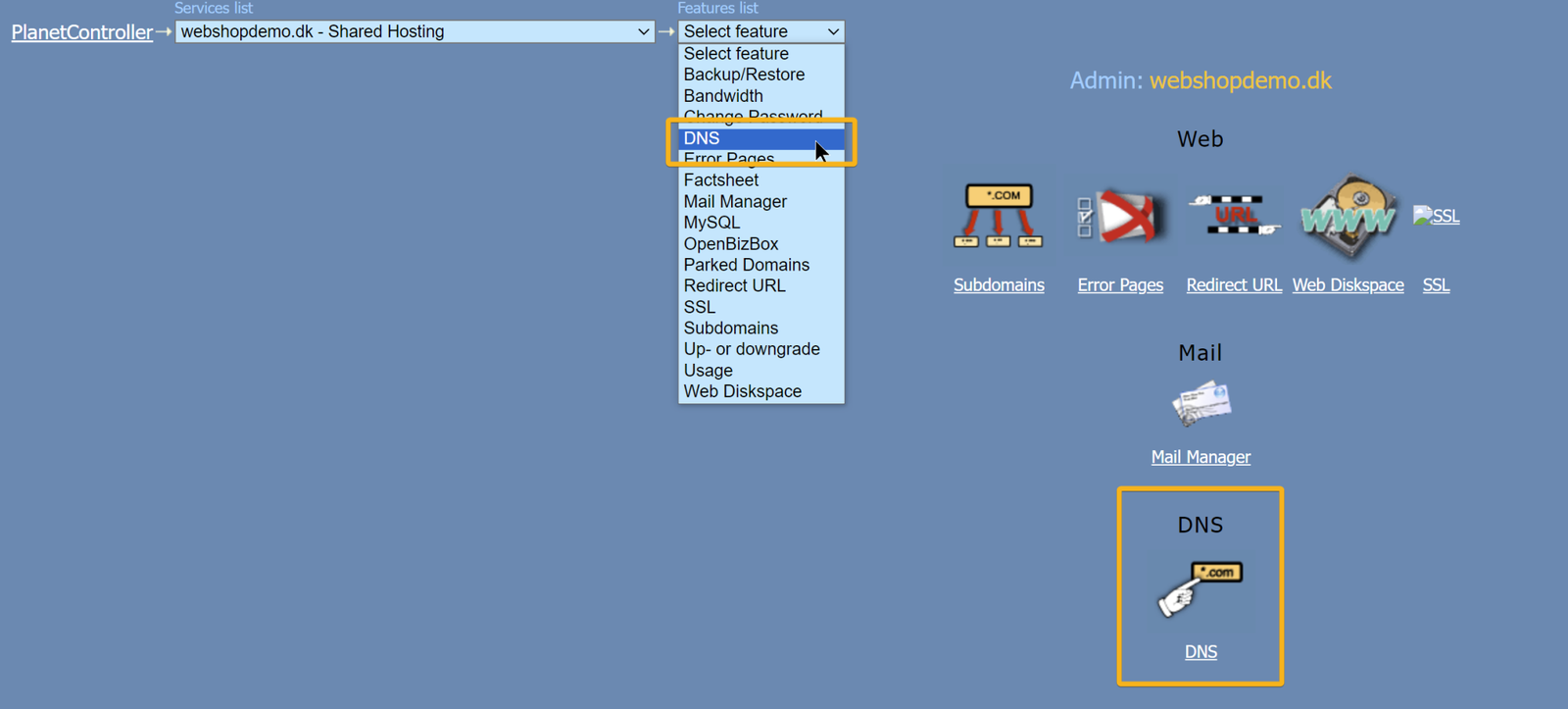
Go to the DNS setup in PlanetController (DNS Manager) by choosing it in the drop-down menu or the overview
Copy the first part in under TXT records, like this
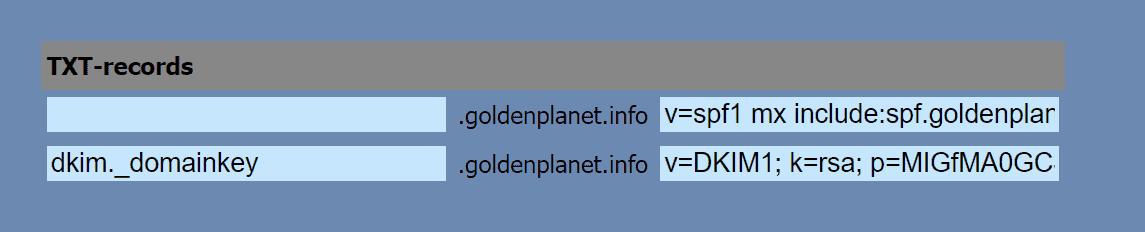
Click the Update DNS button at the bottom of the page

The first part has now been added. Go back to the main menu and into the DNS setup again. You have a new empty field under TXT records for adding the next part
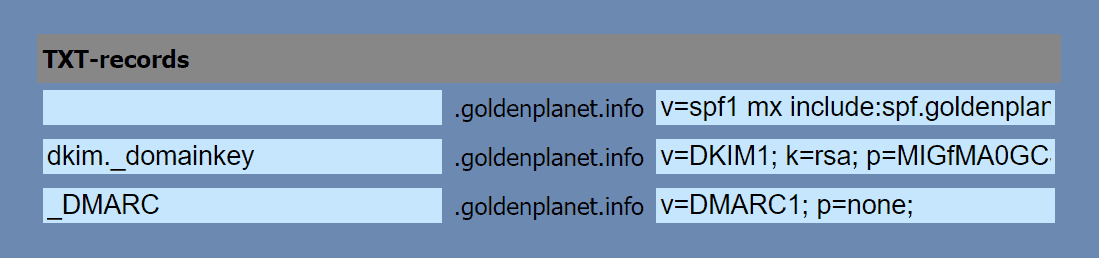
Of course, you should only add this DMARC line if you don’t already have it.
e-mærket: if you have e-mærket (the Danish e-commerce trustmark), the _DMARC value must be v=DMARC1; p=quarantine;
Click Update DNS at the bottom of the page again
That’s it – you’re now up and running with DKIM and DMARC.
SPF is by default
v=spf1 mx include:spf.goldenplanet.com ~all
If you have other services you send email through (stock system, accounting system, newsletters etc.) without using SMTP directly, you need to make sure you add them too (contact the providers concerned and get the value that needs to be added).
Send email from your online shop directly via your email provider (your own SMTP)
To get DKIM on emails sent from your online shop (order confirmations etc.), you need to send email from the online shop via your email provider.