
In this category Design & layout
Customising colours
On this page
You can customise the colours of your online shop in 3 ways:
- Choose a colour theme from a template
- Customise the colours yourself with the built-in do-it-yourself tool
- Get help from a designer
Choose a colour theme from a template

You can save a lot of time and get inspiration for the colours of your online shop by choosing a colour theme from a ready-made template.
You can use the colour theme as it is, or as a starting point for your own colours.
Read more about choosing a template here
Customise the colours yourself with the built-in do-it-yourself tool
You’re of course very welcome to try customising the colours yourself. If, for example, it’s only the buy buttons that should be green instead of orange, doing it yourself may well be the quickest way.
But if it gets too tricky, just go further down this page and read about option 3: getting help with customising colours.
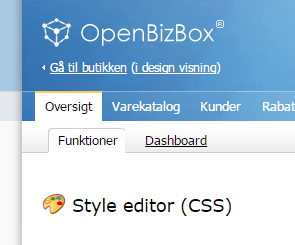
You’ll find the built-in tool for customising colours in your shop’s admin, via the Overview menu item at the top left, then Features, where you choose Style Editor (CSS):
Get help from a designer
You can get help from a designer to get the colours of your online shop in place.
That can be either to get a good colour combination or to get the colours you want added to your current design.
When you describe your colours, it can be a good idea to describe them based on an existing website that you think has (more or less) the colours you want.
A good way to describe the colours you want can be to print out your current design and simply write the colours you want on it, as a sketch.