
In this category Design & layout
Recently viewed – help customers find products again
On this page
As a customer, it can be a challenge to find your way back to products you showed an interest in earlier in an online shop. It can be hard to navigate around and find specific products again, even with the back button or by swiping on mobile. Those methods often take the customer back through previously visited categories, the basket and other pages they have visited – with no overview.
- Navigation challenges: customers can find it hard to get back to products they visited earlier in the online shop.
- Better customer experience: we introduce a feature that shows the most recently visited products.
- Easier buying decisions: this feature helps customers easily find and review their potential purchases again.
It could look like this:
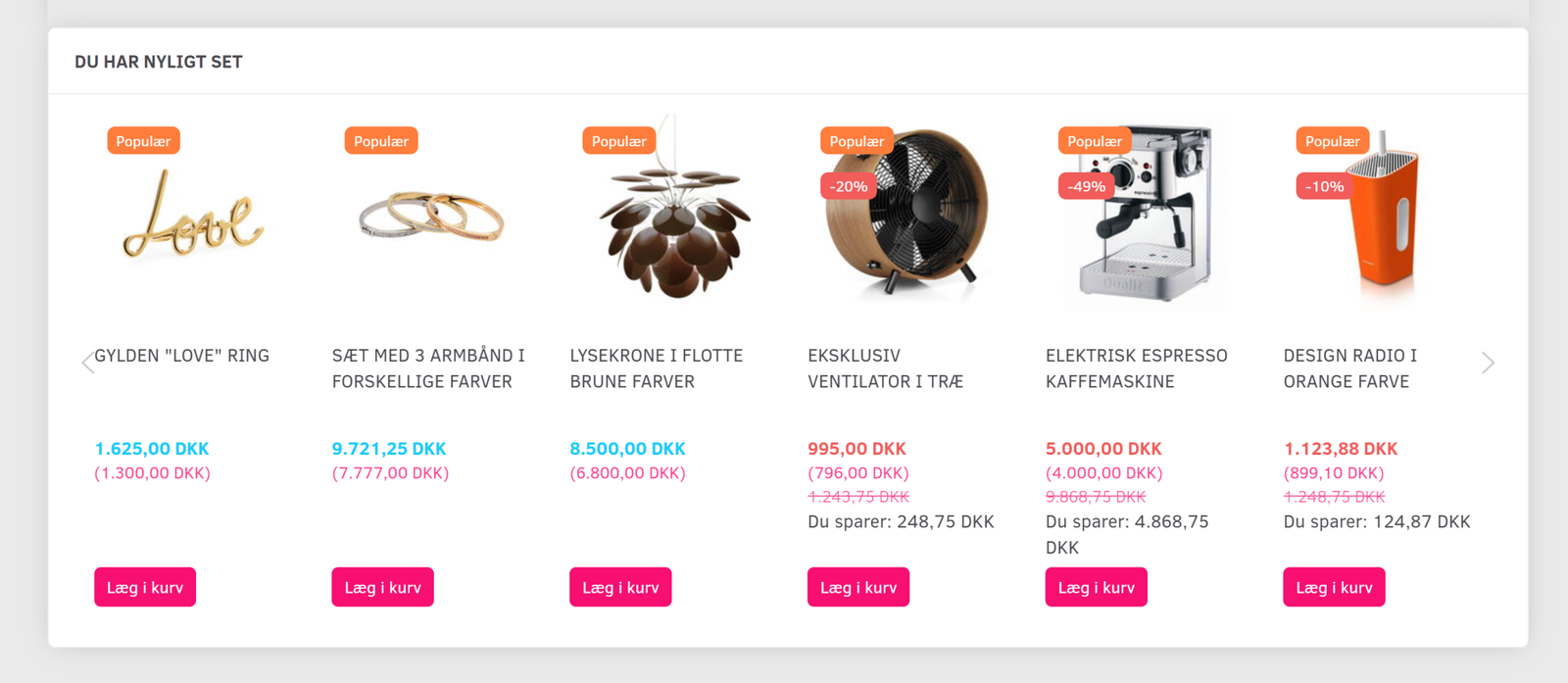
Try clicking around a few products on webshopdemo.dk (opens in a new tab) (our demo shop) and look at the bottom of the product pages after viewing a couple of them.
Here is a video showing how to add a slider like this to your shop. Below the video there is also a guide in text and images.
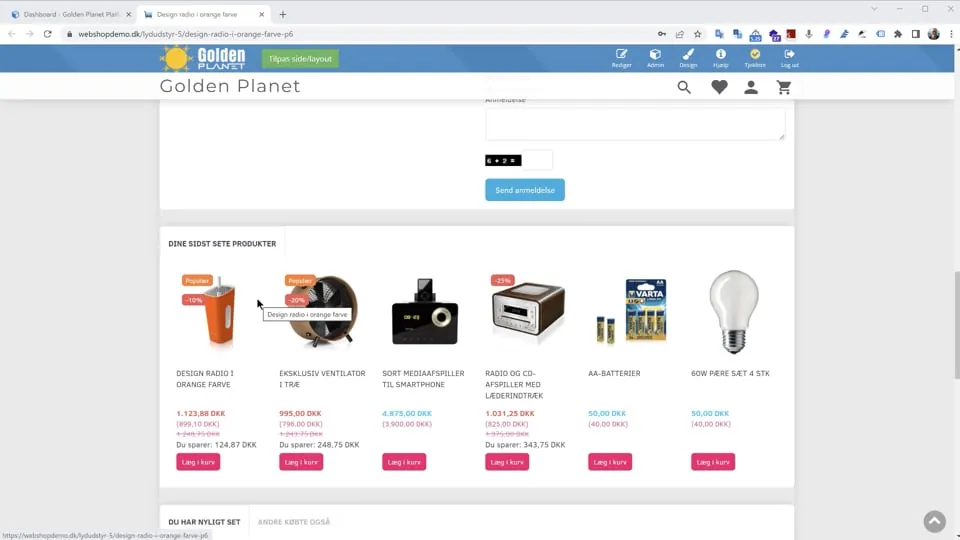 Play video: Slider with recently viewed products (opens Vimeo)
Insert a slider with viewed products in your shop’s layout
You place the slider with the Layout tool – you’ll find it in the menu at the top via
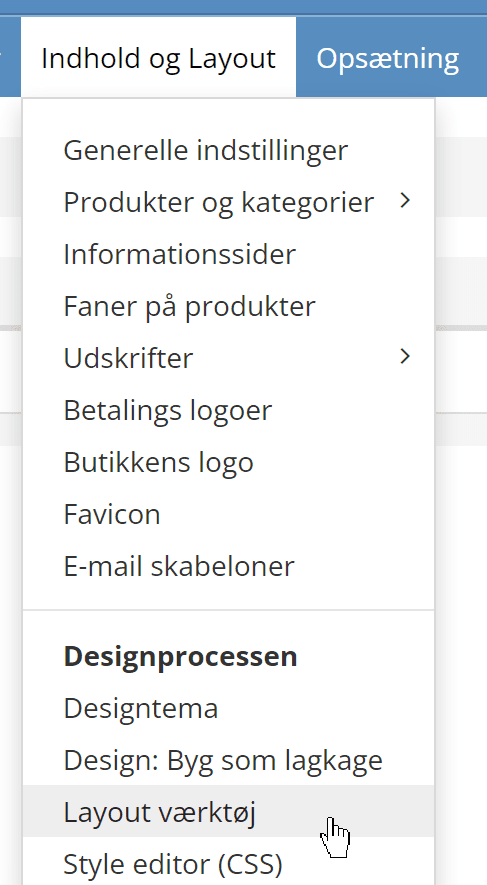
Where should it go?
You can insert a slider with previously viewed products on any page where you think it could be relevant for your customers.
In the menu on the left of the Layout tool, you see the most central pages to begin with
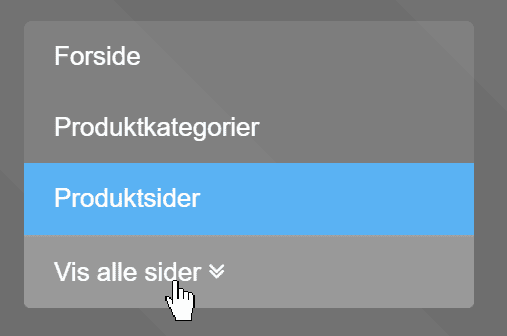
Click Show all pages to see all the types of pages the layout tool can work with.
Option 1: insert as a standard tab
In the layout tool, under product pages, drag the Standard tabs element to the place where it should be shown.

Then edit the element by clicking the cog icon, or by double-clicking the element itself.
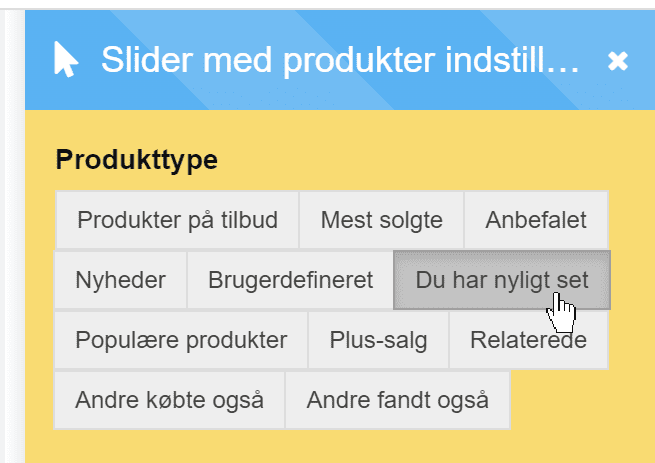
In the options for the slider, choose Recently viewed
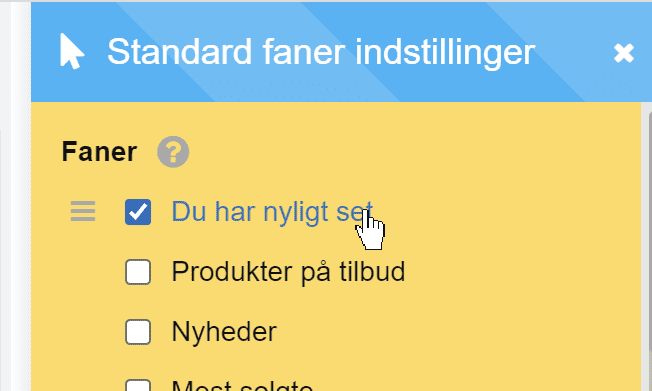
Click Save at the top of the layout tool, and you can see the result in your shop.
Option 2: in a tab together with other options
With the second option you decide the title/heading of the slider yourself, and you can have it in a tab together with other sliders. For example like this:
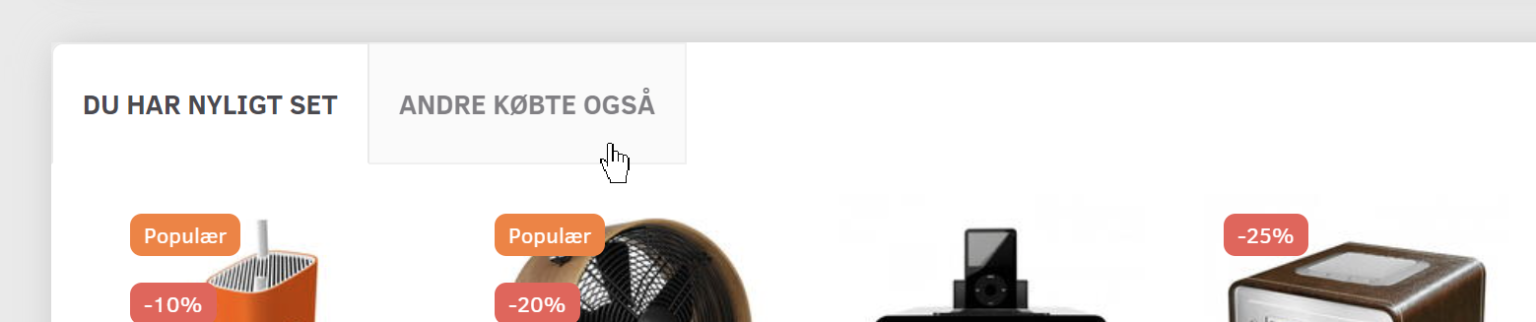
If you want it placed in a tab, first drag in the element called Custom tabs.
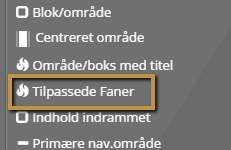
In Custom tabs, first choose the tab you want it placed in.
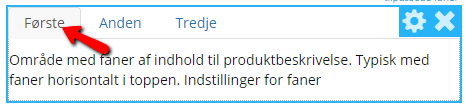
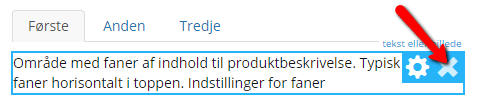
The first tab has a text block by default; delete it (by clicking the cross).
Then drag the Product slider element into the text block’s place.
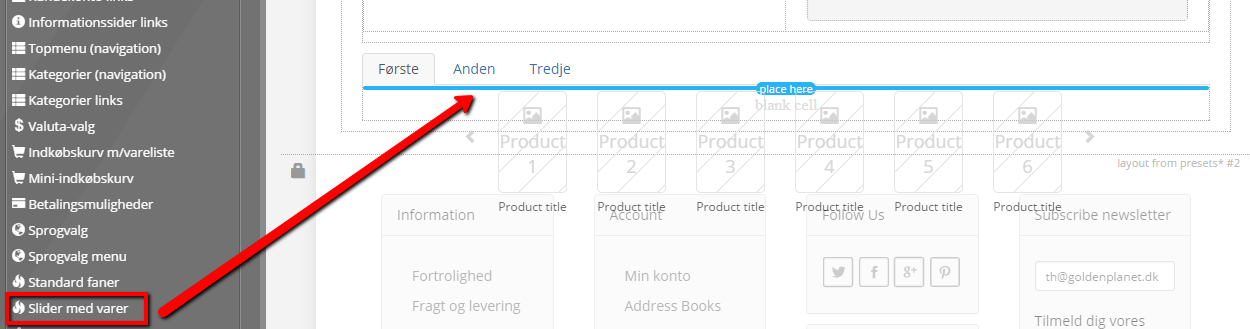
With this method, it’s important to be aware that this has to be done FOR EACH TAB.
You can edit the name of the tab and the number of tabs. You do this by first clicking the cog icon on the Custom tabs element and then changing the names and number of tabs.
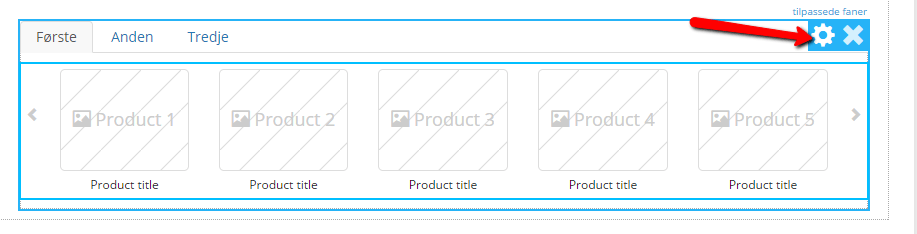
Once the Product slider element is in place, click the cog icon so you can edit the element. Here you choose the content you want shown – in this case Recently viewed
Option 3: insert in an area/box with its own title
The third option is very similar to the previous one. It’s without tabs, and you decide the title yourself.
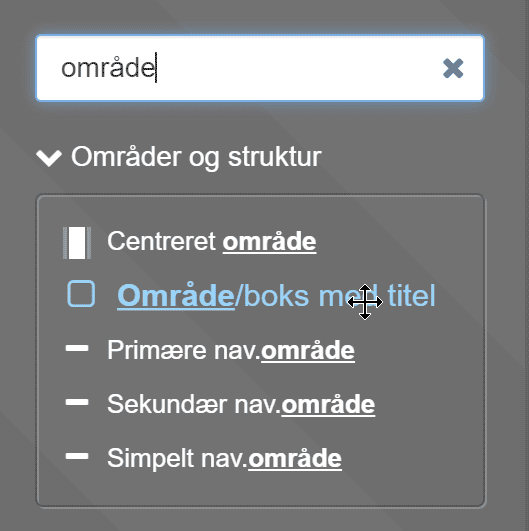
Search for “area”, then drag and drop the Area/box with title element onto your layout where it should go.
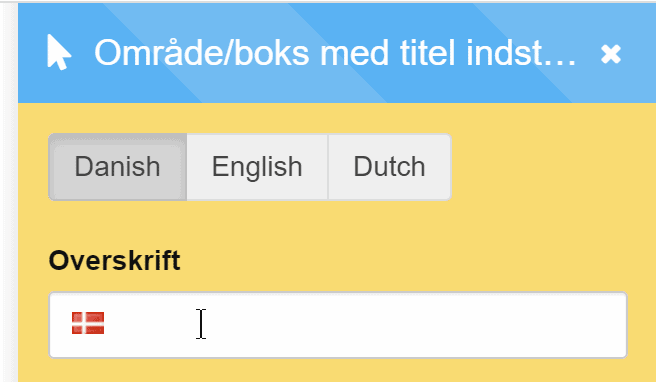
Give the box a title on the far right
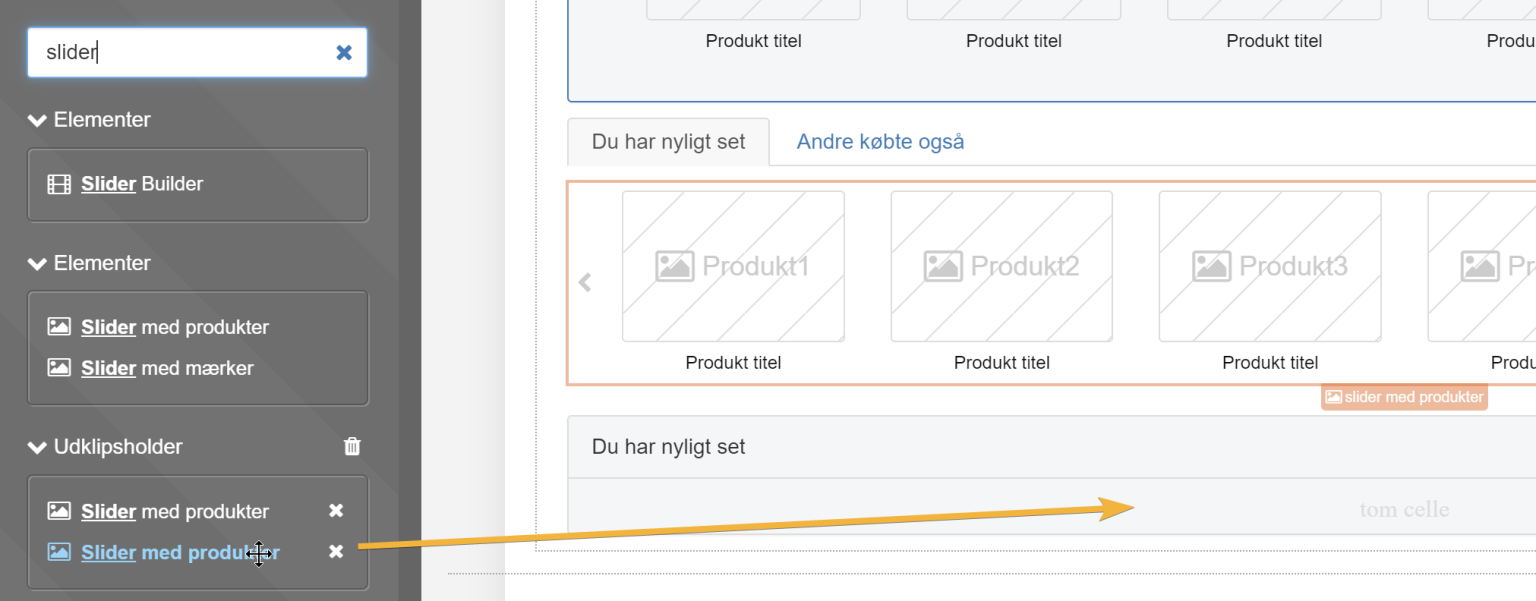
Drag and drop the Product slider element into the empty cell
Once the Product slider element is in place, choose the content you want shown – in this case Recently viewed
Remember to click Save at the top and check the result in the shop.