
In this category Design & layout
Design & layoutYour shop’s home page
Home page: Slider Builder
On this page
Here you can see how to add a slider with images to the home page of your online shop. You do this in the layout tool.
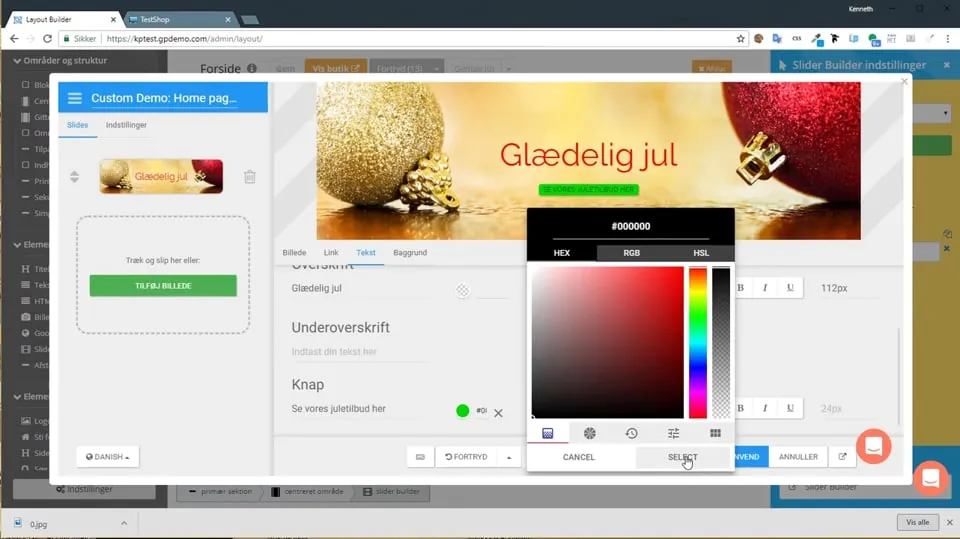 Play video: Slider Builder (opens Vimeo)
The Slider Builder can be used both for images that slide/change AND/OR to create a fixed image.
You’ll find it under Content and layout > Layout tool.
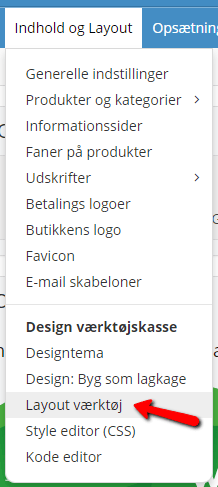

The Slider Builder element is on the left, and it can be inserted on every kind of page.
You edit the element by double-clicking it. If you drag the element onto a page, it opens automatically, ready for editing.
Add images to your slider
When you add images, you have two options. You can either drag and drop an image in, or click Add Image on the left. This opens a window where you can browse for images on your computer.
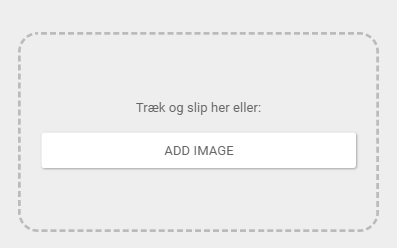
You can use most image types, but these work in most browsers, so it’s a good idea to stick to them: .jpg, .jpeg, .png, .gif, .bmp
The size your images should be depends on how large your Slider Builder is. If, for example, it runs from edge to edge on your home page and the ratio is set to 2.18 x 1, the optimal pixel size is 1142 x 523 px. But the size of the slider itself and of the images can be adjusted individually. Read more further down in this guide.
The images are saved at a resolution defined under Settings – see further down in this guide. The compression is very low, so the quality is high. Images of the highest quality are normally under 50 MB, but if the size is set to, for example, 100000 x 100000, you could probably turn a small image into a 1 GB image.
If your images are very large, you can compress them with kraken.io (opens in a new tab) or another compression tool.
Once you have chosen the image you want in your slider, you’ll see it in a small format on the left and in a large version in the preview on the right.
You can insert as many images as you like, BUT be aware that the more images there are, the greater the risk that they slow down your page.
On top of that, your customers probably won’t sit looking at your home page for a long time to see all the images, so we recommend no more than 3 images, at 5-second intervals – with the pager/arrows shown, so customers can quickly move on to the next image if they want to.
You can change the order of the images you have added by dragging and dropping the arrows to the left of them.

Add text/link/button
Once you have inserted an image, you can edit it.
Below the preview image on the right, you have 3 options: Link, Text and Background.
Add a link
You can add a link, so that when customers click the image they go to, for example, a particular product or category in your online shop.
You do this on the Link tab.
Here you click the Browse button to choose exactly where the link should go.

Links when you have several languages

If your online shop has several languages, you can make a link that follows the language the visitor has chosen.
If you have a link to a category that looks like this:

you write the link in the slider with ./ and the number at the end of the web address. So, for the example above:
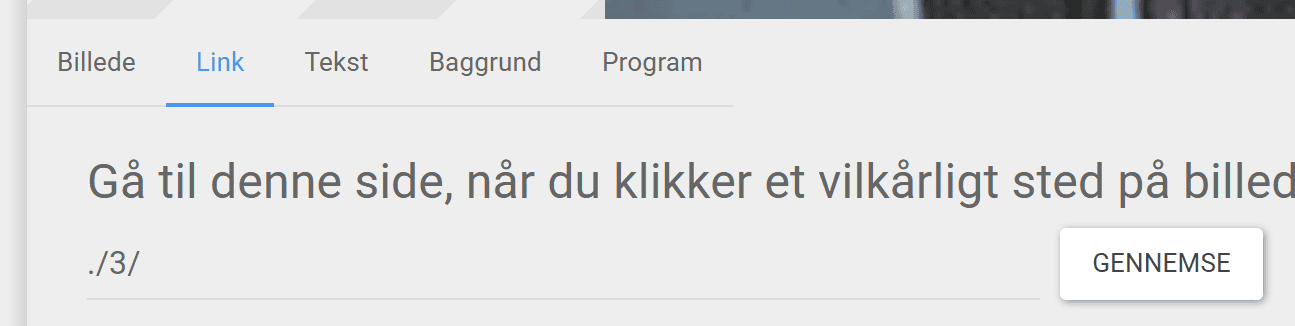
If it’s a link to a product – to take this example:

you write the link like this: ./- first, then p and the product’s number.
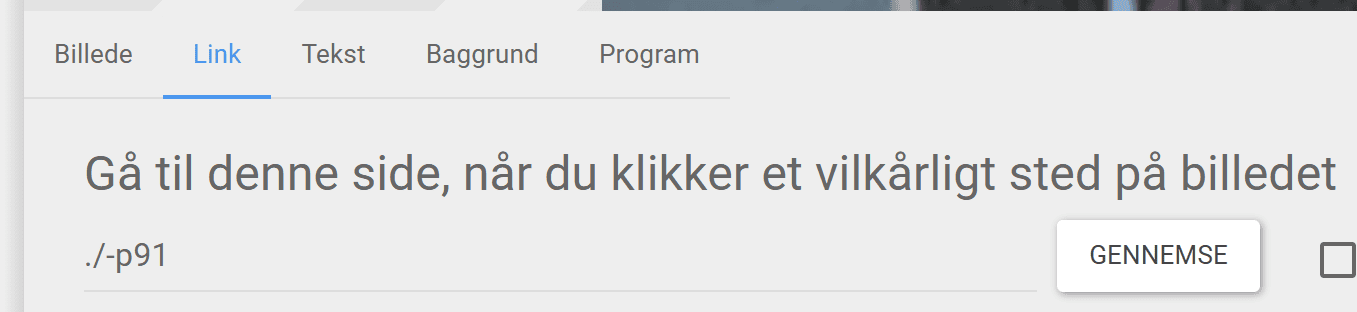
It’s important that there is no slash at the end of product links.
A bit fiddly, yes – but in return it works across all the languages in your shop. Including new ones you add later.
Add text/button
On the Text tab you can put text directly on your images. The advantage is that it’s easy to edit if something changes, such as the price.
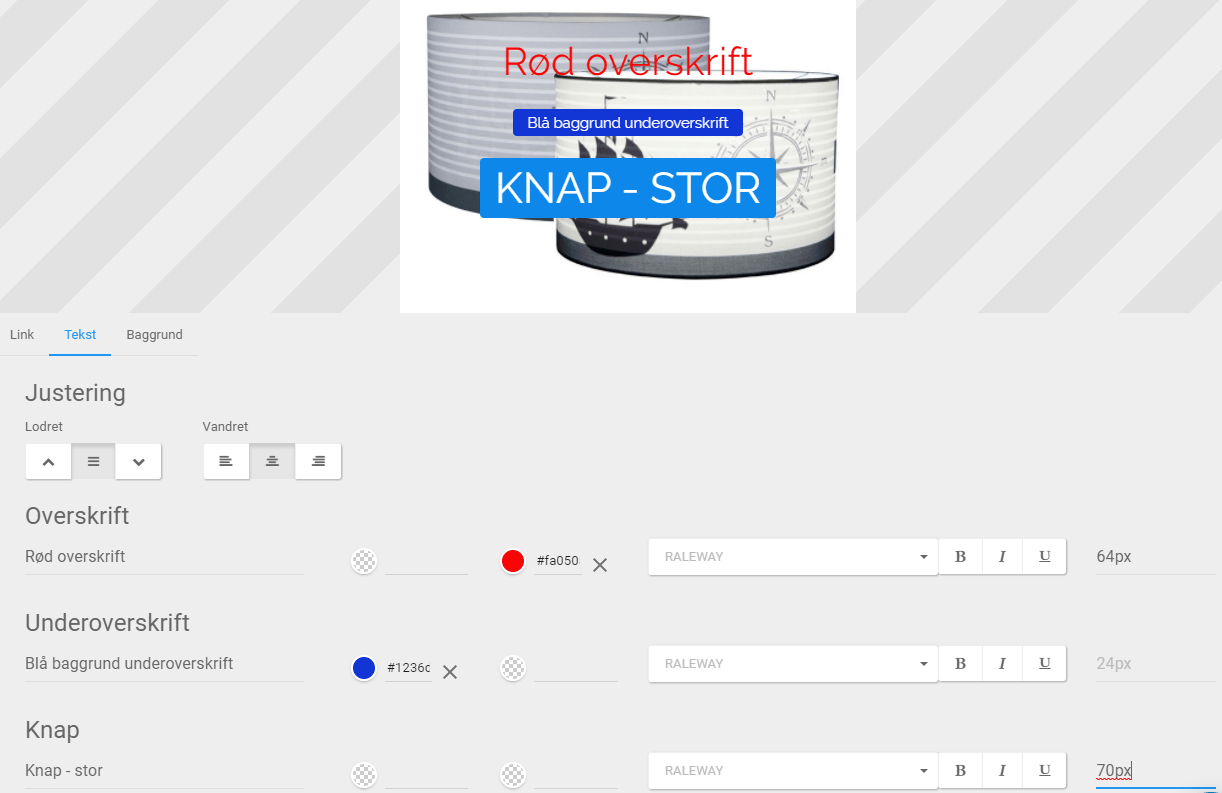
The example below shows some of the options:
A Heading has been added with the text “Red heading” in red. You set the text colour by clicking the circle on the right. A colour picker appears.
A Subheading has been added with the text “Blue background subheading”. You set the background colour by clicking the circle on the left, and a colour picker appears.
At the bottom, a Button has been added with the text “Button – large”; here the text size (70px) has been changed on the far left.
You can also change the font (Raleway) by clicking it – and make the text bold (B), italic (I) and/or underlined (U).
You can change these things for both headings and for the button, so you get the look that suits your online shop best.
At the top there is an alignment option for the text – vertical or horizontal – using the 6 buttons.
Add a background
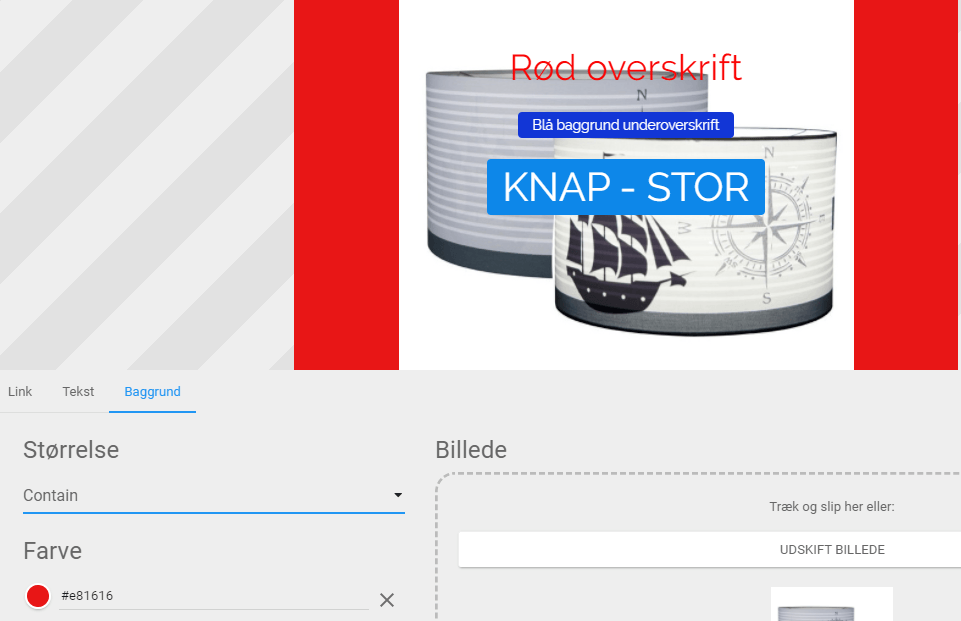
On the Background tab you can set a background colour for your images. If the images in your slider are different sizes, you can add a background colour so the whole area is filled.
Here you can adjust your slider images one by one; under Settings you can set some default settings, so you don’t have to change them for each slider if they’re all the same. See further down in this guide.
Size
You can set the size of the image in the slider, with these options:
Same as previous – the setting you used before is used here.
Cover – the image is adjusted to fill 100% of the slider’s size; this can crop a good part of the image.
Contain – the image keeps its original size, and the background colour fills the rest.
100% – the image is adjusted to fill 100% of the slider’s size; this can crop a good part of the image.
75% – the image is adjusted to fill 75% of the slider’s size.
Custom – here you enter the % of the slider’s size the image should fill. You can also enter a pixel size, e.g. 500px.
Colour
Click the round circle to bring up a colour picker, where you can choose a background colour if you want one.
Image
Here you can also replace or delete slides/images, or insert more.
Delete/remove images from the slider
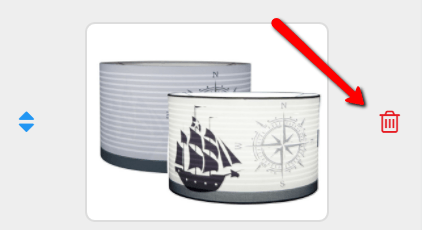
You remove an image by clicking the bin to the right of the slider image you want to remove.
Tip/trick: find the size of images
How do you make an image for your slider that is the right size?
The first thing, of course, is to find out the image’s dimensions. You can often find the size (for inspiration) by looking at the dimensions of an existing image.
Images for websites are measured in pixels. Length times width.
Here is a video with tips on how to find the size of an image in the Chrome browser:
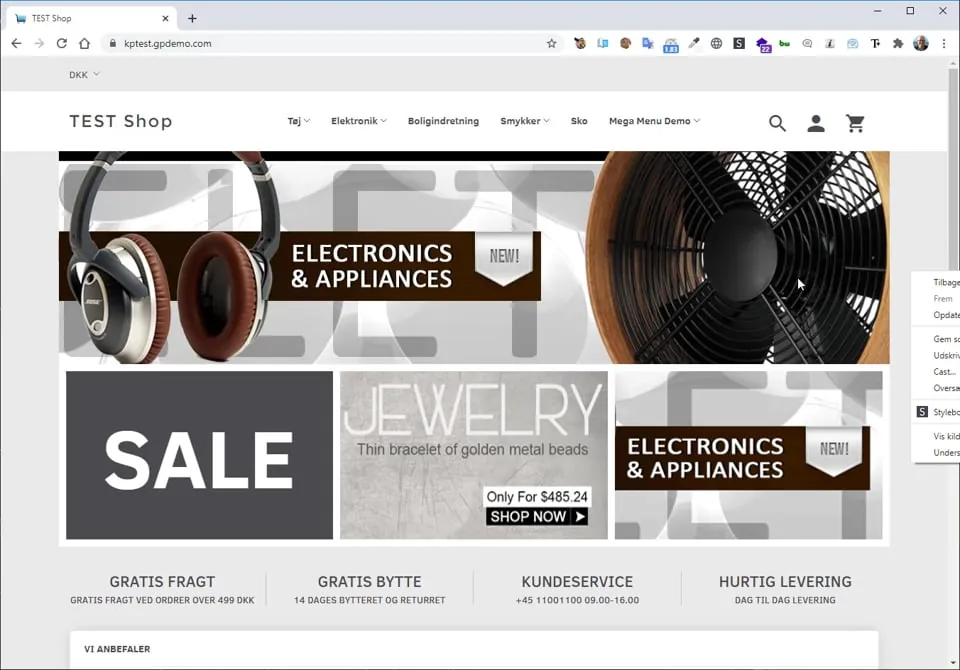 Play video: Finding the size of an image (opens Vimeo)
The video uses a free Chrome plug-in that shows the size of images – search, for example, for “image size info” in the Chrome Web Store.
Tip/trick: resize images
Here you can see how to resize an image so it fits your slider. You can also see how images can be scaled directly in the Slider Builder, so your page loads faster.
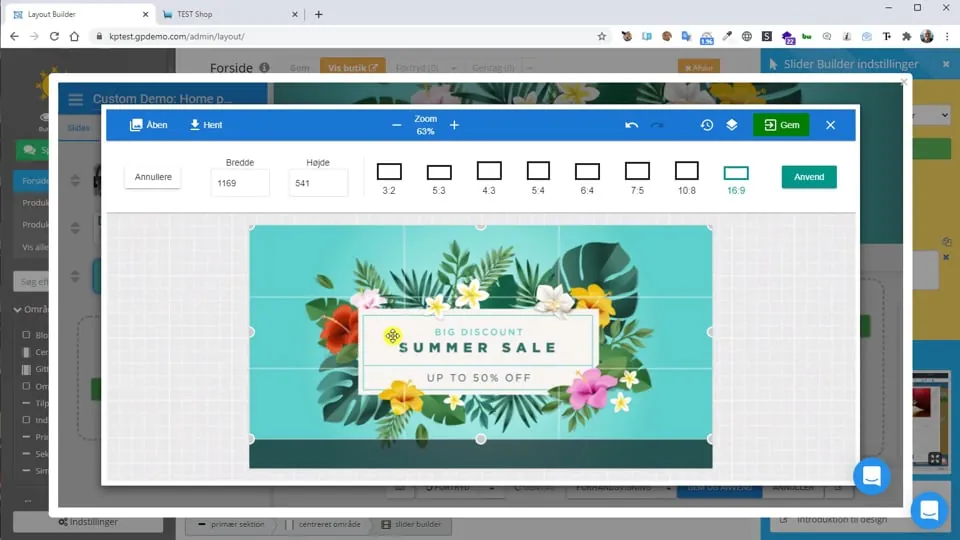 Play video: Slider: scaling and cropping (opens Vimeo)