
In this category Design & layout
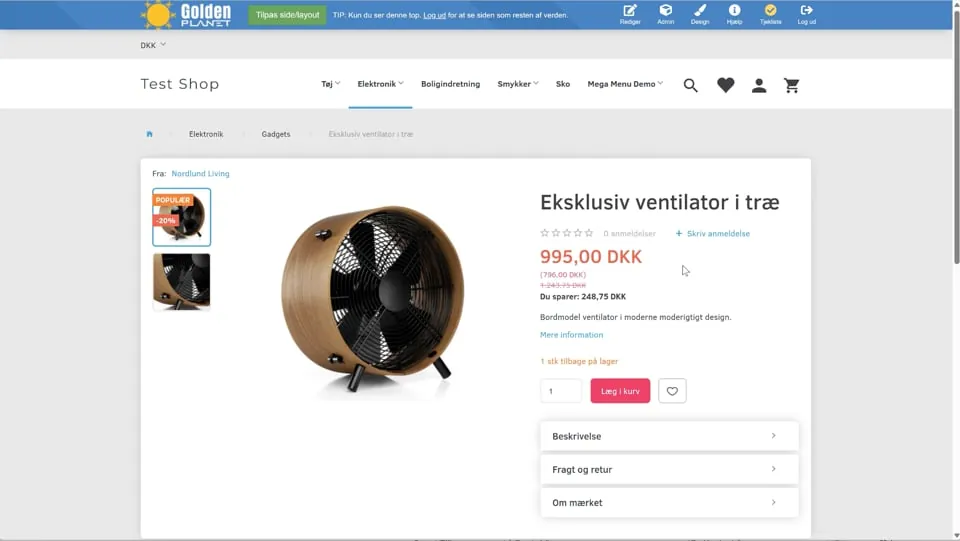
Sections/tabs that expand vertically
On this page
Vertical tabs (sections that can be expanded) make your product pages easier to take in. By hiding secondary information in closed tabs, you spare customers unnecessary scrolling while keeping a clean design. This guide shows how to set up the tabs and fill them with content.
Topics on this page:
- Create the tabs on the page
- Insert standard content in the tabs
- Set up dynamic content (the same information on several products)
 Play video: Vertical tabs/sections (opens Vimeo)
1. Create the tabs on the page
- Go to your admin and navigate to Content and layout > Layout tool.
- Choose the page type you want to edit in the menu on the left (e.g. Product pages).
- Find the element Tabs that expand vertically in the list of elements, and drag it onto the page where it should go.
- In the menu on the right you can now name the tabs (e.g. “Description” and “Shipping and returns”). Click Add tab to create more.
-
Important: The state of the tabs (open or closed) when you click Save decides how they are shown to customers by default. If you want them closed to begin with, collapse them before you save.
2. Insert standard content in the tabs
You can drag different elements into your new tabs, depending on what they should show:
- Unique product description: search for the Full description element in the menu on the left and drag it straight into your “Description” tab.
- Shared text (e.g. shipping and returns): drag an ordinary Text element into the tab. You can now write or paste your fixed text, with bullet points and images if you like.
3. Set up dynamic content (the same information on several products)
If you have tabs that should show the same content across particular products (e.g. information about a specific brand), use the Product tabs feature:
- Go to Content and layout > Product tabs.
- Click Create title (e.g. “About the brand” or “Specifications”) and save.
- Click Add tab and content. Give the content an internal name, write your text in the editor, and set any restrictions (e.g. that the text only applies to the brand “Nordlund Living”). Tick Always show if the content should simply be shown everywhere. Save the changes.
- Go back to the Layout tool (under Product pages).
- Find the element Same info on several products and drag it into the vertical tab it belongs in.
- In the menu on the right, now choose the content group you have just created (e.g. “About the brand”). Collapse the tab and click Save.
See also this page about content/tabs – either individual or the same on many/all pages