In this category Design & layout
How to hide elements on mobile, tablet and/or desktop
On this page
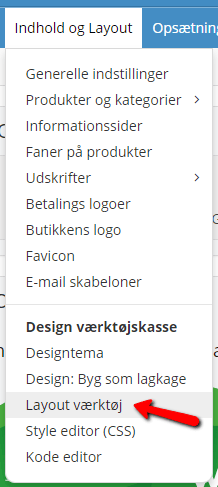
In the layout tool you can choose to hide particular elements of your layout on particular devices.
Hide on mobile
Hiding something on mobile is the most common case. So you can do it simply by clicking an element in the layout tool and then, on the far right (or via the element’s settings):
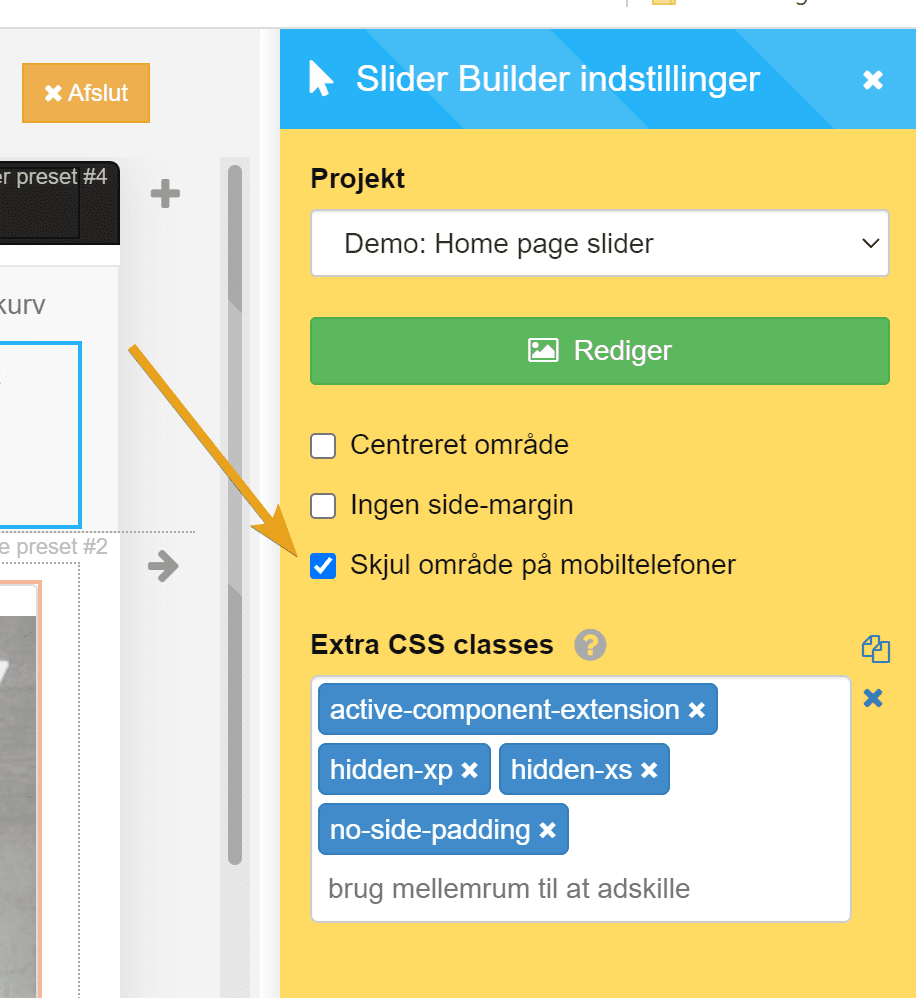
The element then gets the CSS classes hidden-xs and hidden-xp, and is hidden in both portrait and landscape view on mobile phones.
If the element should only be hidden in portrait view on mobile but stay in landscape view, delete the class hidden-xs, so only hidden-xp is left in the Extra CSS Classes field.
Hide on tablet
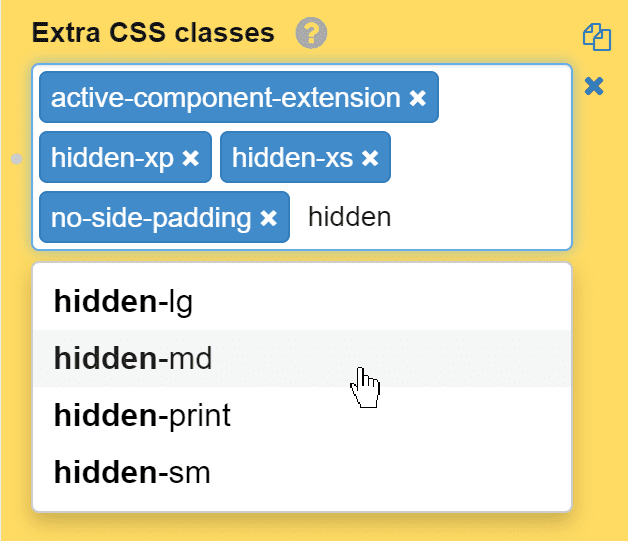
Select the element by clicking it in the layout tool. In the settings box, place the cursor and type to search for hidden-md. When you see it in the list, click it to select/activate it.
Hide on desktop (large screen)
This works the same way as described for tablet above – just with the CSS classes hidden-lg and hidden-xl
Important: An element hidden on desktop is now also hidden while you work in the layout tool on a desktop screen. So you can only see these elements by making the browser window smaller or by opening the layout tool on mobile.
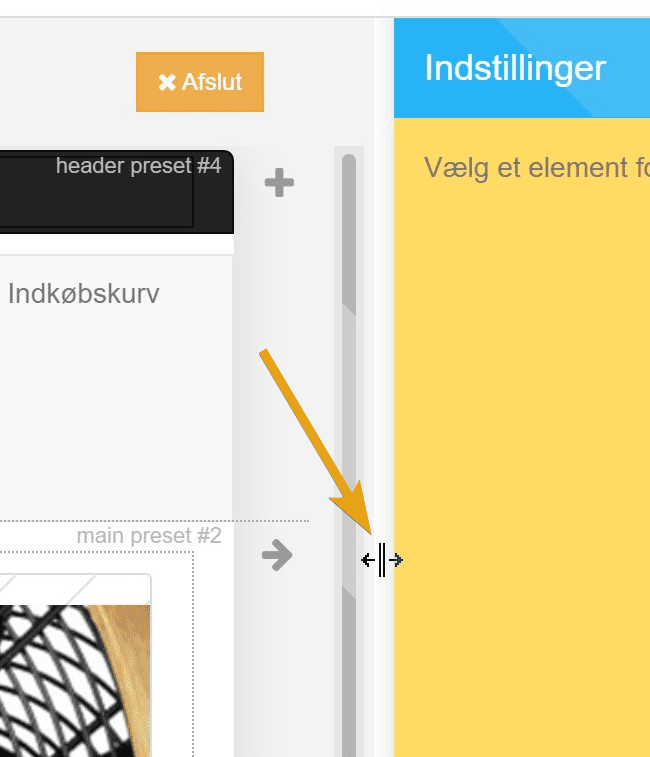
You can do this, for example, in the layout tool window by dragging the blue bar from right to left until the element appears again.