
In this category Design & layout
Responsive images and content
How to make your images adapt automatically to the screen size of the person visiting your website.
On this page
When you create product descriptions, category pages or other content with text, images and/or tables, you should make it responsive content. That is, content that adapts automatically to whether it’s shown on a large screen, a tablet or a mobile.
Here is an easy way to do it:
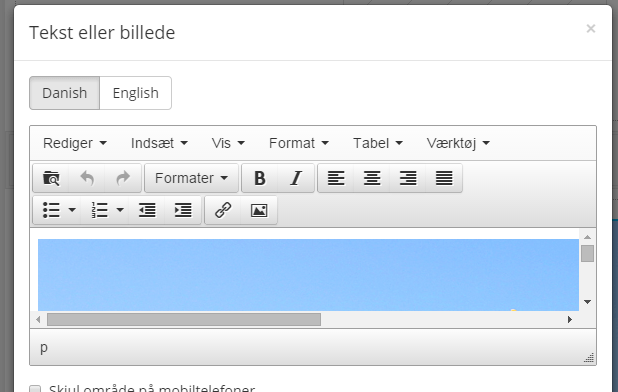
1. Open the text/image editor
If you’re in design view (also called the Layout Builder), click the cog icon or double-click to edit the image.
When you edit products etc., it looks much the same.
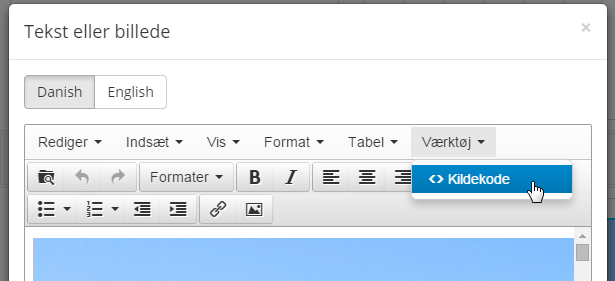
2. Choose source code
Via Tools and then <> Source code
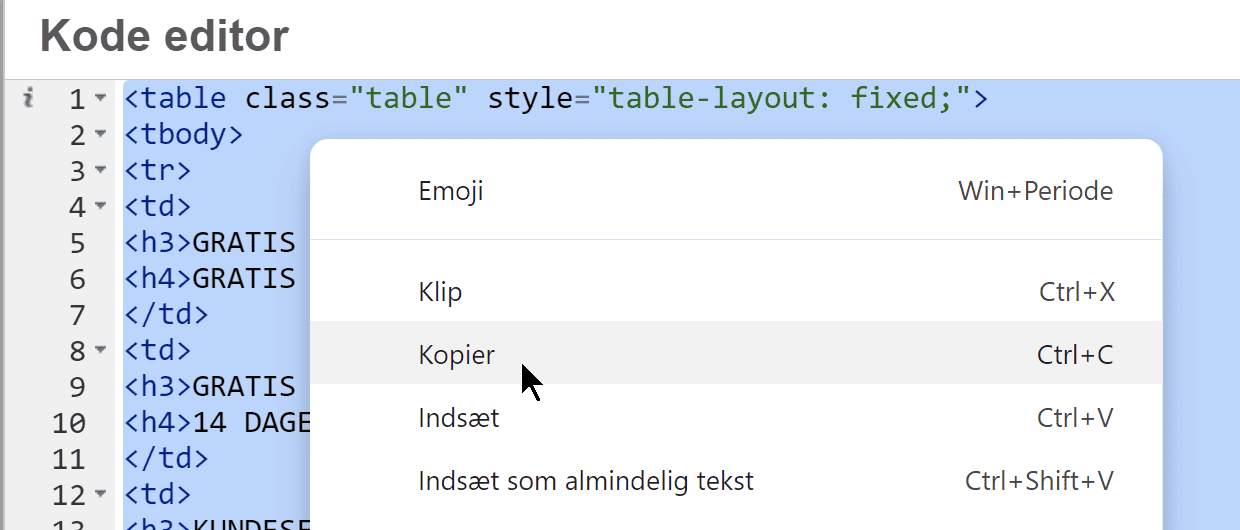
3. Copy the source code
Select all the source code and copy it to the clipboard (right-click, Copy, or Ctrl/Cmd + C).
4. Use ChatGPT or another AI to rewrite it
Go to ChatGPT or similar and write a prompt that starts, for example, like this:
Convert the following HTML to be responsive instead of, for example, using a table. If any CSS is needed, it must be inline:
Then paste in all your HTML code.
You now get a new piece of HTML code from your AI, which you copy

5. Insert your now responsive content
In the code editor for your content, remove everything that is there now. Paste in the code from ChatGPT/the AI.
Save the page, and your content should now be responsive.
If only images need to be made responsive
Here is a trick for making your images adapt their size automatically, depending on whether the visitor views your website on, for example, a mobile or a desktop computer.
As shown above, this is also done in the code editor. Right after the code that says
<img
insert a space and this piece of code:
class="img-responsive"
so that altogether it reads as in this example:
