
In this category Payments
Anyday payment method
On this page
Anyday lets your customers split the payment into several instalments for purchases over €45.
When the customer has been approved by Anyday, you as the shop owner get the full amount for the order, as if it were a card payment. The customer then pays the instalments to Anyday.
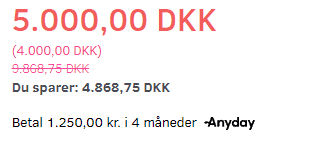
You can add a so-called widget, so customers can see below the price how much the product will cost in instalments:
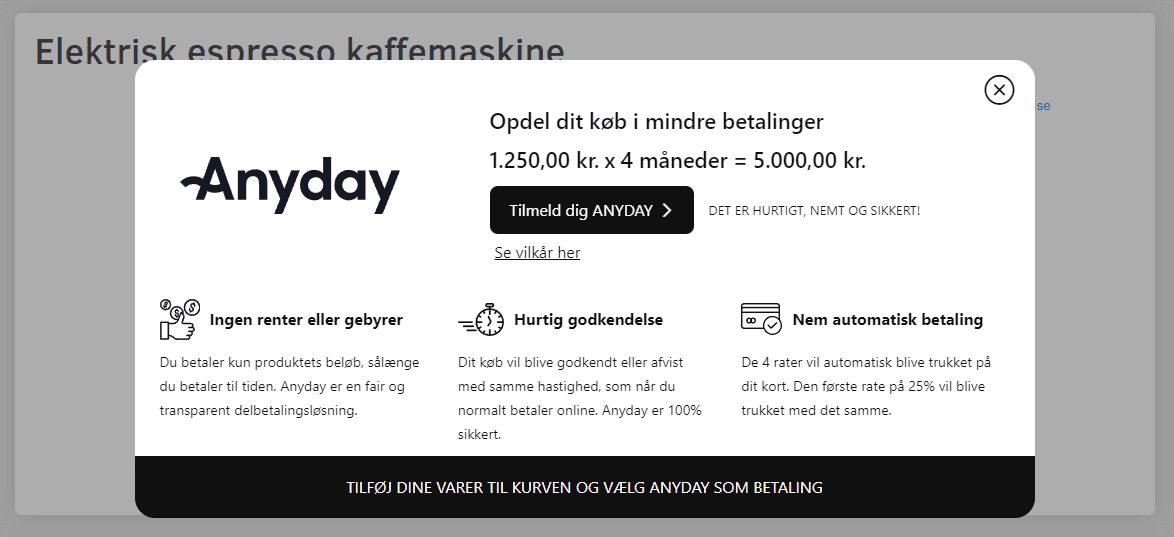
When you click the text about Anyday, a pop-up explains what it is about
Do you have the QuickPay module?
Anyday is connected as an acquirer in QuickPay. So you need the QuickPay module for your shop to be able to connect it – if you have card payments, you already have QuickPay.
Just contact our support via chat, email support@goldenplanet.com or phone +45 70 20 95 94 if you don’t have the QuickPay module yet.
Apply for an Anyday agreement in the QuickPay manager
You can apply for an Anyday acquiring agreement directly in the QuickPay manager.
Start by logging in to the QuickPay manager here (opens in a new tab)
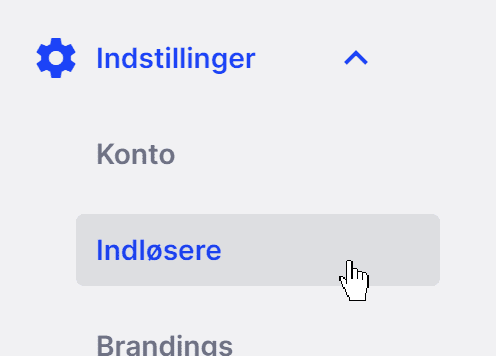
Under Settings, go into Acquirers
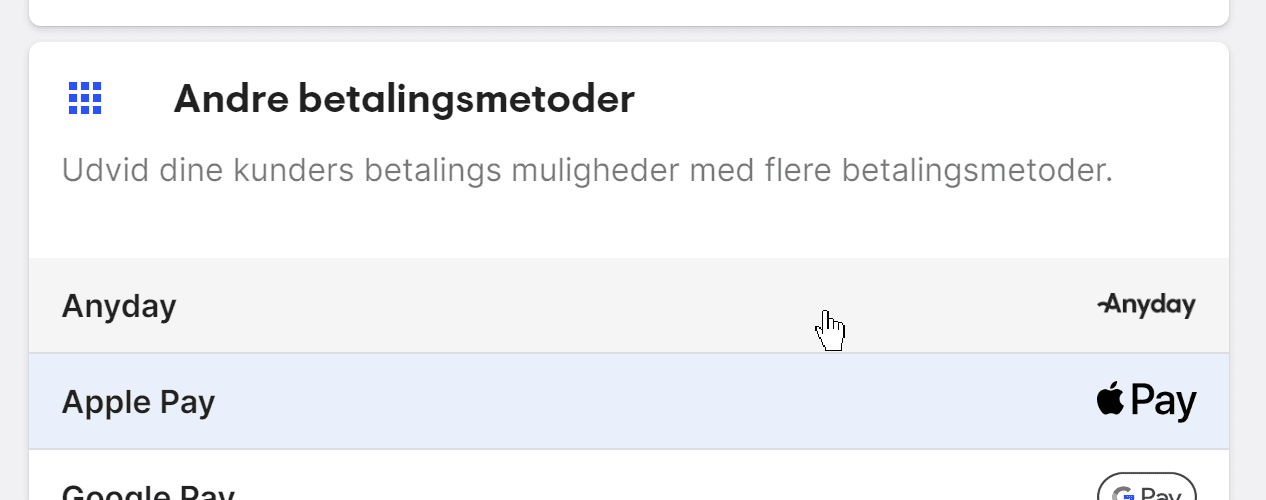
Now click into Anyday
Start by creating an account
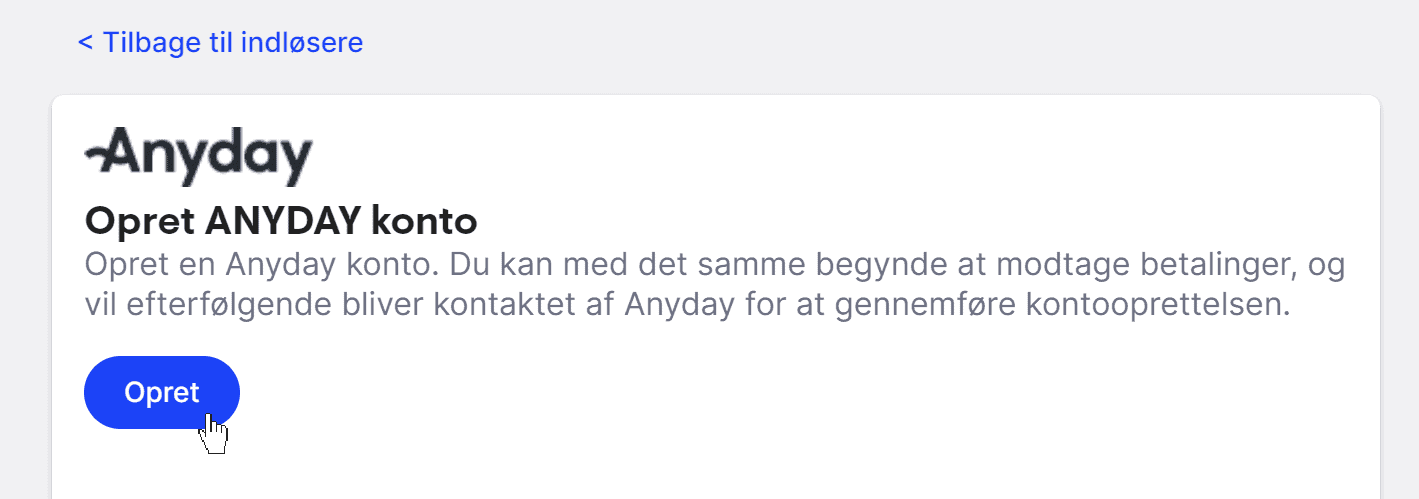
Go through the guide until the API keys have been added.
If you have questions about this part, contact Anyday’s support (opens in a new tab).
Activate it in your shop
Go to payment methods
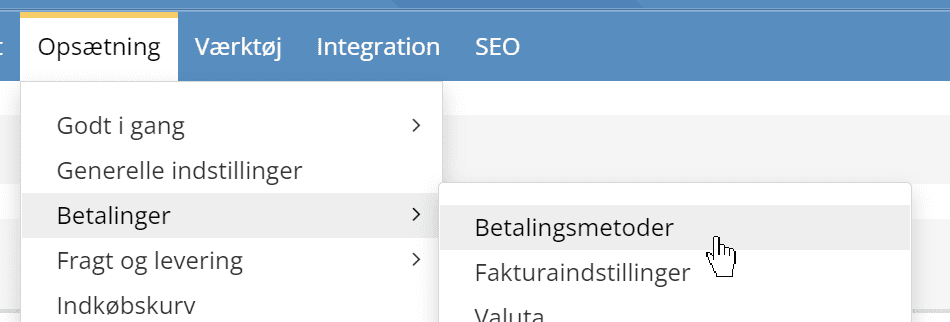
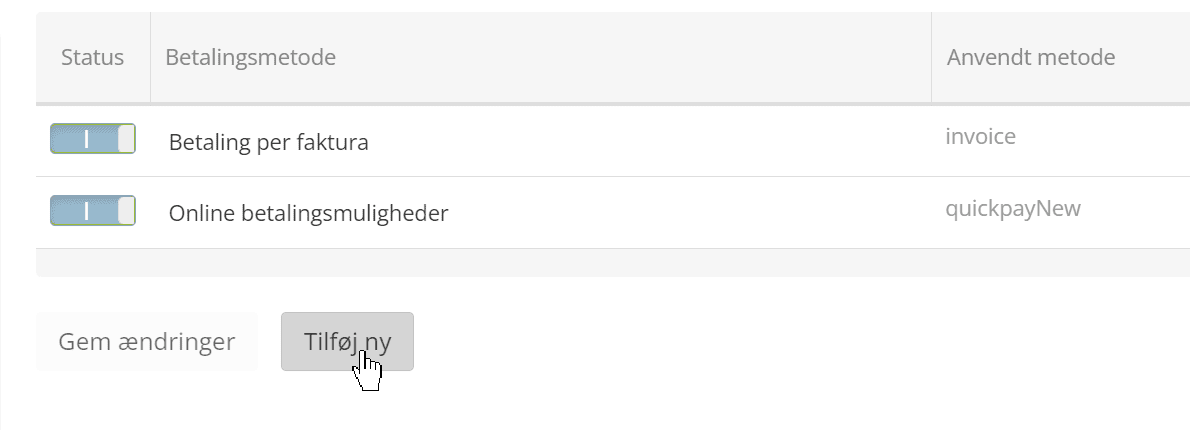
Click Add new at the bottom
Choose Anyday from the list
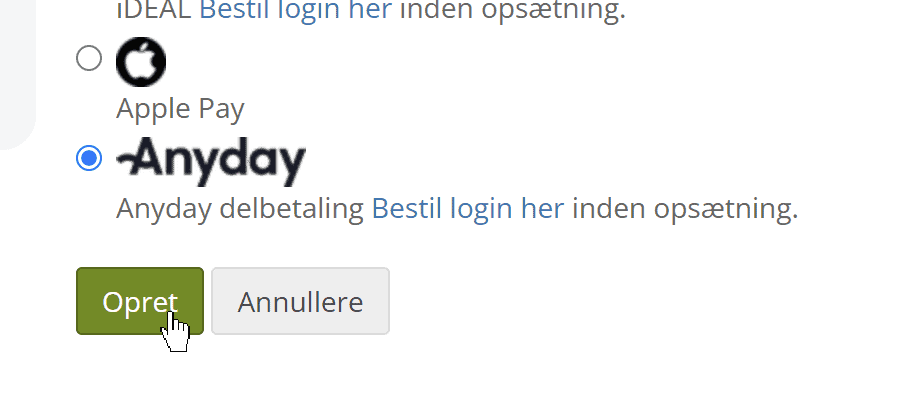
and click Create.
If you like, you can adjust the title, the description and who should have the Anyday option.
When you have finished, click Save and you’re done.
Add a logo
If you want the Anyday logo to be shown in the payment methods element – e.g. by the basket
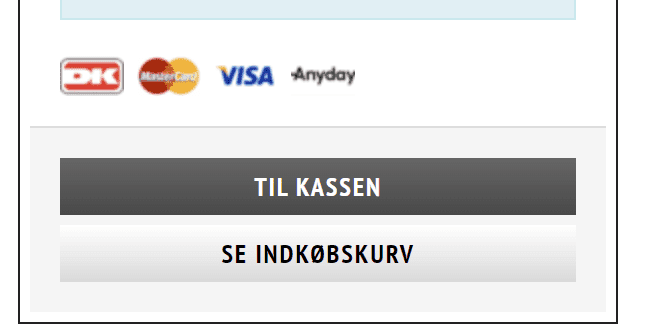
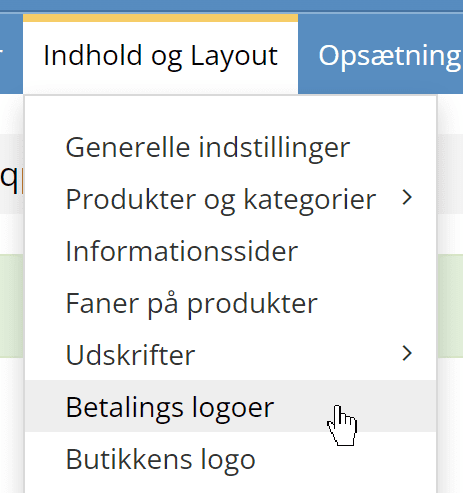
you can add it via
You can use this logo if you like (right-click and save the image):
Handling payments
Payments via Anyday are generally handled like all other payments via QuickPay – as you know it from MobilePay, card payments etc.
This means you can capture and refund in your shop’s admin and see more details in the QuickPay manager (opens in a new tab).
See more on Anyday’s support pages (opens in a new tab) or contact them if you have any questions.
Show Anyday’s tip and instalment breakdown on product pages
You can add a so-called widget, so customers can see below the price how much the product will cost in instalments:
It consists of 2 parts. A script that loads “in the background” on all product pages, and a script where the tip/calculation should be shown.
You add the first part via “Other integrations”
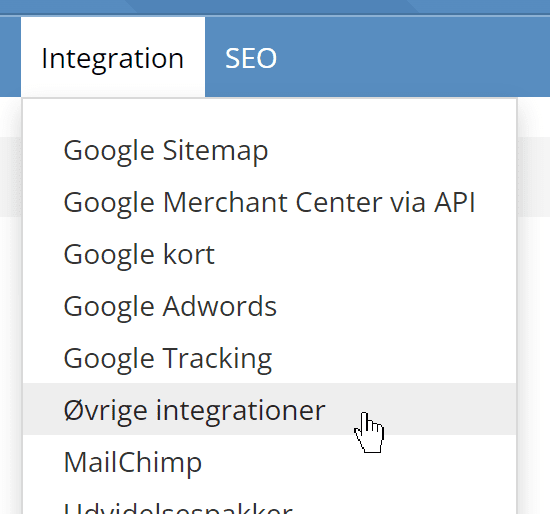
Click Add new Other integrations
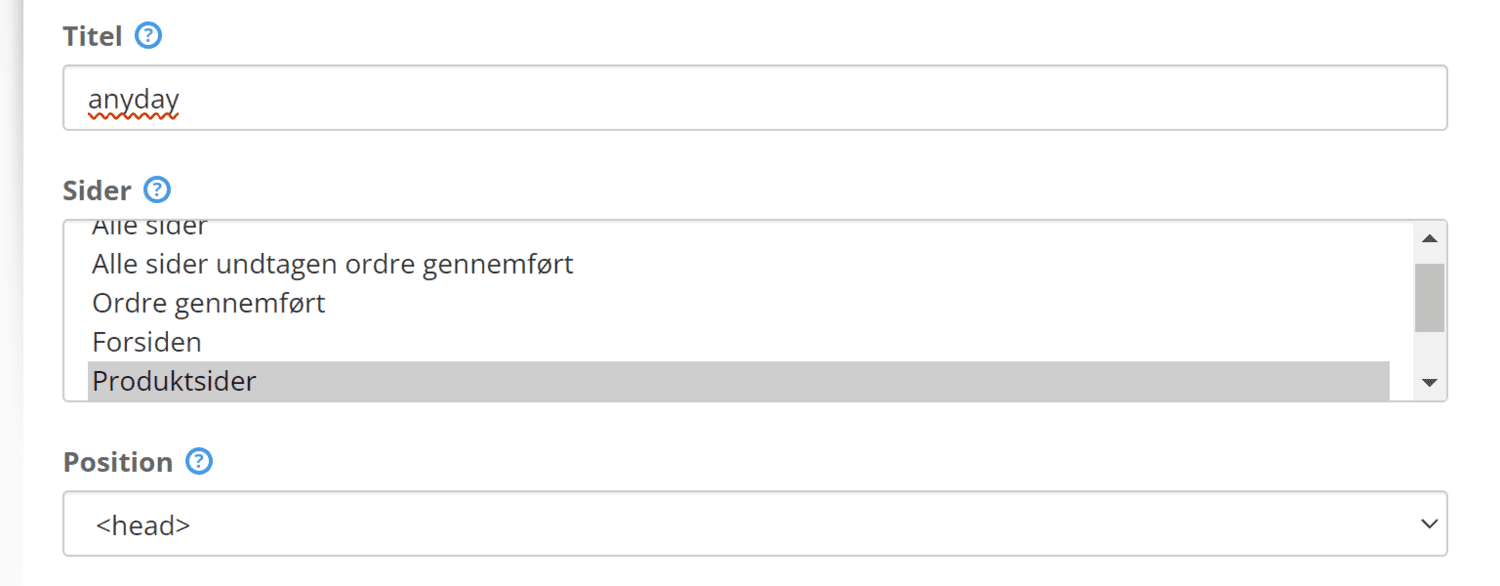
Fill it in like this
Paste this code into the Twig/html field:
<script src="https://my.anyday.io/webshopPriceTag/anyday-price-tag-da-es2015.js" type="module" async></script>
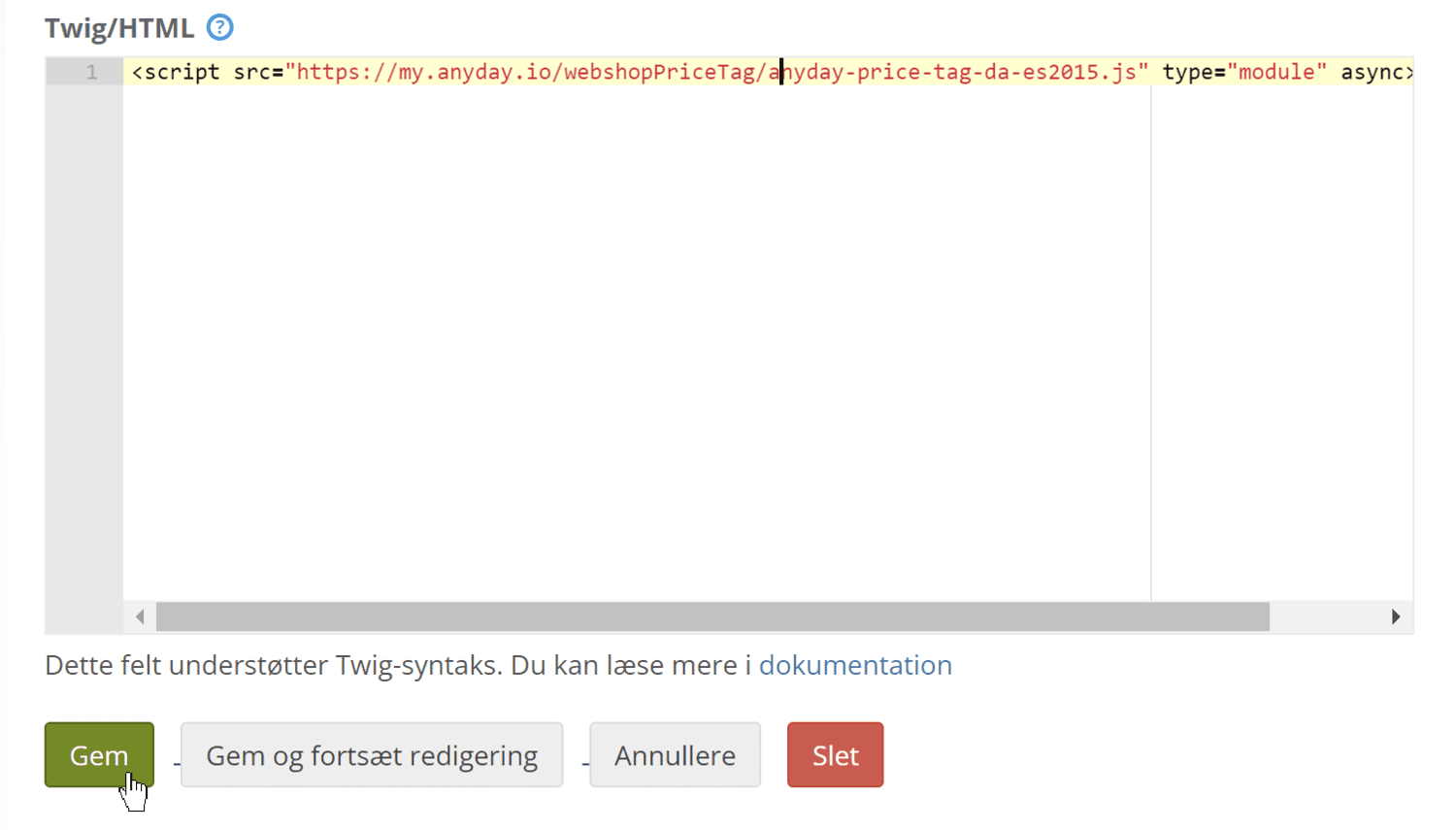
Finally, click Save
You add the second part with the layout tool
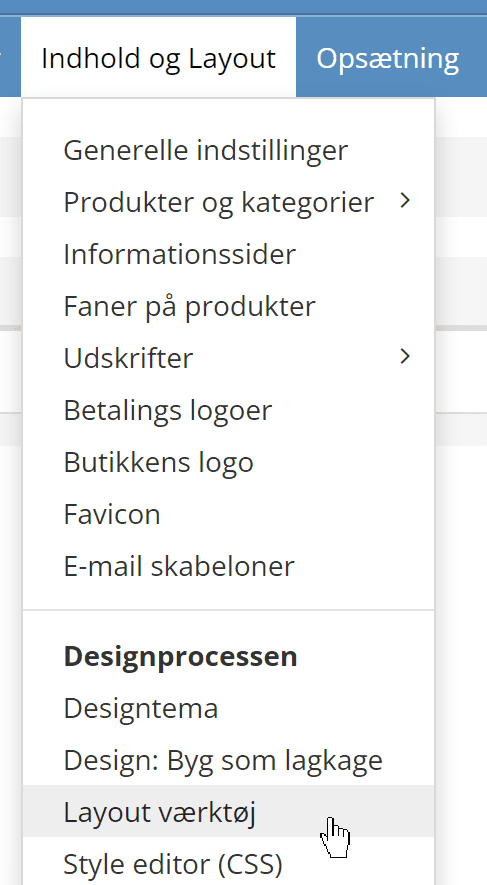
Choose product pages in the menu on the left
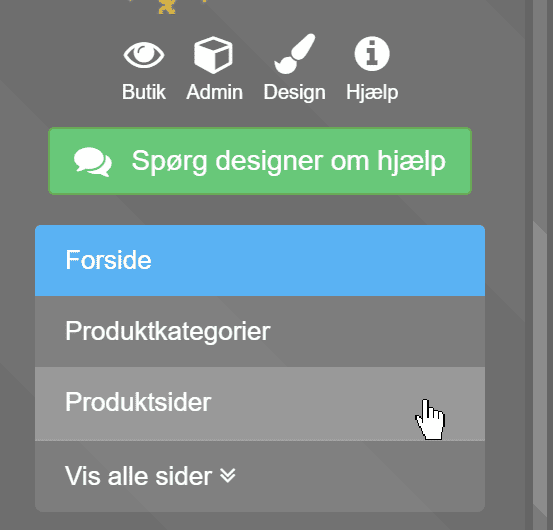
Place the cursor in the search field
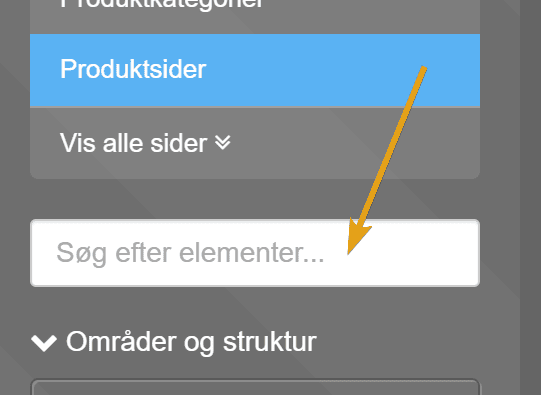
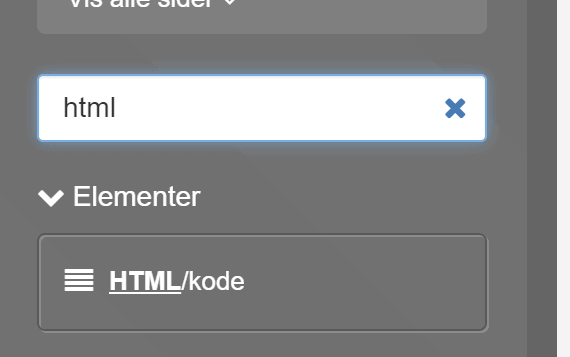
and search for html

Drag the element to where you want to show Anyday – here just below the price
Now you need your “Price tag token” from Anyday – you find it via https://my.anyday.io/en/merchant/dashboard/webshop/apikey (opens in a new tab)
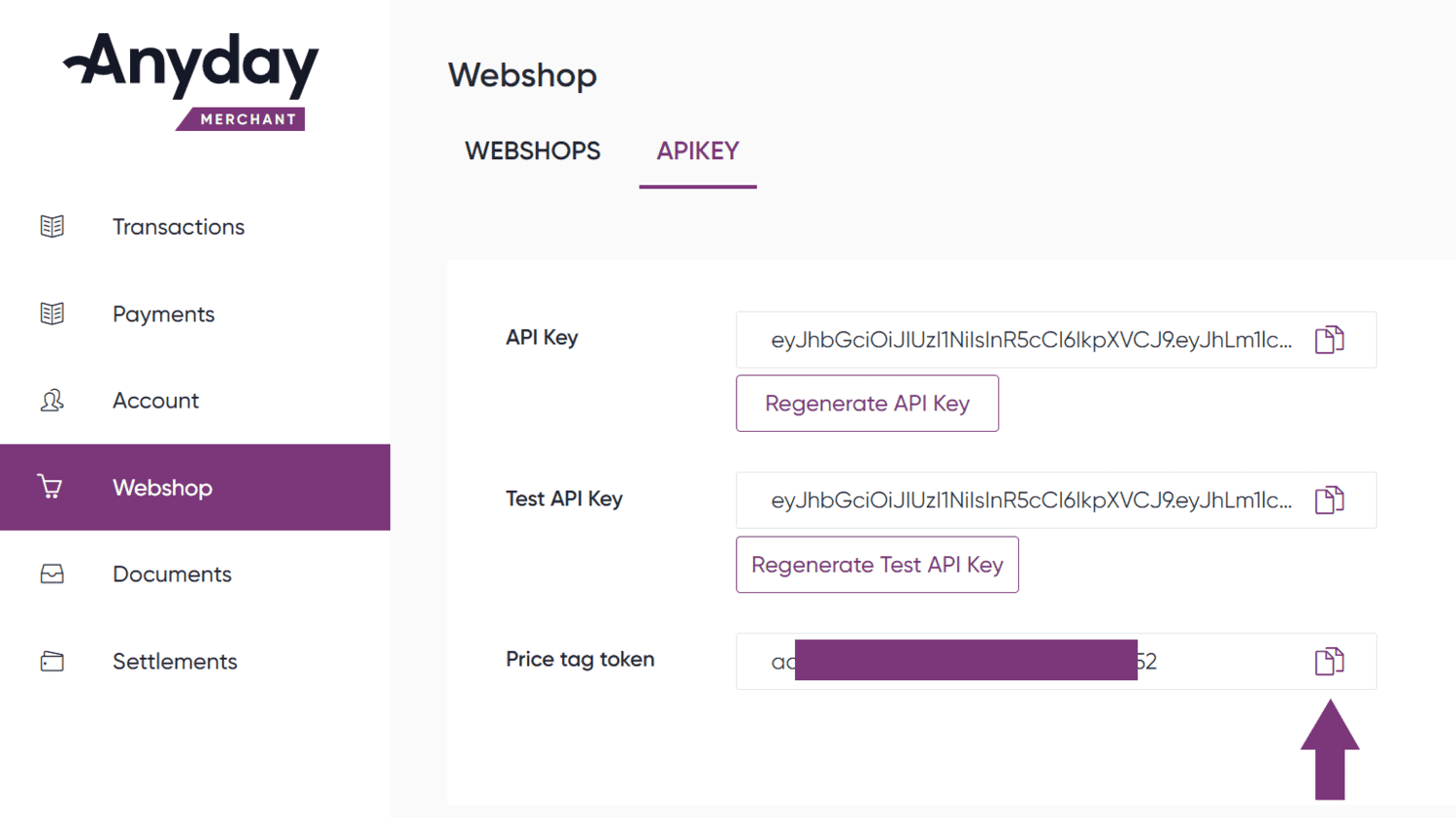
Click the html element in the layout and paste in this code – and replace YOUR TOKEN HERE with your token from Anyday:
<div class="cart_anyday" style="display: block;color:#000;font-size: 13.5px;justify-content: flex-end;margin: 0 0 10px 0;">
    <anyday-price-tag total-price-selector="span.price-value" price-tag-token="YOUR TOKEN HERE" currency="DKK" price-format-locale="da"></anyday-price-tag>
</div>
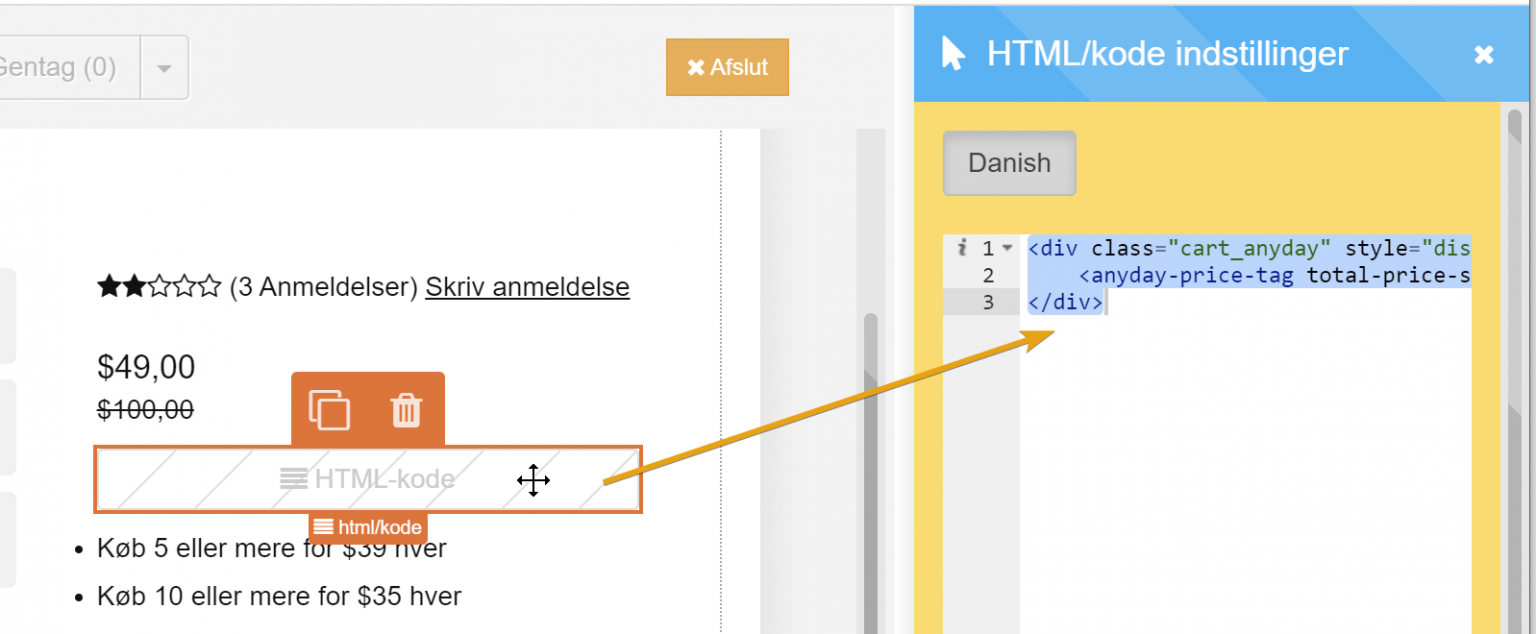
Click Save at the top of the layout tool

You can now click View shop and go to a product page to see how it looks.
Not working, or have questions?
If you need technical help or have questions about the setup itself, write to onboarding@anyday.io or call +45 81 81 61 81.
You can also try checking their guides here:
https://developer.anyday.io/docs/price-widget-script (opens in a new tab)
https://developer.anyday.io/docs/price-widget-element (opens in a new tab)