
In this category Payments
PaymentsCard payments
Fee on business cards
On this page
In the EU you are not allowed to charge a fee on card payments made with cards that belong to private individuals. You are, however, allowed to charge a fee on payments made with cards that belong to a company. This does not necessarily depend on whether the purchase is made by a company or a private individual – yes, a bit tricky. This means that if a company buys something that an employee pays for with a private card, no fee may be added.
Technically, this is solved by charging the fee once the card number has been entered. A card database is checked to see whether the card was issued to a private individual or to a company.
If you want to charge a fee on business cards, you may charge the same as the fee your acquirer (Nets, Clearhaus etc.) charges you.
1: Find out how much your fee is
Start by finding out how much you are charged in fees. Look up your agreement or contact your acquirer.
2: About the VAT
A bit like gift cards, there does not seem to be an entirely clear and obvious rule for VAT on fees. You can read more about it in, among other places, QuickPay’s guide here (opens in a new tab).
To make the whole invoice and the integration with accounting systems as smooth as possible, we have chosen a solution with simply 25% VAT on the fee. If you don’t think this solution works for you, the only option at the moment is not to turn on the option to charge fees on business cards.
Note that the fee follows the VAT on what the customer buys: if there is no VAT on the sale (e.g. when exporting), there must be no VAT on the fee either.
3: Show clearly that you charge a fee
It is of course important that the cardholder is clearly made aware that a fee is added when paying with a business card.
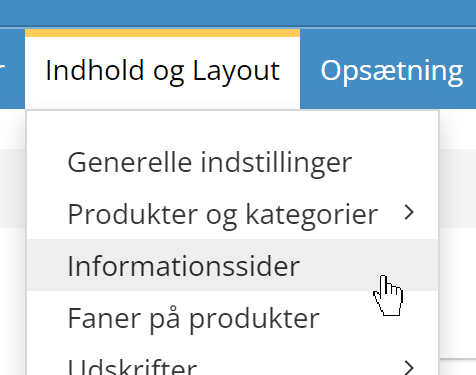
You should also include it in your terms and conditions. You edit your terms and conditions via Information pages:
An obvious place to show that you charge a fee on business cards is where card payment is chosen when your customer goes to checkout. It could look like this:
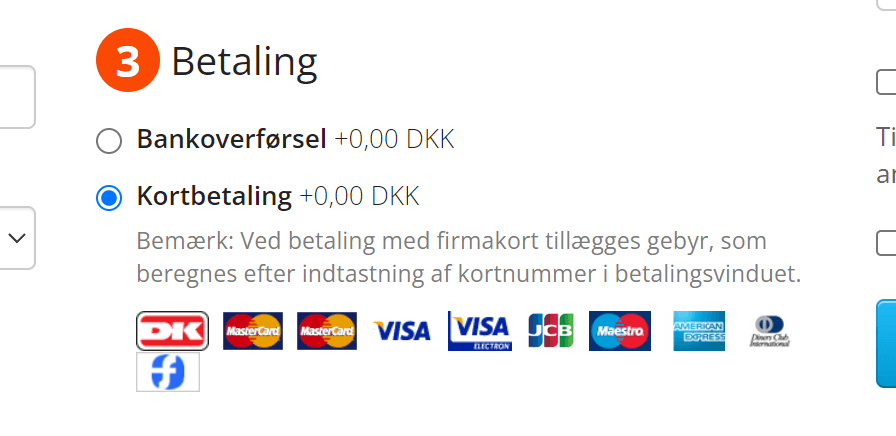
This is only a suggestion. We cannot guarantee whether it is legally sufficient.
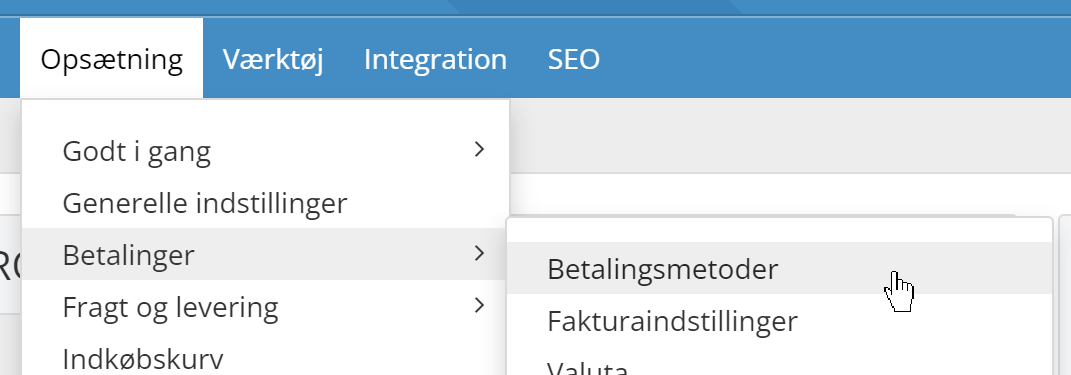
You can add that text by going to payment methods
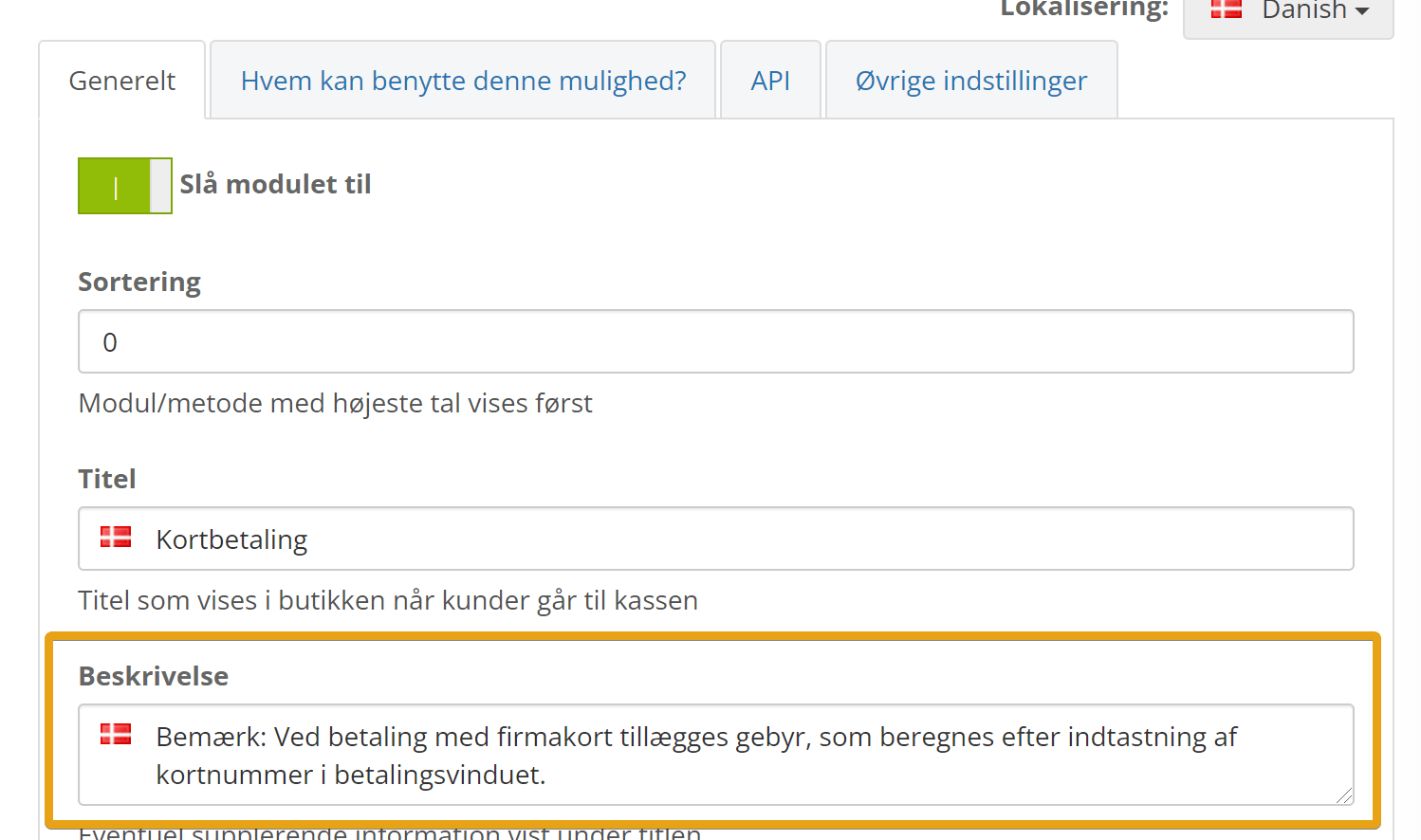
There you edit card payment, where you find the Description field on the General tab:
4: Set up the fee in QuickPay
The next step is to give the fee to the QuickPay payment window. Start by logging in to the QuickPay manager here (opens in a new tab)
First go to Integration
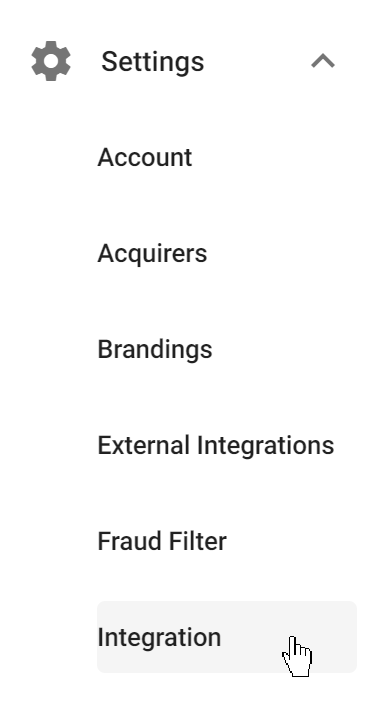
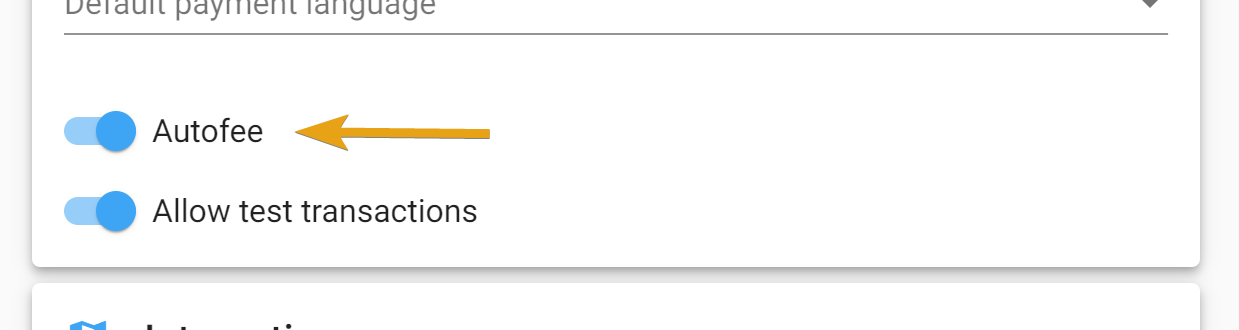
where you turn on Auto fee
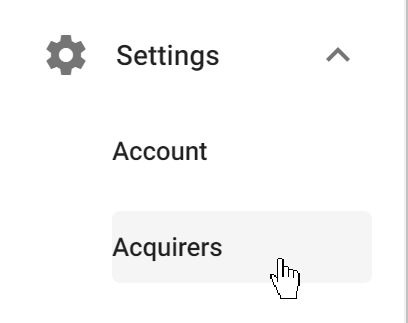
Then go to Acquirers
Here you click into each acquirer and then into the fee setup
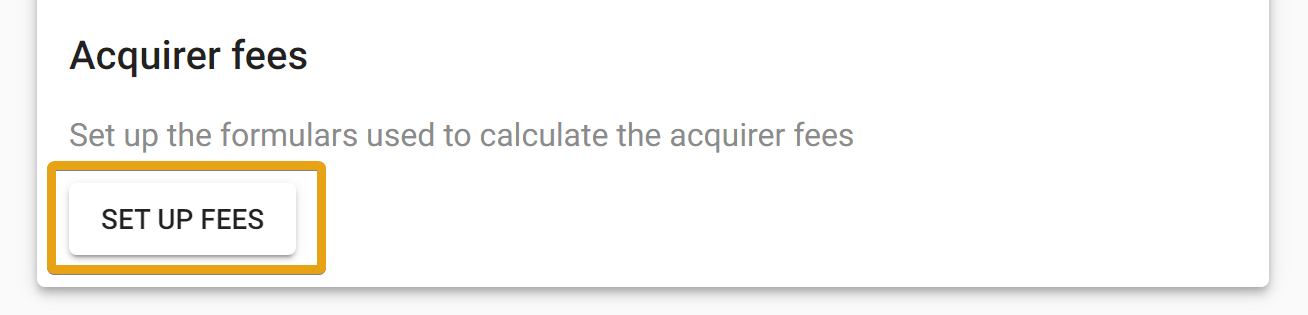
Now adjust the formula so it matches your agreement with the acquirer, and add VAT. You can see QuickPay’s guide here (opens in a new tab).
Here is an example where 25% VAT has been added to the standard fee:

5: Turn it on in your shop
The last step is to tell the QuickPay payment window that we want to charge the fee.
Here you go into payment methods again and edit card payment (the same place as the description mentioned in step 3).
On the Other settings tab

you find the setting (roughly) at the bottom
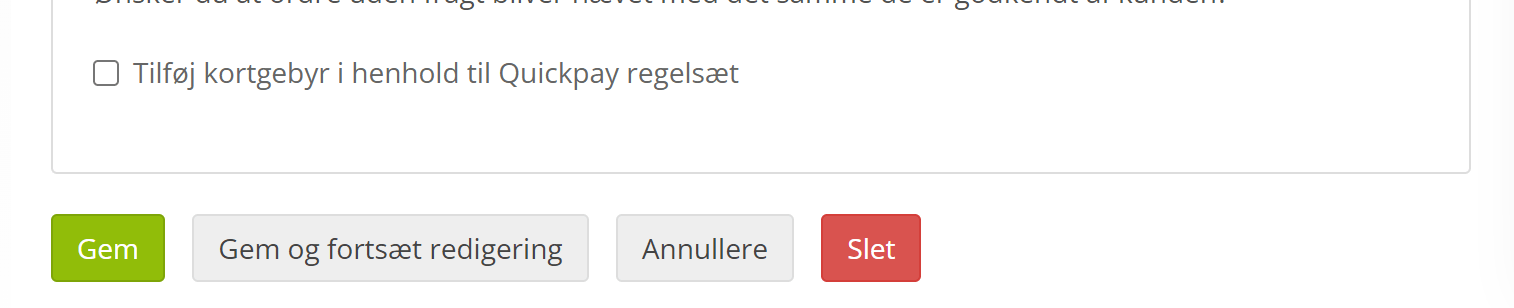
Remember to click Save.