
In this category Payments
Gift cards
On this page
You can sell gift cards in your online shop that your customers can use to pay for products. Here is what it’s about in brief:
- Gift cards are sold with a value for payment
- The customer can pay fully or partly with a gift card (any remaining balance is saved)
- Customers can check the balance on their gift card themselves
- Gift cards are sent to customers by email. If you like, you can customise the design.
- Remember the VAT! The rules are a bit convoluted.
It is important that you set up VAT in the best way when you start. It can make a big difference to how much time you have to spend on bookkeeping for gift cards.
VAT – don’t skip this section
There are 2 ways to handle VAT on gift cards:
- Gift cards sold without VAT. The easiest, but certain requirements must be met.
- Gift cards sold with VAT. Quite a hassle, so try to avoid it.
If you only sell products subject to VAT (at 25% VAT) to customers in Denmark, you must also sell gift cards with VAT. That makes your bookkeeping considerably harder. So consider also selling to customers in other countries and/or having some products in the shop without VAT. Dansk Erhverv (the Danish Chamber of Commerce) suggests, for example, starting to sell postage stamps. But as an online shop, it may be easier simply to sell to more countries.
IMPORTANT: This also applies to shipping/delivery!
If you sell gift cards with VAT, EVERYTHING that costs something in the shop must have the same VAT class.
Some suggestions for where you can read more about gift cards and VAT:
- Dansk Erhverv (opens in a new tab) (in Danish)
- Skat (the Danish Tax Agency): What is a voucher for VAT purposes? (opens in a new tab) (in Danish)
Set up the sale of gift cards in your shop
You can create gift cards as one of these 2 types
- Gift cards with a fixed value
- Gift cards with several fixed values
The first is like a standard product. The second uses variants.
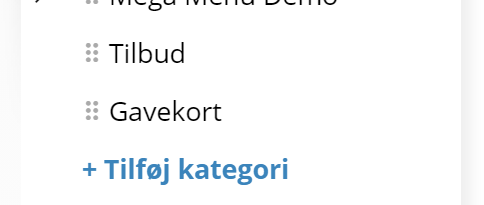
For both, start by going to the category where you want to present gift cards – you can create a new category for the purpose, as here:
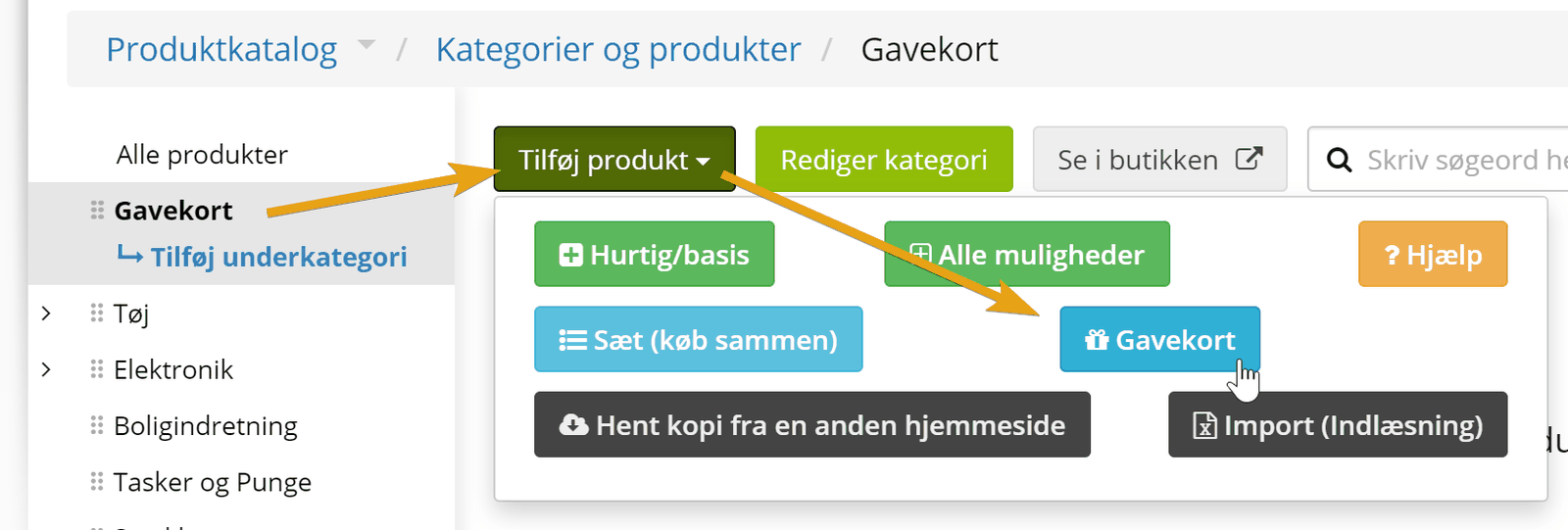
Go into the category. Click Add product and choose Gift card:
Give the product a title, description and image as you do with all other products. Perhaps also enter a product number and optimise the SEO.
You probably don’t want gift cards in your product feed – exclude them like this:

Choose the VAT class for the gift card (see the separate section on deciding the VAT class!):
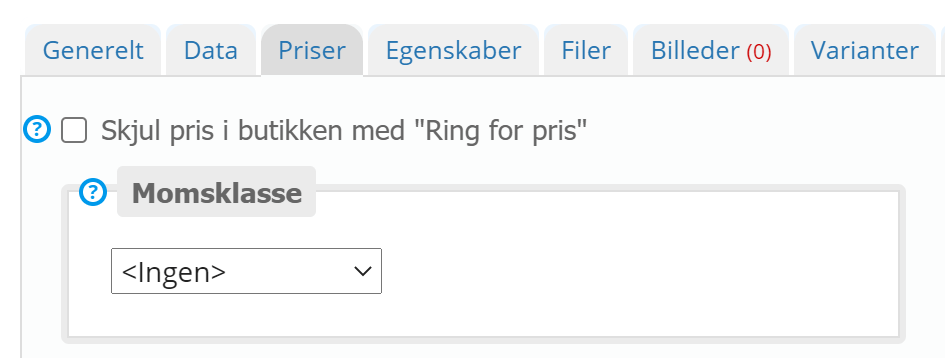
If the gift card has one fixed value – e.g. “Gift card €150” – also enter the price on the Prices tab.

If you want to offer several values for customers to choose from, go to the Variants tab. You can create a new variant group for the purpose like this:
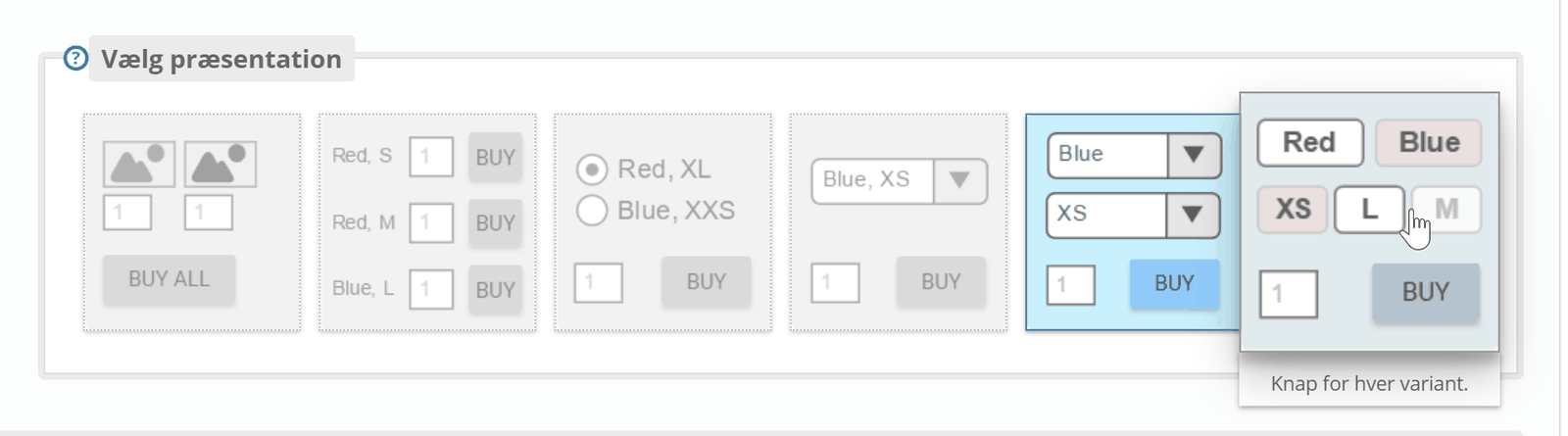
An obvious way to present them would be a button for each:

Create a variant for each gift card value you want to offer:
Save and check your gift card in the shop.
How gift cards are sent to customers automatically
By default, a gift card is created and sent to the customer by email when an order gets the status Dispatched.
You can change which status applies via
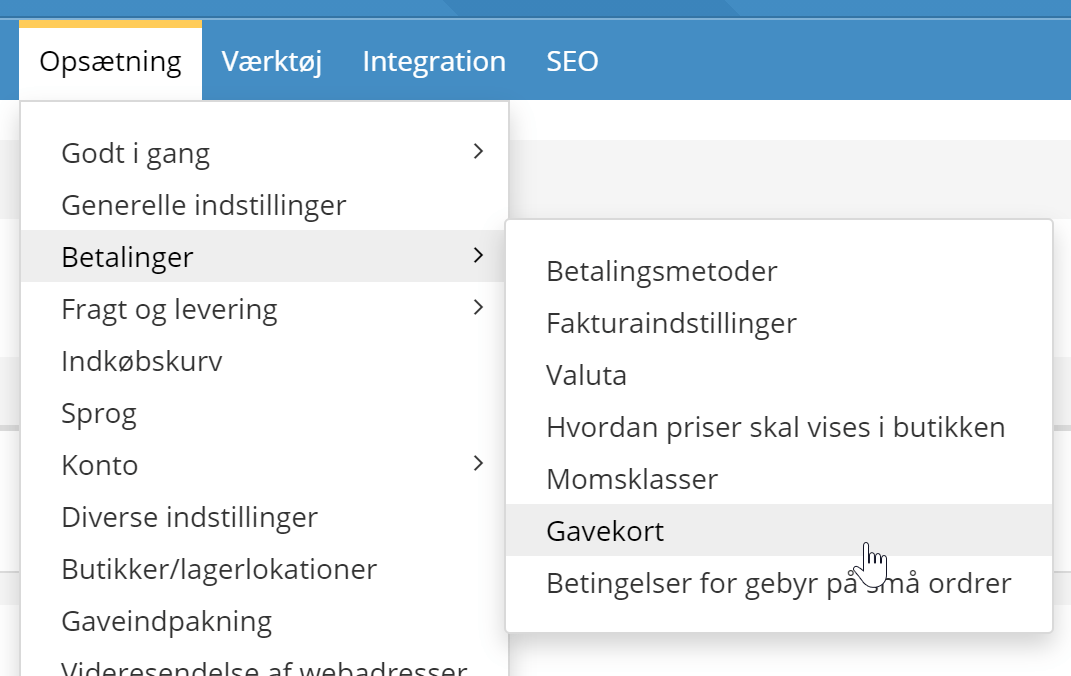
Customers can order gift cards in an order together with other products. The status you use should therefore be one that is always set along the way in an order, or once it is completed.
Customise the layout of the gift card email
The default layout of the email sent to the customer with a gift card looks like this:
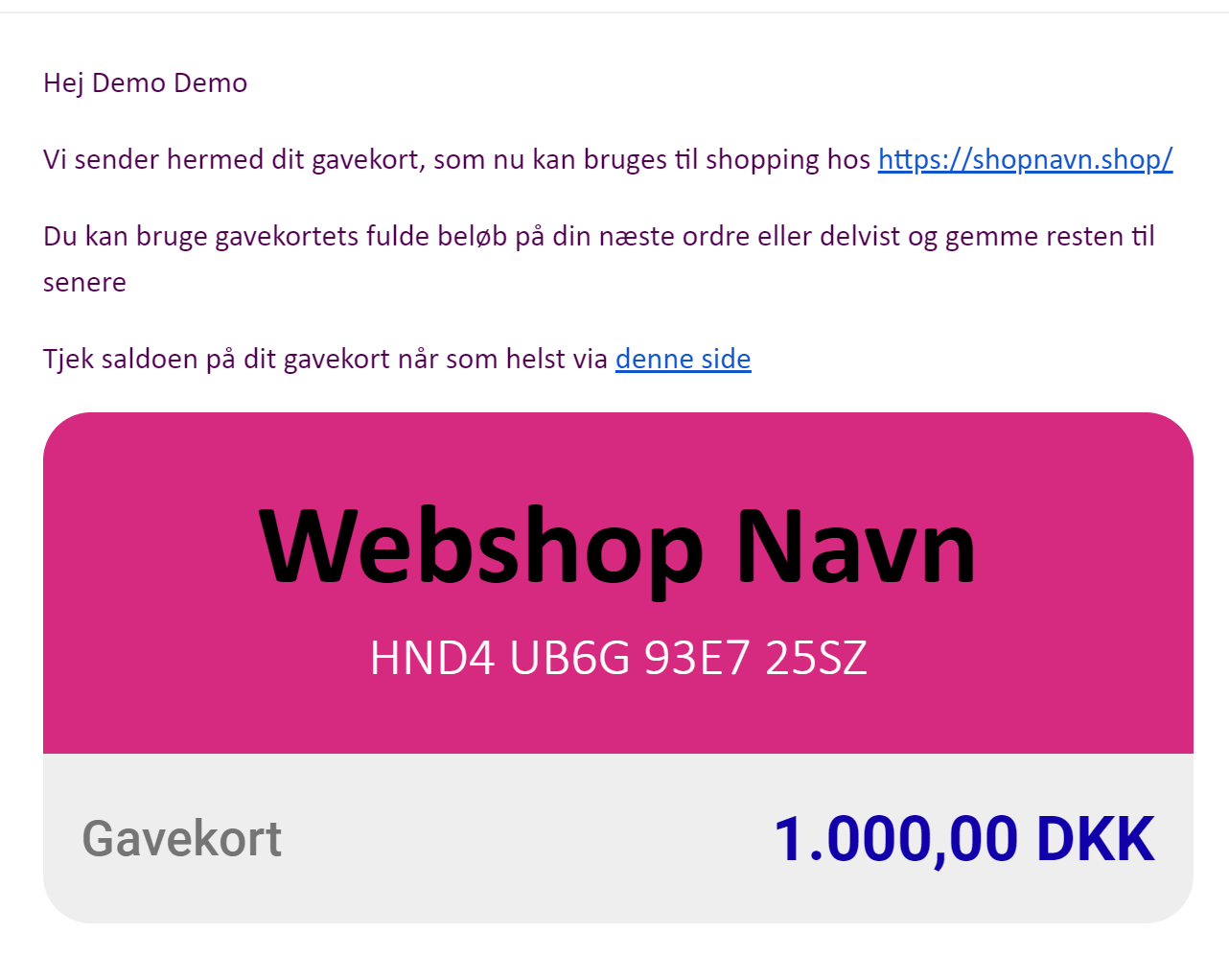
You can customise the layout in the same place as the other standard emails:
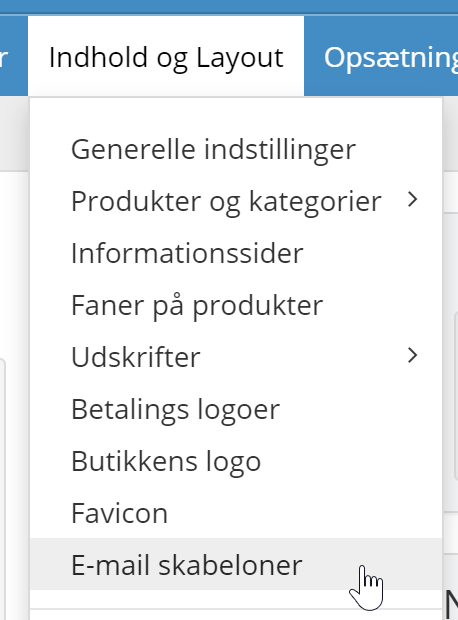
We recommend making the gift card layout with CSS styling only, and without images, to make sure it displays correctly in all email programs.
Send gift cards to your customers again. Important: a new gift card code is created every time!
The email with a gift card can be sent again from the list of gift cards, which you find via
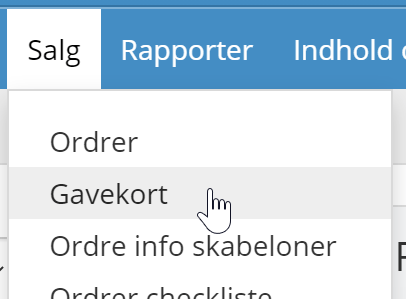
It is important to be aware, though, that a new code is created, which must be used to pay with the gift card. For security reasons, these codes are stored encrypted in your shop’s database – so they cannot be read, for example to send in an email after they have been created. The previous code for the gift card can no longer be used once the new one has been created.
Create a gift card manually
If a customer should get a gift card, e.g. as compensation, you can create a gift card in your shop’s admin.
Go to Gift cards under Sales
Click Add new gift card at the bottom

Enter the amount in Start value and choose the customer by searching in the Customer field. The other options are only for when you think they are relevant.
When you click the green Save button, the gift card is created at once and sent to the customer by email.
How your customers redeem a gift card
When a customer goes to checkout to complete an order, they pay with the gift card by entering the code they received at checkout.
If the gift card cannot cover the whole amount of the order, a payment method is chosen as usual for the rest.
See a list of gift cards and block/close a gift card
You can see a list of gift cards sold via the menu item Gift cards under Sales:
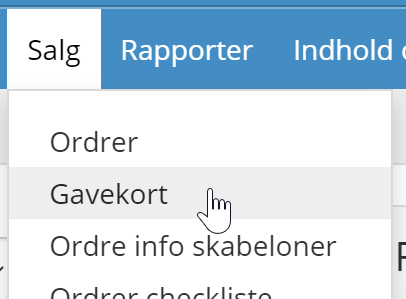
Here you can also see, for example, the balance left on each gift card. As in most other lists in the admin, you can filter, for example on active gift cards.
With the on/off switch on the far left you can turn a gift card off – e.g. if it turns out to have been bought with credit card fraud.
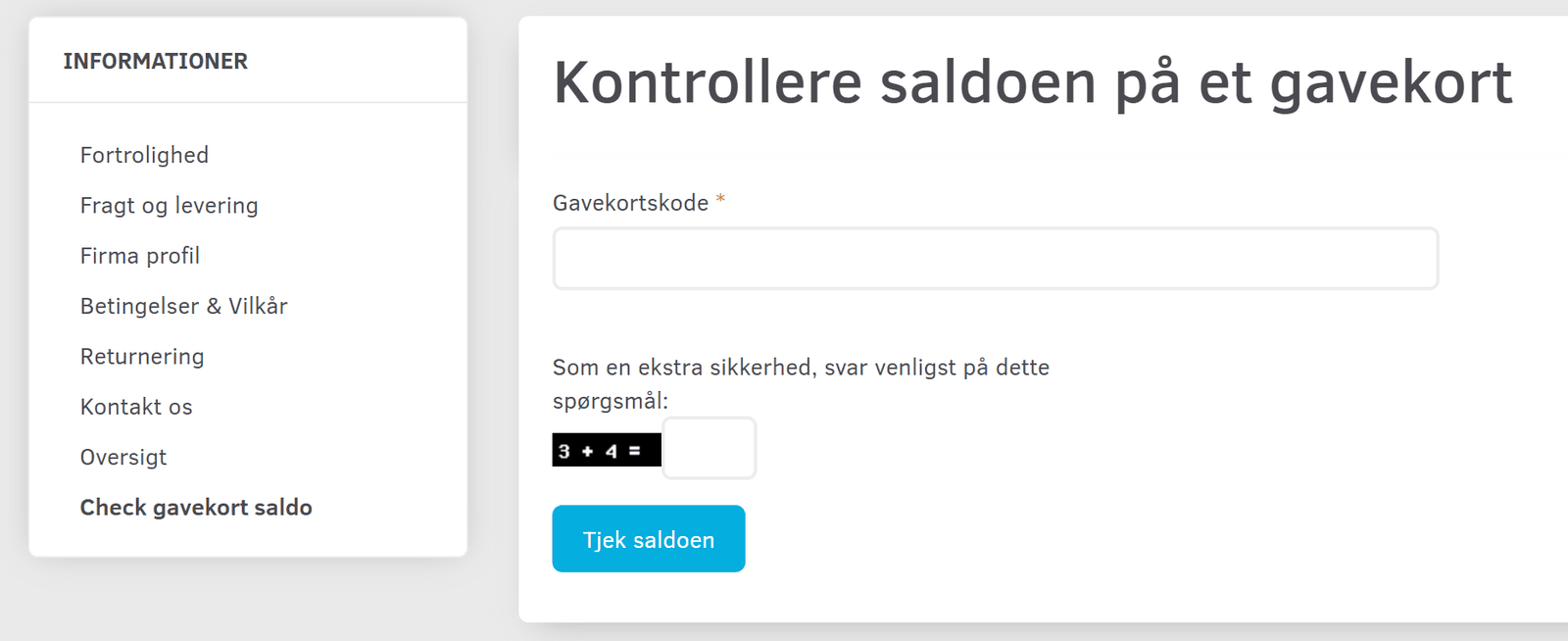
Customers can check the balance on a gift card themselves
To cut down the time spent answering customers’ questions about how much they have left on a gift card, we have made it possible for customers to check it themselves.
By default it is shown in the list of links under Information. The customer also gets a link to the page sent with the gift card. You can also make a link to the page /information/gift-balance/ manually
Gift wrapping
It doesn’t really have anything to do with the gift card feature as such, but now that you are working on gift cards, you may also want to consider offering gift wrapping – see the guide to gift wrapping here