
In this category Payments
ViaBill – with or without PriceTag
Let your customers pay in instalments with ViaBill. With ViaBill PriceTag, every product shows how much it costs per month.
On this page
With ViaBill you can let your customers pay for products in instalments instead of paying the whole amount at once.
The customer gets the products straight away and pays ViaBill over time. ViaBill pays you the amount according to your agreement with them. If the customer does not pay, that is a matter between the customer and ViaBill.
What you need to offer ViaBill
To offer payment with ViaBill, you need this:
- A payment gateway subscription. If you already have card payments with Dankort and credit cards, this is in place. Order the payment gateway here.
- An agreement with ViaBill.
Once these are in place, you are ready to start the setup.
Setting up your shop
When you have a ViaBill agreement, you receive an API key that must be added to your QuickPay payment gateway. You can read how to do it yourself here, or you can send the API key to us, either by email or in the chat, and we will add it for you.
Then you need the ViaBill payment module installed in the shop.
Go to Settings > Payments > Payment methods and choose Add new. Then choose the ViaBill module and Create.
In the payment module you control the settings for the ViaBill payment module.
• Enable/disable module lets you switch the module off temporarily without losing your settings
• Title/Description can be adjusted as needed or used as they are
• Logo By clicking the icon, you can use your own logo in the shop
• Order status that is given to orders received with this method
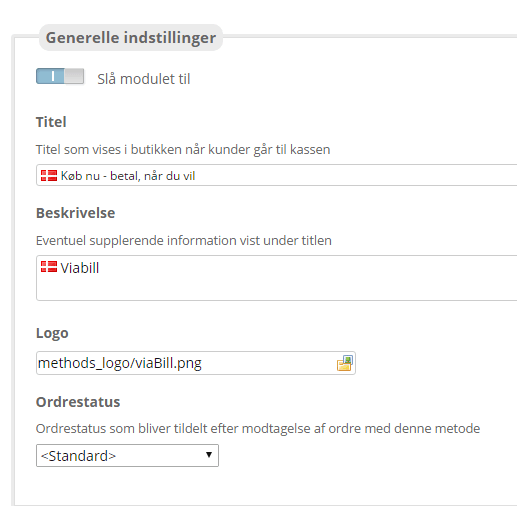
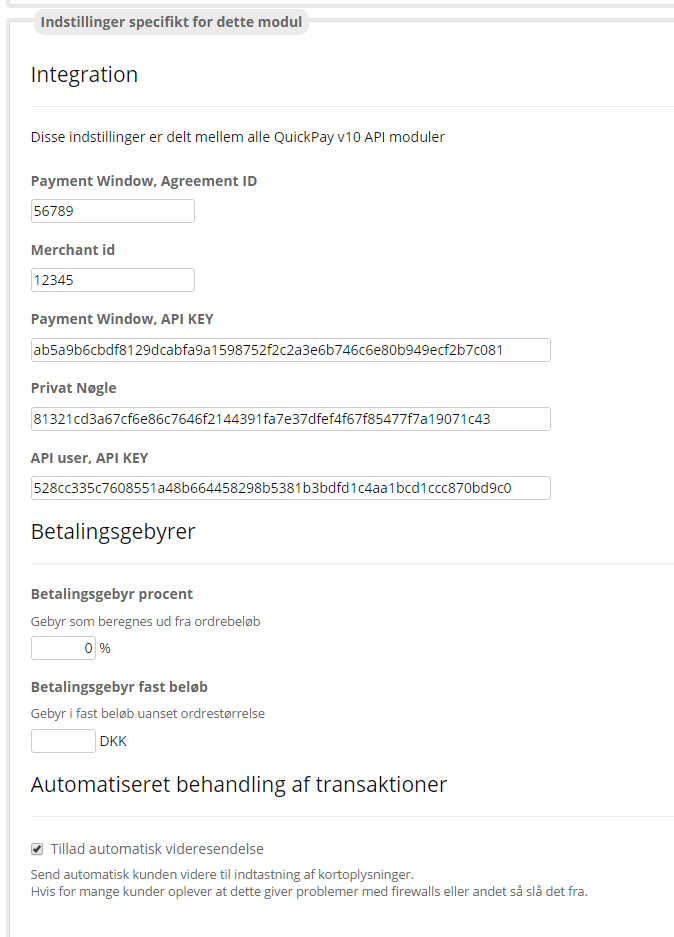
Settings specific to this module:
Integration – read here how to set up QuickPay. If you already have, for example, card payments in your shop, the fields will be filled in already and you can just skip to the next point.
• Payment Window, Agreement ID, Merchant id, Payment Window, API KEY, Private key, API user, API KEY are the elements that are set up via the QuickPay manager.
Payment fees
• Payment fee percentage – if using ViaBill should cost a percentage of the order total, enter it here
• Payment fee fixed amount – if using ViaBill should cost a fixed amount, enter it here
• Allow automatic forwarding – automatically send the customer on to entering their card details.
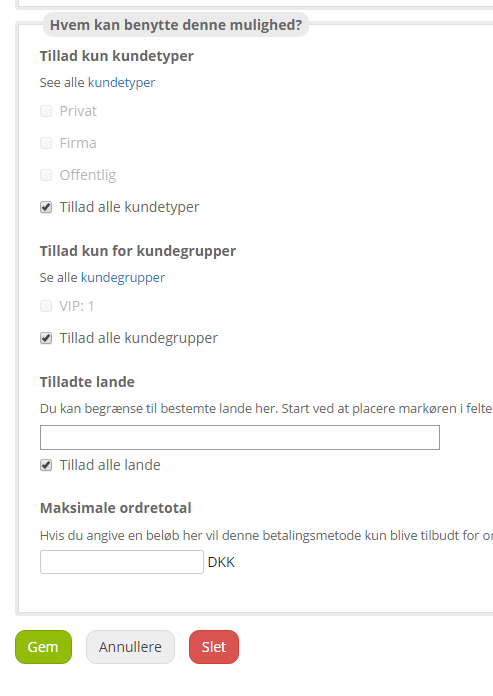
• Allow only customer types – if only a particular customer type should be allowed to use this payment method, set it here
• Allow only for customer groups – if only a particular customer group should be allowed to use this payment method, set it here
• Allowed countries – if the payment method should only be allowed for particular countries, you can set the restriction here.
• Maximum order total is used if this payment method should only be available for orders below the amount you enter. The amount limit depends on your agreement with ViaBill – ask ViaBill whether your agreement requires you to show ViaBill PriceTags on the products.
Finally, save your entries at the bottom.
You are now ready to receive payment with ViaBill.
You may also want to activate the payment logo in the shop, so your customers can see that you now accept ViaBill payments. You find it under Content and layout > Payment logos
Adding PriceTag
With ViaBill PriceTags, customers can see on the product itself what it will cost per month to pay with ViaBill.
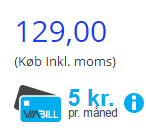
It is placed right around the price on the product pages. Adding ViaBill PriceTags costs a one-off €60, because a developer has to add it to the code of your shop.
If you would like ViaBill PriceTags in your shop, send us the script code you receive from ViaBill, and we will make sure it is added.