In this category Payments
Payment logos
On this page
It’s smart to tell your customers which ways they can pay in your online shop.
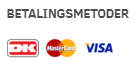
Can they pay with MobilePay, Visa or PayPal, for example? Then show the payment logos, so customers are in no doubt.
Choose which logos to show
You find them via Content and layout > Payment logos.
Some have already been created here; they can be activated or deactivated as needed.
If a payment logo is missing – e.g. MobilePay – you can create it by clicking the Add new payment icon button.
Here you upload the payment logo icon you are missing; the format must be 1.6:1
Tick Activated and enter a URL (this is not actually used for anything at the moment, but must be filled in correctly).
Placement
Choose where they should be placed/shown. You do this in the layout tool, which you find via Content and layout > Layout tool.
In most templates the element is placed at the bottom/in the footer, as it is then visible on every page.
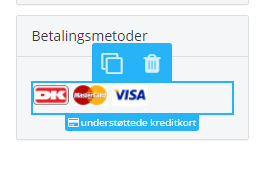
If it should happen to be missing, drag the element called Supported credit cards to the place you want.
This also applies if you want them shown somewhere else.