
In this category Payments
Payment with Apple Pay
On this page
Paying without having to take your card out of your pocket is becoming more and more popular.
In Denmark, Apple Pay is for most people an alternative or a supplement to MobilePay. For your customers outside Denmark, it is an alternative to card payment, since MobilePay, as you know, is not an option for them.
Expect rising costs with Apple Pay
With Apple Pay, transactions with Visa/Dankort cards go through the Visa part. When the same card is used with MobilePay or directly, it goes through the Dankort part. Transaction fees on Dankort (the Danish debit card) are usually considerably lower than for the same order amount on Visa. So this is worth taking into account when you decide whether to offer Apple Pay as a payment option.
Do you have the QuickPay module?
Apple Pay is connected as an acquirer in QuickPay. So you need the QuickPay module for your shop to be able to connect it – if you have card payments, you already have QuickPay.
Just contact our support via chat, email support@goldenplanet.com or phone +45 70 20 95 94 if you don’t have the QuickPay module yet.
You need an acquiring agreement with Clearhaus
Like MobilePay, Apple Pay is an intermediary for card payment – the card the customer has linked to it. That is, a Visa or Mastercard.
For this you need an acquiring agreement with Clearhaus. The agreement is free to set up and there is no monthly price for it. You only pay per transaction.
You can choose to run all your non-Dankort payments through Clearhaus, or only Apple Pay payments. Clearhaus is often cheaper than Nets for Visa and Mastercard – do compare the current prices – and from what we hear, their customer service is always good.
Applying for and adding Clearhaus via the QuickPay manager is quick and easy
Log in here at https://manage.quickpay.net/ (opens in a new tab)
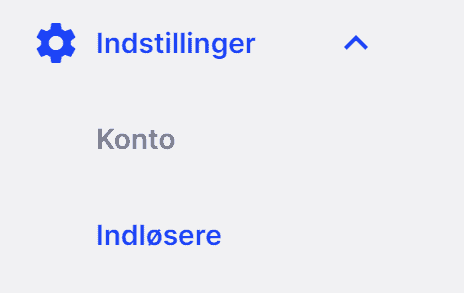
Go to Settings and then Acquirers
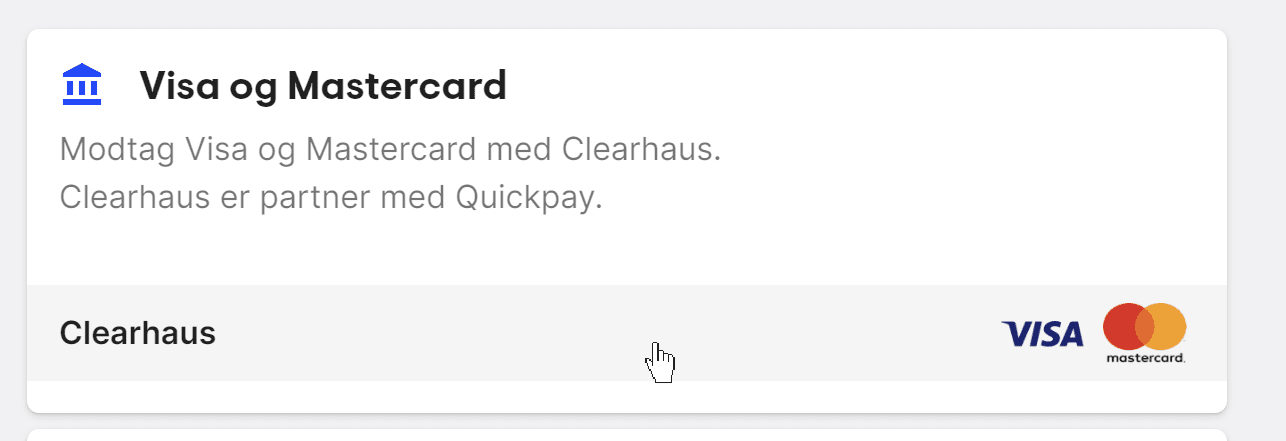
Click into Clearhaus
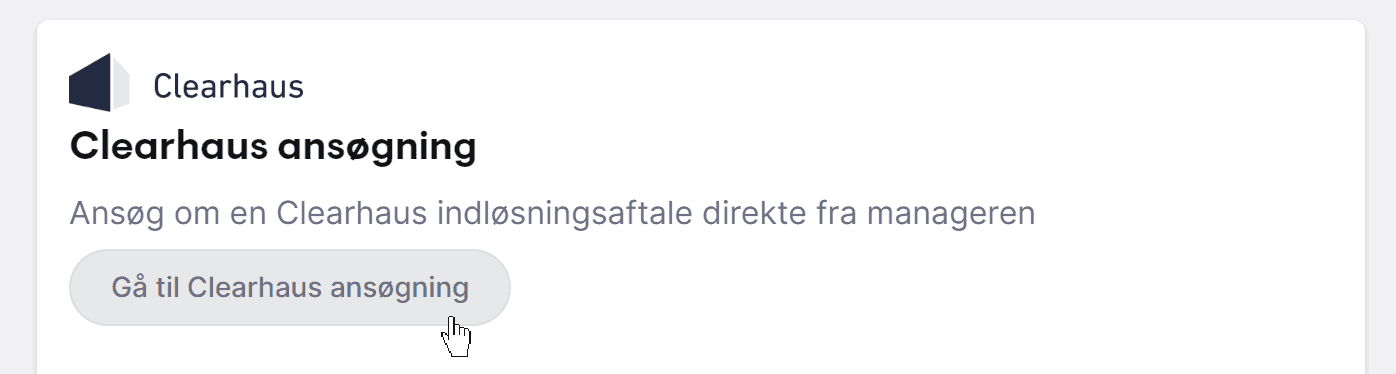
Fill in the application
By the way, we have made sure you get a discount on transaction fees at Clearhaus when you apply through a QuickPay manager connected to a Golden Planet online shop.
Once you have the agreement with Clearhaus, go to this guide to see how to prioritise between Nets and Clearhaus.
Activate it in the QuickPay manager
Start by logging in to the QuickPay manager here (opens in a new tab)
Under Settings, go into Acquirers.
Now click into Apple Pay
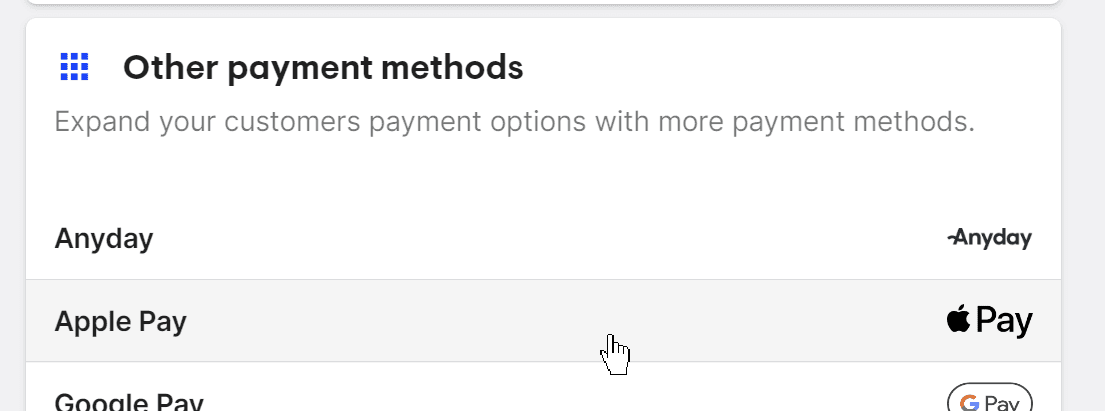
Here you just activate it
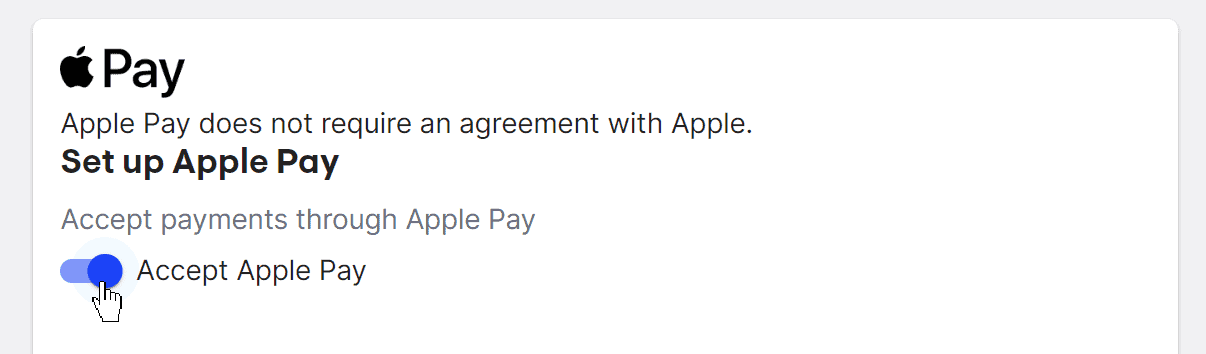
Activate it in your shop
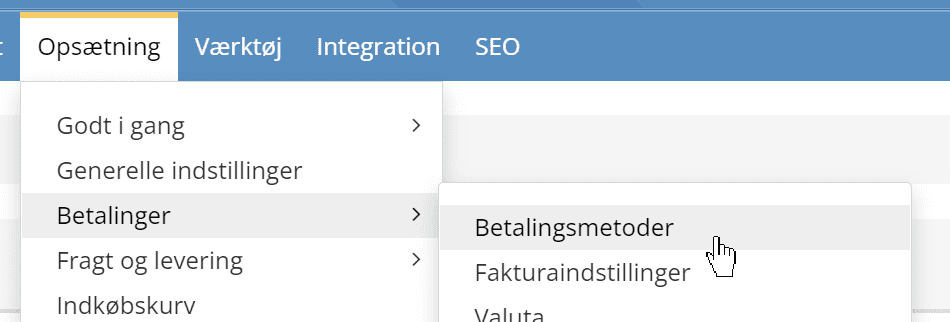
Go to payment methods
Click Add new at the bottom
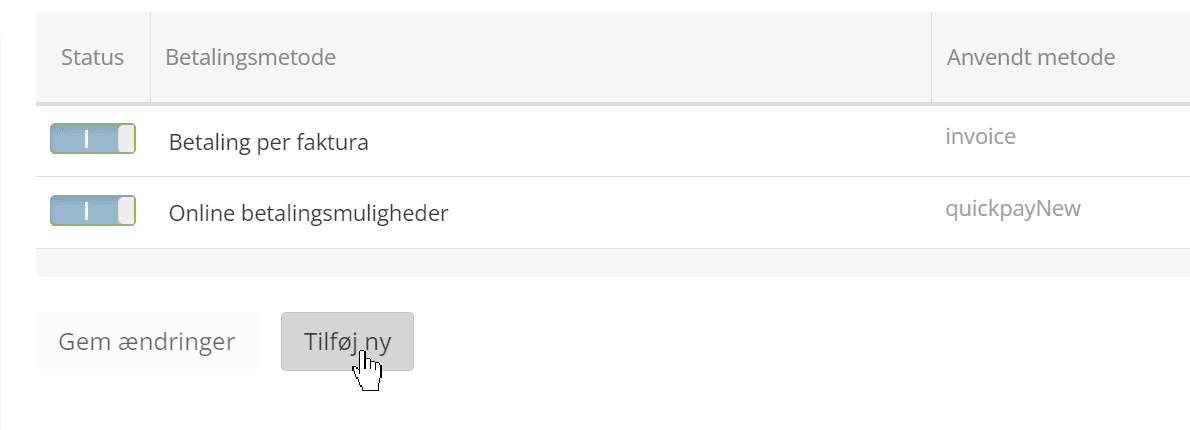
Choose Apple Pay from the list
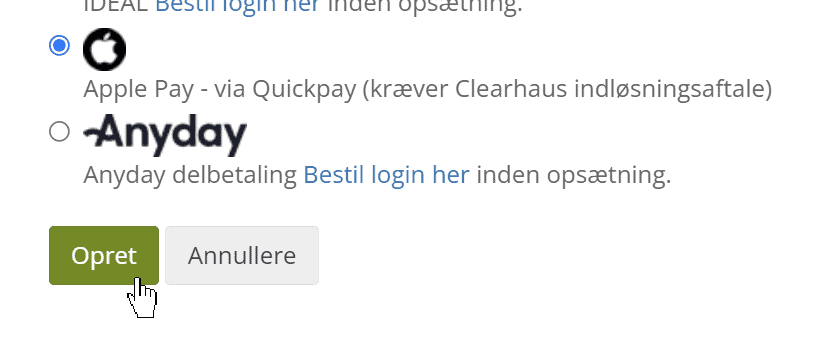
and click Create.
If you like, you can adjust the title, the description and who should have the Apple Pay option.
When you have finished, click Save and you’re done.
You can only see it with an iPhone
Now that you have set it up, you will probably want to check that it is in the shop.
So as not to show unnecessary choices to customers on, for example, an Android phone, Apple Pay is shown when you go to checkout from an iPhone. So you need to find an iPhone to test it.
Handling payments
Payments via Apple Pay are generally handled like all other payments via QuickPay – as you know it from MobilePay, card payments etc.
This means you can capture and refund in your shop’s admin and see more details in the QuickPay manager (opens in a new tab).