
In this category Payments
Payment with PayPal
On this page
You can get PayPal payment in your online shop by adding a module for €8 per month.
A PayPal payment solution does not need a payment gateway, but it does need a PayPal account.
Just contact our support and we will make sure the module is activated in your shop.
1: Creating a PayPal account
To get a PayPal account, go to paypal.com (opens in a new tab) and create a business account. If you already have a personal account, you can upgrade it to a business account (opens in a new tab) – or simply create a new one.
2: Setting up your shop
First make sure the PayPal payment module is included in your shop.
If it isn’t in your shop already, you can email us (support@goldenplanet.com) to say you would like the PayPal module added.
Then you need to set it up in your shop.
Go to Settings > Payments > Payment methods and choose Add new. Then choose the PayPal module and Create.
In the payment module you control the settings for the PayPal payment module.
• Enable/disable module lets you switch the module off temporarily without losing your settings
• Title/Description can be adjusted as needed or used as they are
• Logo By clicking the icon, you can use your own logo in the shop
• Order status that is given to orders received with this method
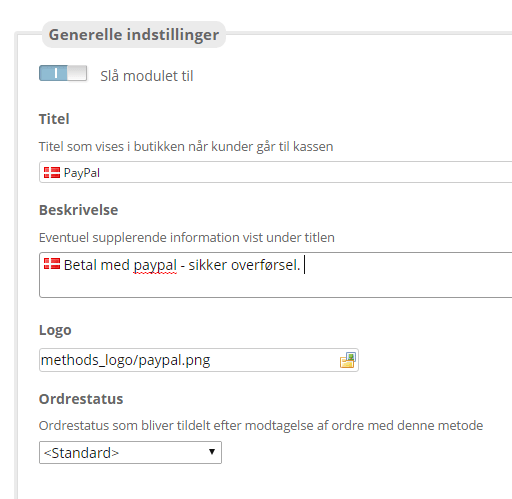
Settings specific to this module:
• PayPal merchant account must contain the email address of your PayPal account, or your PayPal merchant ID
3: Client ID + secret API keys: create them in PayPal, paste them into your shop
First go to the PayPal Developer Dashboard https://developer.paypal.com/dashboard/ (opens in a new tab)
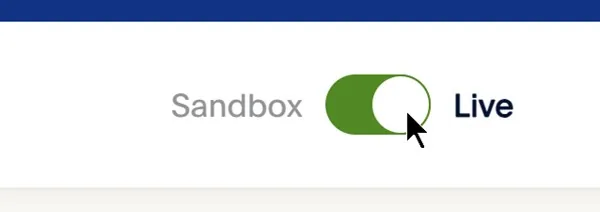
Switch to Live in the top right-hand corner
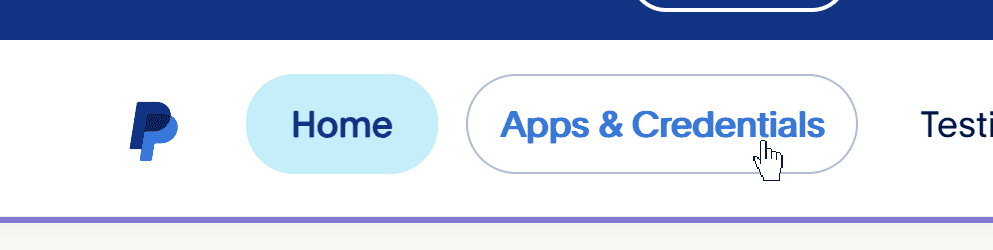
Now go to Apps & Credentials in the menu at the top
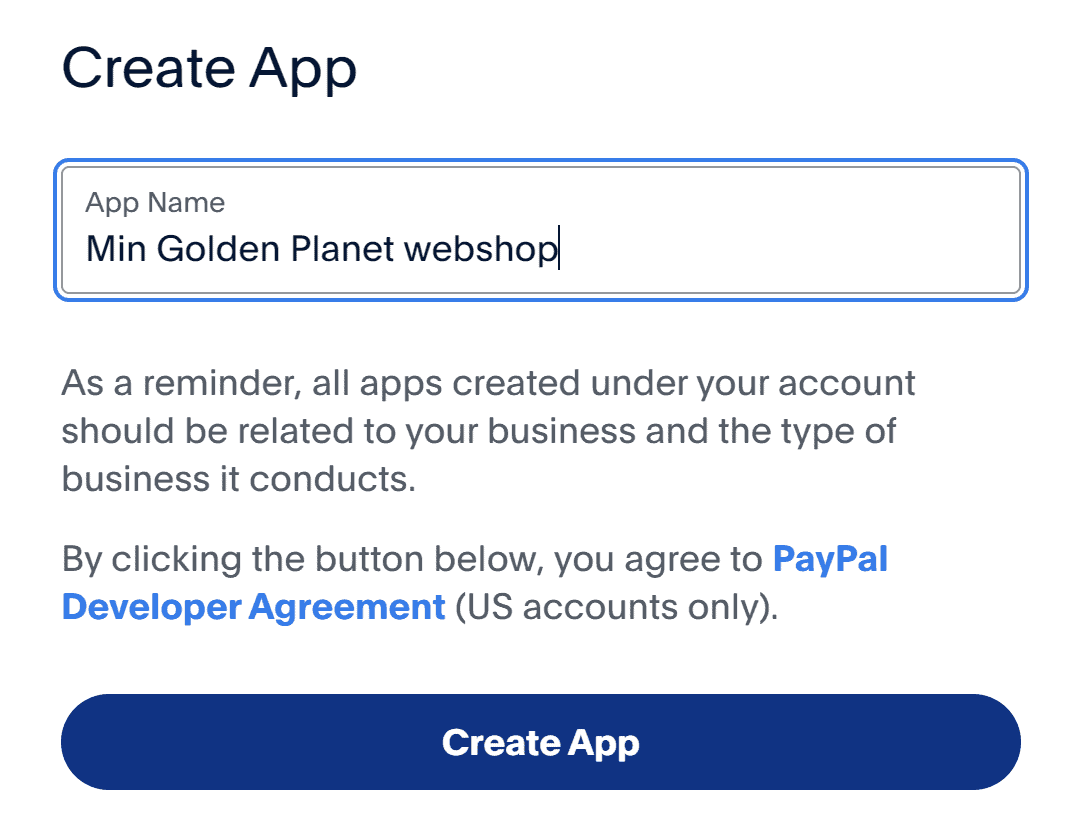
Now choose Create App
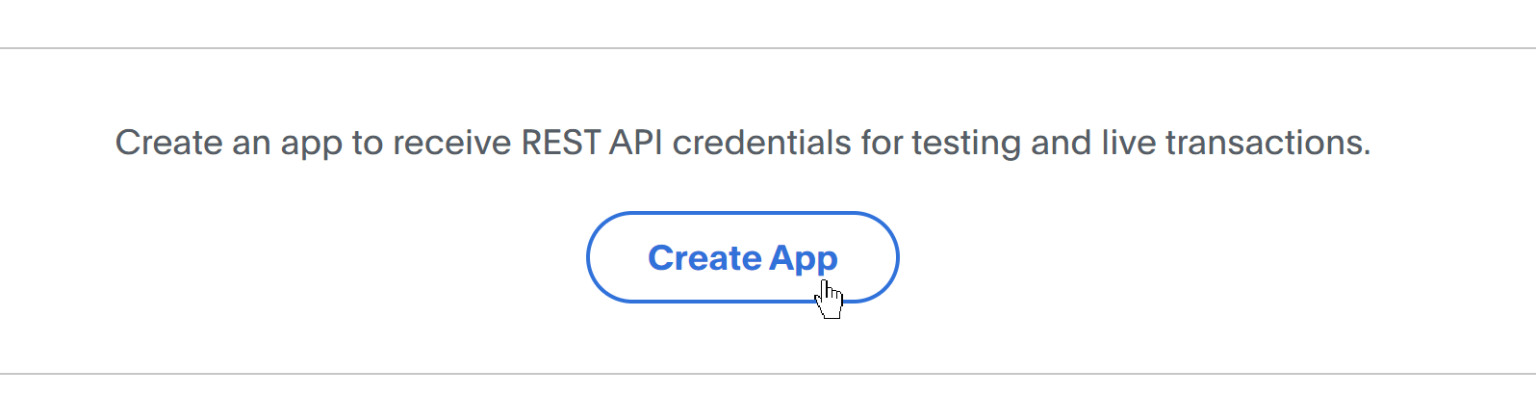
Enter a name you think is suitable and click Create App
When the app has been created, copy the Client ID and Secret key
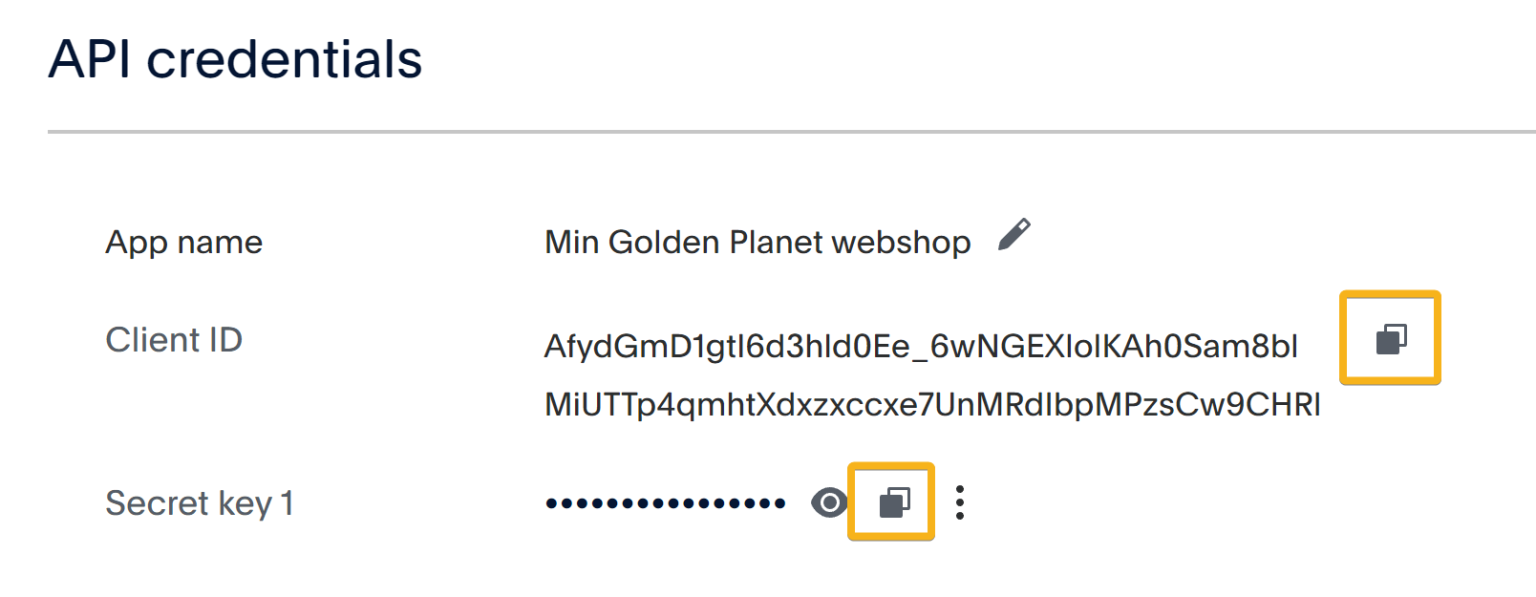
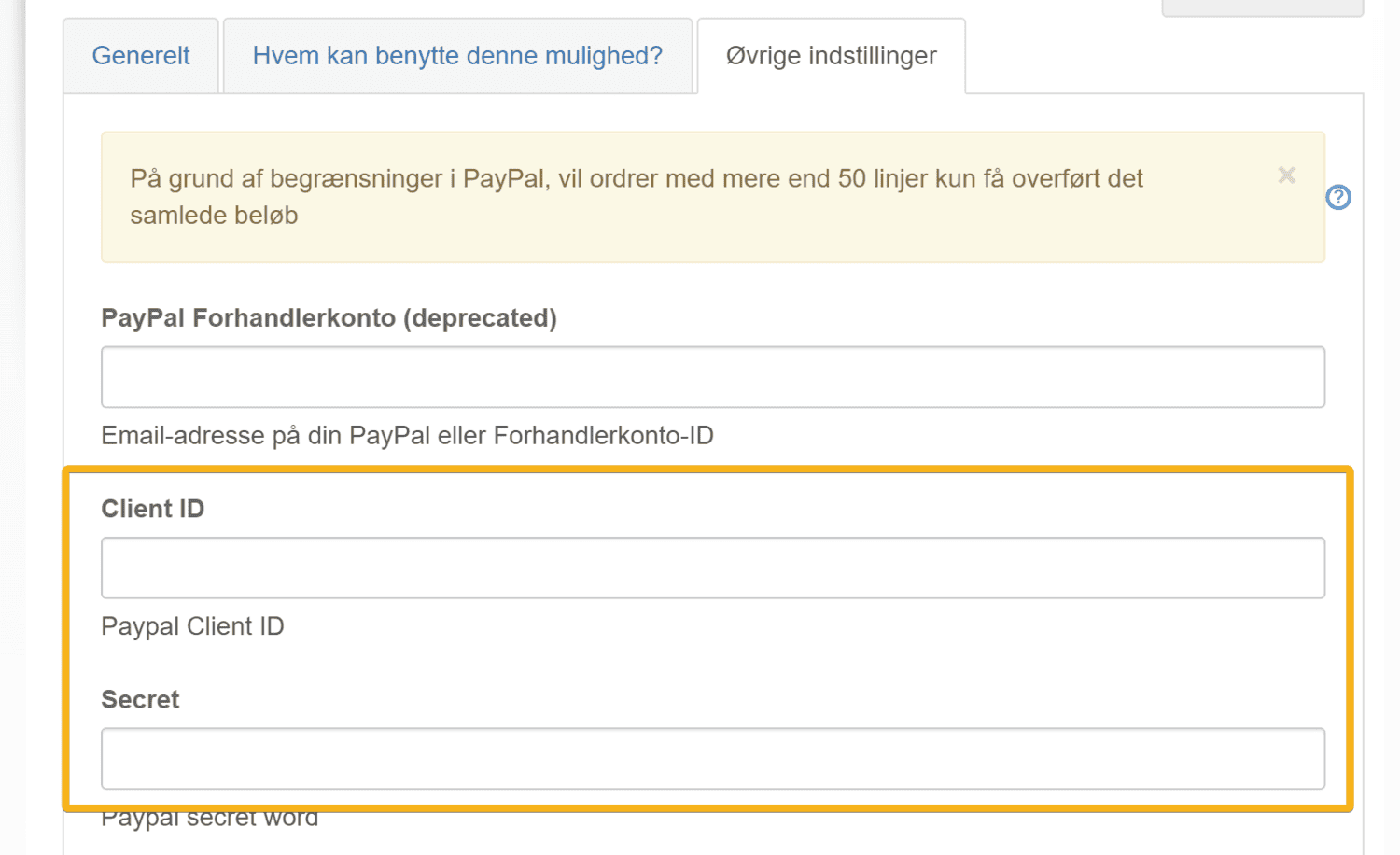
into the same fields in your shop
Set it to production and Authorisation (capture should only be used in very specific setups when selling goods where the amount is captured straight away)
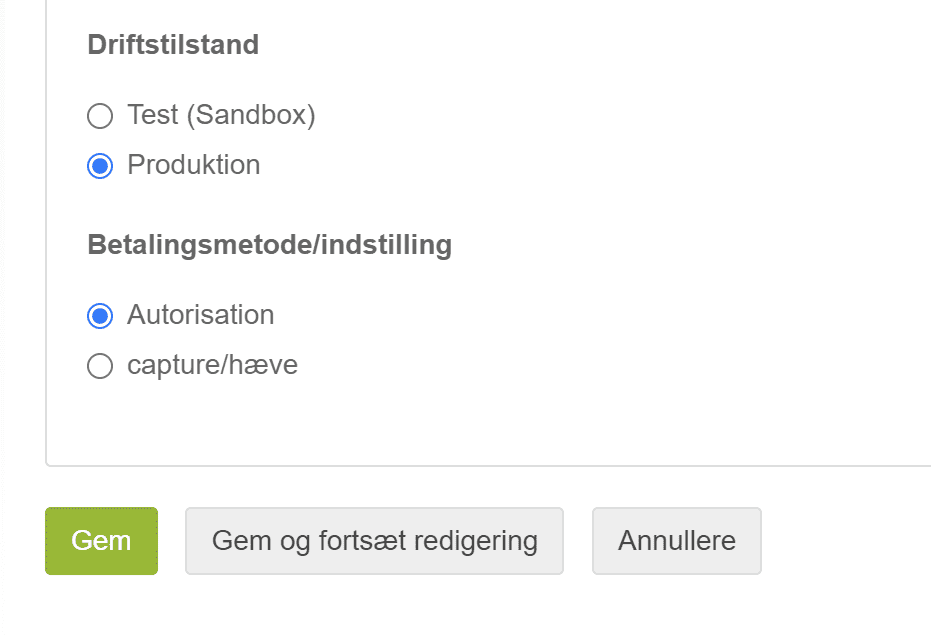
Click Save and you should be ready to go with PayPal. As always, it’s a good idea to make a test purchase to check that you have set it up correctly.
You can also activate the payment logo in the shop, so your customers can see that you now accept PayPal payments. You find it under Content and layout > Payment logos