In this category Product catalogue
Product catalogueProducts
Tabs/extra information on products
On this page
Sometimes it can be useful to show extra information, in tabs, on your products.
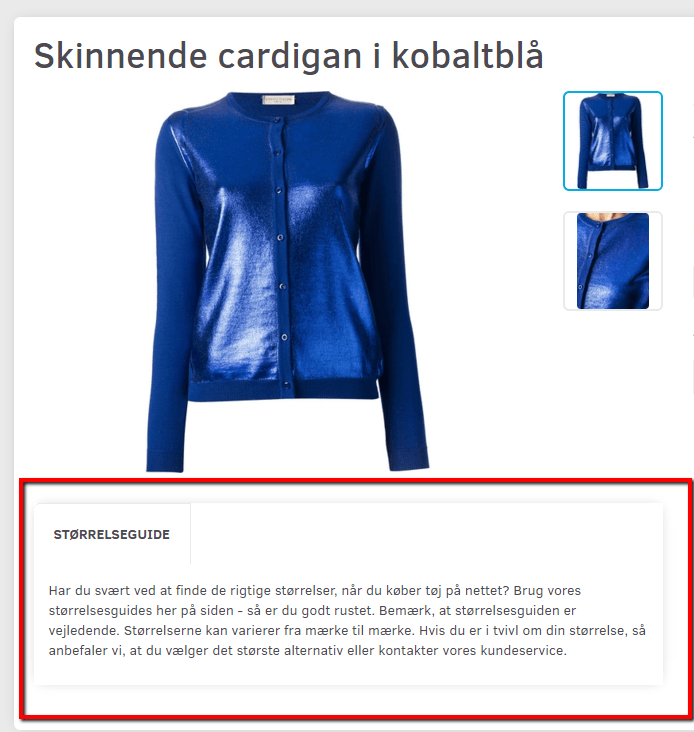
For example, you might have an instruction video on one product that applies only to that product, or a size guide that should be on all your dress categories but not on your trouser category. At the same time, all your clothing categories could carry information about washing; you do this by filtering on product categories. On all your clothing from the Hummel brand you also want, in addition to the washing guide on all your clothing, information about an extended warranty – you do that the same way too, filtering on the brand.
You can add all the tabs/information you like.
In this guide you can see how to set up tabs for one specific product, and how to put the same information on several products.
Note: You will find the same information on several products further down, under Same information on many products.
Individual information per product
If you have some special information you want on one specific product, you can add it in a tab.
That way you can show individual information on your products.
Create fields
This only applies if you want the field on ONE specific product.
First you need to create the field with the specific information. You do this on the product itself.
Go to Product catalogue > Categories and products, find the product you want to add the information to and choose Edit.
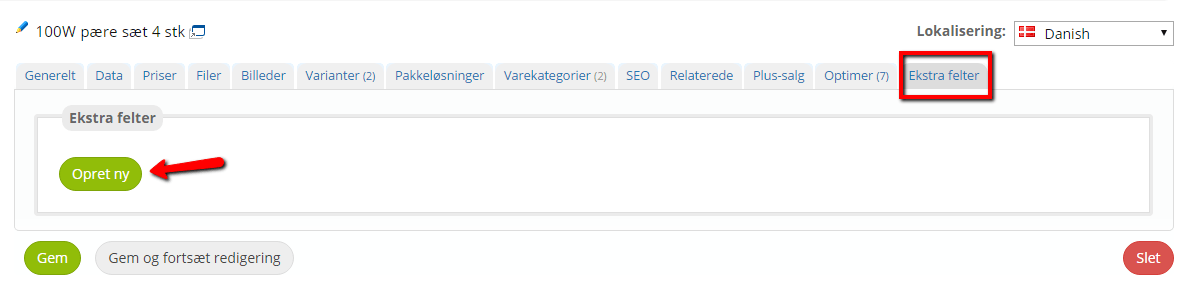
Then choose the Extra fields tab and click the Create new button.
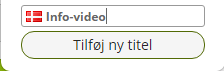
First click Title – enter a descriptive name – and click Add new title
If you have a title you have used on an earlier product, you can reuse it – but you still need to create the content itself specifically for the product you are editing.
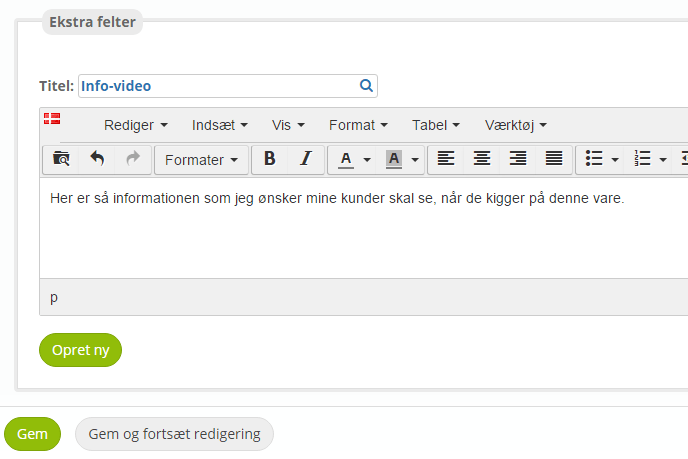
Now add the content you want to show your customers.
If you want more fields with information on this product, click Create new and you will get a new box where you can enter a title and content.
When you are happy with it, click Save
Add the field to the product via Layout
Now go to Layout

There, first choose to work on the layout for Product pages:
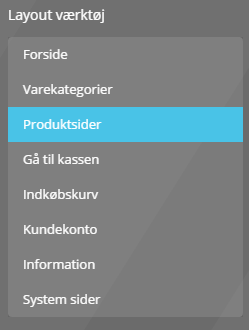
Find the element Standard tabs and drag and drop it onto the page where you want the tabs:
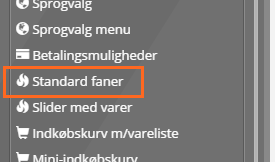
Once it is in place, click the cog icon so you can edit the element.
Here you turn on Extra fields (unique per product).

From then on, the information you have entered is shown on the products where it applies.
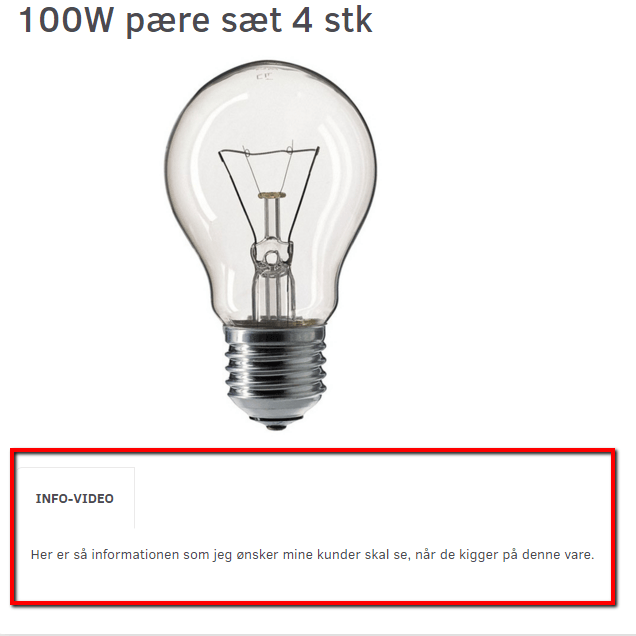
This is how it looks in your shop:
If you want to see which products have tabs, go to Content and layout > Product tabs. Here you will see a list of the tabs that have been created and which products they are attached to.
Same information on many products
If you have information you want to show on several products – for example a whole category, a particular brand or a variant group – you can do it with tabs.
You will find this under Content and layout > Product tabs.
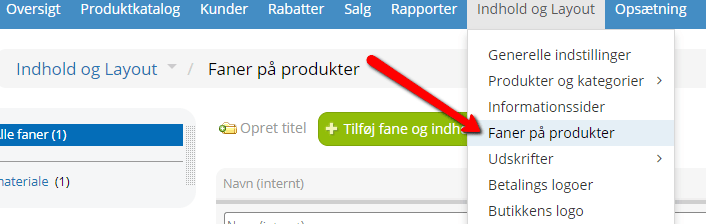
If you have already created some product tabs, individually or on several products, you will see them in a list here.
To create new information for several products, first click Create title – and give the tab a descriptive title – this is what customers will see in your shop.
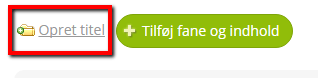
Remember to click Save.
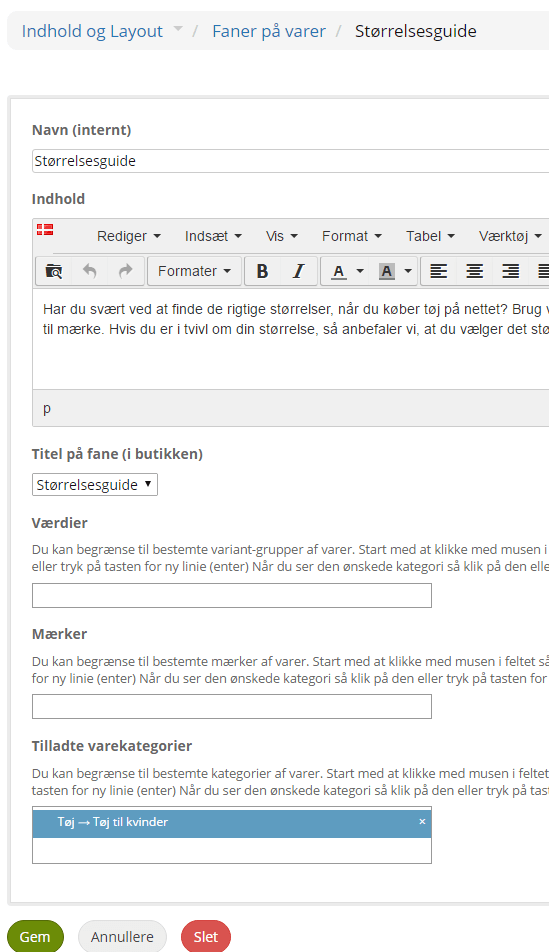
Then click Add tab and content. Now fill in all the information.
Name (internal): A name you will recognise the information by.
Content: The content to show to customers.
Tab title (in the shop): Here you choose the matching title from a drop-down menu.
Values: You can limit it to particular variant groups of products.
Brands: You can limit it to particular brands of products.
Allowed product categories: You can limit it to particular categories of products. Note that categories are not inherited, so don't choose top-level categories but the specific subcategories.
When you are happy with it, click Save.
Add the field to the product via Layout
Now go to Layout to put the information on your products.
There, first choose to work on the layout for Product pages:
You then have no fewer than 3 ways to show the information.
Option no. 1: Standard tabs
You can choose to use Standard tabs, which also hold the information for individual products, so everything is in one place.
Once it is in place, click the cog icon so you can edit the element.
Here you turn on Extra content group: TITLE for the content you want your customers to see.

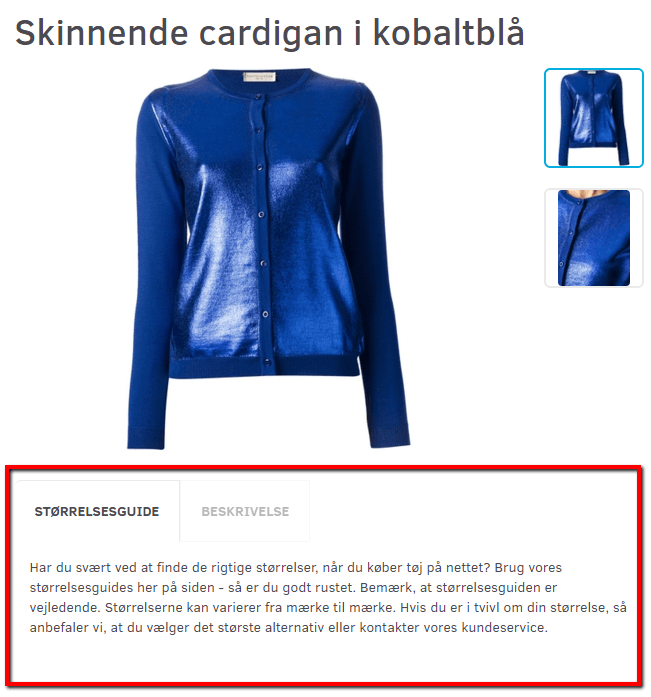
From then on, the information you have entered is shown on the products where it applies.
This is how it looks in your shop:
Option no. 2: Same info on several products – as a text block
You can also simply drag in the element called Same info on several products. Note that this information will have no title in your shop.
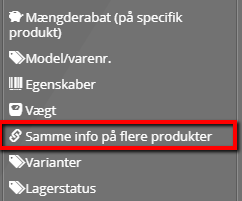
You can place it wherever you like on your product page.
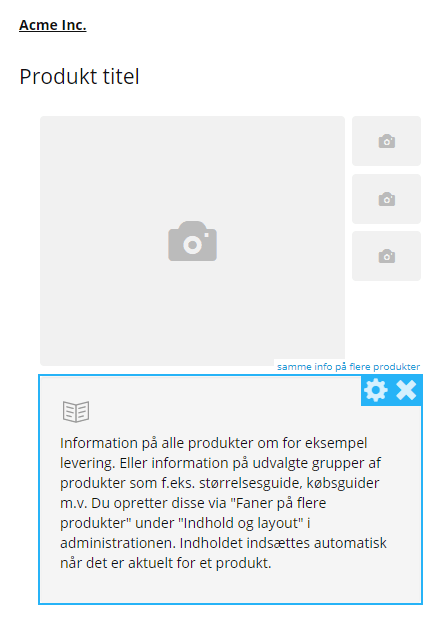
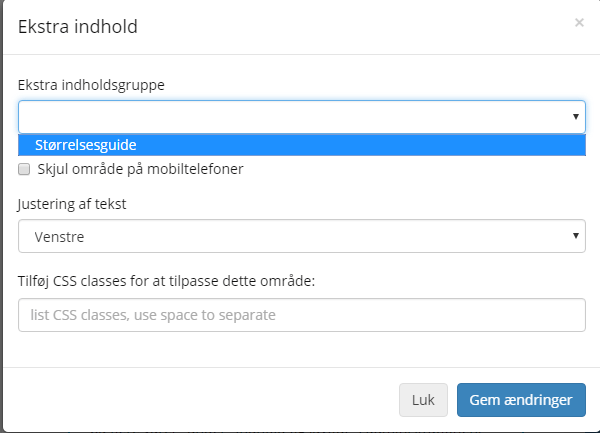
Once it is in place, click the cog icon so you can edit the element. Here you choose, from the drop-down menu, the content you want to show and click Save changes.
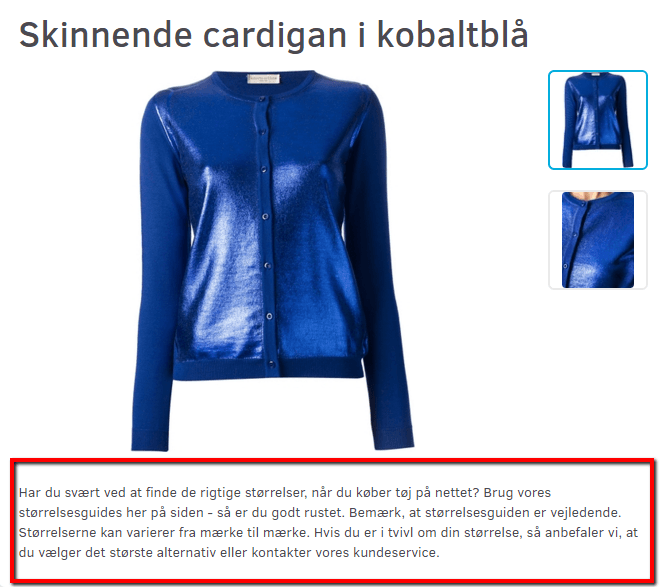
This is how it looks in your shop:
Option no. 3: Same info on several products – as a tab
If you want it inside a tab, first drag in the element called Custom tabs.
In Custom tabs, first choose the tab you want it in.
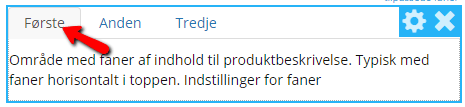
By default, the first tab has a text block; delete it (by clicking the cross).
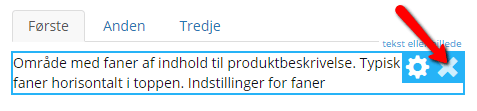
Then drag the element Same info on many products into the place of the text block.
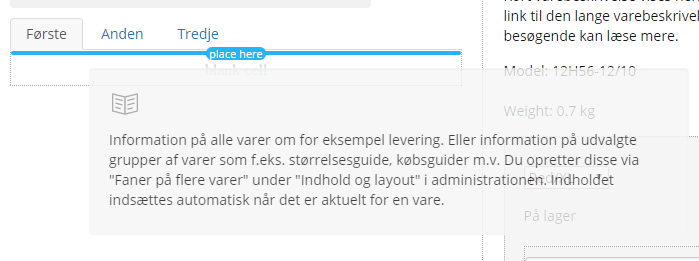
With this method it is important to note that this has to be done FOR EACH TAB.
That means that when you have done it on the first tab, you choose tab no. 2 and again drag the element Same info on many products to where it says blank cell.
You can edit the name of the tab and the number of tabs. You do this by first clicking the cog icon on the Custom tabs element and then changing the names and number of tabs.
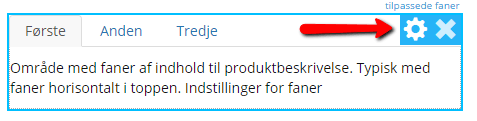
Once the element Same info on many products is in place, click the cog icon so you can edit the element. Here you choose, from the drop-down menu, the content you want to show and click Save changes.
This is how it looks in your shop: