
In this category Other topics
Get emails from your online shop through to customers – also with stricter DKIM requirements
On this page
To give your order confirmations and other emails from your online shop the best chance of reaching the recipient, the best solution is usually to send email from the same system (mail server) that sends the other emails from your own domain name. Otherwise, many recipients' mail systems may treat it as a fake sender and mark it as SPAM – perhaps even refuse to accept it at all.
More and more email recipients require emails to be DKIM-signed – read more about DKIM here.
You find the email SMTP settings here
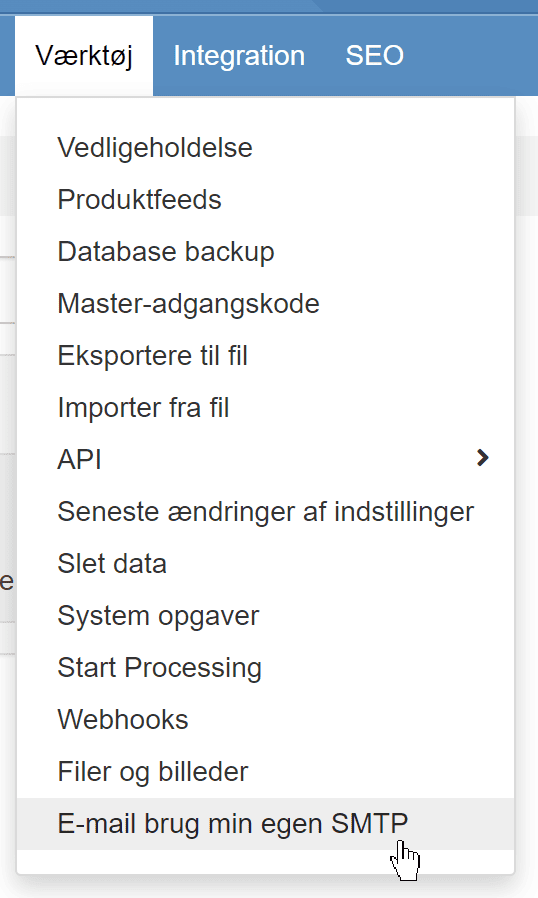
Option 1: Contact your email provider about setting up SMTP
To use SMTP, you need the necessary details from your email provider.
Many providers also require a special setting on an email account before it can use SMTP.
Consider creating a specific user, such as shop@, hello@ or another address that you don't use in general, and for which it is better to turn off what is called two-step verification.
If you cannot get SMTP set up with your email provider, you can use a dedicated SMTP service. An obvious choice for this is the Danish Heysender – they have made this guide on how to set it up (opens in a new tab).
Option 2: Add a service dedicated to transactional emails
Yes, a slightly tricky heading for want of better words. But in other words, it means adding an extra email service to your domain name – often if you use, for example, Outlook, Google Mail or similar, which do not let you use your email with them to also send emails from other services, such as your online shop.
An obvious choice for this is the Danish Heysender – they have made this guide on how to set it up (opens in a new tab).
Setting up with Golden Planet as your email provider
Here is how to set it up if you have email service here at Golden Planet.
Before you start, you should enable DKIM and DMARC as shown in this guide.
You need the sender of the email account that sends the emails from your online shop. You can see it here
For example, like here

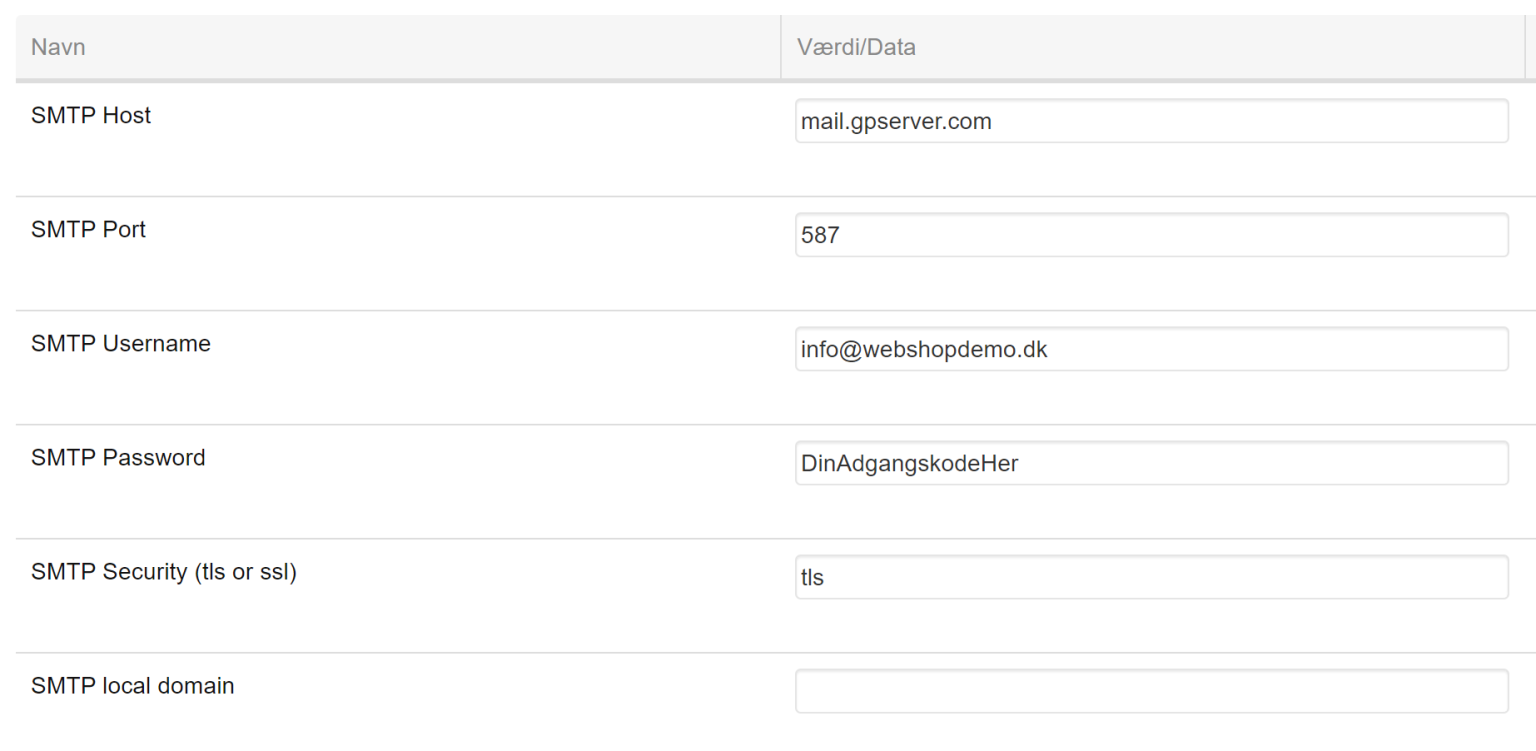
Go to the SMTP settings in your online shop
Fill it in in the same way – just with your own email address and its password, of course:
Click the Save changes button at the bottom of the page

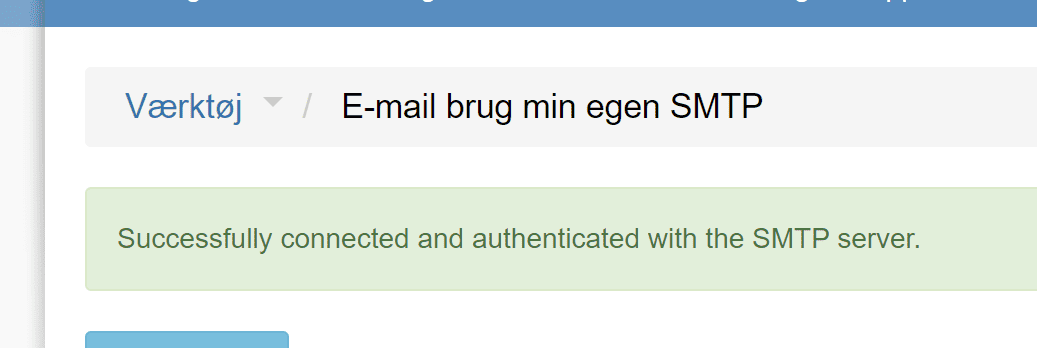
Then click Test connection. You should now see a message like this at the top if the connection works:
If you are not sure about the password, you may be able to find it in your browser's saved passwords (opens in a new tab) for webmail (search for mail.gpserver.com). Alternatively, you can change the password as shown in this guide (the same guide shows how to create a new email address).
Set the sender for emails from your online shop
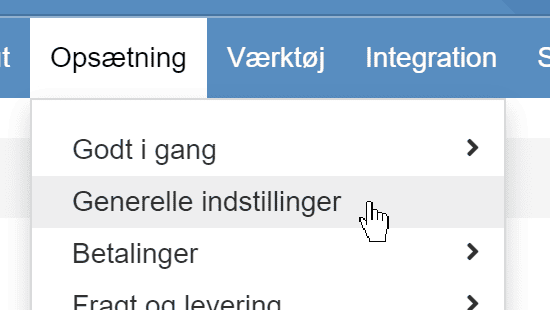
To match the user used for SMTP with the sender of the emails, go to General settings:
where it is set in this field
