
In this category Payments
PaymentsGetting started
Setting up the payment gateway
On this page
Before you start setting up the payment gateway, you need these agreements in place:
-
A QuickPay payment gateway subscription – through us. Order the payment gateway here.
-
An acquiring agreement with Nets for payment by Dankort (the Danish debit card)
and/or
-
An acquiring agreement with Nets or Clearhaus for payment by credit card.
-
If you like, a MobilePay and/or ViaBill agreement
Once these agreements are in place, you are ready to start the setup.
Note: The QuickPay payment gateway must be ordered through us. If you already have one, ask us to move it over to us, so you don’t end up paying twice.
Approve your account
When your account for the new payment gateway has been created, you receive an email with the subject “Welcome to Quickpay”. You need to:
- Click the link in the email
- Choose a password
- Log in to your account
Accept the merchant agreement
When you are logged in at https://manage.quickpay.net, click the Accept agreement button next to your user. (You may have to click the login button twice for it to work.)
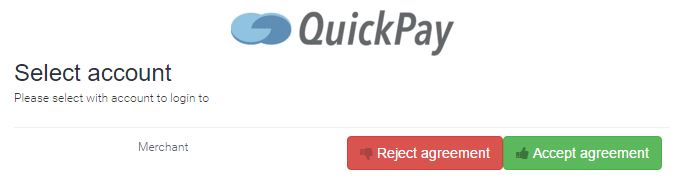
If this does not appear by itself, click your email address in the top right-hand corner and choose My User – you can accept it there.
Set up API user permissions
The right permissions must be set for everything to work.
Go to Settings > Users > API user
and tick these 3 under Get:
/fees/formulas
/fees/formulas/:acquirer
/fees/formulas/:acquirer/:payment_method

Set up your acquirer(s)
To accept payments, you need an acquiring agreement with either Nets or Clearhaus.
Nets has the advantage that it also lets you accept payment by Dankort. On the other hand, there is a fee both for setting it up and every year. Nets also charges a higher fee per transaction on debit and credit cards (e.g. Visa and Mastercard) than Clearhaus.
Clearhaus is free to set up and there is no yearly subscription. Their prices for debit and credit cards are typically lower than Nets’. The downside is that an agreement with Clearhaus does not let you accept payment by Dankort, and therefore not from all MobilePay users either.
Acquirer Nets (if used)
To set up Nets, do the following:
- Log in at https://manage.quickpay.net
- Choose Settings > Acquirers > Nets
- Turn on payments via Nets with the on/off switch
- Enter your Terminal operator business number (TOF) and Merchant Category Code (your business category code)
- If you have agreements with Diners Club, American Express and Forbrugsforeningen (a Danish members’ payment card), select them too
- If you want mobile verification to reduce the risk of card misuse, also select Secured by Nets
- Click the Test button to make sure everything works
Acquirer Clearhaus (if used)
-
Log in at https://manage.quickpay.net
-
Choose Settings > Acquirers > Clearhaus
-
Set the on/off switch at Enable Clearhaus to ON
-
Paste your Clearhaus API key
-
Click the Test button to make sure everything works.
-
Click the See account info button – and look at the rules for the account.
-
Enter the rules in the Fraud Filter under Settings. See how to set up rules here. (opens in a new tab)
Read more about the Clearhaus fraud filter further down.
Acquirer MobilePay (if used)
To offer MobilePay Online, you first need to have Nets and/or Clearhaus set up as your acquirer.
This is because MobilePay Online in your online shop runs on the payment card the customer has added to their MobilePay. In other words, it is not a bank transfer, even though it looks just like one when you use MobilePay privately.
MobilePay also requires an add-on agreement, which you can order here
Once that is in place, do the following:
- Log in at https://manage.quickpay.net
- Choose Settings > Acquirers > MobilePay Online
- Set the on/off switch at Enable to ON
- Click the Test button
You can read more about MobilePay here.
Acquirer ViaBill (if used)
To set up ViaBill as an acquirer, do the following:
- Log in at https://manage.quickpay.net
- Choose Settings > Acquirers > ViaBill
- Set the on/off switch at Enable to ON
- Paste the ViaBill API key
You can read more about ViaBill here.
Fraud filter settings with Clearhaus
Clearhaus requires a fraud filter to be set up with the settings stated in your acquiring agreement.
- Log in at https://manage.quickpay.net
- Choose Settings > Acquirers > Clearhaus
- Click the See account info button – and look at the rules for the account (transaction rules).
- Enter the rules in the Fraud Filter under Settings. See how to set up rules here. (opens in a new tab)
If your rules are, for example, these:

you can set up a fraud filter like this:
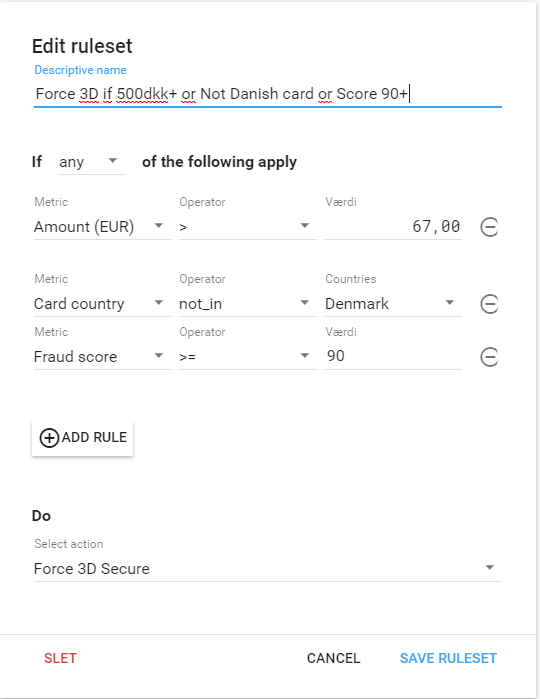
Here it is set so that if just one of the following rules is met, the customer MUST use 3D Secure to complete the purchase.
This is your safeguard against, for example, a fraudster buying with a stolen card.
The rules are as follows –
If the amount is over €67 (DKK 500)
or
If the card was not issued in Denmark
or
If the Fraud Score is greater than or equal to 90
Note: The amount in the example comes from an older agreement. Under the EU rules on strong customer authentication, only payments of at most €30 can be exempted from 3D Secure, so the amount limit in your fraud filter should not be higher.
The fraud score is the number that shows how risky QuickPay considers the transaction to be.
It is an indicator that automatically calculates the risk of fraud, based on things such as the country where the card was issued, the cardholder’s location at the time of purchase and the number of attempts to complete a payment.
The payment module
Once your acquiring agreement is ready, you need to connect QuickPay to your payment method.
You find the payment module Payment methods via Settings > Payments > Payment methods in your shop’s online admin.
If you have been set up on QuickPay’s newest payment platform, add the payment method called QuickpayNew if you want card payments.
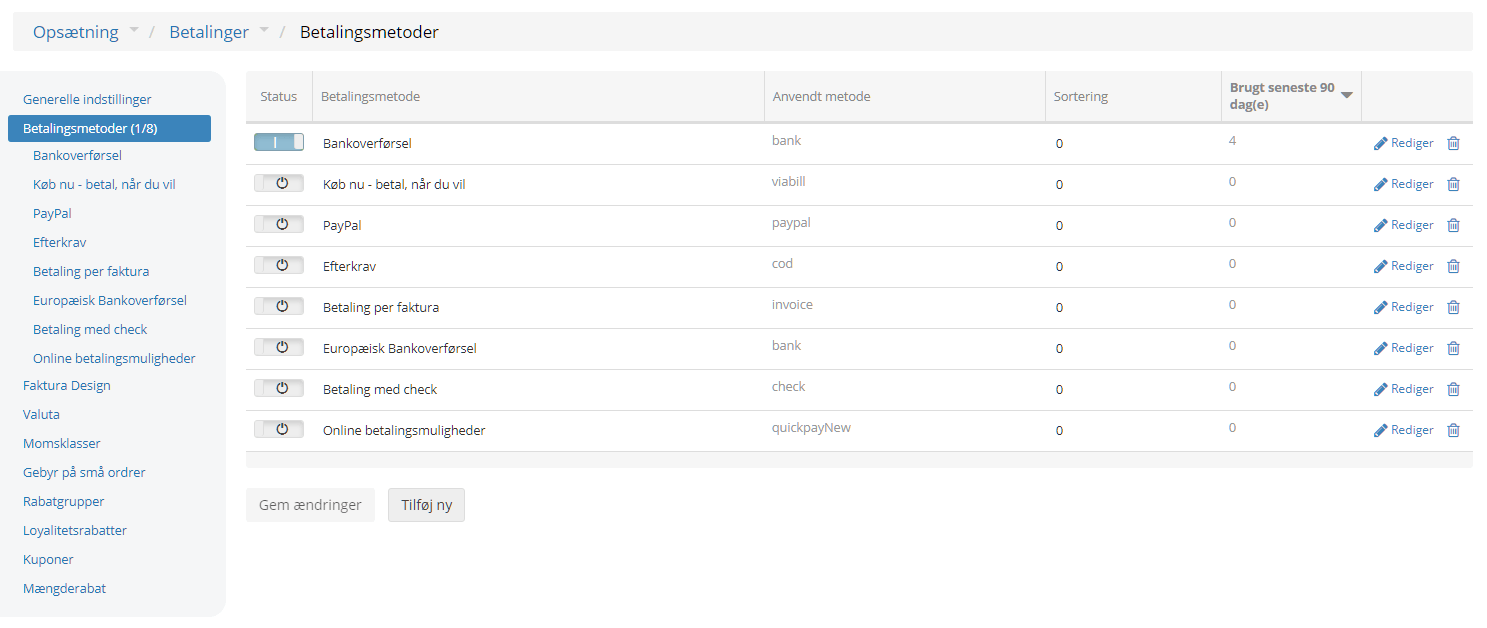
In the payment module you control the settings for your card payments in relation to QuickPay’s system.
When you click Edit next to a payment method, several options are shown. This is a walkthrough of the QuickpayNew payment method for card payments.
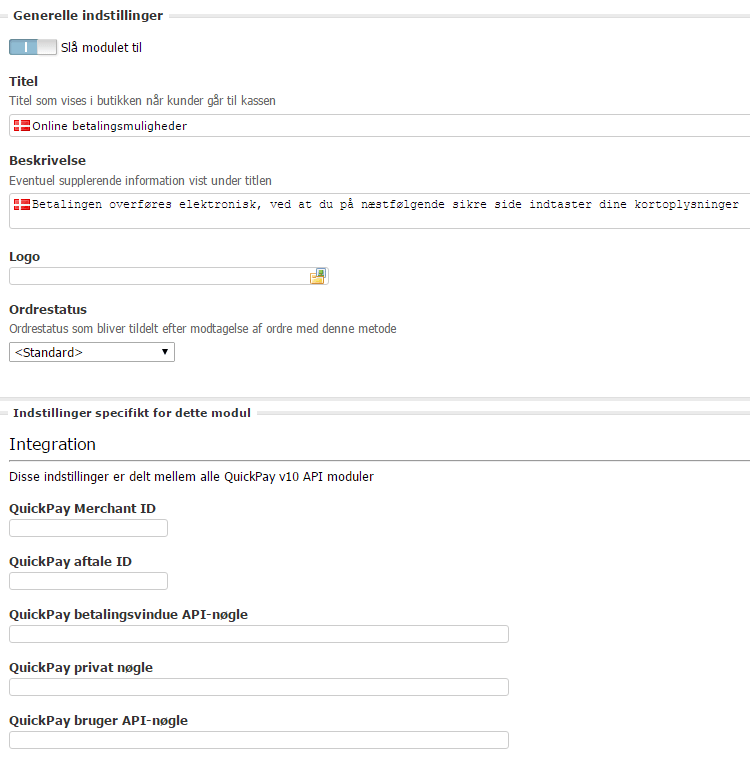
• Enable/disable module lets you switch the module off temporarily without losing your settings
• Title/Description can be adjusted as needed or used as they are
• Logo By clicking the icon, you can use your own logo in the shop
• Order status that is given to orders received with this method
The integration settings are in the QuickPay admin under Settings > Integration.
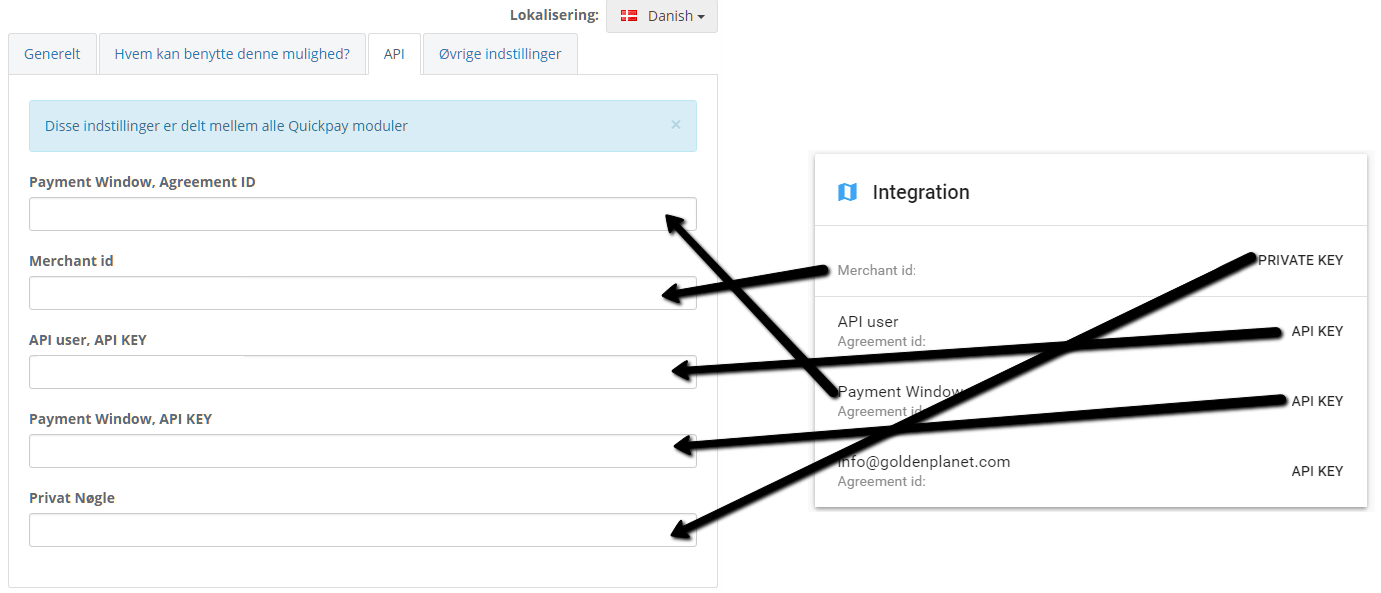
• Merchant id is the ID shown as “Merchant id”
• Private key is found by clicking PRIVATE KEY at “Merchantid”
• Payment Window, API KEY is found by clicking API KEY at “Payment Window”
• Payment Window, Agreement ID is shown under “Payment Window – Agreement id”
• API user, API KEY is found by clicking API KEY at “API user”
Once the QuickPay integration itself is done, you need to decide which card types are supported. This depends on which acquiring agreement(s) you have.
Once your card types are sorted, there are a few more important points to decide:
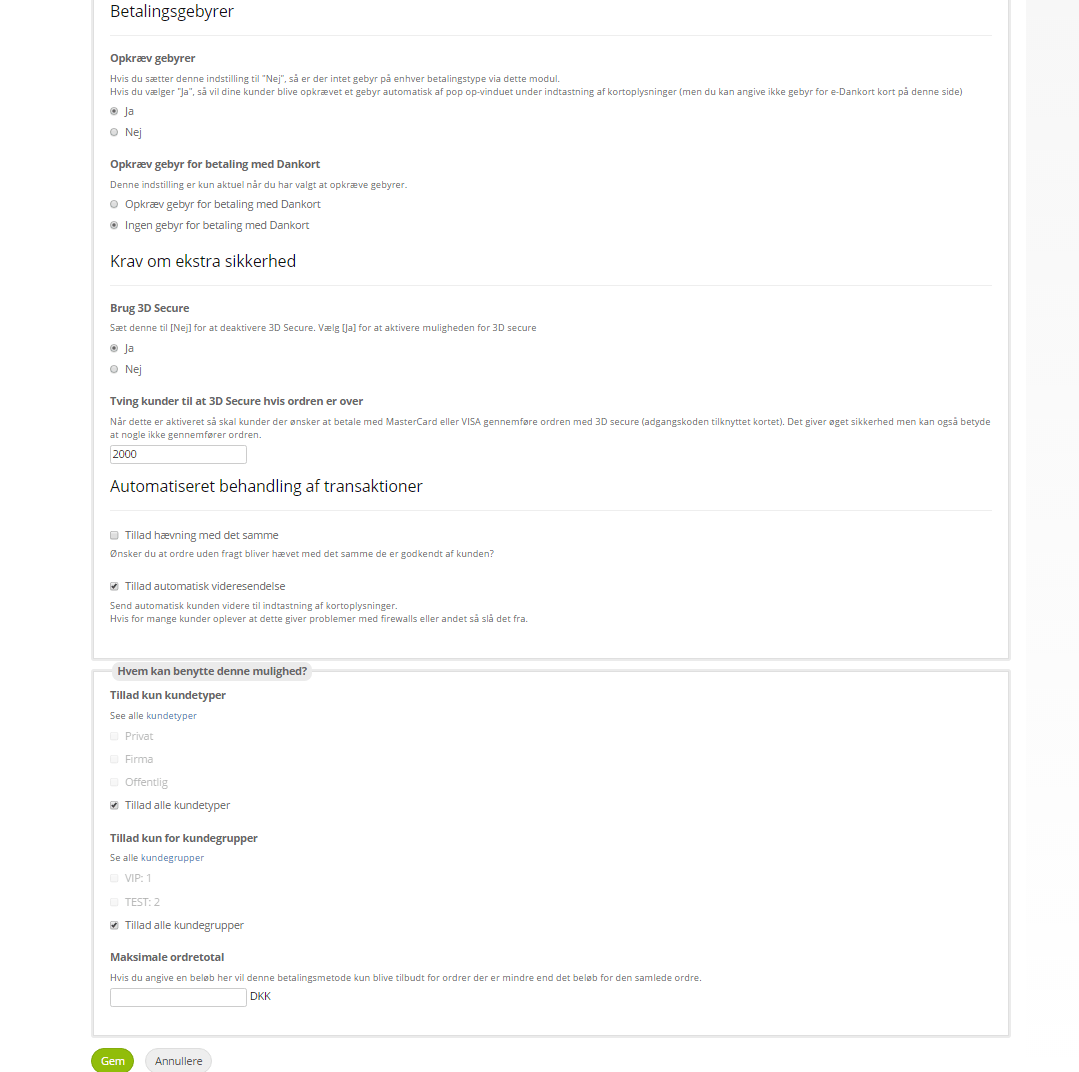
• Charge fees – if you choose yes, the payment window adds a fee that the customer is charged
• Charge for payment with Dankort – only relevant if you have answered yes to fees.
• Use 3D Secure turns on the option to use 3D Secure. 3D Secure is the common name for the security standards Visa Secure (formerly Verified by Visa) and Mastercard Identity Check (formerly MasterCard SecureCode), developed by Visa and Mastercard. This must be set to Yes – strong customer authentication (3D Secure) is a requirement for online card payments in the EU.
• Force customers to use 3D Secure if the order is over is used to make sure that all orders from customers with Mastercard or Visa cards above this amount are made with 3D Secure. Under the EU rules on strong customer authentication (PSD2), only small payments of at most €30 (or the equivalent in other currencies) may be exempted from 3D Secure – and the card issuer requires 3D Secure anyway once the card’s exempted payments since the last authentication add up to more than €100 or five payments. So set the amount to no more than the equivalent of €30 in your shop’s currency (or 0 if every payment must be approved with 3D Secure).
• Allow immediate capture must be ticked if you want orders that are not shipped (e.g. files) to be captured as soon as the customer has approved them
• Allow automatic forwarding – adds an extra step in the payment window if many customers have problems with a firewall or similar
• Allow only customer types – if only a particular customer type should be allowed to use this payment method, set it here
• Allow only for customer groups – if only a particular customer group should be allowed to use this payment method, set it here
• Maximum order total is used if this payment method should only be available for orders below the amount you enter
Finally, save your entries at the bottom.
And then you’re ready.
Payment icons
Nets requires that your shop shows the logos of the card types you accept payment from. You can manage this via Content and layout > Payment logos in your online admin. Here you can choose which icons to show and upload new icons if needed.
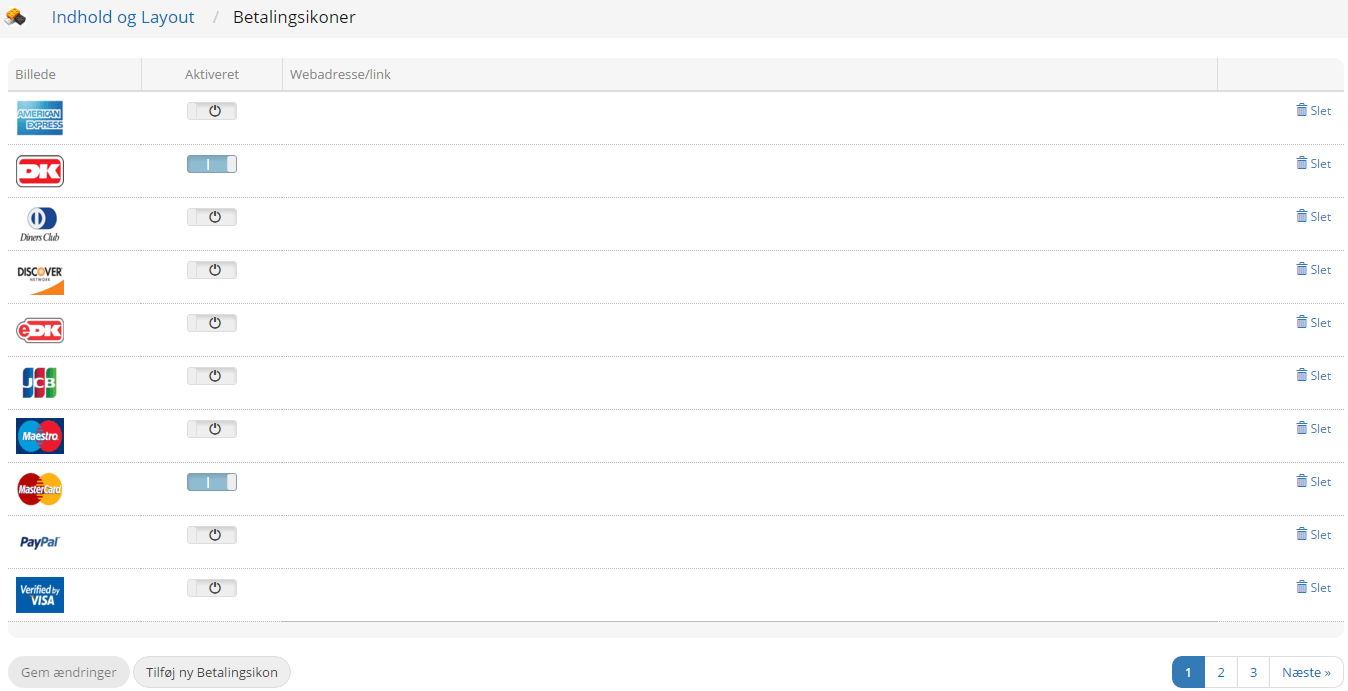
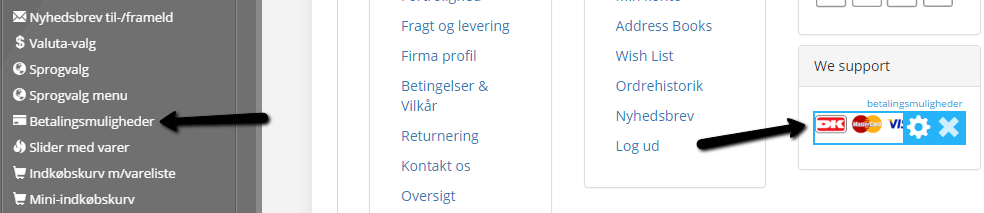
Once you have chosen the icons you want to show, make sure they are also visible on the home page of your shop. You do this in the Layout Builder. Choose Layout at the top, then choose Home page in the menu on the left. Then scroll down to the bottom. Here you find what is called the “footer”. It is the basic part of your shop that is always shown at the bottom.
Here there will normally be an element called payment options. If it isn’t there, choose it yourself from the list on the left and drag it into the footer, where you want it to be. That element shows all active payment icons.
Switching/moving QuickPay to a new acquirer or a new company
If you have a new acquiring agreement with e.g. Nets, or you have taken over an online shop (and therefore also need it on a new acquiring agreement), QuickPay’s system unfortunately does not let you change to the new acquirer and still capture/refund the earlier transactions.
Contact us if this applies to you, and we will help you get a new account and acquiring agreement connected to your online shop here.