
In this category Integrations
Integrationse-conomic integration
e-conomic: several shop customers to one in e-conomic
On this page
You can have several customers in your online shop invoiced to the same customer in e-conomic. For example, if you have B2B customers who order from different email addresses in your shop but need to be invoiced to one combined customer in e-conomic.

1: Go to the customer account in your shop
Go to the customer list in your shop
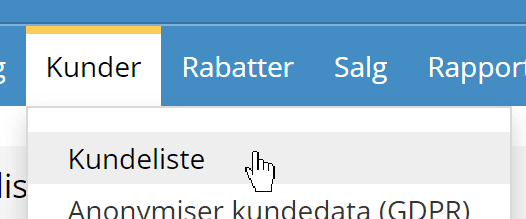
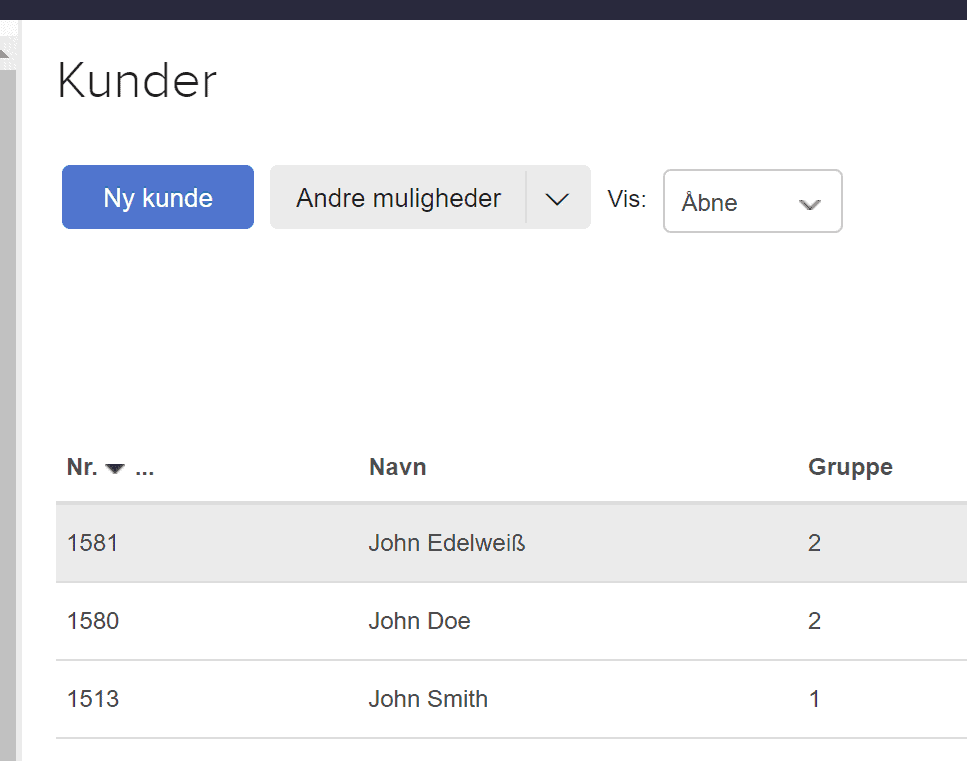
and use the filter at the top to find the customer account that is to be linked to a specific customer in e-conomic.
Or search for the customer at the top right
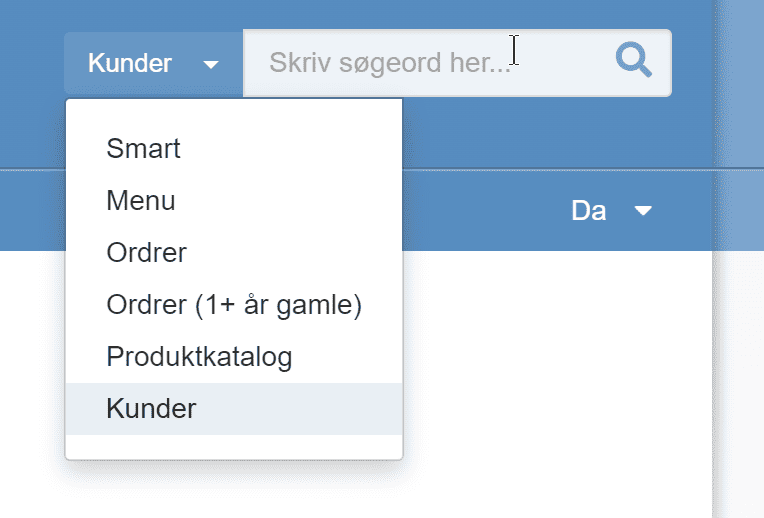
2: Find the customer account in e-conomic
You need the customer number of the customer in e-conomic that the others are to be combined under. Go to Sales and then Customers in your e-conomic. Search for the customer, and the number is in the first column
3: Connect customer accounts in your shop via meta data
Go to edit the customer in your shop. Click the Meta tab
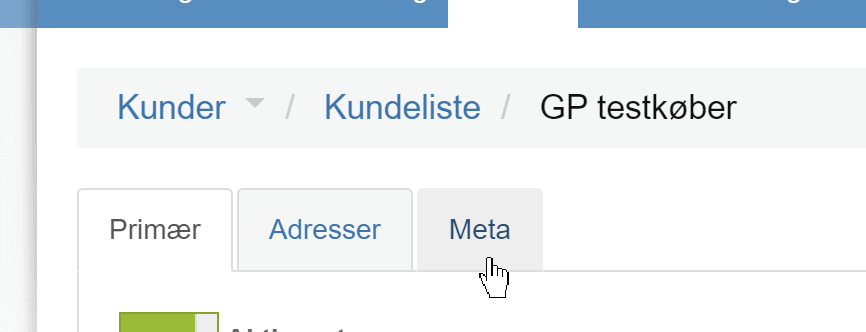
Enter the group and key as shown below. In the Value/data field, enter the customer's number in e-conomic
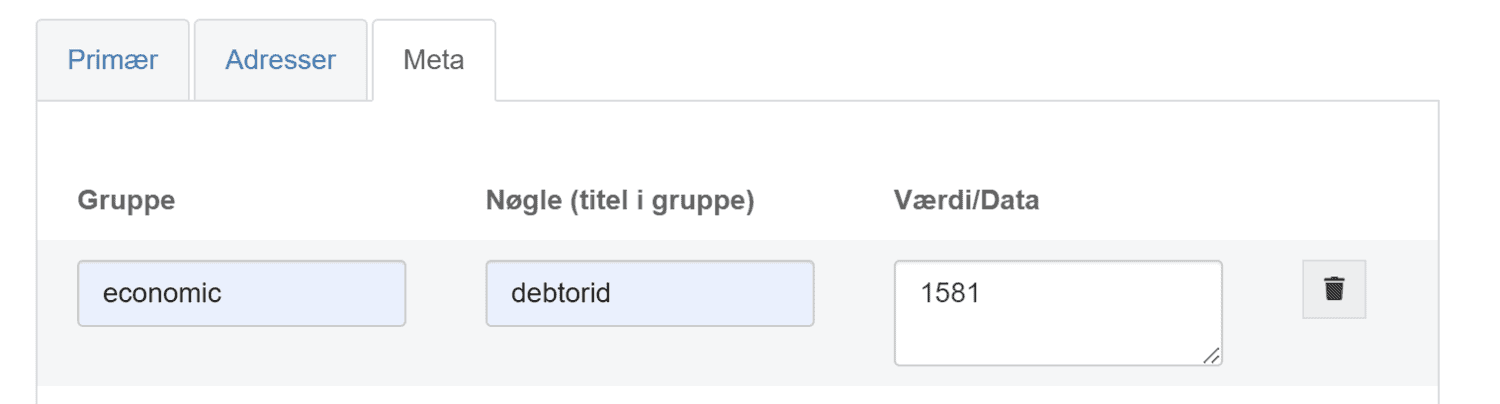
Save the changes.
Repeat until all the relevant customers in your shop are linked to the “combined customer” you want them under in e-conomic.
4: Adjust your integration with e-conomic
Finally, the integration with e-conomic must be adjusted so that it combines customers using the meta data you have entered. Of course, you only need to do this once.
Go to the setup of the e-conomic integration in your shop
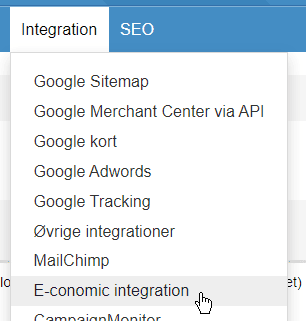
Fill in the meta fields like this

Scroll down to the bottom of the page and save the changes.
You are now combining several customers from your shop into one customer in e-conomic. The next time you transfer an order from one of these customers, it will go to the specified customer in e-conomic.
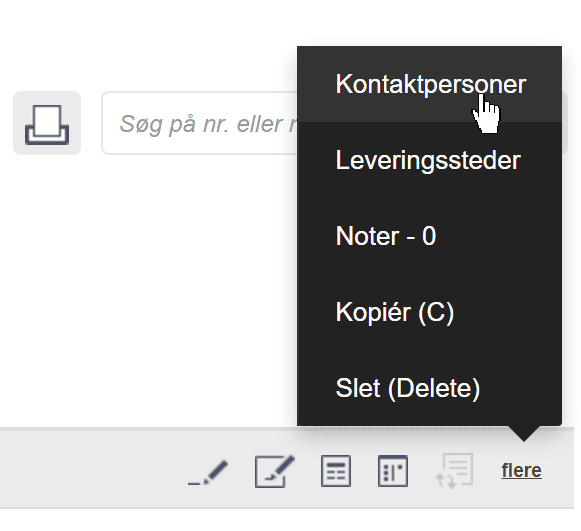
In e-conomic, the shop customer will generally appear among the contact persons, which you can see by clicking as shown here next to the customer in e-conomic
Questions?
If you have questions or run into problems with the change, you are of course welcome to contact us as always. If your question is more about the setup of e-conomic itself, it is their support you should contact.