
In this category Integrations
Facebook Pixel – tracking for Facebook advertising
On this page

With the Facebook Pixel you can
- Target ads on Facebook based on the products (or other pages) people have looked at in your online shop
- Measure the effect of your ads on Facebook
- Exclude customers who have (recently) made a purchase from your ads
You probably shouldn't install the Facebook Pixel unless you use it for advertising. The other side of the coin with the Facebook Pixel is that Facebook uses it to help your competitors advertise with interest-based campaigns.
If you stop advertising on Facebook for a while, you can easily switch it off in your shop after setting it up.
The method described here (from April 2020) is much easier than the previous manual setup.
DELETE THE OLD ONE FIRST
If you already have Facebook tracking in place, it must be removed first. See our previous guide at the bottom of this page – delete everything that was set up according to it.
1: Create or find your pixel ID on Facebook
Check whether you have already created a Facebook Pixel:
-
If you have a Facebook Pixel, you will see something like this:
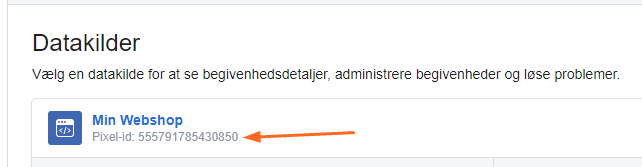
If it has been created, go on to step 2 – otherwise create a pixel:
- Go to the Pixels tab in Events Manager (opens in a new tab)
- Click Create a Pixel.
- Read about how the pixel works, then click Continue
- Add your pixel name
- Enter your website URL to check for easy setup options
- Click Continue
You may also want to see Facebook's guides here (opens in a new tab)
2: Create or find your Facebook product catalogue
Check whether you have already created a Facebook product catalogue:
-
If you have created a catalogue, you may want to check that it is up to date and running. You need the catalogue ID, as in this example:
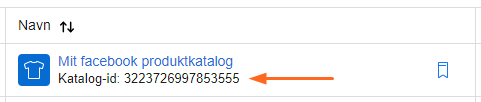
If you don't have a product catalogue, do the following:
- Find or create a product feed as described on this page (it is important that you create a feed with the template for Facebook)
- Create a Facebook catalogue with a link to your product feed
3: Connect the Facebook Pixel and catalogue to your online shop
You are now ready to connect it in your online shop. Two types of tracking need to be set up:
- All pages. This measures pages viewed, add to basket, gone to checkout and searches
- Order completed (has bought)
We'll start with the one for all pages:
-
In your shop's admin, go to Other integrations under Integration
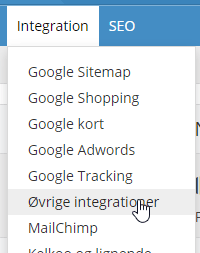
-
Click the button
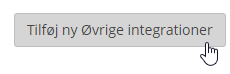
-
Click the button there
-
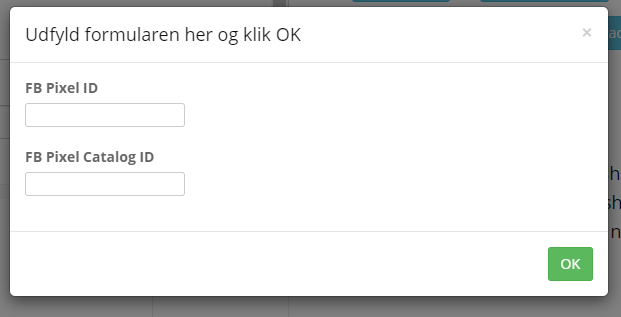
Now copy your Facebook pixel ID and catalogue ID into the form and click OK
-
Everything is now set up for you. You can give it a different title at the top if you like. Now click the green Save button at the bottom

Next, we need to set up tracking for orders that are completed.
-
In your shop's admin, go to Other integrations under Integration
-
Click the button
-
Click the button there

-
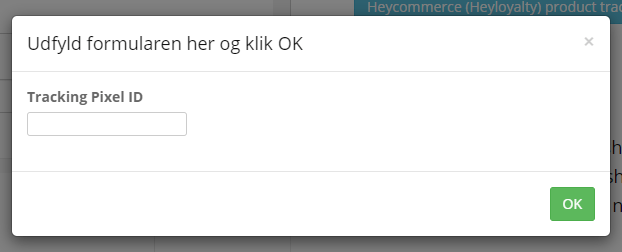
Now copy your Facebook pixel ID into the form and click OK
-
Everything is now set up for you. You can give it a different title at the top if you like. Now click the green Save button at the bottom
That's it – you have now set things up so that you can target ads to potential customers based on the products or other pages they have looked at in your online shop.
Check that it works
An easy way to check whether your Facebook tracking works is to install the Facebook Pixel Helper (opens in a new tab) in your Chrome browser.
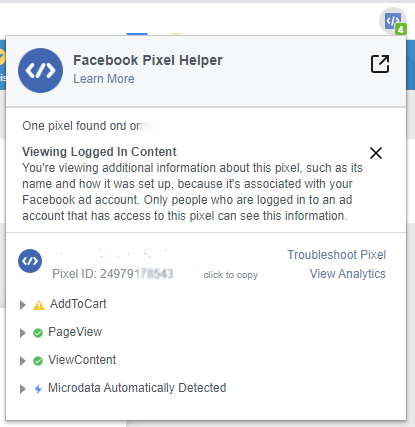
Note that AddToCart is only measured at the moment the button is clicked – until it is clicked, Pixel Helper will therefore show a warning for it.
Once Pixel Helper is installed, you can click it at the top of the browser and see, e.g., something like this example of a correct setup:
It is also important not to show the basket after products have been added – otherwise the FB Pixel won't pick it up – you can switch this off via Settings > Cart.
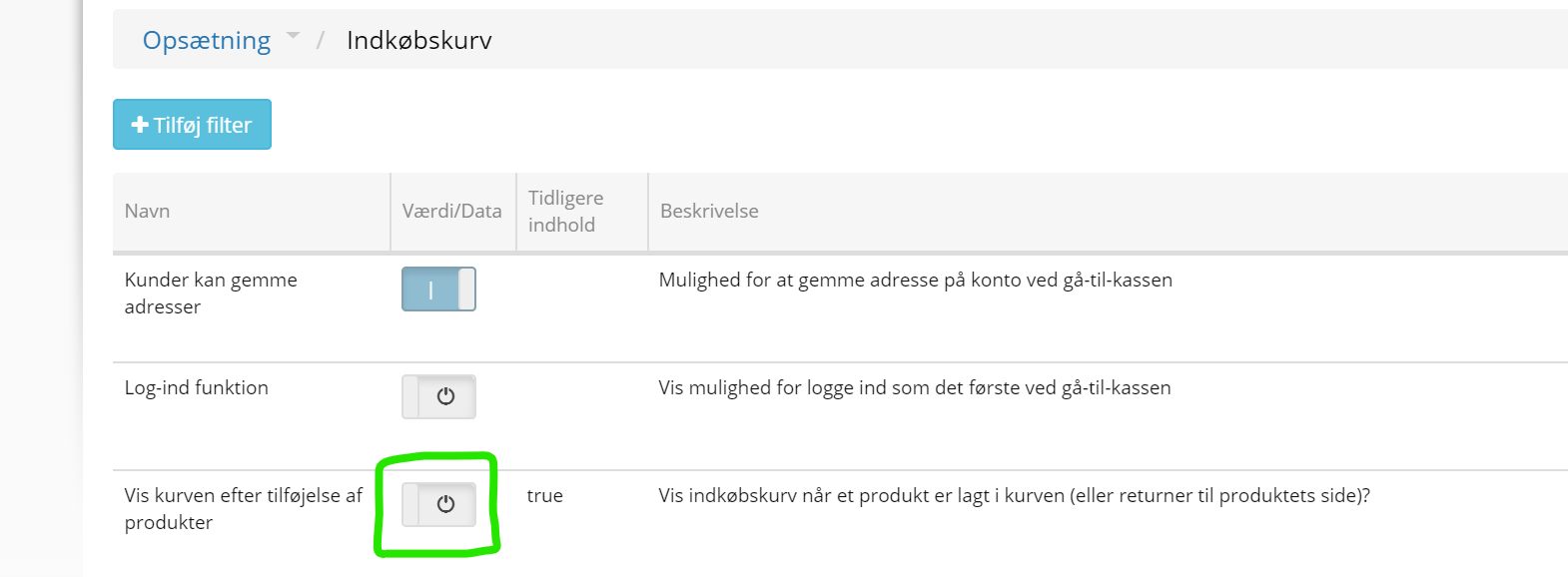
You can also check it in Events Manager as described here for Test events (opens in a new tab).
Remarketing: ads with products visitors have looked at
It makes sense to use the setup above to show ads with the products people have looked at in your online shop. A reminder to complete the purchase.
-
You get started with one of these by going to Facebook Ads Manager (opens in a new tab)
-
Click Create
-
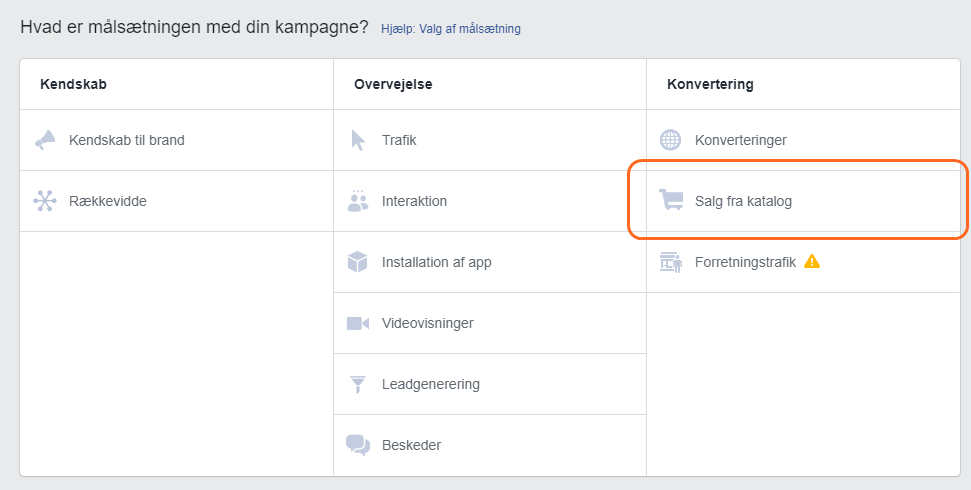
Choose Catalog sales and go through the setup guide

If you want to remove the “old method”
Until we launched this standard setup of Facebook Pixel tracking, it was done by inserting code in various places. If you have used that method and would like to have it removed, remove the code that has been added under Integration > Other integrations – or contact us and we'll help you.