
In this category Integrations
IntegrationsGoogle Shopping
Updating the integration with Google Merchant Center
On this page
Google has replaced the technical connection (API) that online shops use to send product data to Google Merchant Center. The previous Content API for Shopping has been replaced by the new Merchant API.
Important: Google phased out the Content API for Shopping as of 18 August 2026 – if you haven't switched yet, do it now.
Our platform automatically switches your shop over to the new Merchant API. In some cases, however, the switch cannot be completed automatically, because the Service Usage API first has to be enabled in your Google Cloud project. If your shop is affected, you will receive an email from us — and then you just need to follow the guide below. The change only has to be made once, and after that the platform takes care of the rest automatically.
Step 1: Open the Google Shopping settings in your shop
Log in to your shop's admin – then:
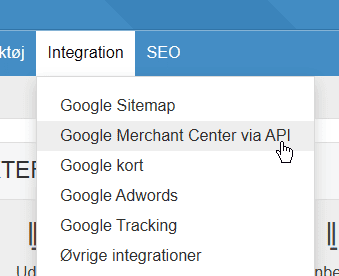
- Go to Integration > Google Merchant Center via API
Here you see an information message about your API integration – if it looks something like this, you need to make the switch:
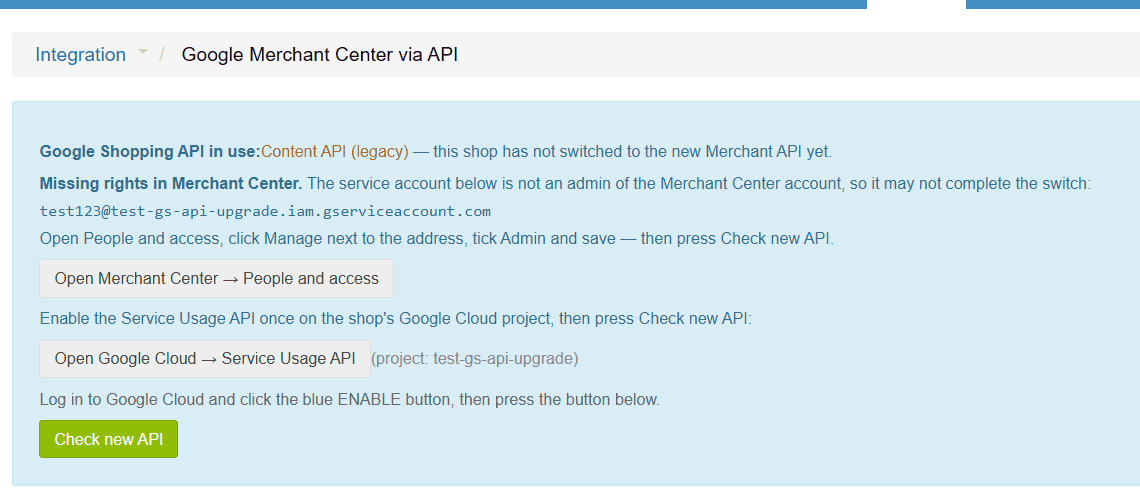
When it says “this shop has not switched to the new Merchant API yet.”, you need to make the switch by following this guide.
Step 2: Administrator access in Merchant Center
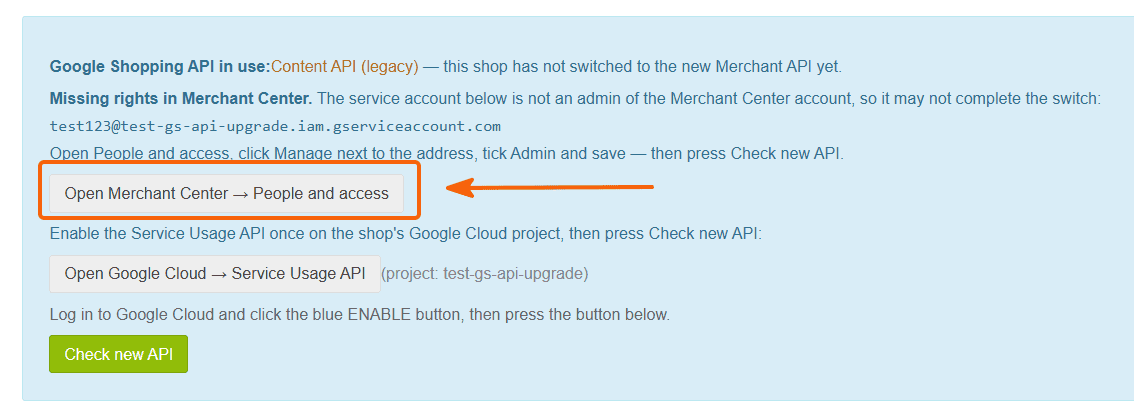
Click the Open Merchant Center → People and access button. It opens Google Merchant Center with a list of users
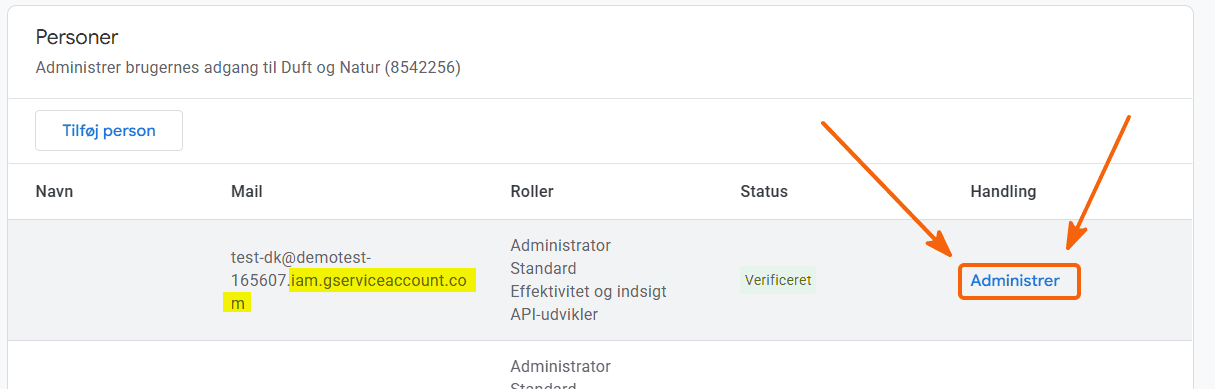
Next to the user whose email ends in “iam.gserviceaccount.com”, click Manage
Tick the Administrator access type

Click Save at the bottom left
Step 3: Enable the Service Usage API in Google Cloud
Click the Open Google Cloud → Service Usage API button. It opens the Google Cloud Console and automatically selects the project your shop uses for the API connection.
Log in with the Google account that is linked to your Google Cloud project and your Google Merchant Center.
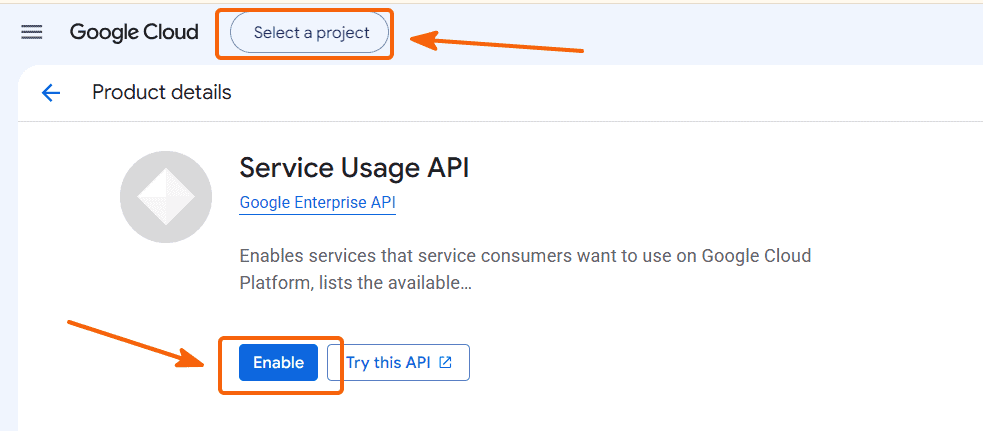
After logging in, check that the right project is selected in the top left-hand corner, and then click Enable.
Step 4: Confirm the new API in your shop
Once the change has been saved in Google Cloud, go back to your shop's admin and click the Check new API button.
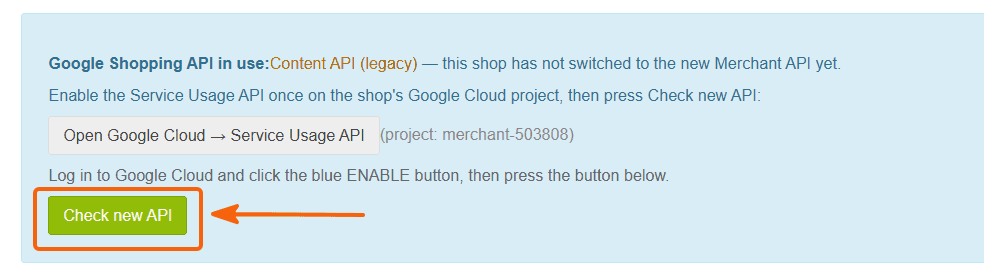
Google may take a long time to respond – give the browser time to wait. If you get an error like this one
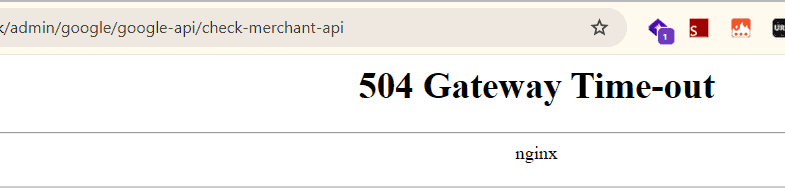
wait a moment and reload the page in your browser. It will typically have been completed, but the response from Google took too long to arrive.
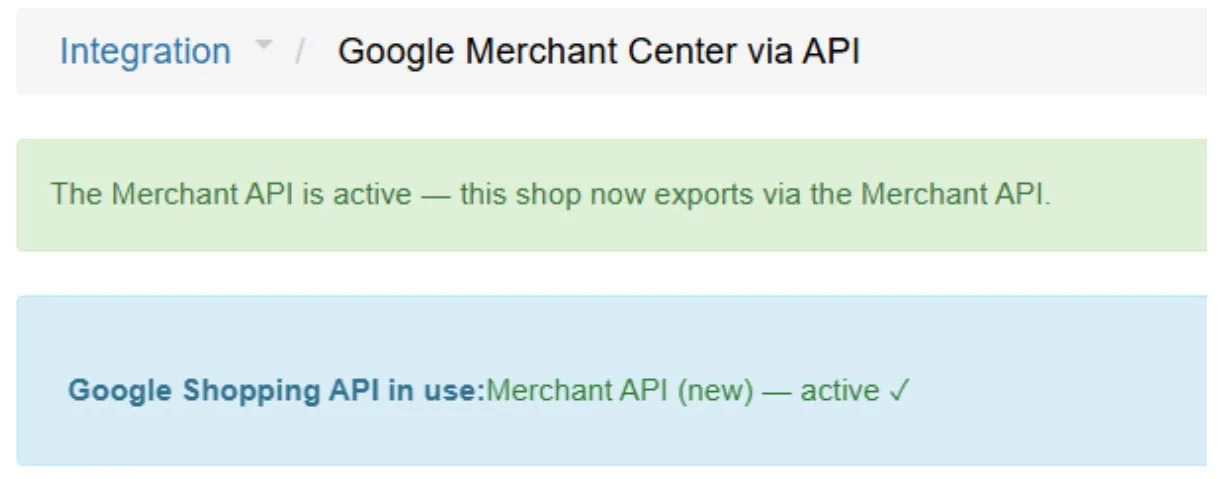
If everything has been done correctly, a confirmation message is shown — and your shop has now switched to the new Merchant API.
If you see an error message instead, contact us — and we'll help you get the new Merchant API activated.