
In this category Integrations
Conversion tracking in Google Ads
On this page
Conversion tracking in Google Ads for online shops lets you measure which customer actions lead to sales. It helps you optimise your campaigns so you can focus on the ads and keywords that generate the most sales, and so improve your shop's overall performance and earnings.
Basic setup
-
Log in to your Google Ads account (opens in a new tab).
-
Go to the Create icon in the top left-hand corner and click the button to create a new conversion action.
-
Choose Conversion action from the drop-down menu
-
Choose Website as the conversion source
-
Enter your website's domain and let Google scan your website
-
If you already have a Google Analytics account linked to your online shop, you will be asked whether you want to use it to help measure conversions. See our guide here on linking your Google Analytics.
-
Choose the option Measure in Google Analytics, and if all goes well you should see the message:
-
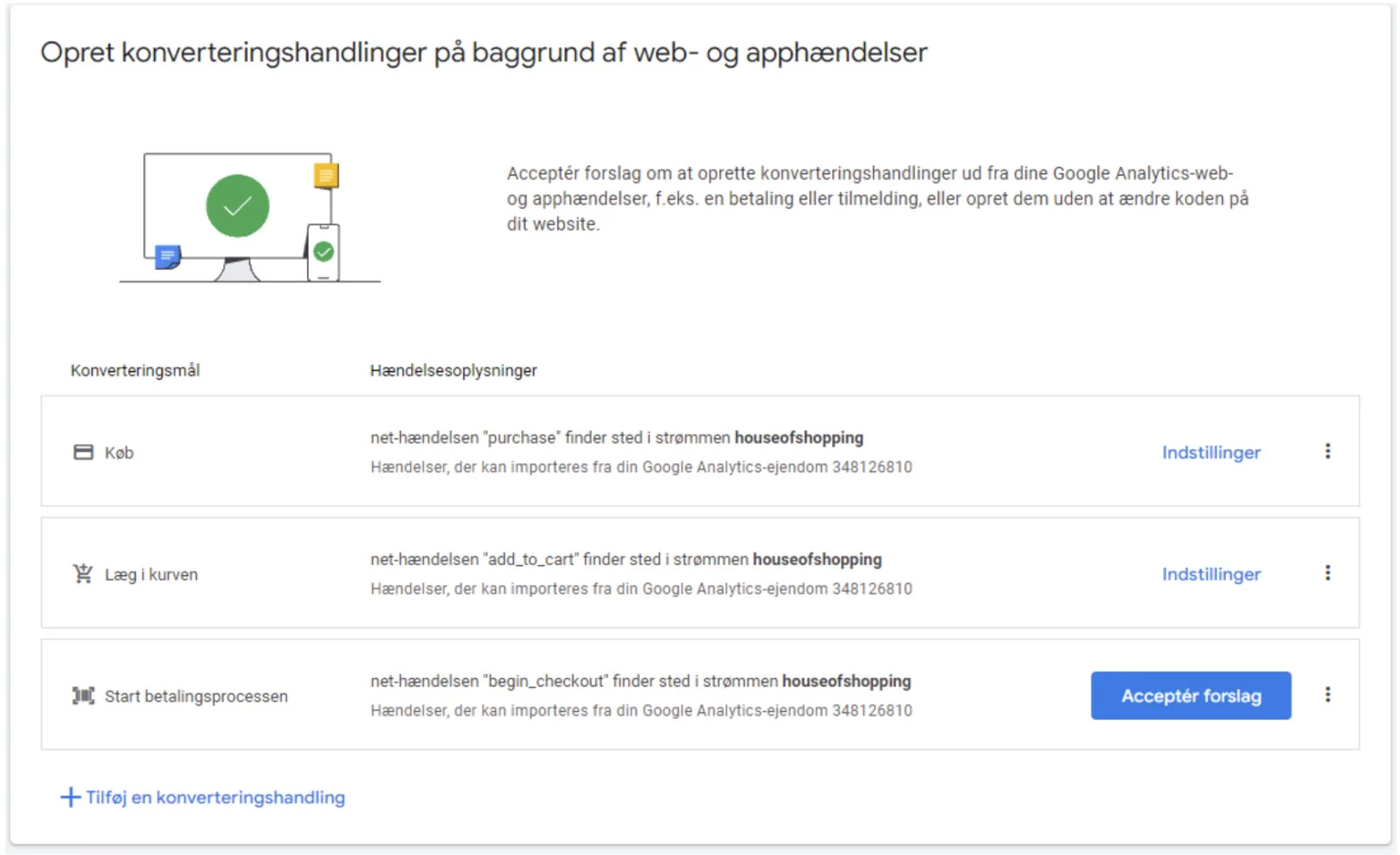
You will also be asked whether you want to use existing conversion actions from your Google Analytics account – choose the options here:
-
Click Save and continue to finish the setup


Create or edit your Google tag event snippet
-
Log in to your Google Ads account.
-
Open Audience manager. Google often changes the menus – the easiest way to find it is to search for “Audience manager” in the search box at the top of Google Ads.
-
You can also go directly to Audience manager (opens in a new tab).
-
At the top of the page, click Your data sources. This opens a group of sources from which you can create your data segments and audience segments.
-
In “Google Ads tag”, click Set up tag. If you have already set up a tag, choose Edit source from the 3-dot icon at the top right of “Google Ads tag”.
-
Click Create and continue.
- For an existing tag, this button will say Save and continue.
-
When the installation screen appears, your Google tag and event snippet will be ready to use.
-
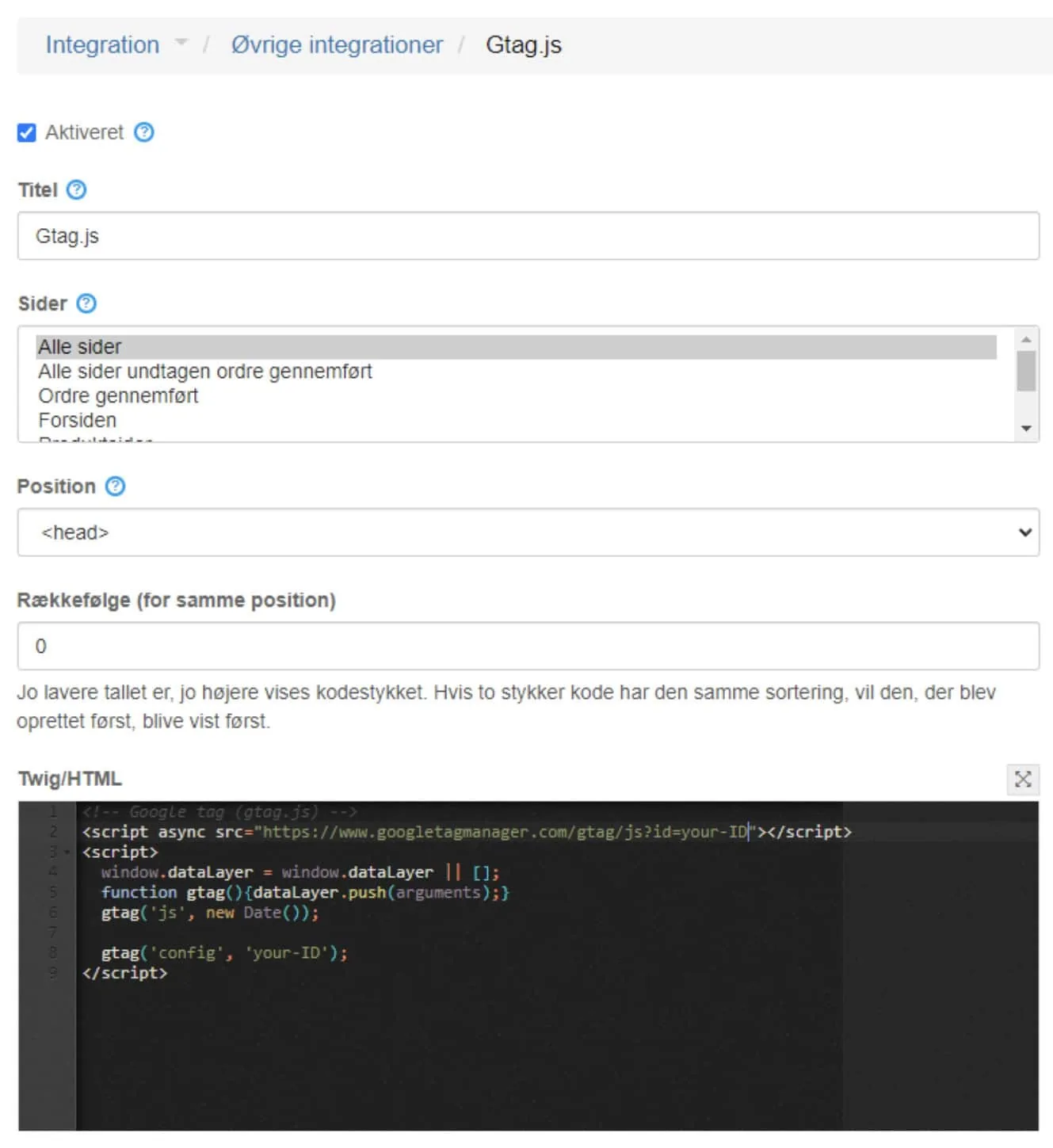
Copy the code
-
Go to the admin of your Golden Planet online shop
-
Go to Other integrations under Integration
-
Click the Add new Other integrations button and paste it as shown here
-
Once it has been saved, go back to Google Ads and the setup you were working on there
-
In Google Ads, click Done
Set up enhanced conversions
Enhanced conversions allow more precise tracking by sending hashed first-party customer data (such as email and name) when users convert on your website. Here's how to activate it:
-
Go to your Google Ads account.
-
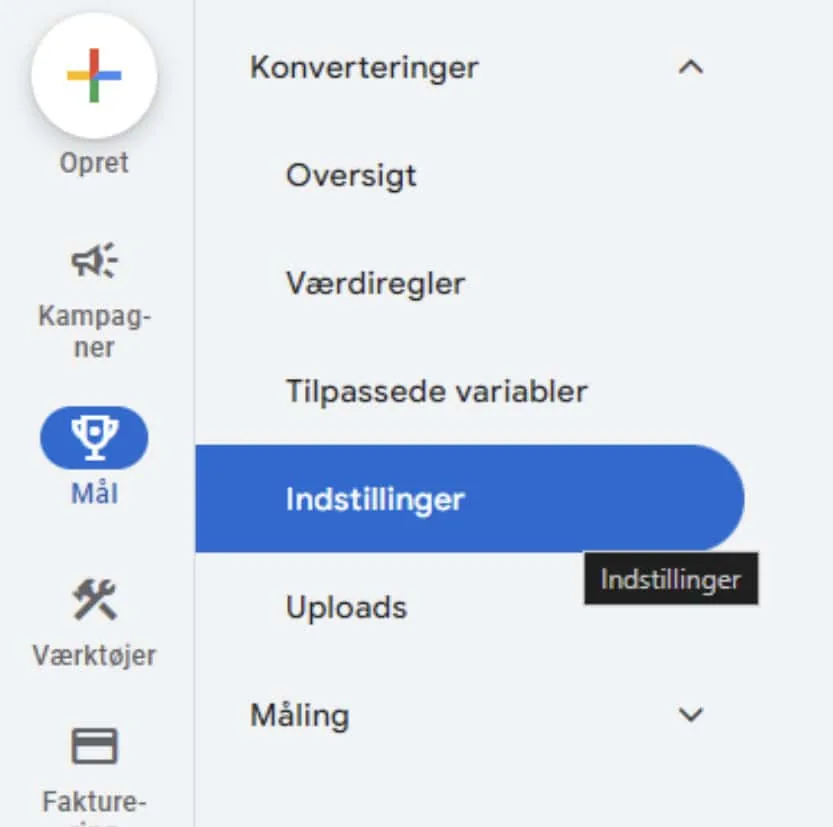
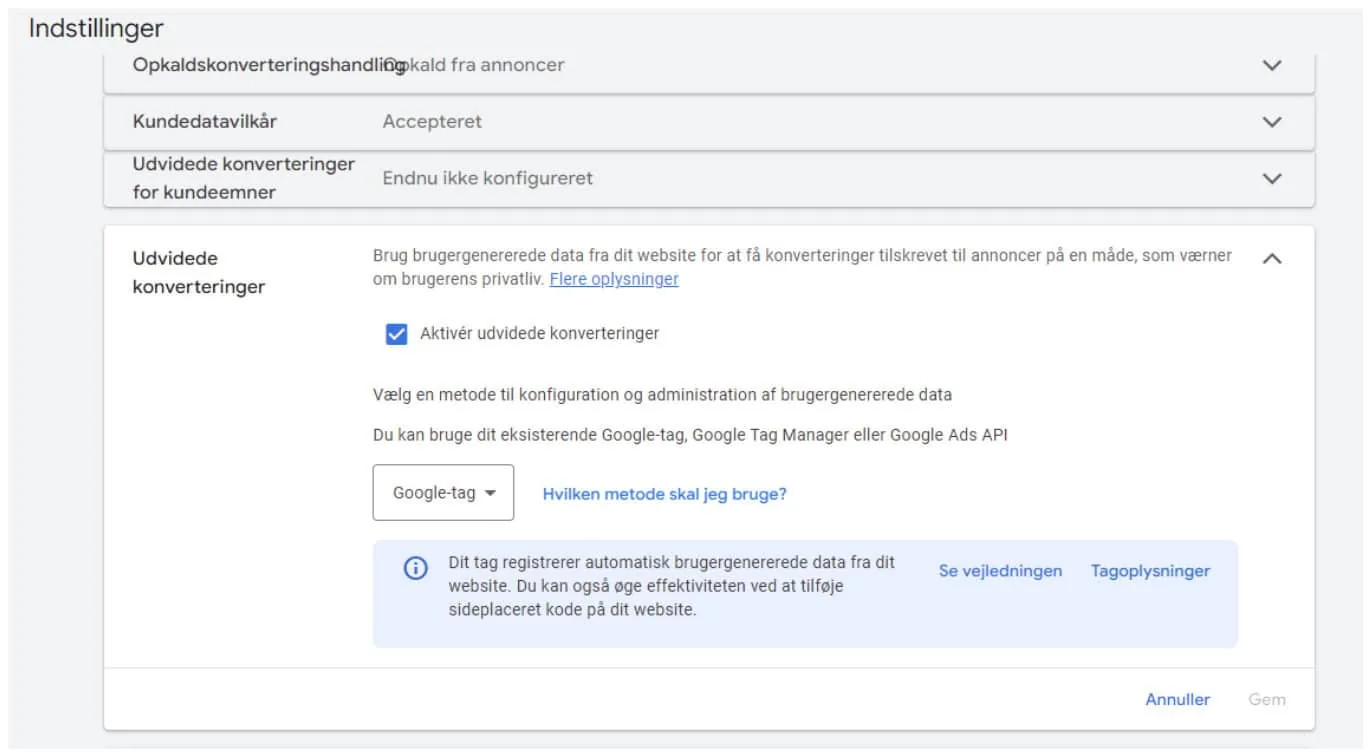
In the Goals section, find the Settings option.
-
Scroll down to Enhanced conversions and switch it on
In this scenario, we will use the Google tag to implement enhanced conversions.
The Google tag: if you currently have conversion tracking implemented using the Google tag directly on your site, you can set up enhanced conversions for web by making small changes to your configuration.
-
Choose Google tag from the drop-down menu (Google tag (gtag.js) – you should have it installed on your Golden Planet online shop from the previous section here
-
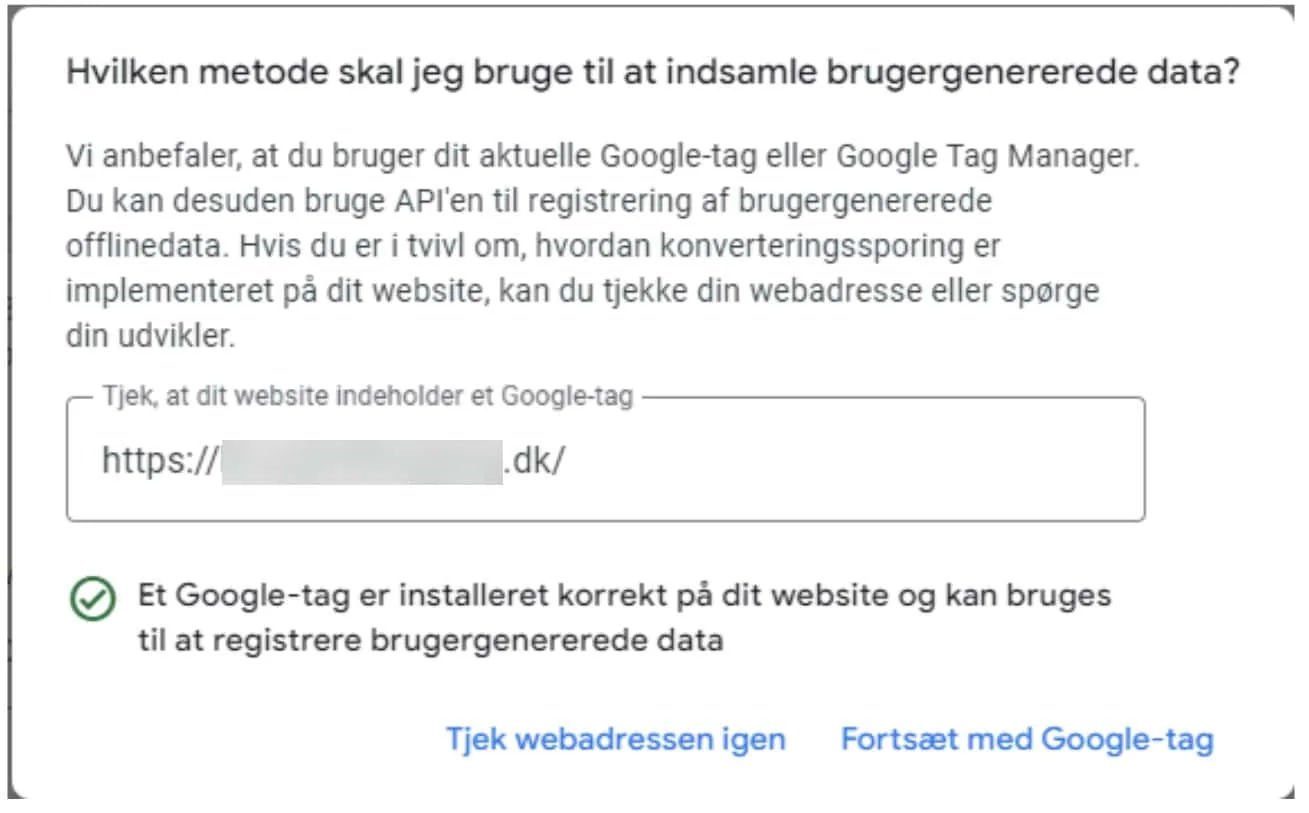
You can make sure that the Google tag is installed on your website by clicking the link “Which method should I use?”. Then enter your website's URL and check whether the tag is installed. If it is, you should see a message
-
Click Continue with Google tag and then Save the setup.
-
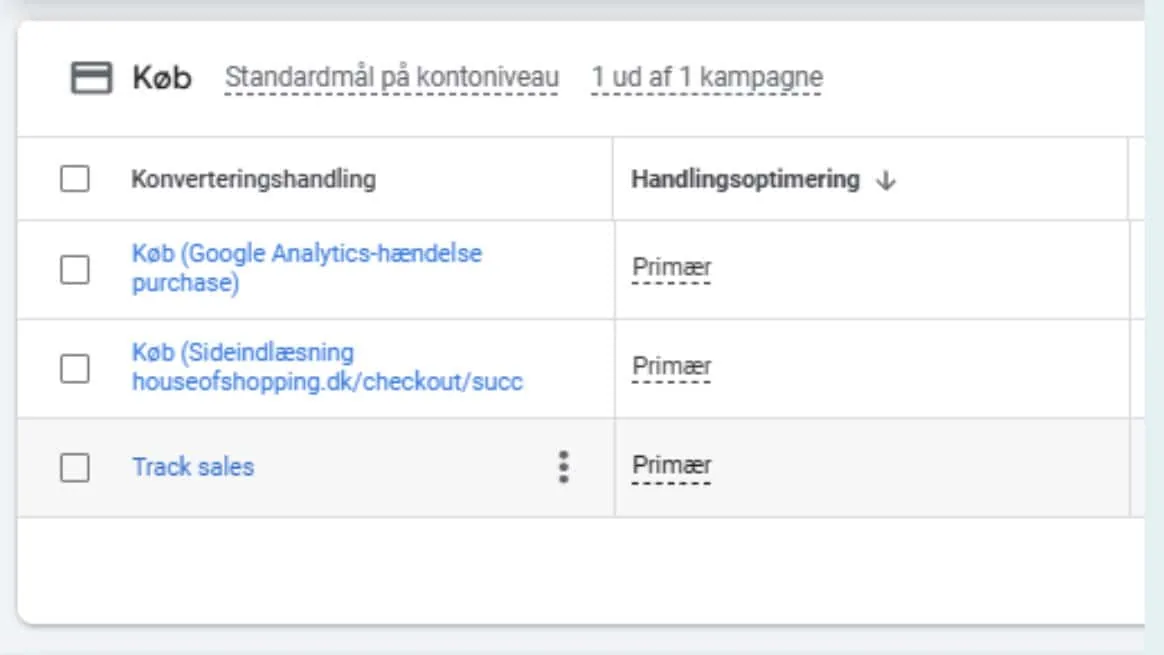
In this example, we will implement the enhanced conversion for the “Purchase” conversion action.
-
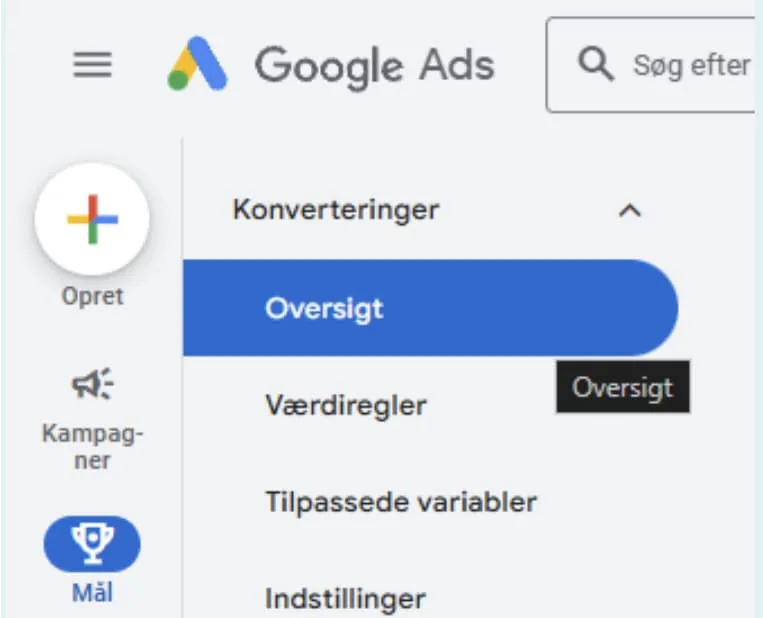
In your Google Ads account, click the Goals icon.
-
Click the Conversions drop-down in the section menu.
-
Click Summary.
-
-
Here, choose the primary purchase conversion action you use and click the link.
-
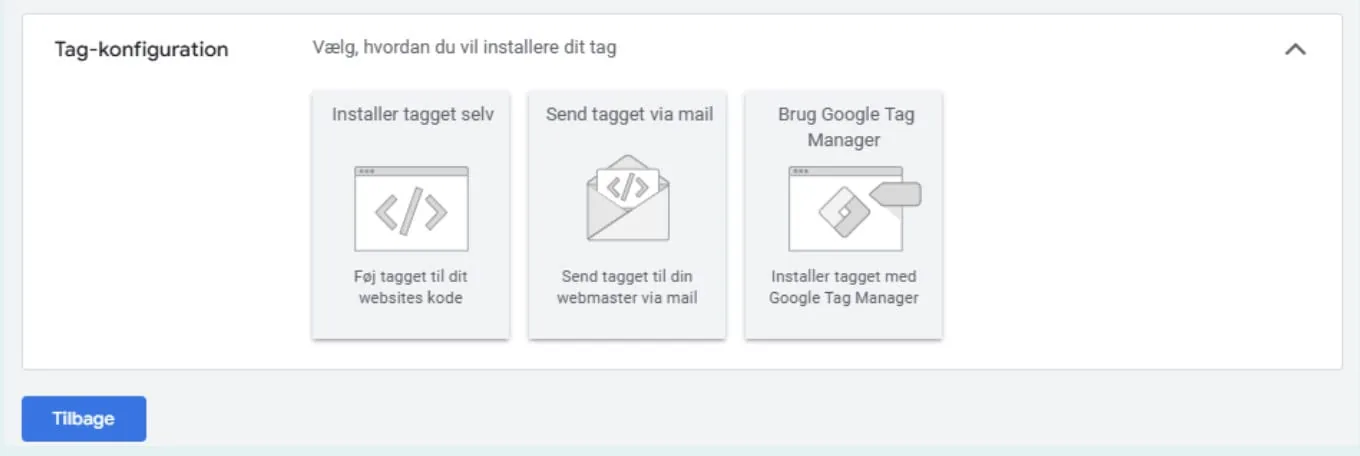
Choose the “Tag setup” menu and then the option “Install the tag yourself”
-
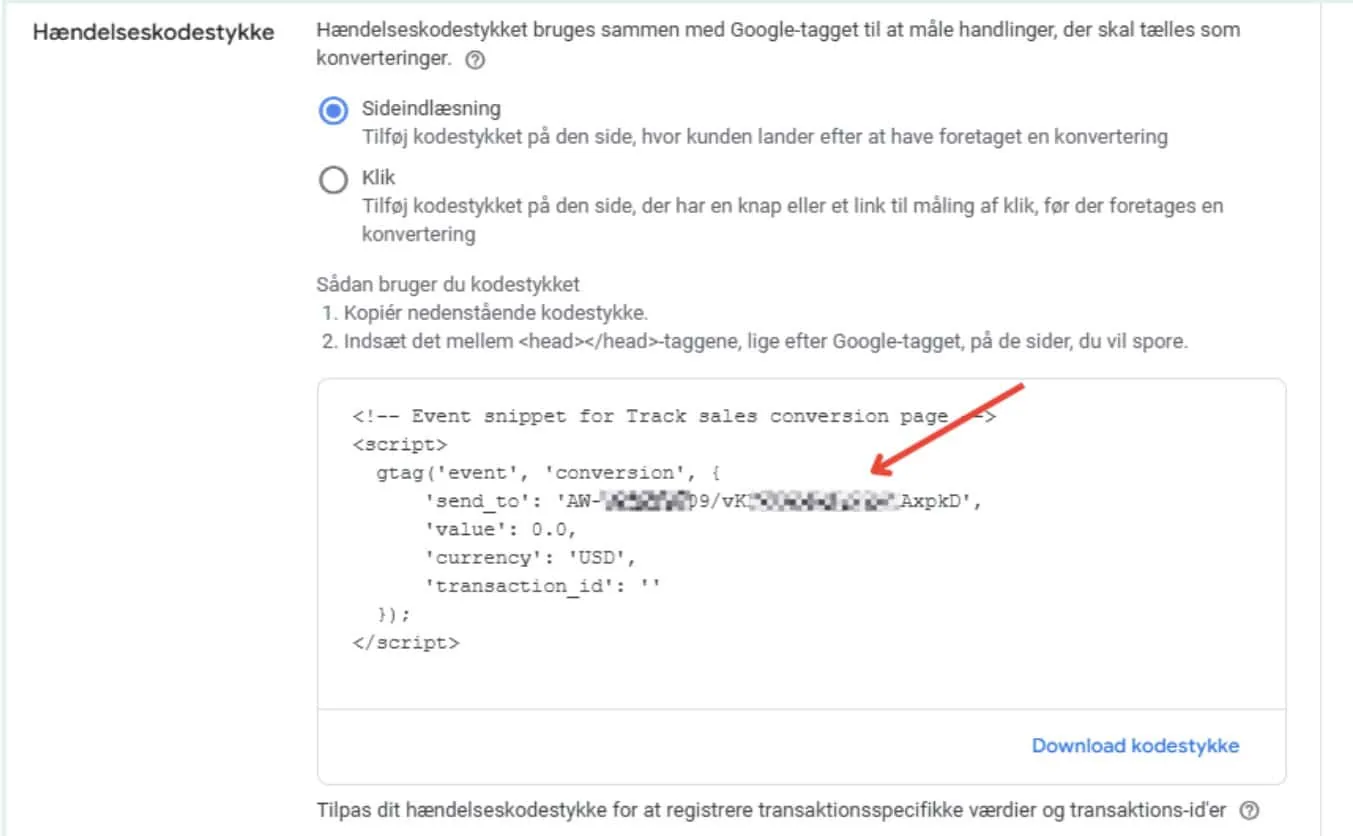
From here you can get the conversion ID and label you need, which you will use later in the custom integration code
-
Go to your shop's admin. In the top menu, choose Integration > Other integrations and click the Add new Other integrations button
-
Paste the code below into the field:
<script>
  var enhanced_conversion_data = {
    "email": '{{order.customer.email}}',
    "phone_number": '{{order.shipping.phone}}'
  };
</script>
<script>
  gtag('event', 'conversion', {
    'send_to': 'AW-XXXXXX/XXXXXXXXXX',  // replace this with your conversion label
    'value': {{ order.total }},
    'currency': 'DKK',
    'transaction_id': {{ order.id }}
  });
</script>
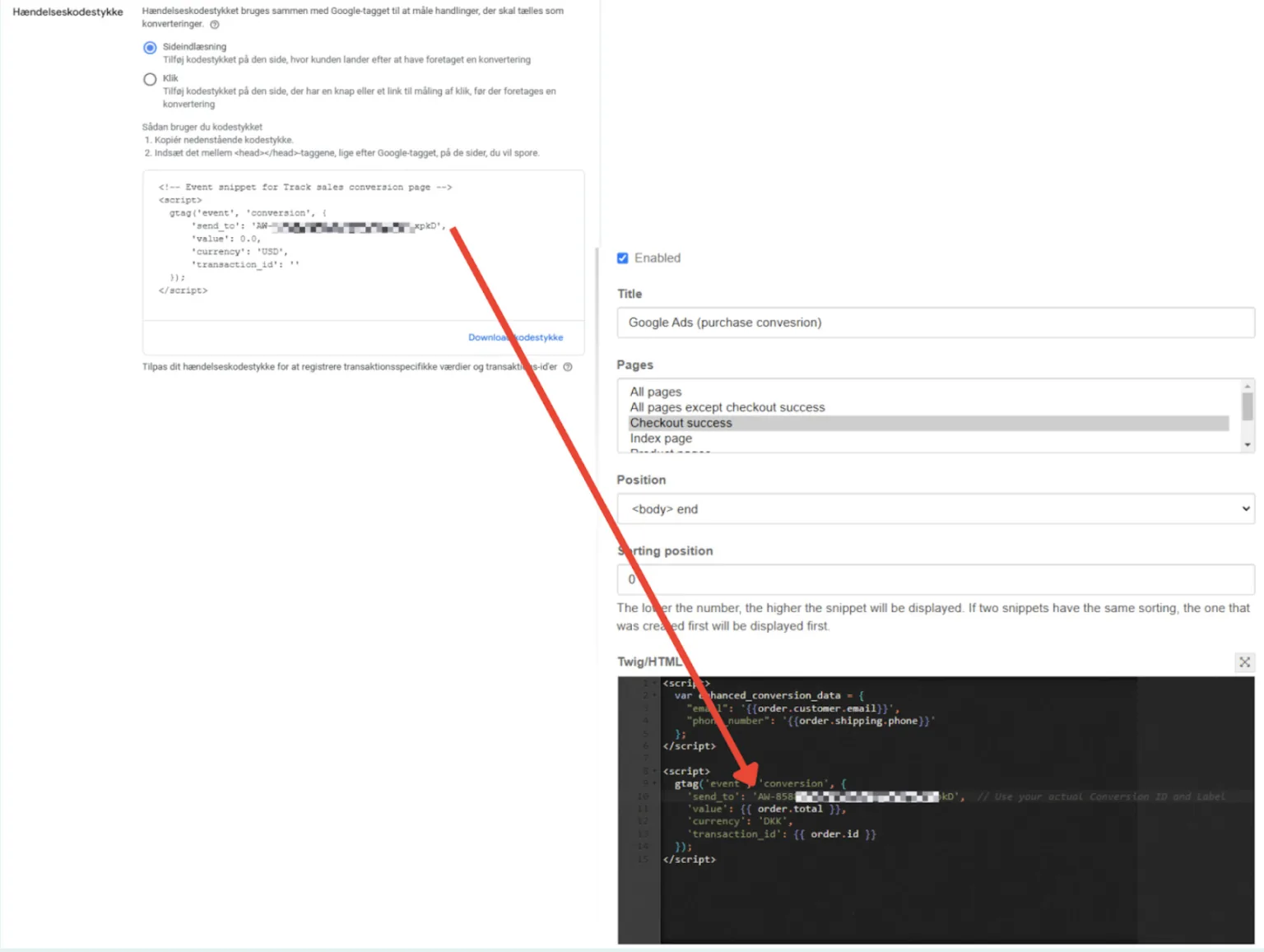
- Replace the value
conversion_id/labelwith the conversion ID/label value you get from your Google Ads - Set “Pages” to “Order completed”
- Set “Position” to “End of body”
- Click the “Save” button