
In this category Integrations
Facebook Conversions API
On this page
20–30% of tracking is typically lost for Facebook. More and more people say no to marketing cookies or have an ad blocker that does it. And since iOS 14.5 (2021), Apple has limited the tracking of users even further.
Facebook's answer is the option to collect and send data “behind the scenes”, from server to server.
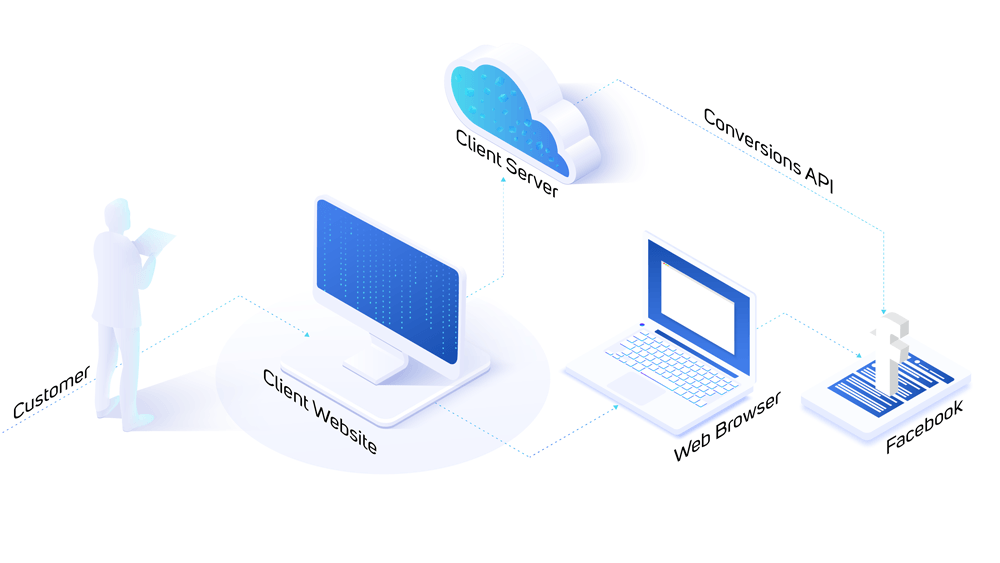
You can take advantage of this option, and it can give you far better data for optimising your campaigns on Facebook – and an extra edge over your competitors who don't have the option.
Our servers have to work extra hard to send this data to Facebook all the time – which is why you need at least the PRO plan to use this feature.
What you need
To set up the Facebook Conversions API, you need:
- Facebook Business Manager
- Facebook Pixel
- Facebook API access token
We don't provide support for the setup – consider getting help from a Facebook agency
We are not Facebook experts as such, and unfortunately we don't have spare time in our support to help with setting up the Facebook Conversions API.
It is important that you get the tracking set up correctly to combine web and server.
So you will either need to study how best to do this yourself or hire help elsewhere.
If your Facebook agency would like technical input on the API data, they can write in English to api@goldenplanet.com
Meta Business Suite (formerly Business Manager)
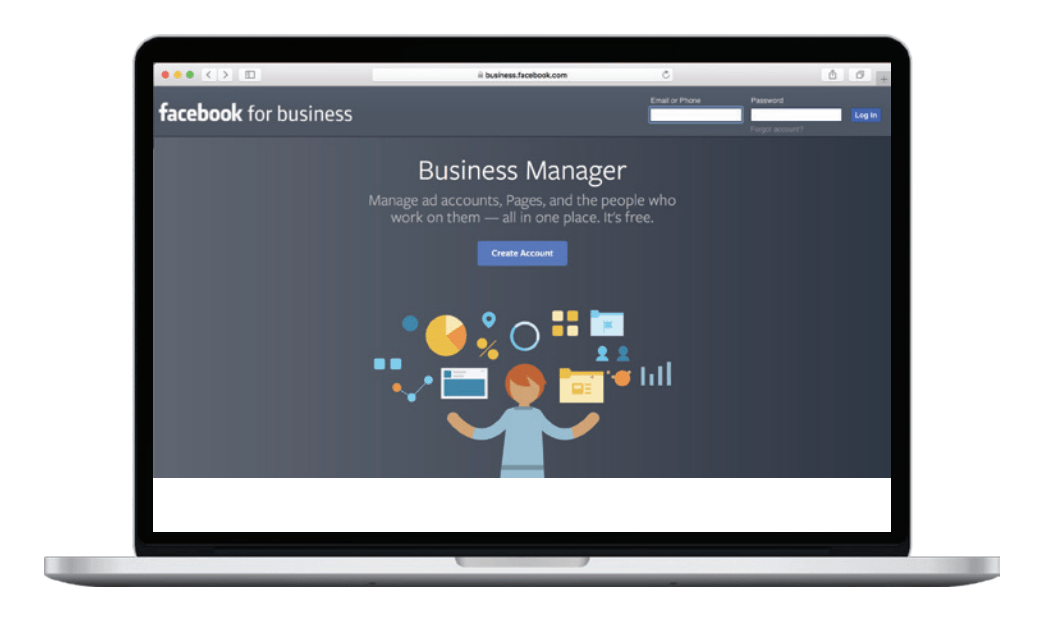
To implement and manage the Conversions API on Facebook, your Facebook page must be linked to your business in Meta Business Suite (formerly Facebook Business Manager).
Perhaps you already have this. Otherwise, you can start here:
Facebook Pixel

The Facebook Conversions API is a supplement to browser tracking.
So if you haven't already set up browser tracking, follow our guide to the Facebook Pixel.
If you already have a pixel running for web/browser tracking, it is important that you update it to the latest version, which also supports the Conversions API. You do this in your shop's admin by going to Integration and then Other integrations. The best approach is usually to switch off the current Facebook tracking and then add a new one (click the button for the Facebook Pixel and fill in the pixel ID + catalogue ID).
Facebook API access token
The last piece of the puzzle is the key to the API connection – a so-called access token.
You create an access token like this:
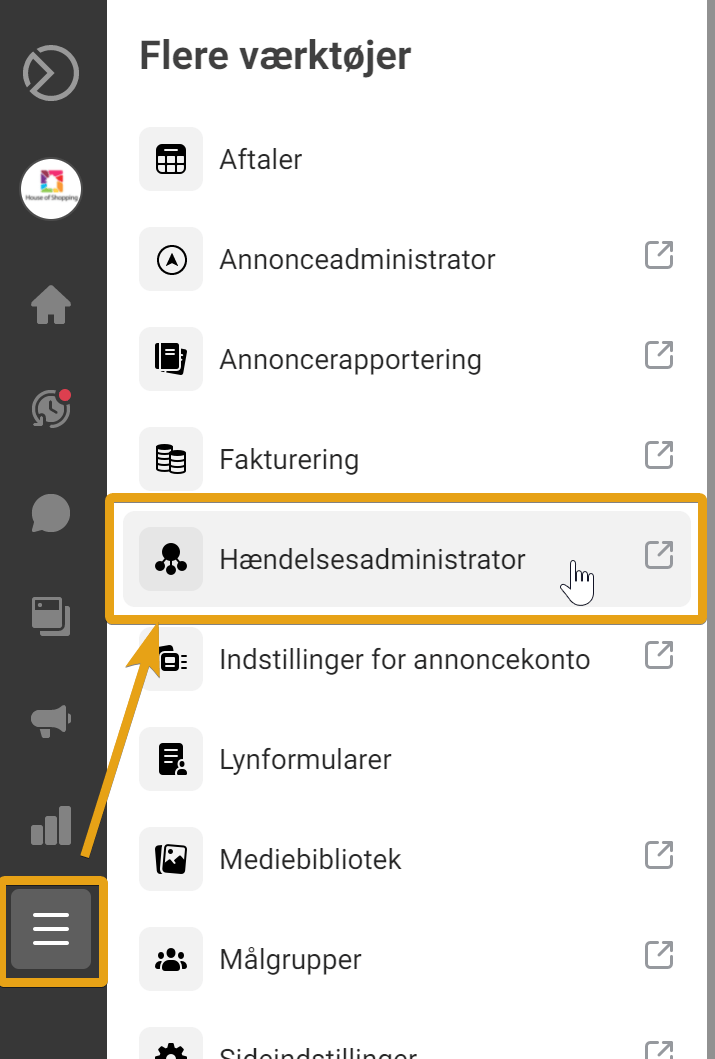
Open Events Manager in Meta Business Suite (opens in a new tab) – you'll find it in the menu with all the tools:
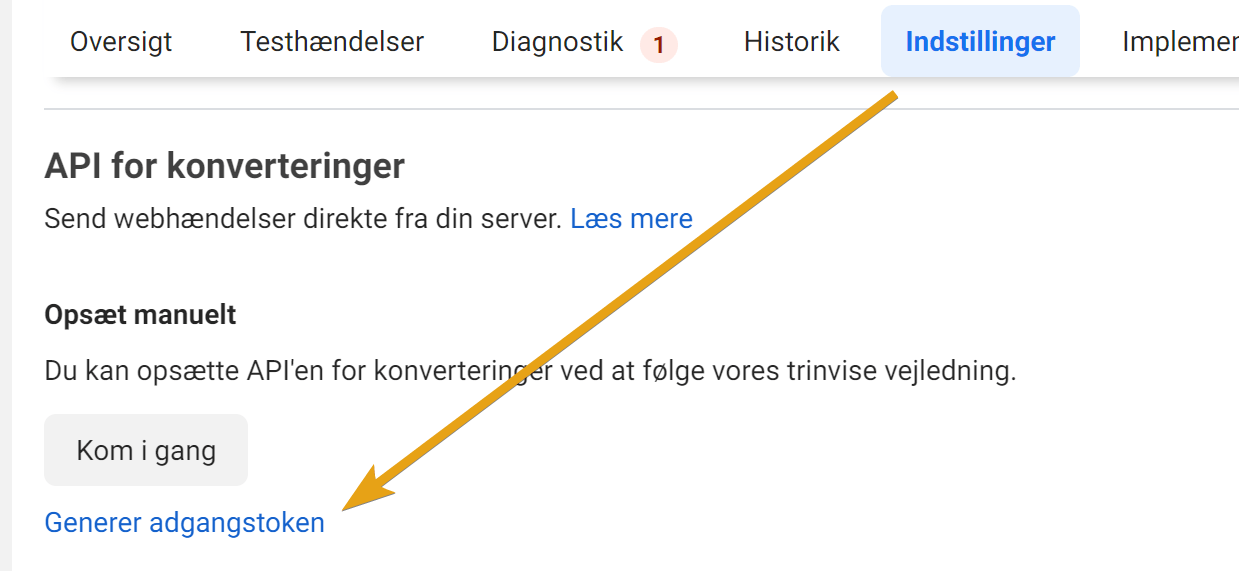
Go to the Settings tab and click Generate access token
Copy your access token. It can be a good idea to save it somewhere, e.g. in a document, so that you always have it in more than one place.
Connect your online shop to the Conversions API
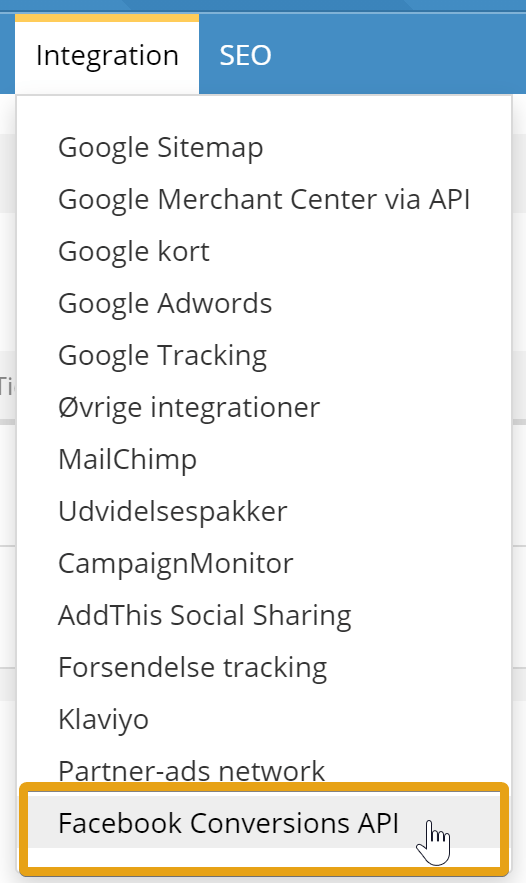
Go to Facebook Conversions API under Integration in your shop's admin
Enter your Facebook access token and pixel ID
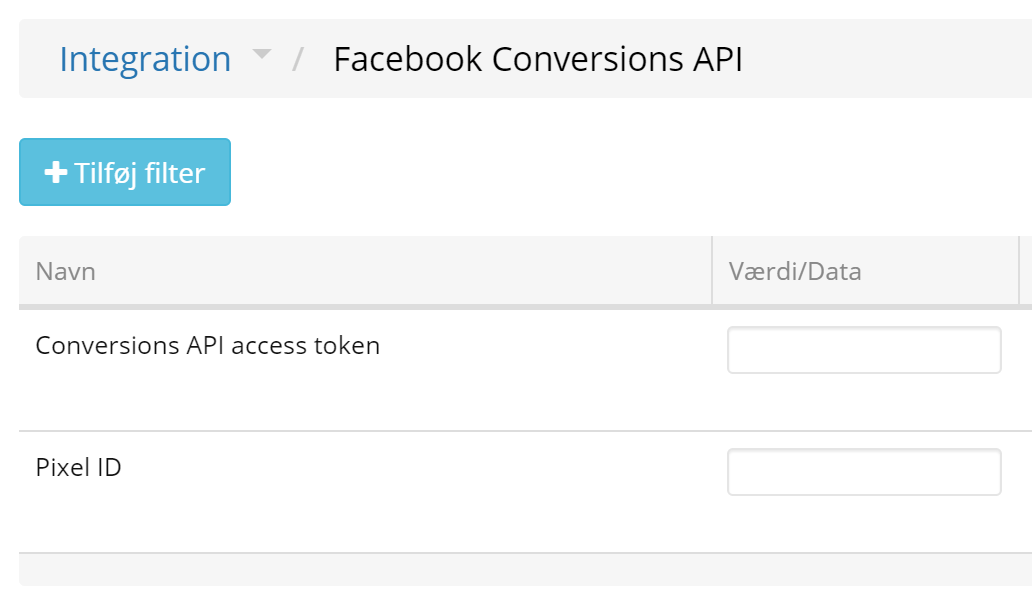
Click Save changes
After a while, you will start to see data coming into your Facebook tracking from either web, server or web + server.
Test and review duplicate events
You should now review the data being sent via both web and server to your Facebook tracking. You may also want to see, e.g., this guide from Facebook on Deduplicate Pixel and Server Events (opens in a new tab).