
In this category Integrations
IntegrationsGoogle Analytics
Google Analytics 4
On this page
Switch to Google Analytics 4
Google Analytics 4 has replaced Universal Analytics. Standard Universal Analytics properties stopped processing new data on 1 July 2023 (360 properties on 1 July 2024), so Google Analytics 4 is the version you need to use.
With Google Analytics 4, you get a complete picture of your customers' behaviour based on first-party data and modelled data. Better machine learning, reports you can act on and new integrations help you keep up as privacy requirements and technology change – so you continue to get the insight you need.
Create a Google Analytics 4 property
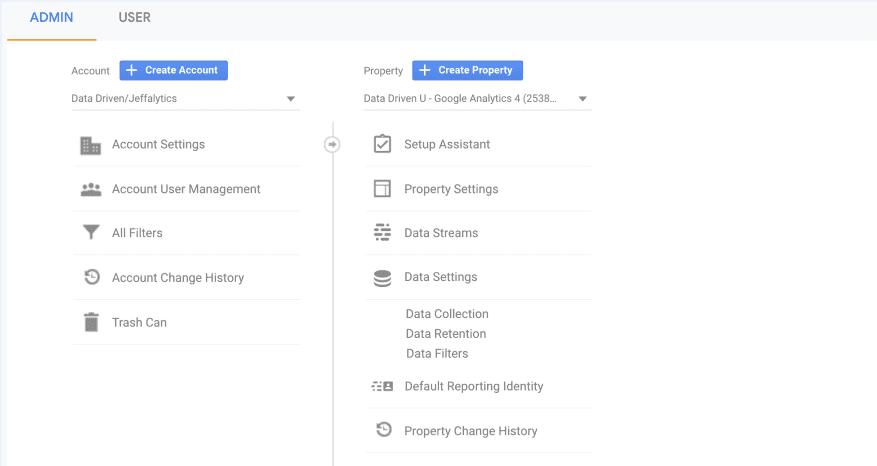
STEP 1: CREATE A NEW GOOGLE ANALYTICS 4 PROPERTY
- Create a GA4 property in your Google Analytics account: go to Admin, click Create and choose Property
STEP 2: GIVE YOUR GA4 PROPERTY A NAME
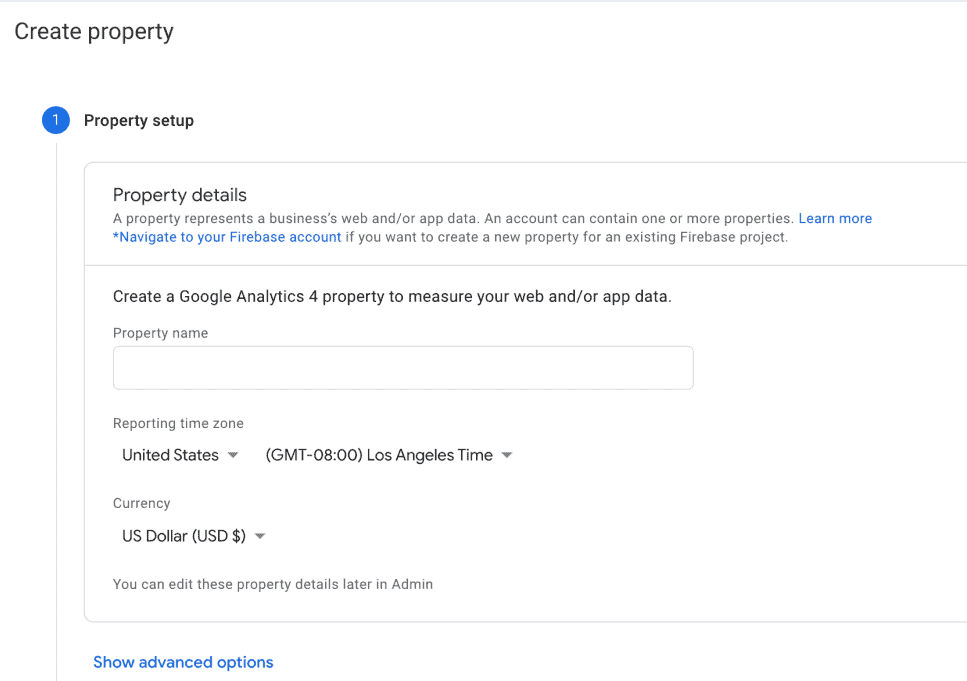
- Give your new property a name
- Follow the setup guide so that it suits your business and the type of property you are creating: web or app.
STEP 3: ADD THE WEB ADDRESS AND DATA STREAM
- Choose Web, enter the web address of your online shop and give the property's data stream a name.
Also make sure Enhanced measurement is switched on. Then click Create stream.
Find your measurement ID and insert it in your online shop
You'll find the measurement ID for your GA4 property under Admin. The measurement ID is what activates tracking on your website, and you need to insert it in your online shop before Google Analytics can start measuring.
Note: In Universal Analytics, a tracking ID was used to collect data. In Google Analytics 4 there is no tracking ID – instead you use the measurement ID (it starts with "G-").
FIND THE MEASUREMENT ID FOR A DATA STREAM
-
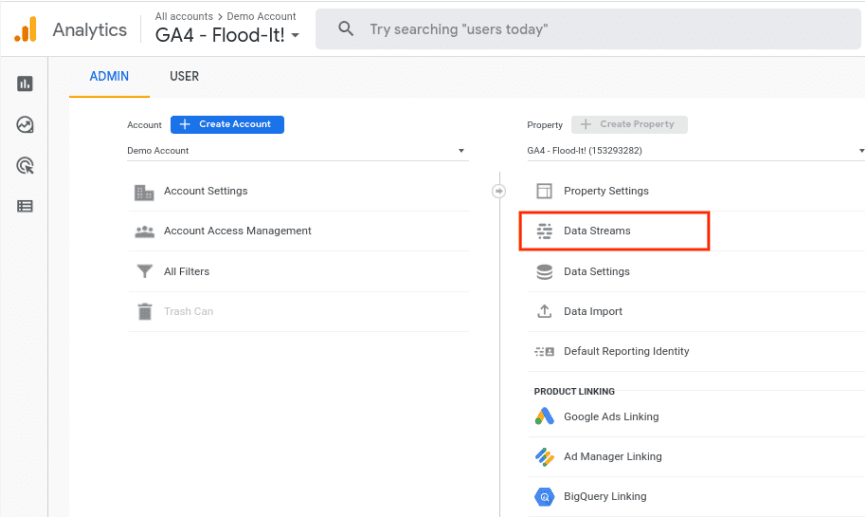
Go to your GA4 property and click Admin at the bottom left
-
Under Data collection and modification, click Data streams
-
Choose a data stream from the list
-
Click the arrow “>” next to the name of the data stream
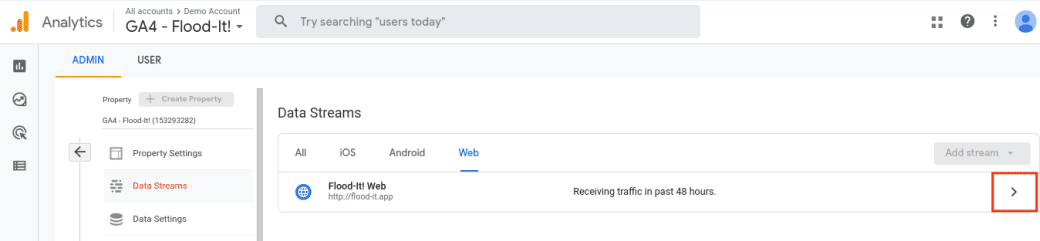
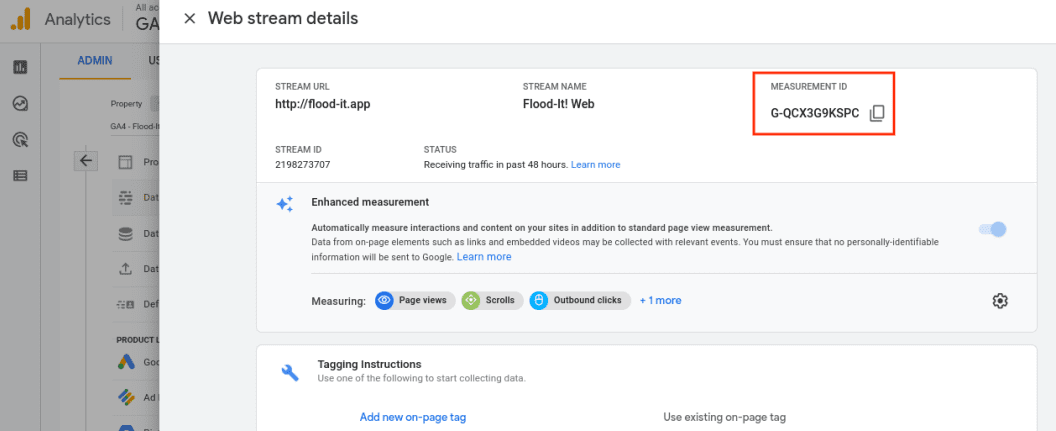
- Note down the measurement ID at the top right under Stream details, as shown in the example below:
INSERT THE MEASUREMENT ID IN YOUR SHOP'S ADMIN
- In your shop's admin, go to Integration > Google Tracking
- Paste the measurement ID you found in the previous step into the top field
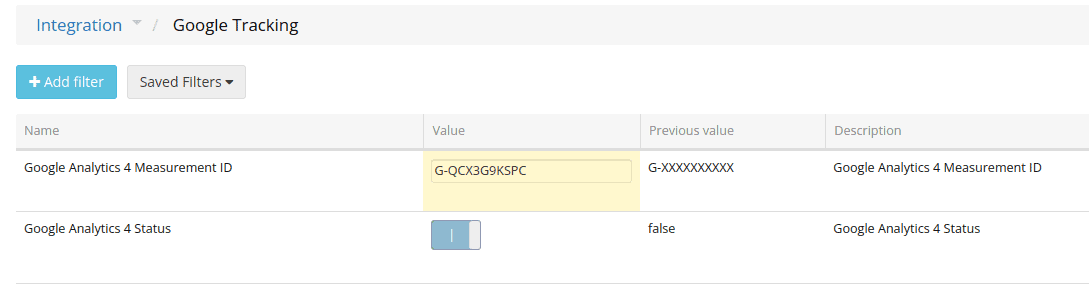
- Switch Google Analytics 4 on (“Enabled”) with the toggle
Note: It typically takes up to 48 hours after setup before Google Analytics starts showing data. If you have done everything correctly, you get a message saying so under Stream details for your web data stream.

Connect Google Ads with Google Analytics
To get data from Analytics into Google Ads, you need to connect the two. See Google's guide to how you do it:
In Danish: https://support.google.com/google-ads/answer/7519537?hl=da (opens in a new tab)
In English: https://support.google.com/google-ads/answer/7519537?hl=en (opens in a new tab)