
In this category Integrations
IntegrationsLog in with Google or Facebook
Log in with a Google account
On this page
You shouldn't really use the same password in lots of places – but then who can remember them all?
To make logging in easier – both for customers and for users in the admin – you can add the option to log in with a Google account.
This will probably get more customers to make use of the login features (saving their basket, faster checkout, seeing previous orders etc.).
It takes a bit of setting up, but then saves everyone quite a lot of time – see how here
Important: A Google login is tied to the exact email address used in both the online shop and the Google account. If, for example, you have an email account at info@yourshop.dk with an alias at .com as well – i.e. info@yourshop.com – you can only log in and see orders etc. where info@yourshop.dk has been used as the email address and therefore as the login in the shop. The same applies to logging in to the admin.
Do it yourself or save time for €135
The guide below helps you do it yourself. Google's interfaces aren't the easiest in the world, though, and they change quite often.
If you can't use the guide here or would simply like to save some of your time, we can set it up together with you via screen sharing. The service costs €135 – just contact us via chat, email support@goldenplanet.com or phone +45 70 20 95 94.
Check whether you have a Google project – otherwise create one
You need a project in Google to be able to attach services to it.
Go to https://console.cloud.google.com/cloud-resource-manager (opens in a new tab)
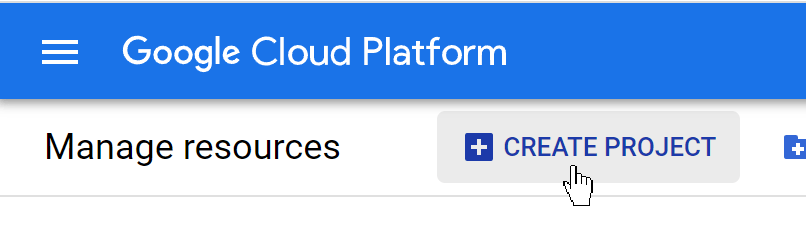
If you don't have a (suitable) project, click
Check whether you have a Google OAuth consent screen – otherwise create one
Here, go to https://console.cloud.google.com/apis/credentials/consent (opens in a new tab)
If you see roughly this
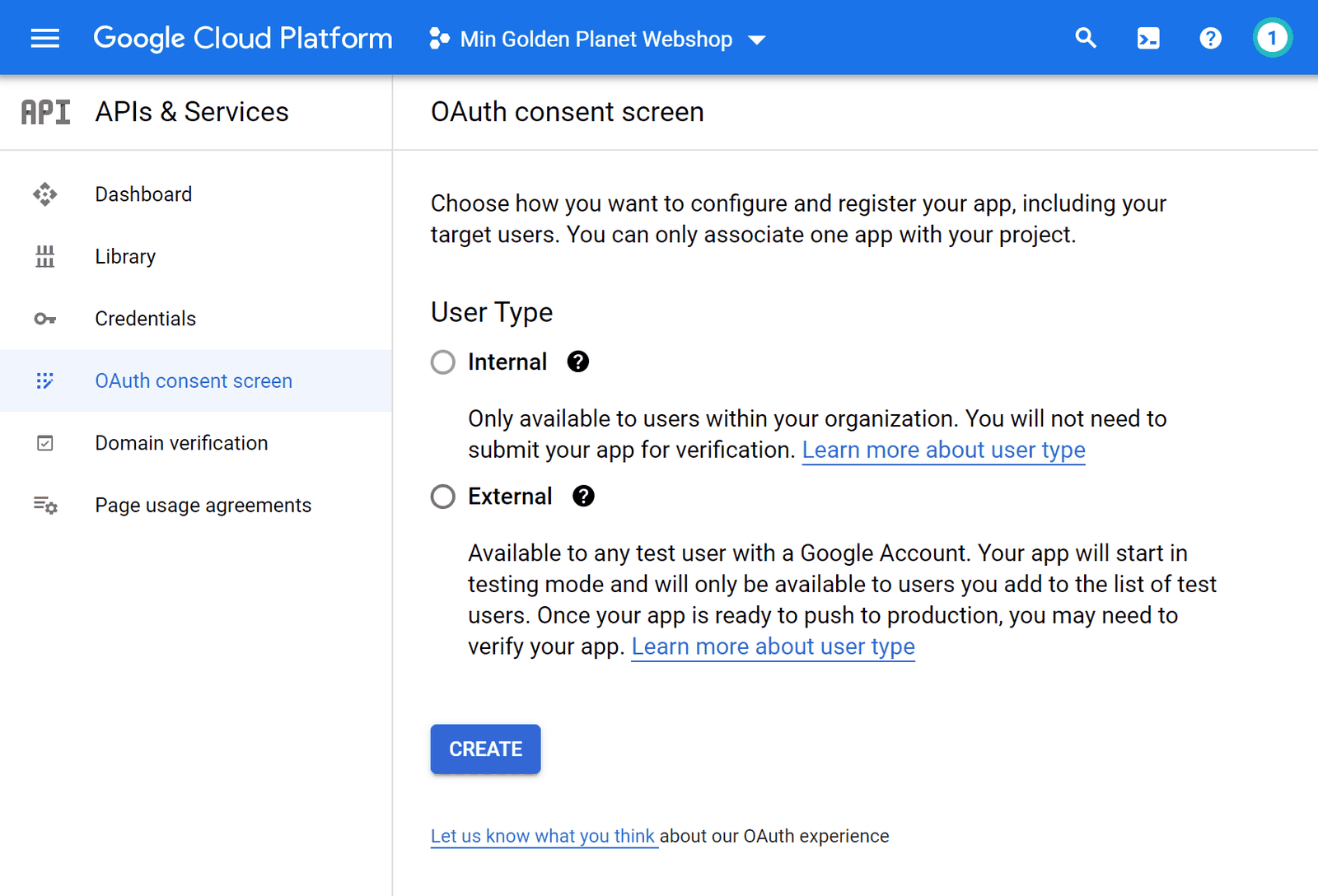
then go on to this guide and create an OAuth consent screen
Otherwise (and when you have finished that guide), continue to the next step on this page.
Create login keys (credentials)
The business of creating credentials starts here: https://console.developers.google.com/apis/credentials (opens in a new tab)
Click like this
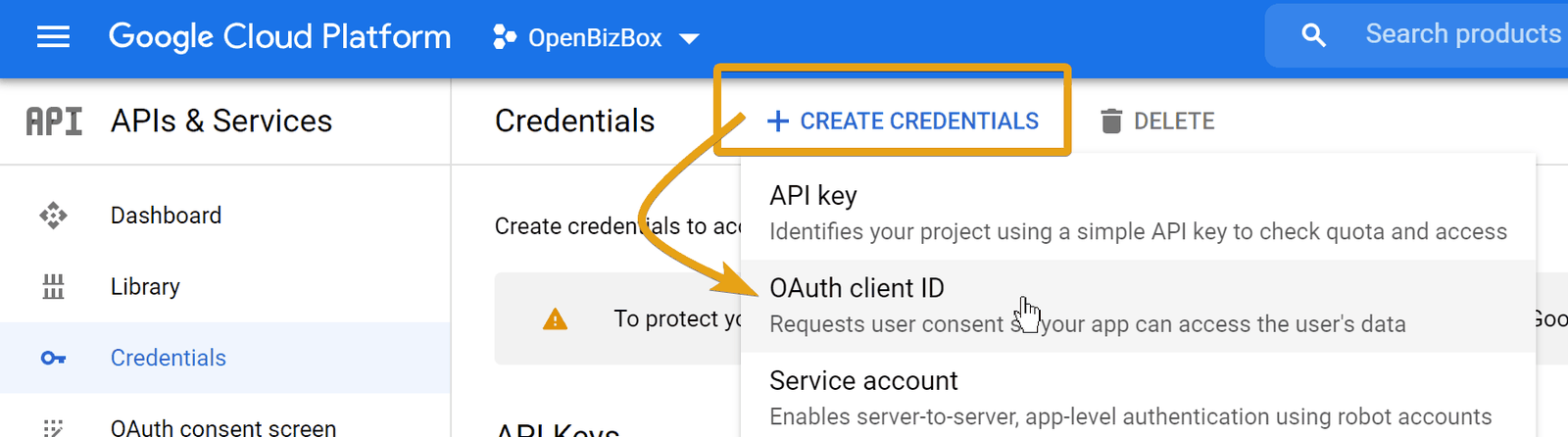
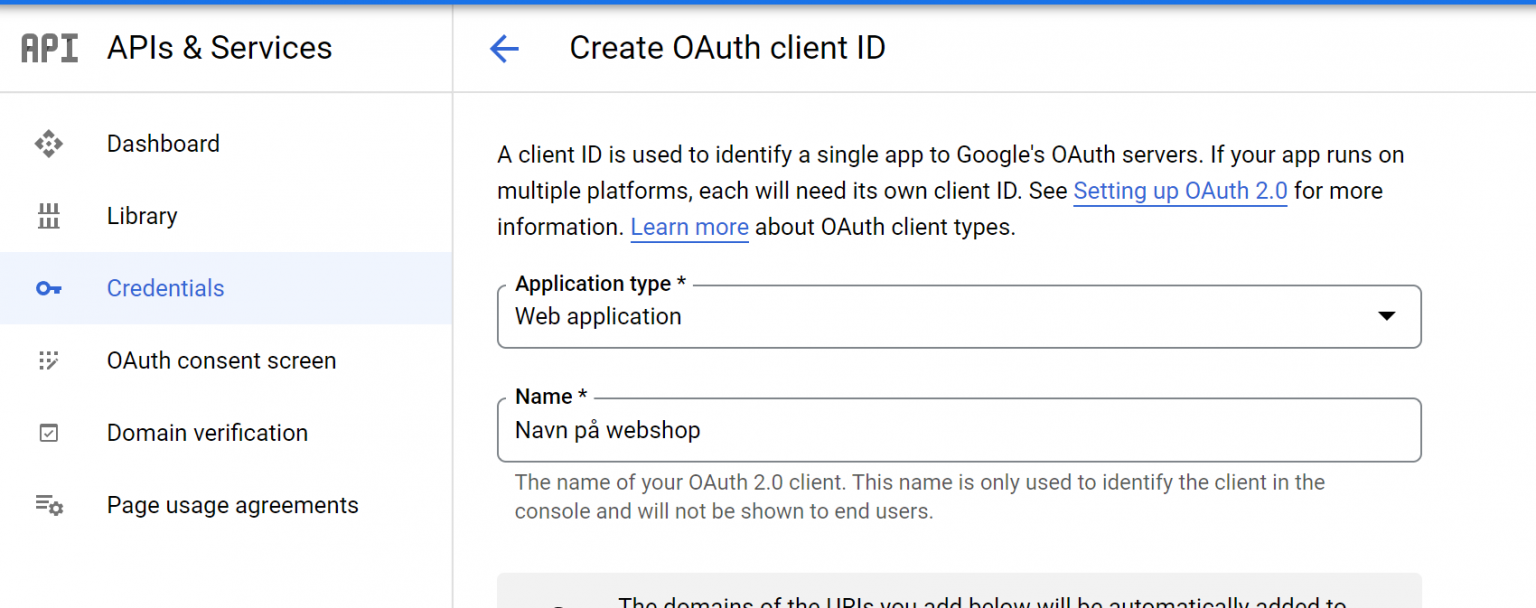
Choose Web application and enter a name – for example the name of your online shop or company
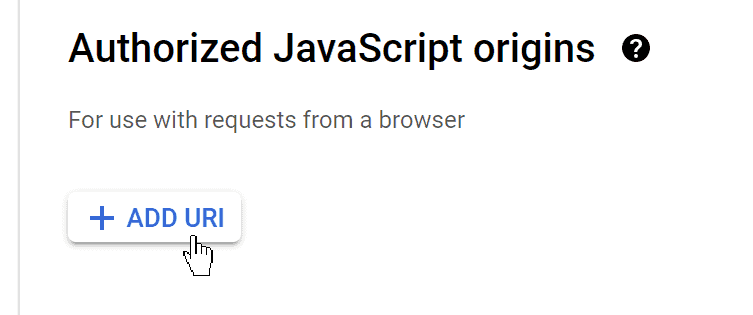
Click Add URI here
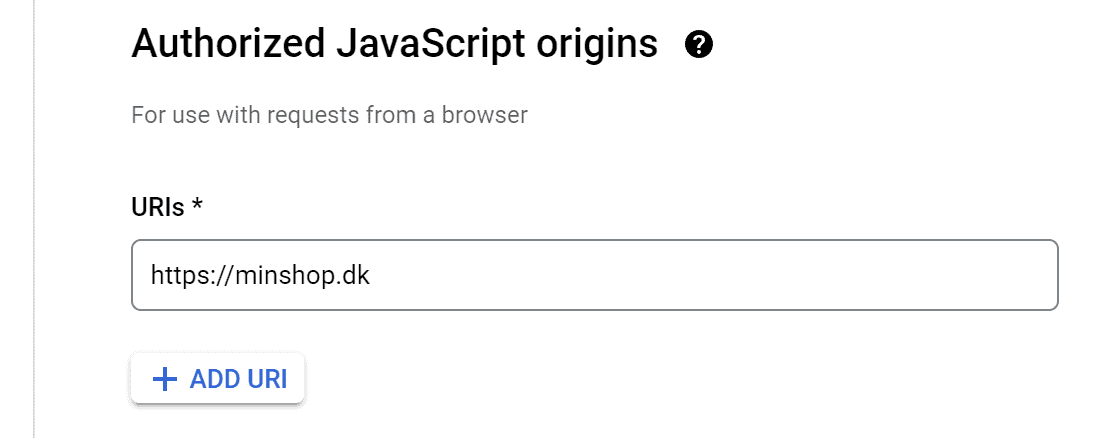
Enter the web address of your shop's home page, including https://
In the next one, you need to add 2 web addresses. Both must start with https:// and your domain name. Then add these at the end:
- /admin/connect/google/check
- /user/connect/google/check
If your domain name is minshop.dk, it will look like this altogether:
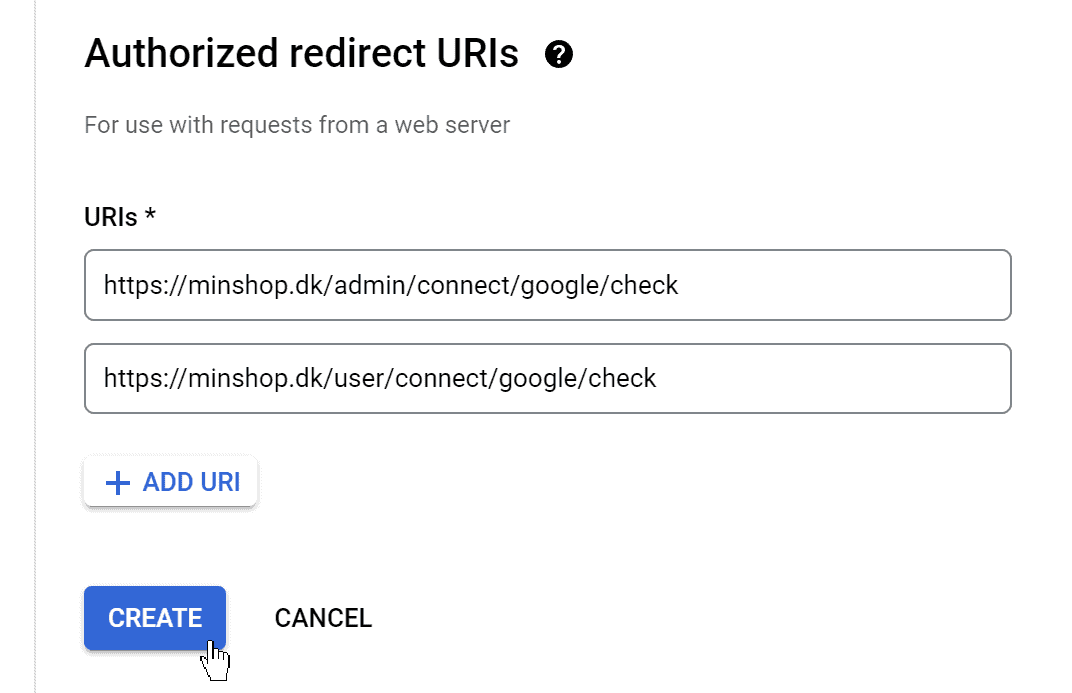
Click the Create button
You now get a pop-up with the keys.
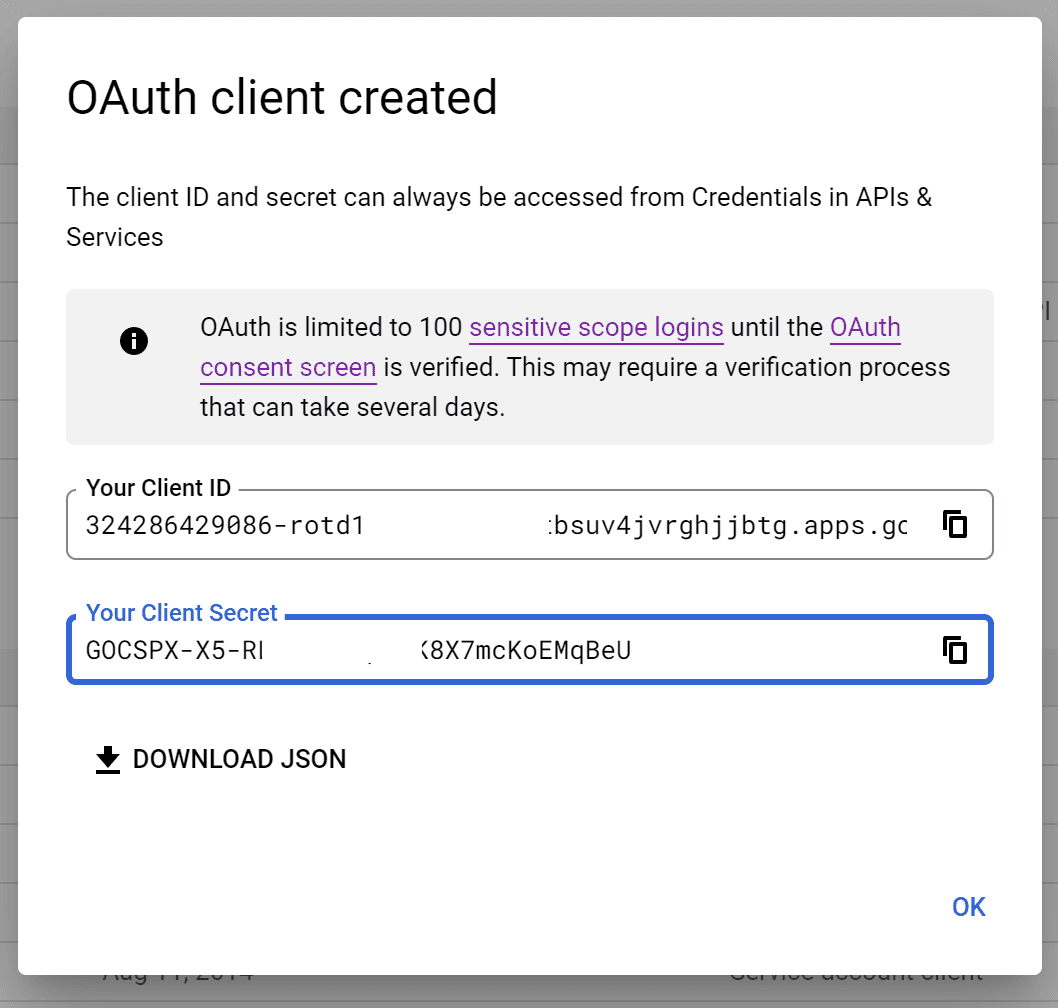
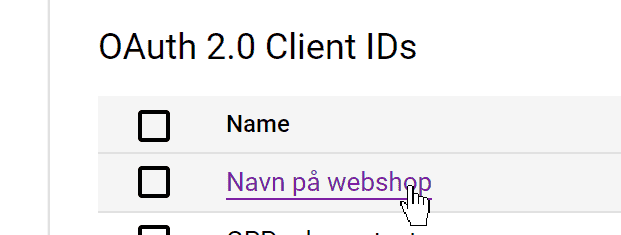
You can also always find them again by clicking the name in the overview
Insert the login keys (credentials) in your online shop
Now it's back to a friendlier interface in your shop's admin.
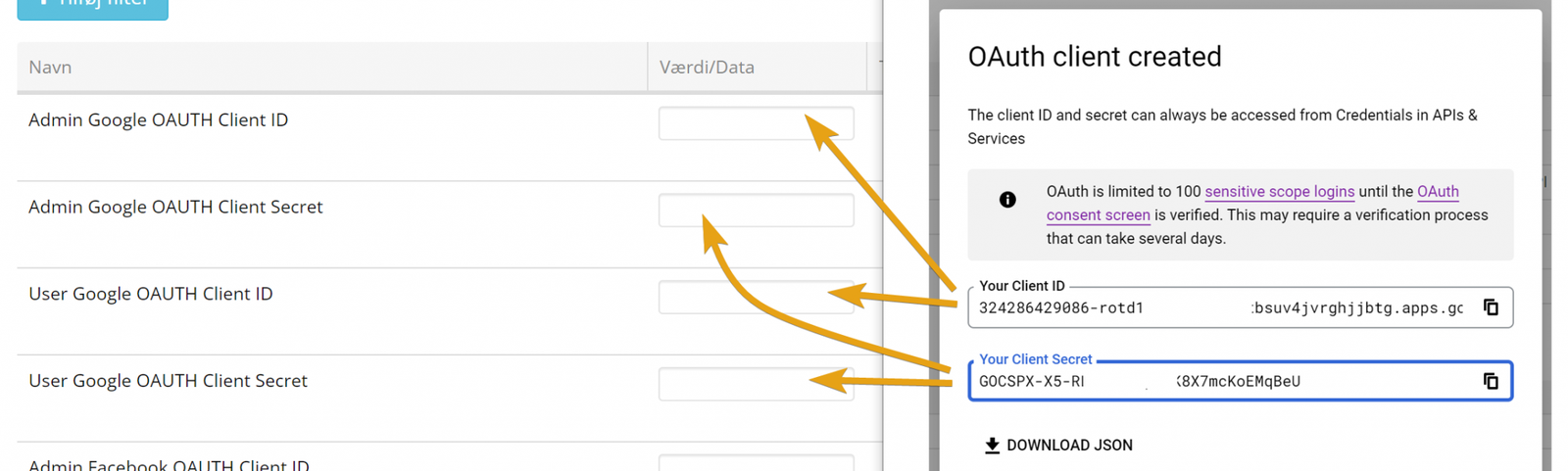
Go to Google login under Integration.
Copy your keys in here like this:
Test that it works
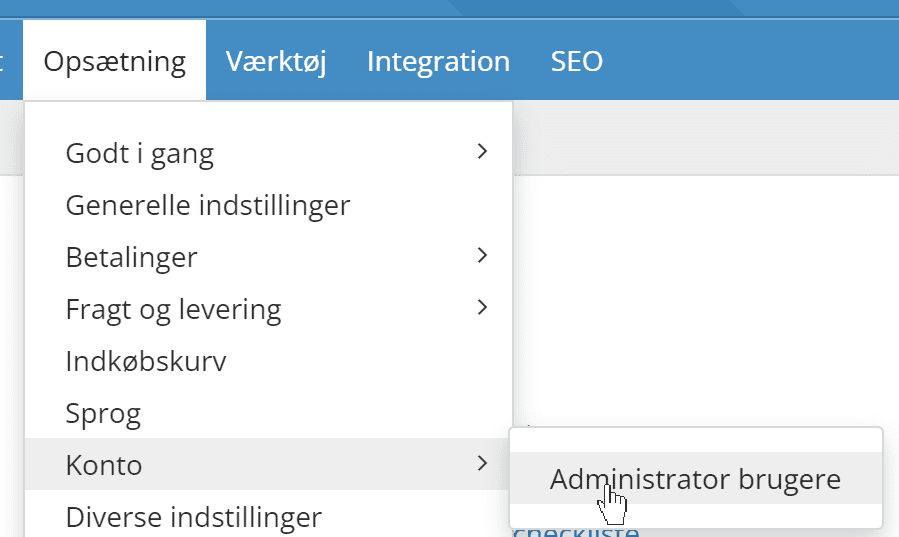
To log in to your shop's admin, the email address for the login must be exactly the same as your Google account. You can change or create logins if you have “Owner” rights via
Then log out at the top of the admin
You can now try logging in with your Google account.
In the shop, people can always log in with their Google account once it is set up – even if they haven't shopped before. For example via My account, which many shops have at the bottom of every page
That's it – you have now made it easier to log in to your online shop.
What about Facebook login?

You can also offer login with Facebook.