
In this category Integrations
IntegrationsLog in with Google or Facebook
Google OAuth consent screen
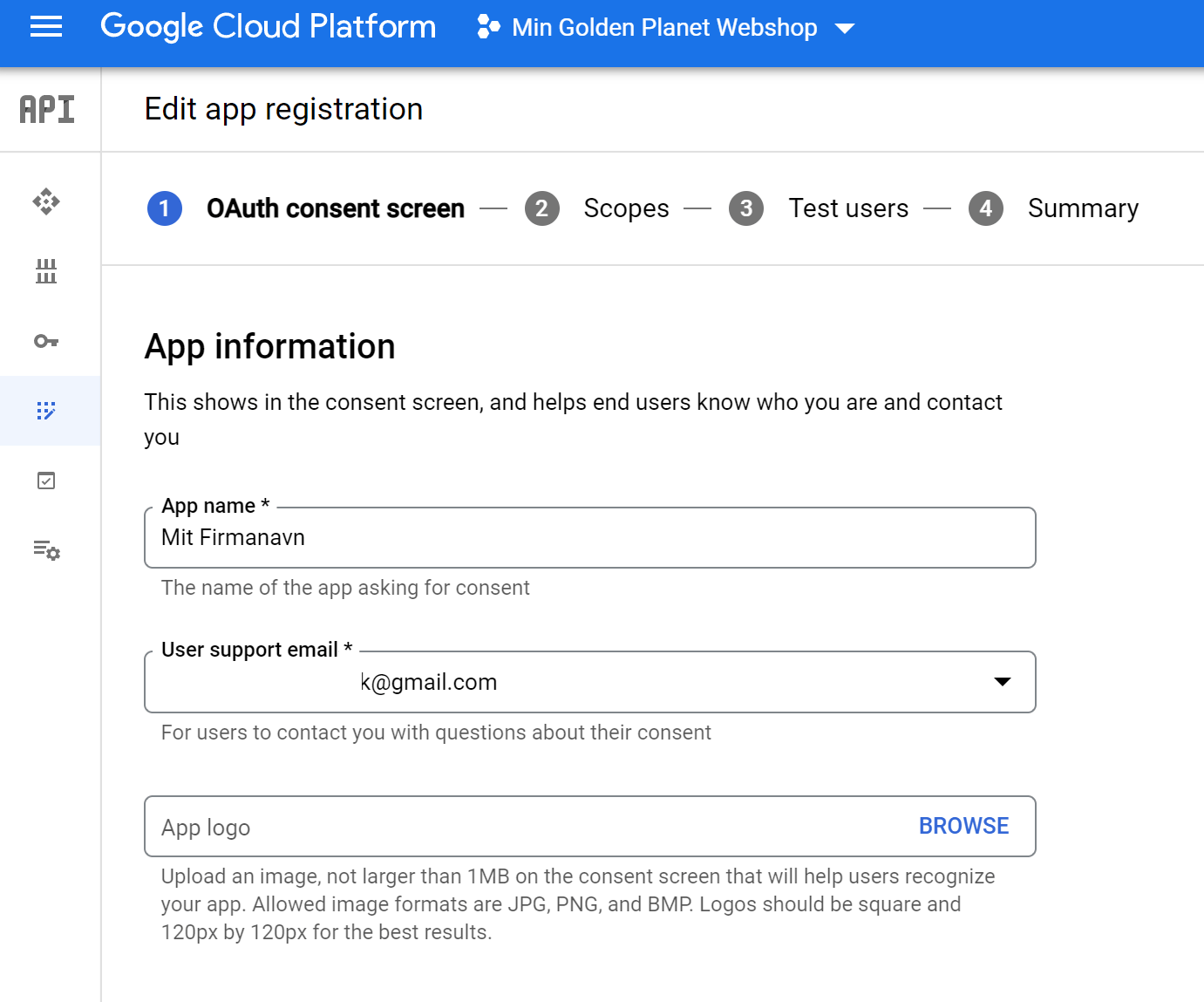
If you are asked to set up a consent screen at Google, you have to go through that guide at Google – here is our suggestion for how to fill it in:
Fill in your company name and choose your Google email login/address
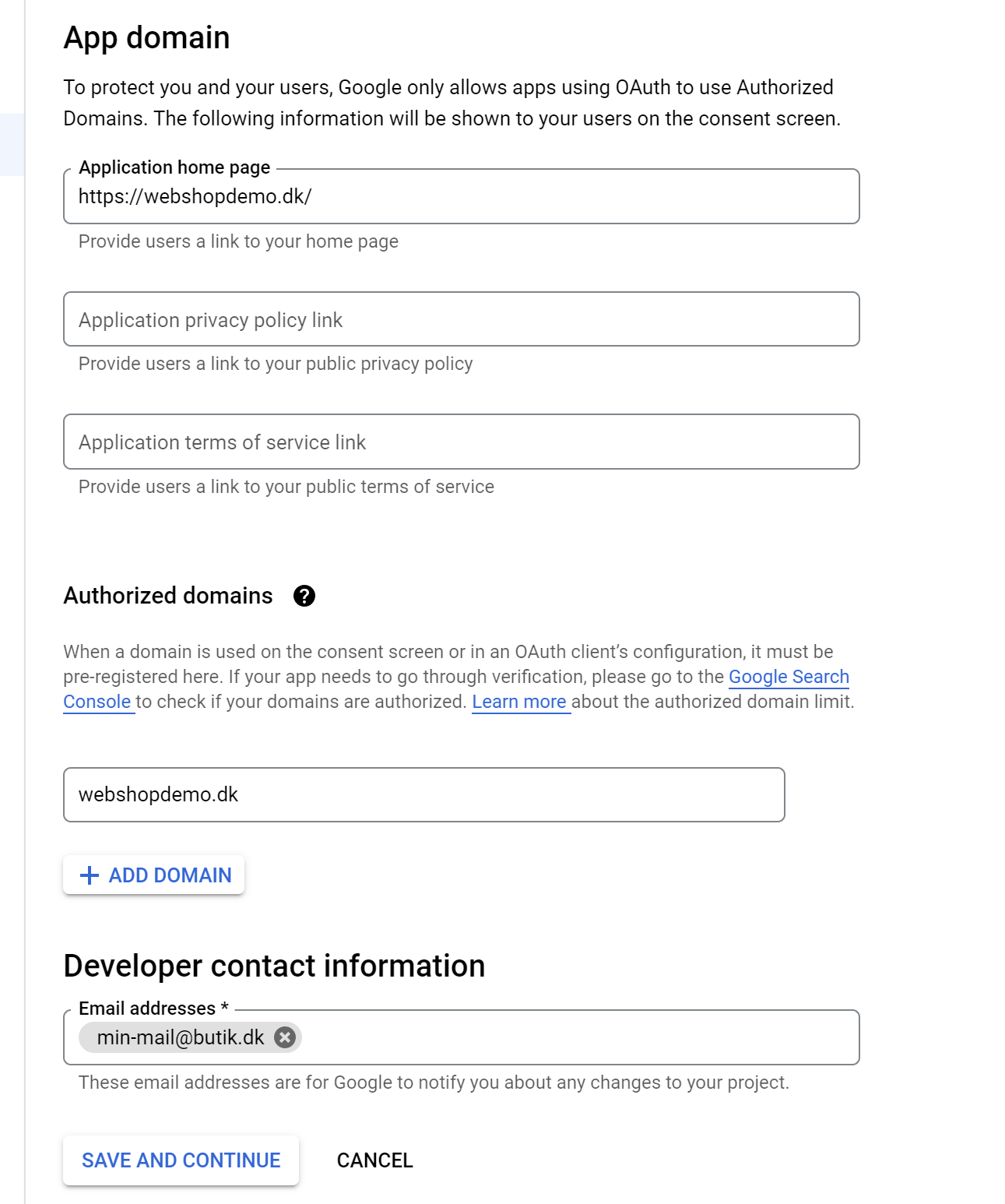
The web address of your online shop as Application home page.
The domain name on its own as Authorized domains.
Your email address as Developer contact information
Click Save and continue
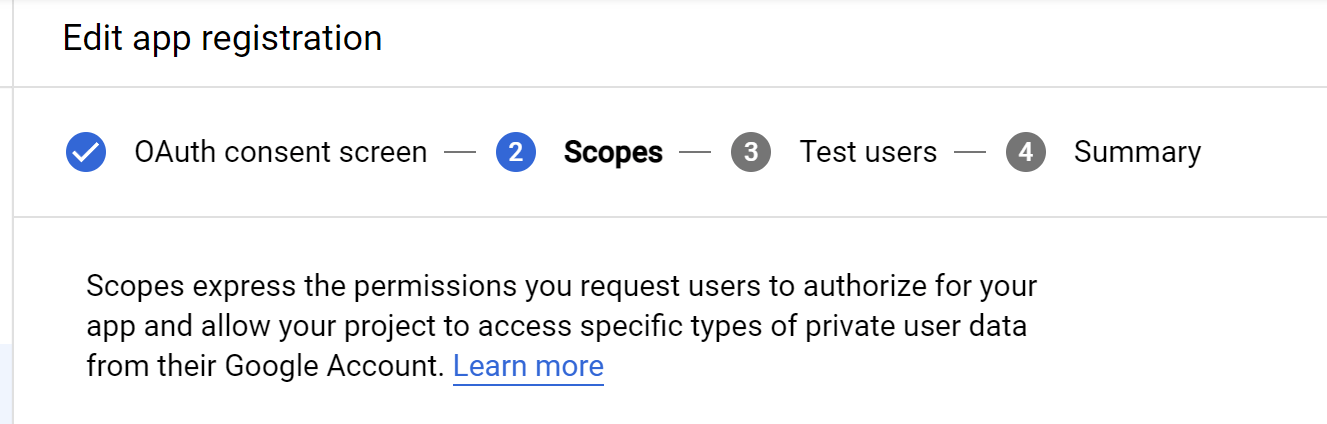
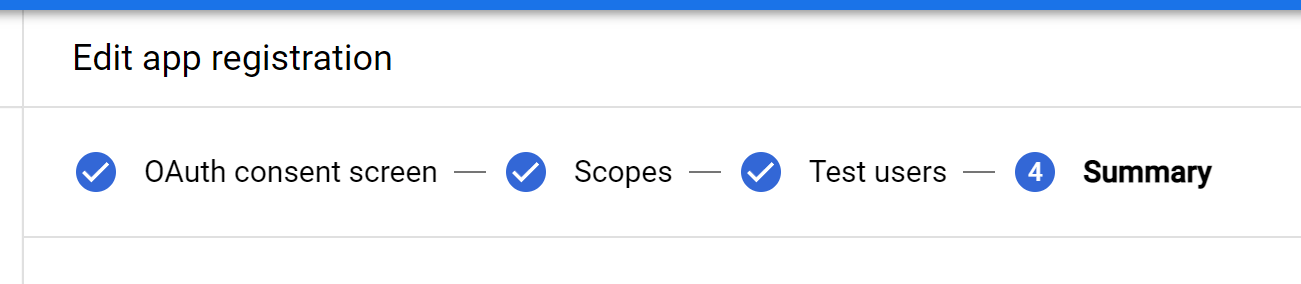
You don't need to fill in anything under Scopes – go on to the next step
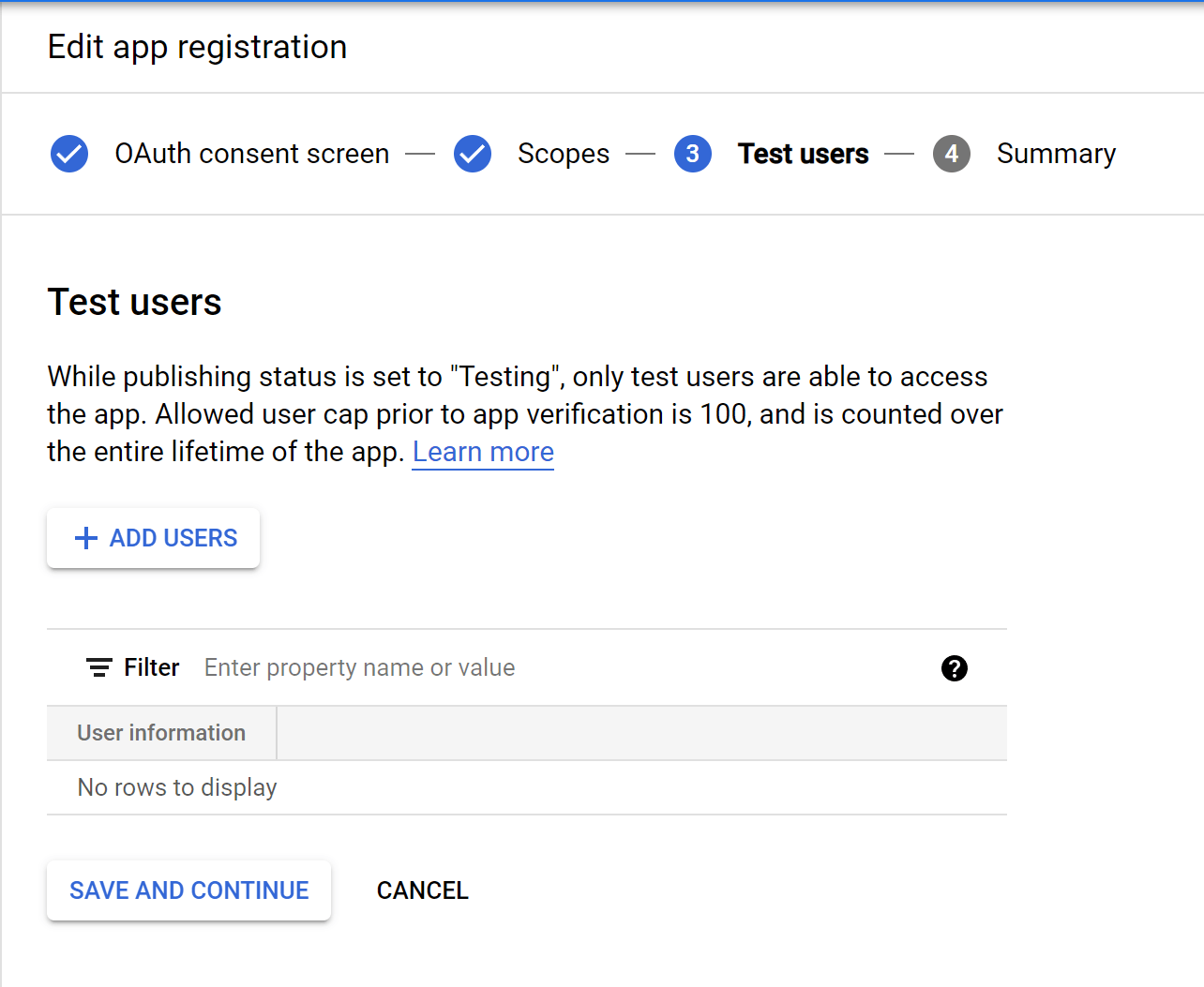
The same goes for Test users – go on to the next step
You now get an overview
Scroll down to the bottom and click

That's it – you can now continue with the guide to Google login here