
In this category Integrations
IntegrationsGoogle Shopping
Google Shopping via the API
On this page
Note: The integration uses Google's new Merchant API, which has replaced the Content API for Shopping (August 2026). If you have an older setup, see the guide to updating the integration.
If you have fewer than 25,000 products and a daily update of the product data for Google Shopping is enough, you can consider using this method with a product feed that Google fetches.
In the guide on this page, we show you how to use a more advanced method. It is a little harder to get started with. On the other hand, it sends updates to Google shortly after they happen and does not have the same limit on the number of products.
First, you need to connect your online shop to Google Merchant Center. Here's how:
-
Log in to Google Merchant Center and find your Merchant ID (Merchant Center account ID) at the top left – something like this:

-
Select and copy the number
-
Go back to your shop's admin
-
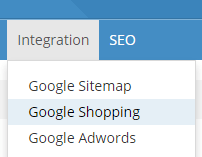
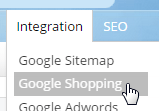
Here, point to the Integration menu item at the top and choose Google Shopping
-
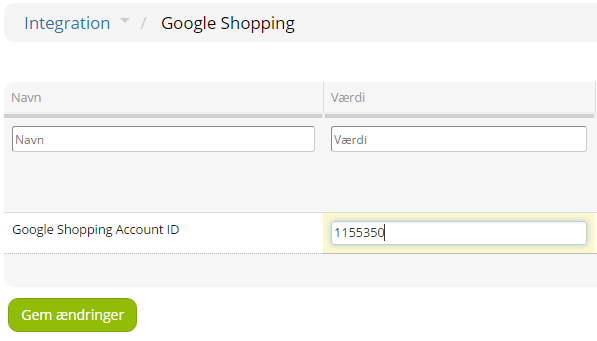
Paste your Merchant Center account ID – with the example above, it will look like this:
-
Click the Save changes button
-
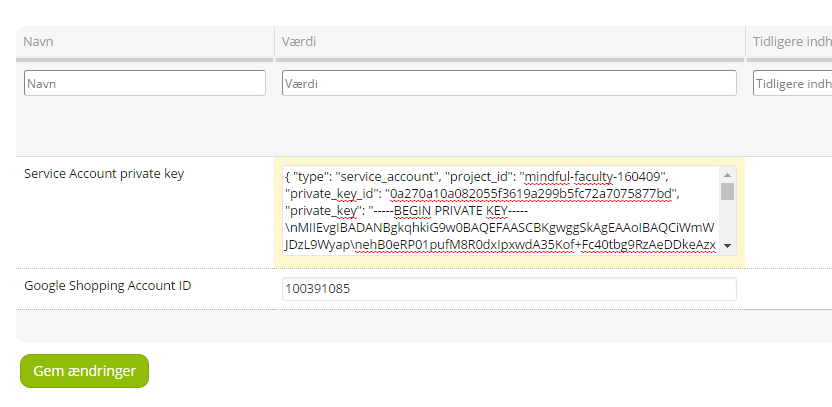
You now get a new field, Service account private key – this is where you paste your service key, which is a long text.
See the next section on how to find your service account private key.
-
Click Save changes
-
You can now configure your Google Shopping integration
Find your service account private key
-
Go to https://console.developers.google.com (opens in a new tab) – log in with your Google account
-
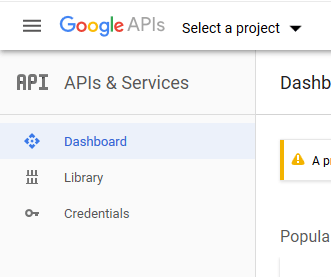
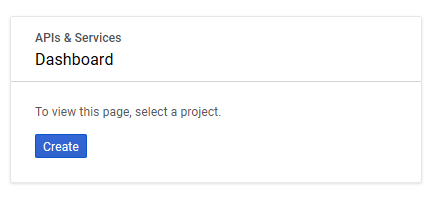
Go to Dashboard
-
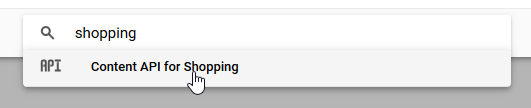
Search for “Merchant API” and select it
-
If you have a suitable existing project, select it – or click the Create button
-
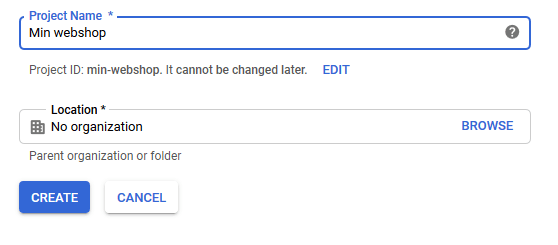
Give the project a name and click the Create button
-
It now takes a moment while the project is created…
-
Search for “Merchant API” again and select it
-
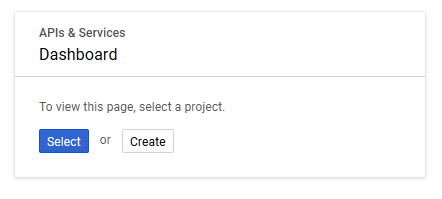
Click the Select button
-
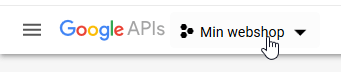
Click the name of your project. Alternatively, you can choose your project at the top left – reload the page if necessary
-
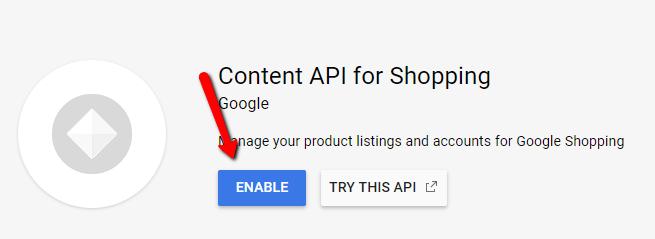
When you are here in Merchant API, click Enable. Enable Service Usage API in the same way, as the integration uses it too (see updating the integration).
-
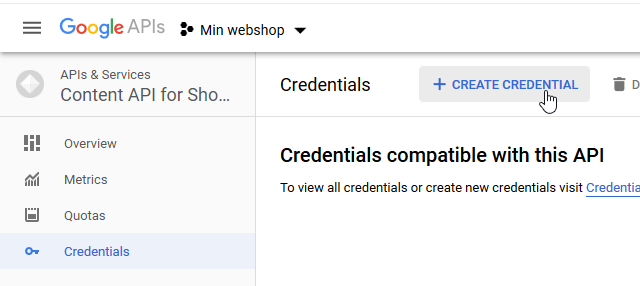
Then go to Credentials > Create credentials
-
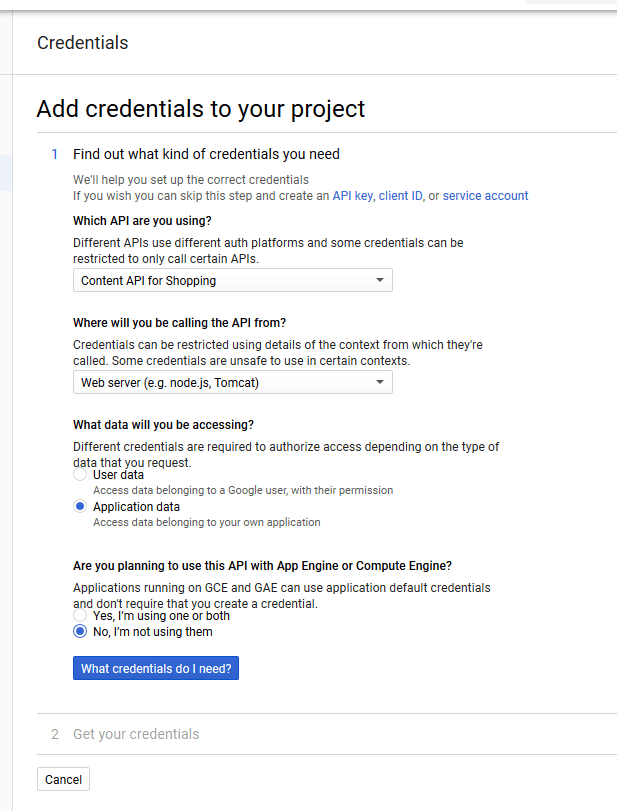
Fill in Add credentials to your project and click What credentials do I need?
-
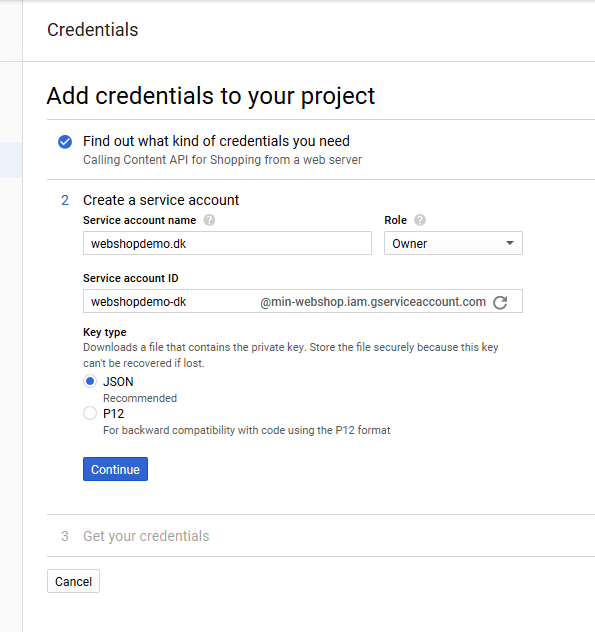
Next, like this, and click Continue:
-
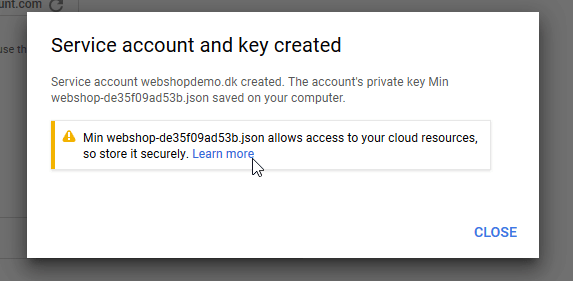
If you get a pop-up like this one, just click Close
-
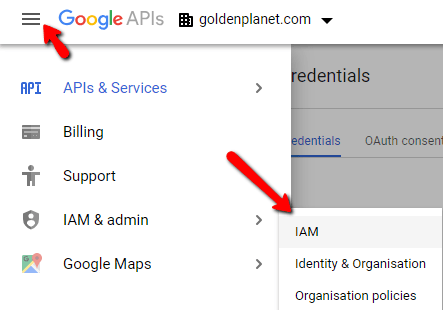
Click the three horizontal lines at the top left for the menu. Point to the IAM & Admin menu item and then click the first sub-item, IAM
-
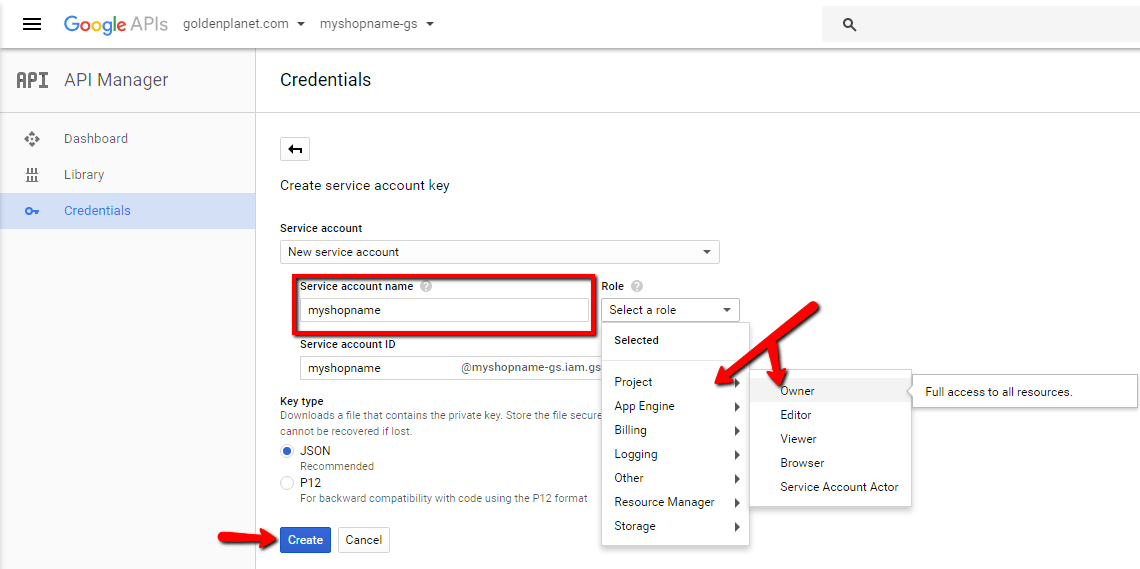
Choose New Service Account, give it a name, choose Project and then Owner under role. Click Create
-
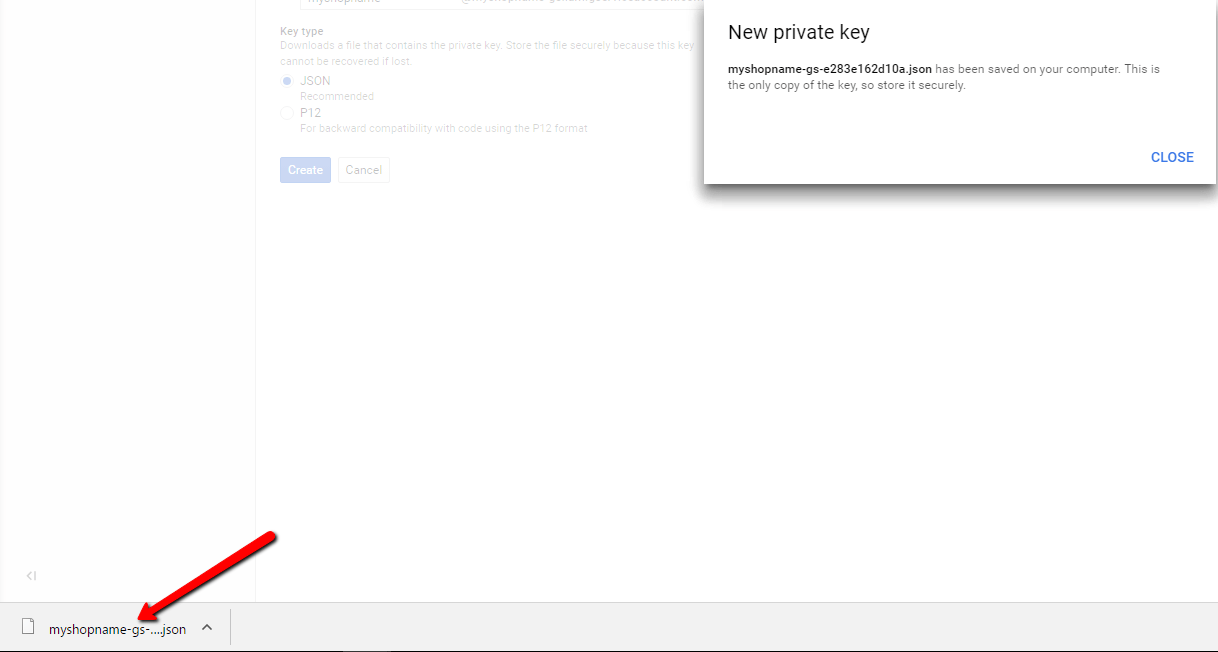
A private key is now downloaded to your computer. You will need this file in a moment – it must be opened in a text program such as Notepad.
-
Close the Service account and key created window
-
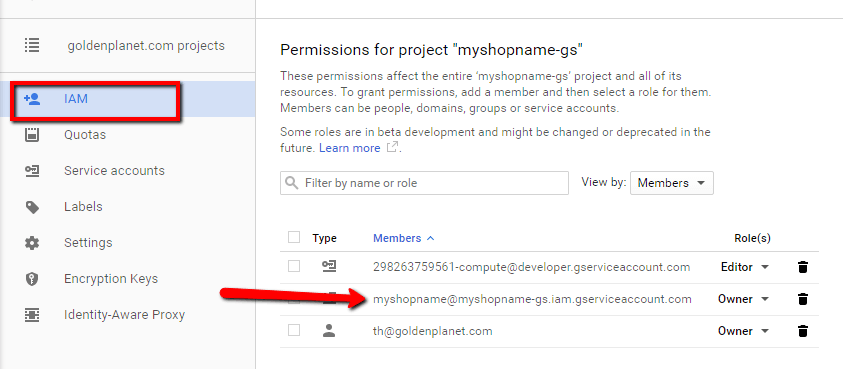
Now choose the 3 lines in the top left-hand corner and choose IAM & Admin > IAM
-
In here, copy (copy/paste: select it and press Ctrl+C) the Owner you have just created – it looks like a kind of email address with an @ after your shop name, depending on what you named your file.
-
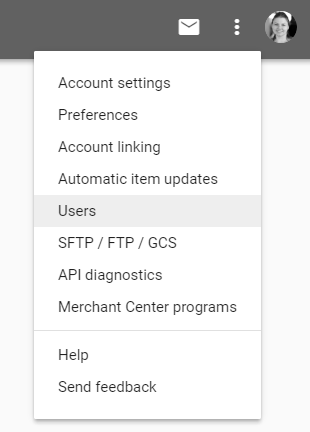
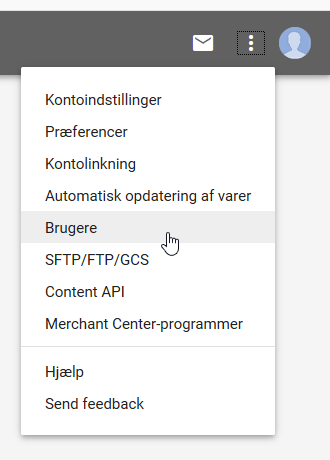
Then go back to your Google Merchant Center, and in the menu (3 dots) in the top right-hand corner, choose Users.
-
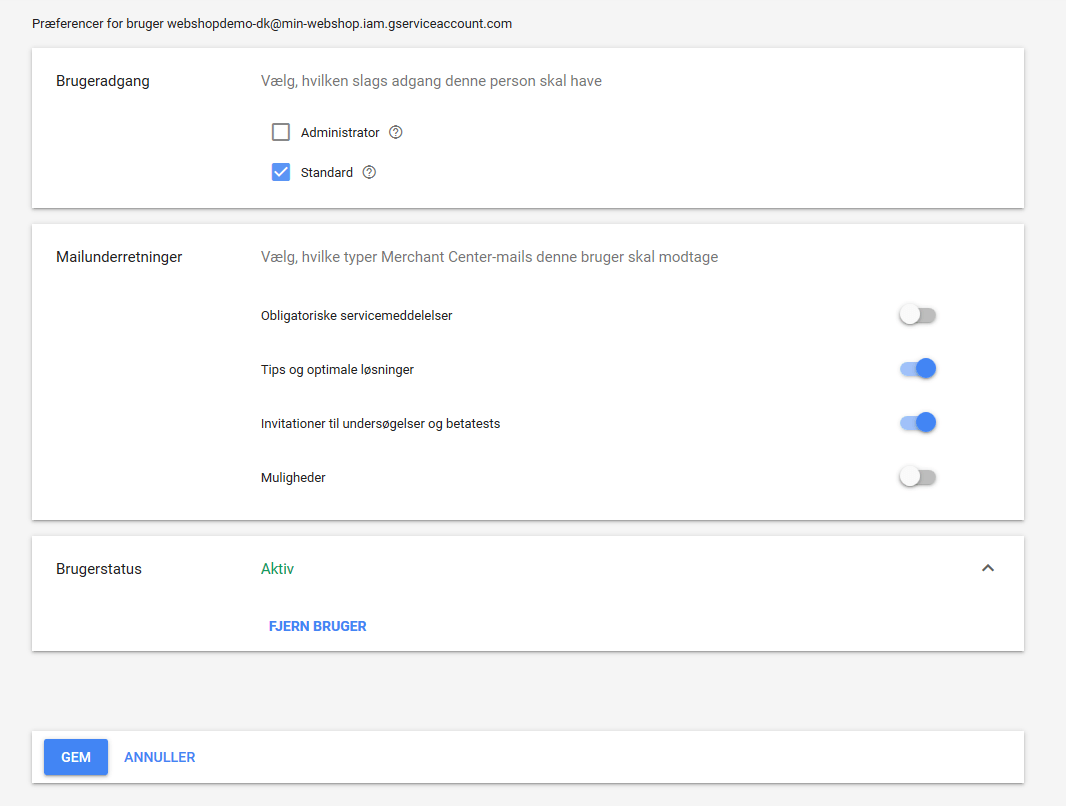
In here, add a new user (click the blue + sign) – paste the email address you have just copied (put the cursor in the field and press Ctrl+V) and click Add user.
-
On the next page, click Save
-
Then open the file that was downloaded to your computer – it must be opened in a text program, e.g. Notepad. Copy the code in it into the shop.
-
Now you can click Save changes, and you are ready to configure your Google Shopping integration.
-
To see that everything works, you can go to Tools > System tasks. After a short while, it will appear in the overview, either under Scheduled tasks or under Recently completed tasks.
../../symfony/app/backend/console google:shopping:updates –since=’last’ <- Look for this and click the blue 'i' to see how much has been transferred to Google Shopping.
Settings in your online shop: General
The page with the general settings for Google Shopping in your online shop looks like this:
Google Service account key
Your Google service account key – see further up how it is created and activated.
If you remove this code and click Save changes, your Google Shopping integration will be deactivated.
Google Shopping Account ID
Your account ID from Google Merchant Center.
Default category
Use this category if a product's main category does not have a specific Google category
Default condition
If you do not specify the condition on a specific product, use this condition
Default set products as adult content
The default adult content setting for all your products when they are exported to Google Shopping
Submit products with no images
Include products in the export even if they have no images (we do NOT recommend activating this!)
Minimum price for products to be submitted
Only submit products with a regular selling price higher than this value
Minimum profit on products to be submitted
Only submit products to Google if their profit (selling price – cost price = profit) is higher than this value
Submit products with no cost price
Submit products that have no cost price
Force update or creation of all products after next save
Forces Google Shopping to update all products
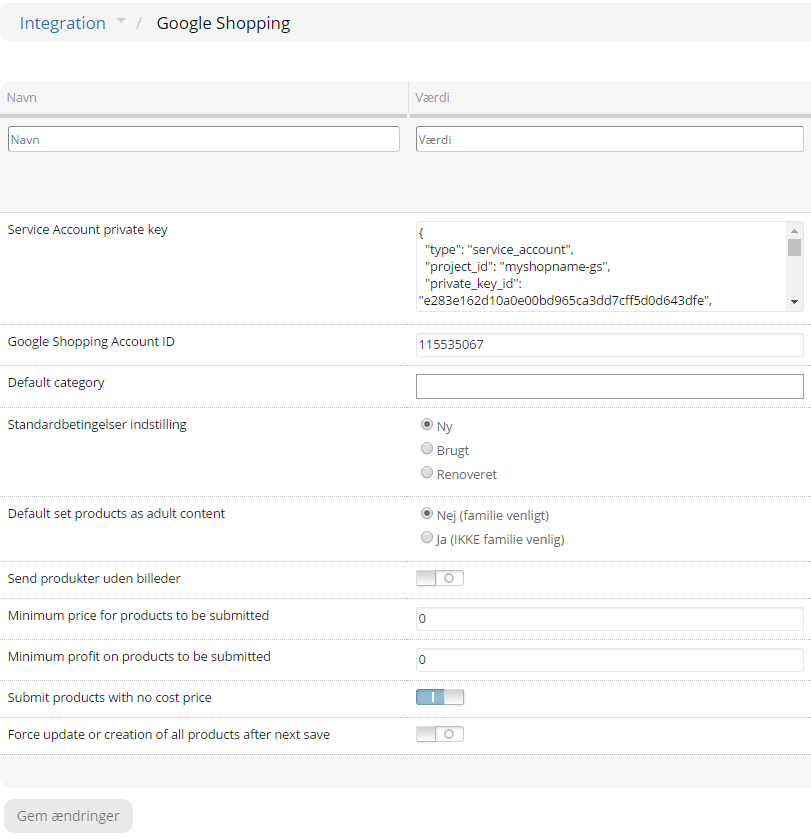
The settings for default category, condition and adult content are used for all products where you do not specify anything else, either on the individual product category or on the product itself.
Note that Google may require a category for certain types of products – more information here (opens in a new tab).
Send all products from your online shop to Google Merchant Center
In general, every product is transferred to Google Merchant Center each time it changes. For example, when you change the price or a product sells out. The same goes when you create a new product.
Note: Google requires that delivery directly to an address is possible. If it is not, Google will not approve you.
If you have changed the settings and want to make sure that all products are transferred to Merchant Center straight away, you can do the following:
-
Go to Google Shopping under Integration in your shop's admin
-
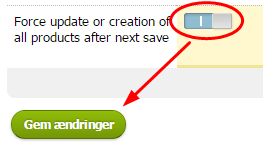
Set the on/off switch next to force update to ON and then click the Save changes button
Wait for your products to be approved
Once your products have been transferred to Google Merchant Center, each of them has to be approved by Google before they are shown in Google Ads and so appear as ads in searches on Google.
You can see whether a product has been approved by going to Products on the far left in Merchant Center. There should be a green tick in the Shopping column:
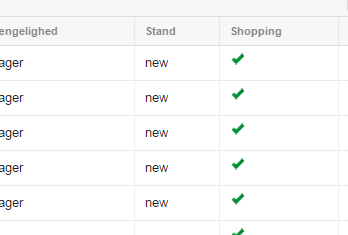
It can take several days from when a product is transferred until it has been approved by Google.
If you don't see any products in Merchant Center
If you don't see any products under Products in Merchant Center, here are some suggestions:
- Wait a moment. It can take a little while from when the transfer of products starts until they are shown in Merchant Center
- Check that the verified domain name in Merchant Center is exactly the same as the one your online shop runs on. If you have verified www.yourshop.com but your shop runs on yourshop.com (i.e. without www.), Merchant Center will reject your products
- Check the variants. Products with variants are not transferred until you have set them up specifically for it (see the guide a little further up this page)
- Check that the Merchant account no. is correct. If you work with a Merchant Center account that groups several accounts together (typically as an agency), check that you have entered the account no. for the specific domain name and not for the “umbrella account”
Stock settings in your online shop and Google Merchant Center
Your products are only shown in Google Shopping when they are listed as in stock.
If you run without stock management, all products will be shown in Google Shopping as in stock.
That means if Deduct from stock (in the stock settings under Product catalogue) is not activated, you are not using stock management, and all products are shown in Google Shopping as in stock.
If you have Deduct from stock activated, you are using stock management. How stock is shown in Google Shopping then depends on how you have set Manage how the stock icon shows stock levels under Content and layout > General settings.
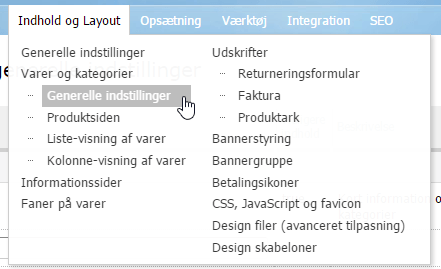

The settings work together with Google Shopping like this:
| Manage how the stock icon shows stock levels | Result in Google Shopping |
|---|---|
| Always show the icon based on the product's actual stock | Products are shown as in stock when at least 1 is in stock |
| Always show the icon as if the product is in stock | All products are always shown as in stock |
| Generally show the icon based on the product's stock, but always show as in stock for products with “Sell without stock” | Products are shown as in stock when: at least 1 is in stock OR Sell without stock is activated on the product's Data tab. |
If you change settings other than those on the individual product (e.g. general stock settings), you need to transfer all products for the change to take effect in Google Shopping. Here's how:
- Go to Google Shopping under Integration
- Activate the Force update option at the bottom
- Click the Save button.
Note that if you have a lot of products, it can take several hours for Google Shopping to update all of them.